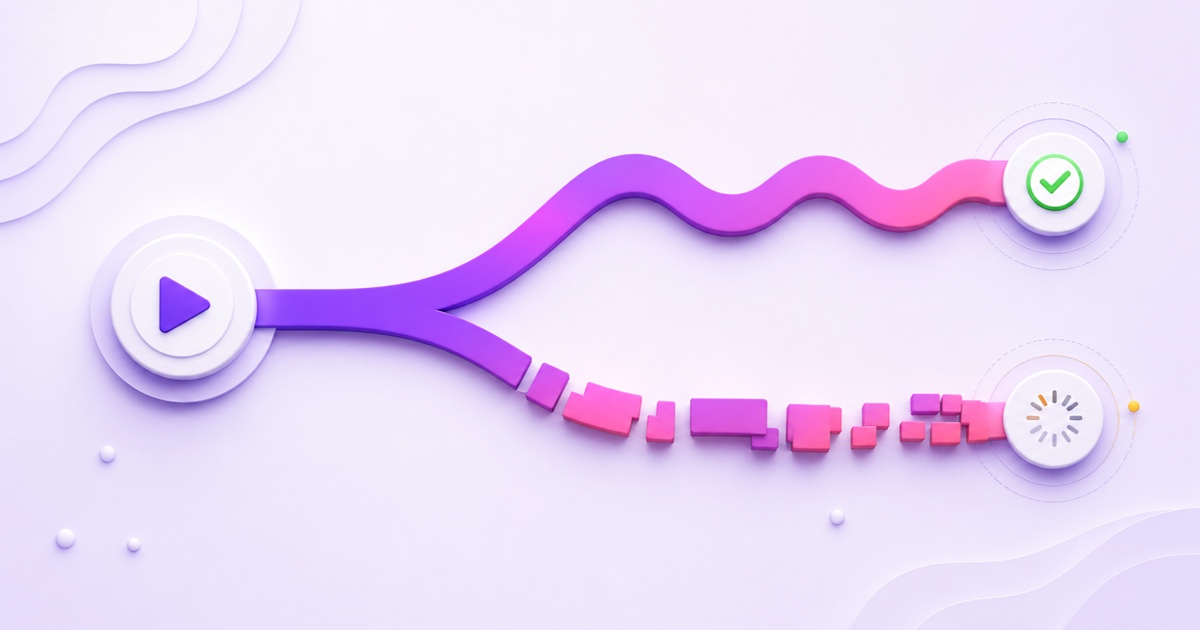
“Lagging bro” is useful feedback, but it is not a diagnosis. The same spinning circle can be caused by your encoder failing to upload a steady feed, a single viewer's weak hotel Wi-Fi, an overloaded phone, or a rare platform incident. Changing bitrate before identifying the side of the failure can make a healthy stream worse.
A reliable live stream buffering fix starts with one question: is everyone buffering, or only some viewers? Answer that first, then use the health panel and a small test kit to confirm the cause. You should be able to route most cases in five minutes.
The fork that solves half the battle
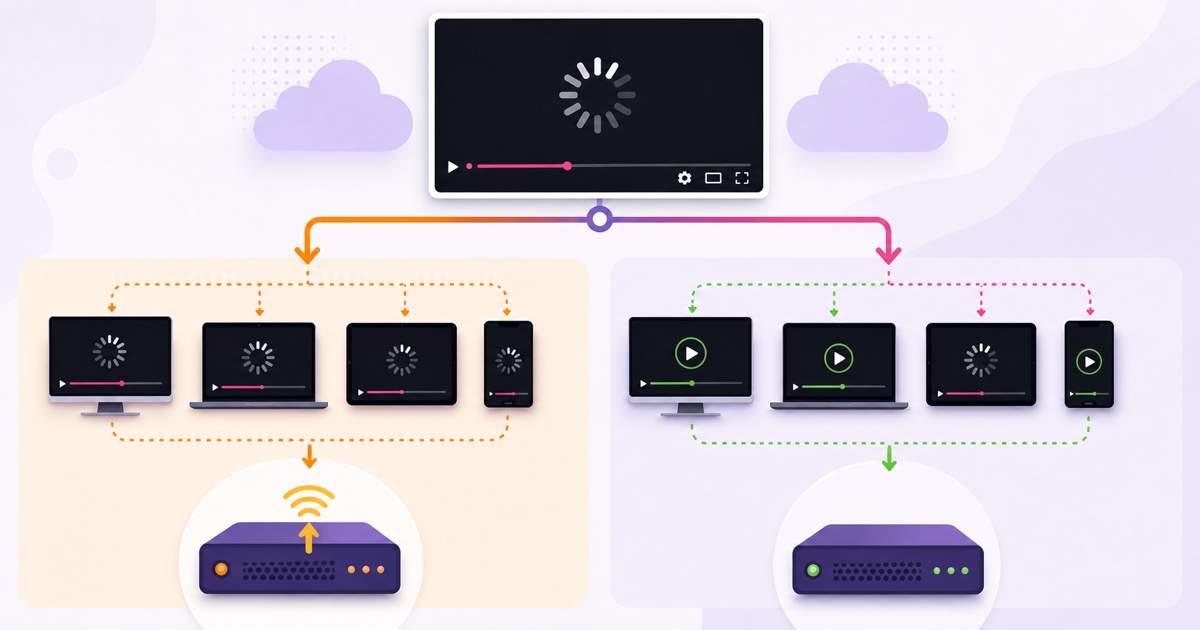
Encoder-side trouble happens before the video reaches the platform. If your upload drops, the encoder stalls, or the machine cannot produce frames on time, the platform receives a damaged or intermittent feed. Viewers in different cities and on different devices tend to complain together, while the platform's stream-health area records warnings.
Viewer-side trouble happens after the platform has accepted a healthy feed. One person's connection, ISP route, selected quality, browser, or device cannot keep playback buffered. Other viewers continue normally and your ingest health stays clean. This is a first-pass diagnostic, not a law: a regional platform fault can also affect a subset of viewers. Use the next checks to confirm.
| What you observe | Platform health | Likely side | First move |
|---|---|---|---|
| Complaints arrive from many viewers at once | Warnings or input gaps | Encoder or upload | Check upload stability, dropped frames, and CPU |
| One or two people buffer; others are fine | Clean | Viewer | Test their quality setting, connection, and device |
| Several people in one region fail | Clean | ISP route or platform region | Test from another network and city |
| Your preview and all test devices fail | Warnings or no input | Encoder or platform | Read the timestamped health message before restarting |
Working rule: everyone + health warning points upstream; some viewers + clean health points downstream.
Read the health panel before changing anything
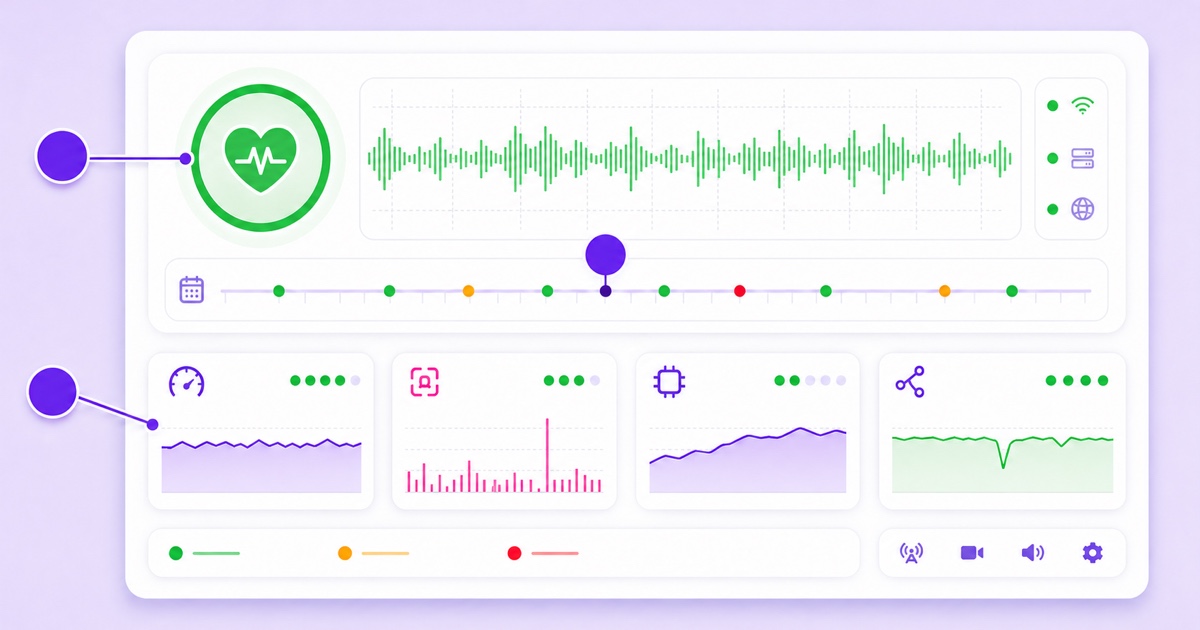
On YouTube, open YouTube Studio → Create → Go Live → Stream. In Live Control Room, inspect Stream health and expand the Health Indicator. YouTube's current help pages call the summary “Stream status”; specific messages appear beside the indicator with timestamps. Yellow messages indicate degraded quality, while red messages are critical and can prevent a stream from starting or cause viewer problems. The official live-streaming error reference explains messages for bitrate, keyframes, resolution, format, and audio.
Do not read only the current green state. Match the warning's timestamp to the minute chat complained. A stream can recover before you open Studio, leaving the event marker as the useful clue. YouTube also keeps video-level performance data after the broadcast; its live metrics guide separates Stream health from real-time viewer analytics.
For Facebook, go to facebook.com/live/create → choose where to post → Go live → Streaming software. Start the encoder and wait for the live preview. Watch that preview and any connection or format warnings before pressing Go Live Now. Meta's public help text changes more often than the underlying checks, so act on the exact message shown instead of hunting for a remembered green-status label. Its streaming-software setup confirms this preview path.
Take a screenshot of the panel while the problem is active. Record the time, reported bitrate, dropped frames, CPU load, and the exact warning. That evidence is much better than “it lagged around dinner.”
Encoder-side causes and fixes
Your upload is fast but not steady
A speed test shows a short peak; a live stream needs sustained upstream capacity. Keep roughly 2× upload headroom: a 4.5 Mbps video feed should have about 9 Mbps of stable upload available, not a result that briefly touches 5 Mbps. Run a longer test, watch packet loss and jitter, and repeat at the time your stream usually fails.
Use Ethernet from encoder to router. If wired is impossible, move close to the router, use a clean 5 GHz or 6 GHz channel, and keep other devices off that band. Wi-Fi can show excellent download speed while producing upstream jitter that starves an encoder.
The encoder cannot finish frames on time
CPU saturation normally appears as encoding lag, skipped frames, or a rising render-time metric. Close heavy browser tabs, games, editors, and background exports. Use a supported hardware encoder when appropriate, or reduce frame rate and resolution one step. If you are playing a finished video file, a pipeline that needlessly compresses it again adds both compute load and quality loss; see the guide to copy-mode streaming.
Heat turns a good start into a bad hour
An overheating laptop may work perfectly for 20 minutes, throttle its processor, then start dropping frames. The confirming pattern is temperature and fan noise rising while encoder performance falls. Clear the vents, move the machine off fabric, use a cooling stand if needed, and test for at least as long as the usual time-to-failure.
Another device is consuming the headroom
Cloud backups, phone-photo sync, software updates, and someone uploading a large file can flatten your upstream. Even a household download can add router congestion. Pause the competing job, enable sensible router QoS if you understand it, and retest one change at a time.
A datacenter-side encoder removes the home-power, home-upload, laptop-load, and laptop-heat variables from the send path. It does not repair a viewer's weak connection or a platform incident. For intermittent encoder disconnects rather than playback buffering, use the separate YouTube disconnect diagnosis.
Viewer-side causes and honest limits
If health is clean and only one person reports lag, ask them to change the player from Auto to a lower quality. On YouTube desktop, they can also right-click the player and open Stats for nerds. “Buffer Health” shows how much video is ready ahead of playback; a value that repeatedly collapses while your ingest stays healthy points toward delivery to that viewer, not your encoder.
- Weak connection: test the same stream on mobile data versus Wi-Fi. If one works, the failing network is the lead.
- Auto-quality overshoot: select 720p or 480p manually. Auto can react late on an unstable connection.
- ISP peering or regional congestion: another network in the same home may work while the usual ISP route struggles.
- Device decode limits: an old phone, TV app, or overloaded browser may stutter on a rendition that a newer device plays smoothly.
You cannot tune another person's hotel Wi-Fi from your dashboard. You can ask for the device, network, selected quality, city, and exact time, then design the stream more kindly. “Clear your cache” is not a universal live stream buffering fix; use it only when evidence points to a browser-specific failure.
Design for weak connections
Start with a sensible ceiling. A detailed 1080p tutorial may justify more bits; a devotional audio loop, lofi radio, or mobile-first ambience channel may serve viewers better at clean 720p. The right number depends on content and platform, so use the 720p versus 1080p bitrate guide instead of assuming higher is automatically better.
Set a two-second keyframe interval. YouTube currently recommends two seconds and says not to exceed four; Meta's Facebook Live format guide also specifies two seconds. YouTube warns that infrequent keyframes can cause buffering. Confirm this in your encoder as “Keyframe Interval,” “GOP,” or, at 30 fps, a 60-frame interval. Do not confuse it with frame rate.
Latency is another deliberate trade-off. YouTube says Normal latency gives the player more read-ahead buffer and the lowest viewer-buffering risk; Low and Ultra-low latency favor chat responsiveness but leave less cushion. For a pre-recorded 24/7 loop with little real-time interaction, choose Stream settings → Stream latency → Normal. The platform's latency guide explicitly notes that lower latency can increase buffering.
Lowering a stream from 1080p to 720p can help viewers on constrained links, but it will not cure an encoder that is dropping frames or an upload that keeps disappearing. Fix the sick sender first; optimize the delivery profile second.
Use this three-network test kit
- Open the platform health panel. Note the state and timestamp before touching settings.
- Watch on a second phone using mobile data. Turn Wi-Fi off so this test does not share your encoder's connection.
- Watch in an incognito desktop window on broadband. This removes your creator-session view and tests a normal viewer path.
- Ask one trusted person in another city. Request the exact minute, device, network, and selected quality—not just “working” or “lagging.”
- Change one variable. Try Ethernet, pause competing traffic, or lower one output setting. Observe for 10–15 minutes before the next change.
If all three viewing paths buffer and health reports input trouble, work backward through encoder and upload. If only the phone on mobile data buffers, your sender is probably fine. If two cities fail while ingest stays healthy, collect evidence before blaming either creator setup or platform.
When it is genuinely the platform
Platform incidents are real, but they should be the conclusion after triangulation. Look for clean encoder metrics, a clean ingest panel, simultaneous failures across unrelated networks, and reports from other creators. YouTube posts confirmed known issues in its official Help Community; broader Meta business incidents appear on Meta Status. A regional playback fault may not appear immediately, so keep your timestamps and test results.
During a confirmed incident, avoid changing five encoder settings or repeatedly restarting a healthy feed. Preserve the working configuration, communicate with viewers, and monitor the official update. If the incident causes a full disconnect, a measured recovery policy is safer than frantic manual retries; the auto-restart guide explains detection, backoff, and give-up rules.
For pre-recorded channels, StreamNeo runs the encoder in the cloud, away from home upload and laptop-load failures. You can start a 24-hour free trial with no card, test the same video on multiple networks, and compare the result with your current setup. Check the plans only after the test tells you which side was actually failing.
More from the journal: Why Your 24/7 Stream Buffers for Viewers but Not for You · Limited or No Ads on a Live Stream: Causes and the Review Path · Watch Hours From Shorts vs a 24/7 Stream: Which Path Is Faster?
FAQ
Stream health says Excellent but one viewer lags—whose problem is it?
The evidence points to that viewer's path: connection, ISP route, quality selection, browser, or device. Confirm by asking them to lower quality and switch between Wi-Fi and mobile data. Keep a reasonable bitrate ceiling, but do not destabilize a healthy encoder to chase one isolated report.
Does lowering to 720p stop buffering?
It can help weak-connection viewers because each second of video needs fewer bits. It will not fix encoder overload, dropped frames, overheating, or an unstable upload. Use the health panel first, then lower resolution or bitrate only when delivery capacity is the actual constraint.
Wired versus Wi-Fi—how much does it matter?
For a sustained upstream feed, it matters a lot. Ethernet removes radio interference, roaming, and much of the jitter that makes Wi-Fi unpredictable. Peak speed is not the main issue; consistency is. A modest wired connection with headroom is usually safer than a faster Wi-Fi result that swings every few seconds.