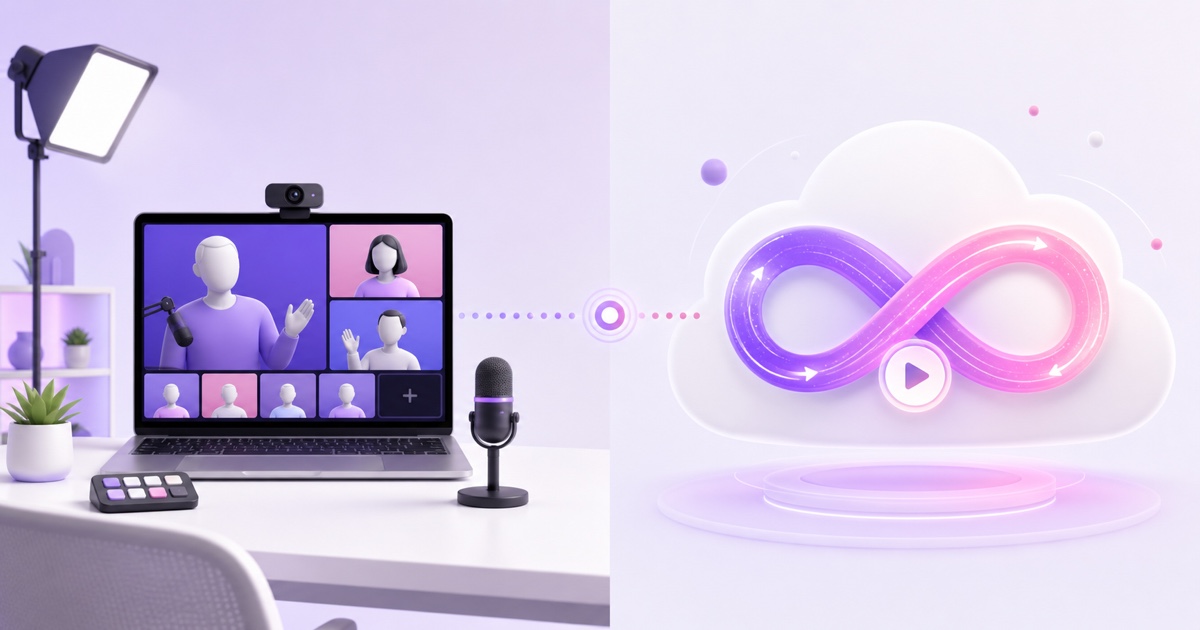
If you already enjoy producing shows in StreamYard, asking it to run your always-on channel sounds sensible.One subscription, one dashboard, one less tool.The catch is that a produced live show and a continuous video loop are two different operating jobs.
Disclosure: StreamNeo publishes this comparison and provides the cloud-loop side of it.We checked StreamYard’s public pricing and help documentation on 26 July 2026.StreamYard deserves credit where it is strong, and its current documentation corrects a common misconception: it can loop a video clip inside the Studio.The real question is whether that Studio workflow matches the unattended channel you want to run.
Short answer: choose StreamYard when people, live control and presentation are central to the show.Choose a cloud loop service when a finished video or playlist must keep broadcasting without an operator, browser session or creator device staying involved.Use both when you produce weekly shows and also want a permanent replay channel.
What StreamYard is brilliant at
StreamYard is a browser production studio, and that focus makes it unusually friendly for interviews, panels, webinars and launches.A host can open StreamYard Home → Create → Live stream → Studio, select destinations, invite guests with a link and arrange the show without building a complicated local encoder scene.
Inside the Studio, the producer can switch layouts, display banners and viewer comments, add logos, overlays, video clips and backgrounds, and move guests on or off stage.Paid plans add 1080p output and multistreaming; StreamYard’s current public pricing page lists three destinations on Core and eight on Advanced.Those are meaningful tools when a human is making editorial decisions in real time.
The guest workflow is another genuine advantage.A speaker does not need to understand RTMP, scenes or capture cards.They follow a link, check their camera and microphone, and wait backstage until the host brings them in.For a founder interview, coaching session, live panel or product launch, this removes a lot of production friction.
Even scheduling reflects the live-show model.A normal scheduled Studio broadcast creates the destination post, but StreamYard’s official live-stream instructions say the host still enters the Studio and clicks Go Live.That is not a flaw.It is the correct design for a show that somebody is directing.
The always-on test
A proper always-on test is simple: can the same finished content continue playing through ordinary laptop shutdowns, browser closures and days when nobody opens a studio?StreamYard has two relevant prerecorded paths, and mixing them up leads to bad buying decisions.
Path 1: scheduled pre-recorded streaming
From Home → Create → Live stream → Pre-recorded video, you can upload a finished video, select destinations, set a date and time, and create the broadcast.This path is genuinely cloud-run: StreamYard says the broadcast starts even when you are not online.It then ends when the uploaded video finishes.
File duration is limited by plan.StreamYard’s current documentation allows up to two hours on Core, four hours on Advanced, and eight hours on Teams and Business.The Free plan does not include pre-recorded live streaming.These are file and broadcast-job limits, not a hidden endless-loop mode.
Path 2: loop a video clip inside the Studio
StreamYard also documents a real looping feature: enter a broadcast Studio, open Media assets → Video Clips, then check Loop.According to its video-loop help page, that clip repeats indefinitely until it is manually stopped.
So “StreamYard cannot loop video” is inaccurate.The important qualifier is inside the Studio.This is an operator-controlled live production session rather than the scheduled pre-recorded path.A host starts the broadcast and controls the clip from the browser Studio.StreamYard recommends a stable connection for Studio participants, while its separate Business offering advertises disconnection protection.Do not assume a self-serve Studio loop has the same unattended restart behaviour as a purpose-built loop service; confirm the exact protection included in the plan you are buying.
There is also a plan-limit nuance.StreamYard says its paid plans do not impose an overall streaming-hours cap, although destination platforms can impose their own limits.That means a paid Studio broadcast with a looping clip can run for a long time.Operationally, however, you are still using a live Studio session as your playout system.For a special holding screen or a staffed event, that can be completely reasonable.For a channel expected to recover and continue without a producer, it is a different risk model.
What a cloud loop service changes
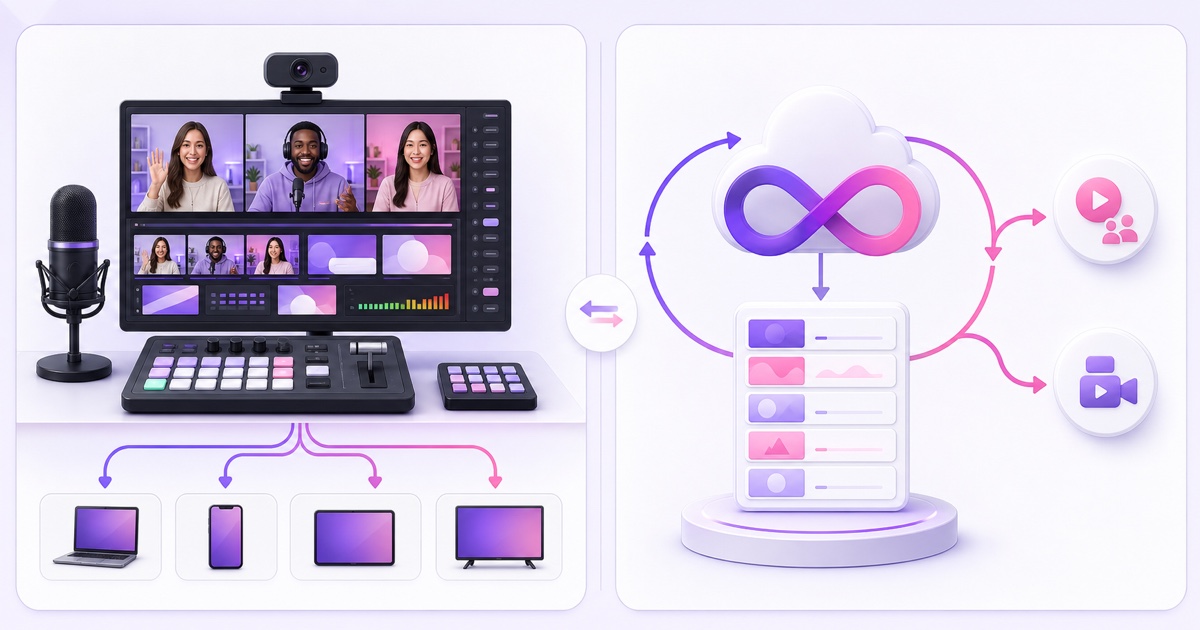
A cloud loop service starts from the opposite assumption: the video file is the programme, and the server is the operator.You upload a video or playlist, connect the destination’s stream details, start the loop, and let the remote encoder keep pushing the feed.Your webcam, microphone and browser are not part of the playout chain.
That distinction matters more than the word “cloud,” because StreamYard is itself a cloud platform.The difference is the lifecycle.StreamYard’s automatic pre-recorded job starts once and ends with the file.Its Studio loop belongs to an active broadcast session.A dedicated loop job is designed to repeat the file or playlist as its normal state.
For an ambience channel, a devotional audio-video programme, a lofi radio feed or a webinar-replay channel, the practical target is usually:
- upload once and run the encoder server-side;
- repeat the complete file or playlist without manual replay clicks;
- keep the creator’s laptop and home connection out of the critical path;
- show clear channel status from a phone-friendly dashboard;
- recover from an interrupted output without rebuilding a Studio session.
Ask every vendor how it handles that last point; “runs in the cloud” alone is not a recovery promise.For a wider category explanation, see why relay and loop services solve different jobs.If you are comparing several loop vendors, use the 24/7 streaming services comparison as your shortlist.
Pricing the two jobs
Pricing is only useful after the job is fixed.The figures below were checked against StreamYard’s public pricing page and StreamNeo’s pricing page on 26 July 2026.StreamYard can change prices or present account-specific offers, so confirm the final checkout amount before paying.
| Tool or plan | Published price | Relevant pre-recorded limit | What the price mainly buys |
|---|---|---|---|
| StreamYard Free | $0 | No pre-recorded live streaming | Basic branded live Studio |
| StreamYard Core | $44.99/month on monthly billing | Uploaded pre-recorded video up to 2 hours | 1080p Studio, branding, 3-destination multistreaming and production features |
| StreamYard Advanced | $88.99/month on monthly billing | Uploaded pre-recorded video up to 4 hours | More destinations, participants and professional Studio features |
| StreamYard Teams or Business | Confirm in account or with sales | Uploaded pre-recorded video up to 8 hours | Team or business workflows and higher limits |
| StreamNeo India daily | ₹49/day | Purpose-built continuous loop job | A short always-on campaign without a monthly commitment |
| StreamNeo India monthly | ₹999/month | Purpose-built continuous loop job | A full-month always-on channel |
| StreamNeo international | $9.99/month | Purpose-built continuous loop job | A full-month always-on channel |
The India arithmetic is straightforward: 30 daily passes would total ₹1,470, so ₹999 monthly is the better StreamNeo option when the channel is intended to run throughout a 30-day month.The daily plan is for a shorter campaign, festival window or test period.
That still is not a claim that one subscription replaces the other feature for feature.StreamYard Core buys a guest-ready production studio plus its limited-duration scheduled pre-recorded feature.StreamNeo pricing buys the loop job; it is not payment for guest interviews, banners or live scene direction.Check the current StreamNeo pricing before checkout.
Where each wins
| Your primary job | Better starting point | Reason |
|---|---|---|
| Live interview or podcast | StreamYard | Guest links, backstage control, layouts and live comments are central. |
| Panel, launch or webinar | StreamYard | A producer can direct speakers, branding and audience interaction. |
| One scheduled pre-recorded premiere | StreamYard | The automatic pre-recorded path starts without the host and ends with the video. |
| Short staffed loop during an event | StreamYard Studio | Video Clips can loop indefinitely while the Studio broadcast is being operated. |
| 24/7 ambience, lofi or radio-style channel | Cloud loop service | The playlist, not a live production desk, is the programme. |
| Always-on bhajan or devotional programming | Cloud loop service | Server-side playout removes the creator’s phone or laptop from the continuous chain. |
| Permanent webinar or episode replay channel | Both | Produce with StreamYard, then publish the finished catalogue through the loop service. |
There is no fake loser here.If a guest is about to join, a playlist-only product is the wrong control room.If a finished four-hour catalogue must repeat for weeks without someone staffing a browser Studio, paying mainly for guest and overlay controls is a mismatch.
Using both together
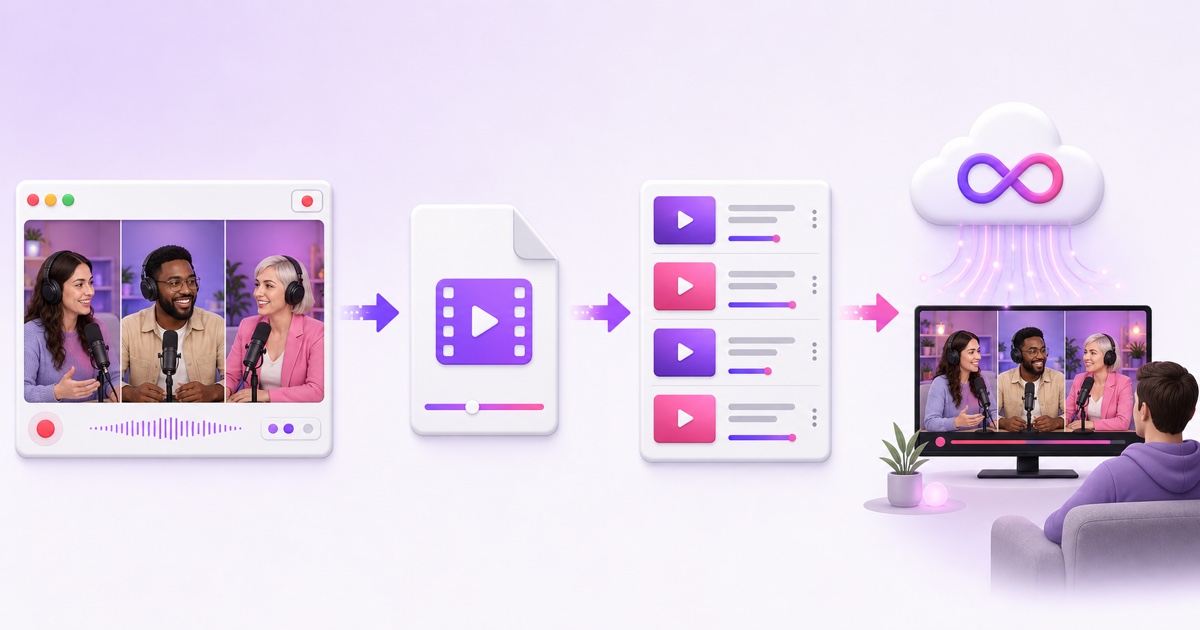
The strongest workflow for many creators and agencies is not StreamYard versus StreamNeo.It is StreamYard first, cloud loop second.The production tool creates the programme; the loop tool distributes the finished library continuously.
- Produce the weekly show. In StreamYard, create a Studio, invite guests, set the layout and branding, then go live or record.
- Download the clean master. After processing, open StreamYard Library → select recording → Download.Keep a local master before repurposing it.
- Edit for replay. Remove dead air and time-sensitive housekeeping.Add any intro, outro or calls to action directly to the exported video because an automatic replay will not have a producer changing overlays.
- Export a streaming-friendly file. For the replay export, use an MP4 container with H.264 video and AAC audio.Watch the finished export once and confirm you own or have permission to rebroadcast every visual and music element.
- Create the destination stream. For YouTube, open YouTube Studio → Go Live → Stream, create or select the stream, and handle the stream key as a password.Do not paste it into chat or public documents.
- Build the loop. Upload the episode to StreamNeo, add other approved episodes to the playlist if needed, connect the destination and start the server-side stream.
- Verify the public result. Check the destination watch page for video, audio, title and thumbnail.Then close the creator device and recheck status from another connection.
An agency can repeat steps one through four for each client’s monthly production day, then maintain separate approved replay libraries.A solo educator can air one live Q&A each week and let edited lessons fill the rest of the schedule.For the webinar-specific version, read the always-on webinar replay playbook.
If your content is already finished and the remaining job is unattended repetition, start free — 24-hour trial, no card.Test the exact channel workflow before deciding whether it belongs beside your StreamYard setup.
FAQ
Can StreamYard stream 24/7?
StreamYard says its paid plans have no overall streaming-hours limit, subject to the limits of each destination.A Studio video clip can also loop indefinitely until manually stopped.That makes a long Studio broadcast technically possible, but it remains an operator-controlled Studio workflow.StreamYard’s automatic pre-recorded path is different: it starts cloud-side without you online, then ends when the uploaded video ends, with file caps of two hours on Core, four on Advanced, and eight on Teams and Business.
Can I loop a video in StreamYard?
Yes.Enter a StreamYard broadcast Studio, open Media assets → Video Clips, and enable Loop.StreamYard’s documentation says the clip repeats indefinitely until manually stopped.Its separately scheduled pre-recorded feature is not described as a looping feature; that broadcast ends when the selected video finishes.
Which is cheaper for always-on?
For the narrow job of continuously repeating finished content, StreamNeo is ₹999/month in India or $9.99/month internationally, while StreamYard’s public monthly prices start at $44.99 for Core and $88.99 for Advanced.The table above matters because these are different purchases: StreamNeo is priced for a loop job, while StreamYard includes a full live-production Studio.If you need both weekly guest shows and a permanent replay feed, the useful answer may be both tools rather than the nominally cheaper single subscription.