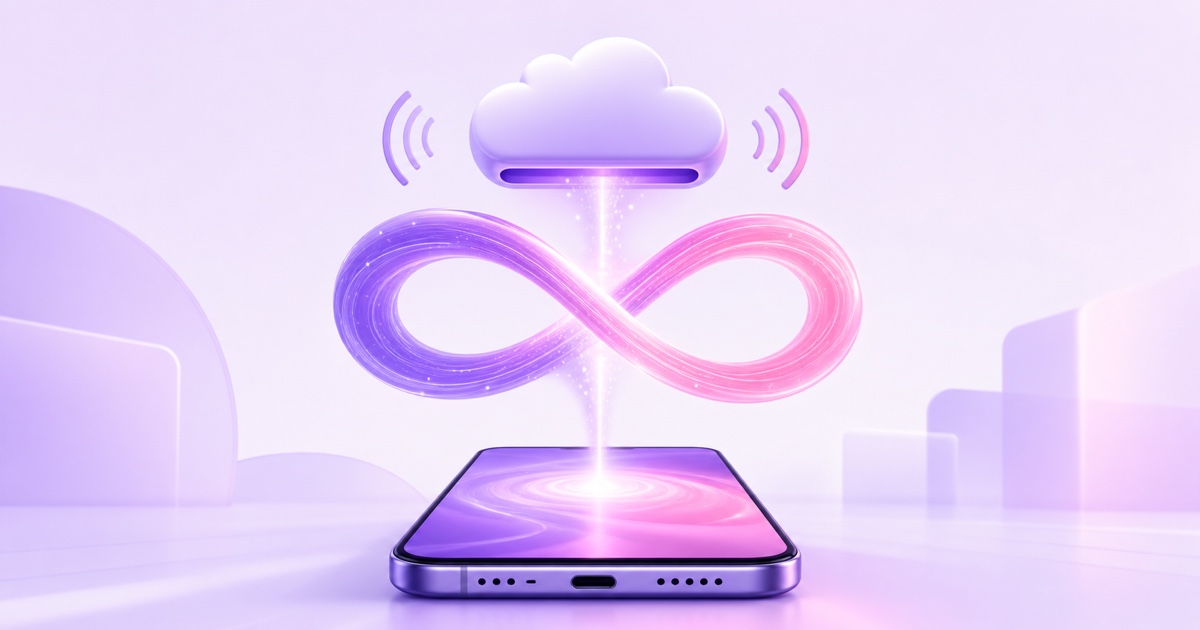
If your only device is a phone, the honest answer is not to turn that phone into a permanent encoder.A handset can broadcast its camera for a live session, but asking it to encode and upload video every second of every day means constant charging, heat, app interruptions and mobile-network hand-offs.
A workable mobile-only setup separates control from work.Your phone records the video, uploads it and tells a cloud encoder what to play.The cloud service then sends the continuous feed to YouTube or Facebook while your phone is locked, offline or back in your pocket.That distinction is the key to choosing a live streaming app without computer access.
The hard truth: your phone should control the stream, not carry it
A normal camera-live app captures frames, encodes them and uploads them in real time.Stop the app, lose signal, receive an aggressive battery-saving intervention or let the device overheat, and the contribution stops.That workflow is fine for a temple event, a gaming session or an outdoor Q&A.It is a poor foundation for a 24/7 bhajan, lofi or ambience channel.
A cloud loop reverses the dependency.You upload an MP4 once.The remote encoder reads that stored file repeatedly and pushes it to the platform using your stream key.After launch, your SIM is not sending every viewing minute and the handset does not have to remain awake.
Useful mental model: the phone is the remote control; the cloud encoder is the machine doing the broadcast.
This does not bypass YouTube or Facebook requirements.The channel still needs live access, compliant content and a valid stream key.A third-party tool changes where encoding happens, not the rules of the destination platform.
What YouTube’s own app allows
As of July 2026, YouTube says creating a mobile live stream in its own app requires at least 50 subscribers, channel verification, no live-streaming restrictions in the previous 90 days and live streaming to be enabled.The first activation may take up to 24 hours.YouTube also applies its current minimum-age rule to live streaming.Check the official mobile live requirements before planning an event.
The YouTube app is designed for a live camera or phone-screen session.Its documented flow is YouTube → Create → Live, followed by the stream details and Go live.It does not take a stored two-hour MP4, move it to a cloud encoder and loop it indefinitely after the phone disconnects.
YouTube treats encoder streaming as another method.In Live Control Room, you create a stream, copy its stream URL and stream key, then give those credentials to an encoder.The official encoder guide describes that route.For a cloud-loop service, the encoder happens to be remote rather than software running on a PC.
So the 50-subscriber threshold answers a narrow question: can you start camera live directly from the YouTube mobile app?It is not a promise that any channel can ignore normal live-access checks by using an external app.No legitimate tool can override a restriction on your channel.
The mobile-first checklist
Many services say “cloud-based”, yet their upload screen or configuration flow still assumes a large monitor.Before paying, run the entire trial from the phone you actually use.These four checks matter more than an app-store badge.
- Usable phone interface: sign-up, upload, stream creation, start, stop and status should work without hunting for controls off-screen.A responsive website can be better than a thin native app.
- Resumable large-file uploads: a 2 GB upload that loses signal at 80% should continue from saved progress, not restart at zero.This is especially important on congested Indian Wi-Fi and mobile networks.
- Remote control after launch: you should be able to change the selected video, stop a stream and inspect its current state from the phone.The cloud feed must continue when the browser closes.
- Reachable support: help should not require desktop-only screen sharing or a complicated developer workflow.Test the support channel during the trial, before the channel is public.
Also check the boring details: accepted file formats, storage limits, maximum file size, whether a playlist really repeats continuously, and whether 24/7 streaming is included in the plan you are considering.“Pre-recorded streaming” can mean a scheduled one-hour event rather than an endless channel.
Tools measured against that checklist
Disclosure: StreamNeo publishes this blog and is included below.The comparison uses the mobile workflow as the test, gives competing tools credit where their own documentation supports it and avoids pretending every product solves the same job.
| Tool or category | Phone workflow | Pre-recorded 24/7 cloud loop | Large-upload clarity | Best fit |
|---|---|---|---|---|
| StreamNeo | Mobile-web dashboard for upload, setup, start, stop and status | Yes; this is the core job | Resumable uploads | Phone-only creators running a dedicated loop |
| Gyre | Browser-based; Gyre says streams can be managed from any device, including a phone | Yes; cloud playlists loop automatically | Mobile resume behaviour is not clearly documented publicly; test it | Creators who want an established cloud-loop and playlist workflow |
| OneStream Live | iOS/Android apps plus browser support; mobile upload is documented | Available through its 24/7 offering; check the applicable plan or add-on | Direct mobile and cloud-storage imports are documented; resume behaviour should be tested | Broader scheduling and multistreaming needs |
| YouTube, Streamlabs or PRISM camera live | Native phone capture and screen/camera broadcasting | No persistent stored-file cloud loop in this category | Not applicable to a one-time cloud file upload | IRL, mobile gaming, interviews and live events |
StreamNeo: the focused phone-first option
StreamNeo is designed around the mobile control model: upload a compatible video, add the destination stream key and operate the loop from a phone browser.Its resumable upload path is meant to prevent a broken connection from throwing away completed progress.Pricing is ₹49 for a day or ₹999 per month in India, and $9.99 per month internationally; see the current pricing.
The product is intentionally narrower than a virtual studio.Choose it when the job is to keep owned pre-recorded content running, not when you need live guests, scene switching, polls or elaborate real-time production.
Gyre: a credible cloud-loop specialist
Gyre is a genuine alternative in the same category.Its official product page documents cloud uploads, playlists, scheduling and continuous looping, and says the service works from any device.Its site also describes a phone as enough to start a continuous stream.
The unanswered phone-only question is upload resilience.Public pages we checked do not clearly promise that a large browser upload interrupted on a mobile network resumes from the saved byte.That is not a claim that it fails; it is a reason to trial a realistic file from your phone before committing.
OneStream Live: stronger for broader workflows
OneStream Live has the clearest documented native-mobile story among the broader platforms.Its mobile upload guide shows direct device uploads, cloud-storage imports, scheduling, destinations and playlists.Its pre-recorded streaming page says 24/7 pre-recorded streaming is tied to its Enterprise offering or can be available as an add-on on other plans.
That breadth is useful if you also schedule campaigns, import from cloud drives or distribute to many destinations.It can be more service than a creator needs for one simple nonstop loop, so verify the exact plan and the entire phone flow before checkout.
Camera-live apps are a different category
Streamlabs Mobile and PRISM Live Studio can capture a phone camera or screen and send it live.Their official guides position them for IRL broadcasting, mobile games, overlays and other real-time production.They are good tools for that job.
They do not change the physical problem of a 24/7 phone contribution.If the app is using the handset as the camera and encoder, the handset must remain powered, connected and actively broadcasting.Do not compare that with a stored-file cloud loop as if both architectures were interchangeable.
Full setup from a phone, step by step
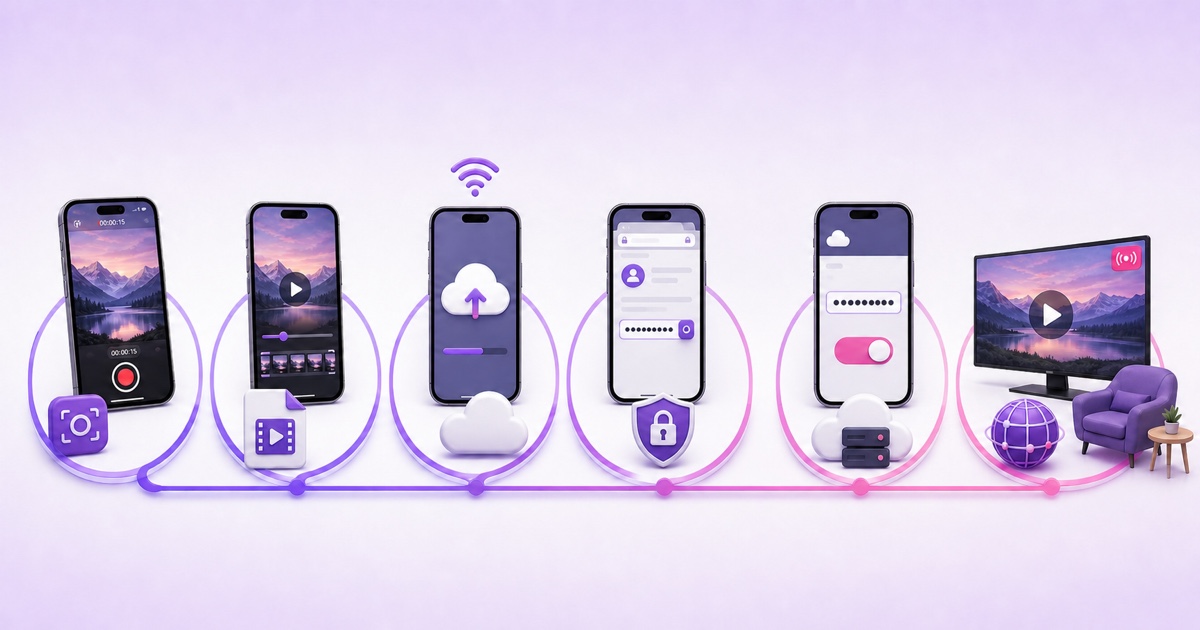
- Prepare the source on your phone. Record or edit the programme, then export an MP4 using H.264 video and AAC audio at a constant frame rate.For practical export choices, use the video-format guide.A clean 1080p30 file is usually a sensible starting point.
- Run a local playback check. Watch the first minute, the final minute and the join between them.Listen with headphones.A cloud service can repeat a file, but it cannot make an abrupt musical or visual seam disappear.
- Enable live access before launch day. YouTube says first-time activation can take up to 24 hours.Verify the channel and confirm that there are no active live restrictions.Do this before uploading a huge file.
- Get the stream key carefully. On the phone, open YouTube Studio in the browser and use desktop-site mode if the Live Control Room is cramped.The documented path is YouTube Studio → Create → Go live → Stream.Copy the key without placing it in chat, notes shared with others or a screenshot.The dedicated stream-key guide covers safe handling.
- Upload and connect the cloud encoder. In StreamNeo, select the video, paste the destination key into the stream setup and start the slot.Prefer stable Wi-Fi for the one-time upload.If your connection drops, resume rather than creating multiple duplicate uploads.
- Confirm the public result. Open the YouTube watch page, check picture and sound, then inspect the stream status from the phone dashboard.Once confirmed, lock the phone.The cloud encoder should continue broadcasting without the browser remaining open.
If you want an even more detailed operational walkthrough, the phone-only setup guide goes deeper into preparation, launch and monitoring.
Mobile data honesty
The one-time upload uses roughly the size of the file.Upload a 2 GB MP4 over mobile data and you should expect about 2 GB of payload to leave the phone, with a little additional protocol overhead.A retry from zero can spend that allowance again; a true resume avoids re-sending the completed portion.
After the upload and launch, the continuous outbound video comes from the cloud encoder’s connection, not your SIM.Checking the dashboard and opening the public stream still uses ordinary browsing and playback data, but you are not uploading a 1080p feed around the clock.
For a large library, use stable Wi-Fi and start uploads during a less congested period, often late at night.Keep the phone charging for the upload, disable aggressive battery restrictions for the browser temporarily and avoid switching between Wi-Fi and mobile data mid-transfer.Confirm the completed file before starting the stream.
The best choice is therefore architectural, not cosmetic.For a stored video that must run all day, choose a service where the phone hands the work to the cloud.For a live walk-through, game or interview, choose a camera-live app.Mixing those two jobs is how a “no PC” setup turns into a hot phone tethered to a charger.
Start free — 24-hour trial, no card
More from the journal: How to Compare 24/7 Streaming Services Without Getting Fooled · YouTube Monetisation Requirements in 2026: The 24/7 Streamer’s Version · Vertical 24/7 Channels: Who They Are For and What Breaks
FAQ
Can I run a 24/7 YouTube stream with only a phone?
Yes, provided the phone controls a cloud encoder rather than acting as the permanent encoder.Record or export the file on the phone, upload it to the cloud service, add the YouTube stream key and launch.After you verify the public feed, the phone can disconnect while the remote encoder keeps sending the loop.
Will a 24/7 cloud stream eat my mobile data?
The initial video upload uses approximately the file’s size, and watching or checking the stream uses normal playback data.The ongoing encoder-to-YouTube traffic comes from the cloud server, not your SIM.Use resumable uploads and Wi-Fi for large files so one connection drop does not force the entire transfer to begin again.
Do I need 50 subscribers?
YouTube’s 50-subscriber threshold applies to creating a camera live stream directly in the YouTube mobile app as of July 2026.A cloud encoder uses the stream-key workflow, but your channel must still meet YouTube’s normal live-access, verification, age and restriction requirements.No third-party app can bypass a platform-level block.