A streaming tool has asked for your YouTube stream key. That request is normal for OBS, hardware encoders, and cloud services, but the value you paste deserves the same care as a password.
This guide shows exactly where to find the key, which server URL belongs beside it, how to reach the controls from a phone, and what to do if the key has escaped into a screenshot or chat. The paths below reflect YouTube Studio's current Live Control Room.
What a stream key actually is
A stream key is a secret publishing pass: it tells YouTube that the video arriving from an encoder belongs on your channel. Think of the server URL as the building address and the key as the private door code.
Anyone who has the working key can send a live feed as your channel without knowing your Google password. The key does not let them sign in to Studio, read your account, view email, or use the YouTube API as you. Its power is narrower, but still serious: it grants permission to publish a stream.
If you would not put your Google password in a screenshot, do not put your YouTube stream key there either.
Find your YouTube stream key on desktop
Use the channel that will host the broadcast, especially if your Google account manages more than one channel. Then follow this path:
- Open YouTube Studio and confirm the channel avatar in the top-right corner.
- Click Create → Go Live. This opens Live Control Room.
- Select Stream in the left navigation. Do not choose Webcam if you are connecting an encoder or cloud service.
- For a first stream, add the requested stream details and create the stream. If you have streamed before, YouTube may load the previous settings, including the saved stream key.
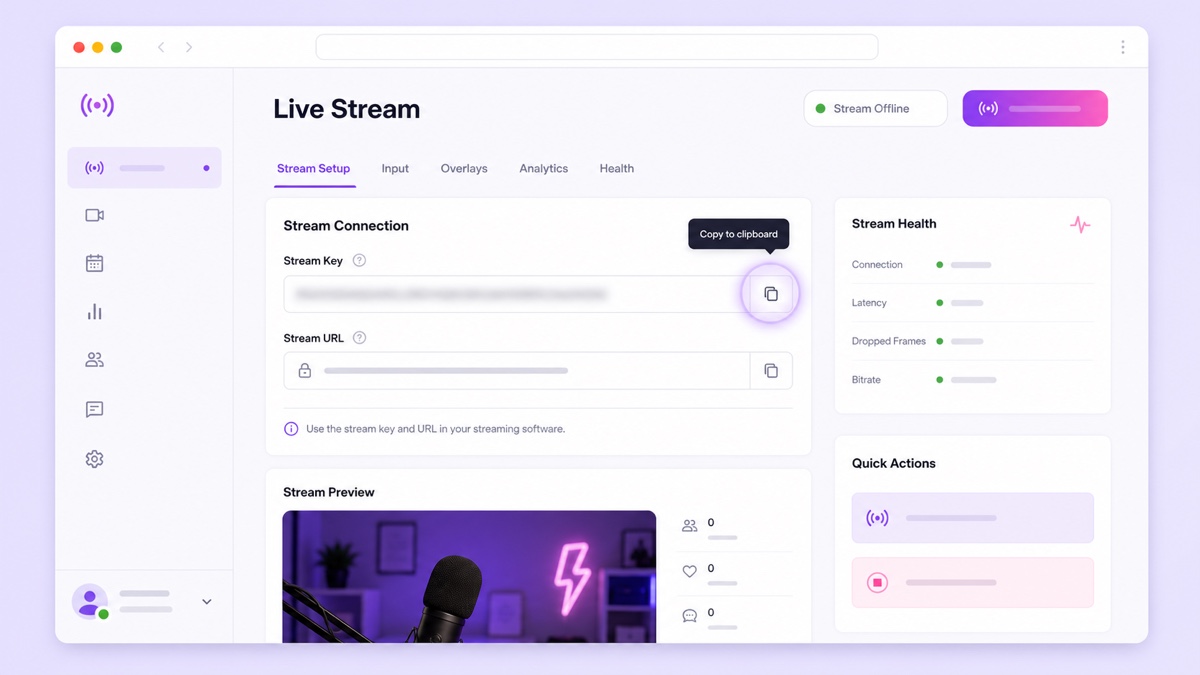
- Under Stream settings, find Stream key. Use the copy button beside the hidden value. The reveal control is useful for checking the value, but hide it again before recording your screen or taking a support screenshot.
- In the same panel, copy Stream URL if your tool asks for a server or RTMP URL.
Paste the key into the field labelled Stream key, not into the server field. Avoid copying a leading or trailing space. If the tool has a built-in YouTube connection and signs in through Google, it may configure the destination without showing a raw key; that is a separate, valid workflow.
Find your YouTube stream key on a phone
The YouTube mobile app's Create → Live route is designed for camera-first mobile streaming. It does not present the encoder Stream settings panel in the same layout as desktop Live Control Room. The reliable phone route is a mobile browser in desktop mode.
- Open Chrome, Safari, or another full browser and visit studio.youtube.com. Sign in to the correct channel.
- Request the desktop site. In Chrome, open the three-dot menu and choose Desktop site. In Safari, tap the aA page menu and choose Request Desktop Website.
- Rotate the phone to landscape and zoom out if the left navigation is cramped.
- Choose Create → Go Live → Stream.
- Open Stream settings, tap the copy button beside the hidden key, and paste it directly into the trusted streaming app or service.
Do not paste the key into Notes, WhatsApp, Telegram, email, or a browser search box as a temporary holding place. If mobile selection is awkward, use the copy button rather than dragging text handles. A password manager's secure note is safer than ordinary notes, but direct copy-and-paste is best.
If your whole production is phone-first, the broader workflow in starting a 24/7 live stream from your phone covers video upload, stream creation, and monitoring without a computer.
Default key vs auto-generated keys
YouTube can remember a reusable stream key with your previous stream settings, and Live Control Room also lets you create another key. The interface wording can vary as features roll out, so focus on the behavior rather than the label.
A reusable or default key stays valid across broadcasts until you reset or replace it. It is practical for an always-on loop because OBS, a hardware encoder, or a cloud service does not need a fresh secret after every stop and restart.
A separate key isolates an event or production. Use one when a temporary operator needs access, when a special event uses different encoder settings, or when you want to retire that credential after the event without reconfiguring your permanent setup.
For a 24/7 pre-recorded stream, use one reusable key dedicated to the trusted service running that channel. Do not keep creating keys merely because the stream restarted; rotating without updating the encoder guarantees an invalid-key error. If you are still building the full broadcast, follow the step-by-step pre-recorded YouTube Live setup.
The two URLs: primary and backup ingest
Most manual RTMP forms ask for two values:
- Server URL: the destination receiving the video. The standard primary YouTube RTMP address is rtmp://a.rtmp.youtube.com/live2/. Live Control Room can also show an encrypted RTMPS version; prefer RTMPS when your encoder supports it.
- Stream key: your channel-specific secret, pasted into its own field.
YouTube also exposes a Backup server URL for redundant ingestion. Copy the current backup value from Live Control Room instead of guessing or typing it from memory. It is for a deliberately configured backup encoder sending the same program, not for an unrelated second app.
If your tool offers a YouTube preset, choose it and provide only the values it requests. If it asks for one combined address, follow that tool's instructions carefully; otherwise keep the server URL and key separate. Never append the key to a URL and then share the combined string in a support ticket—the secret is still visible.
Keep your stream key safe
The safest routine is boring and repeatable:
- Never show the key in a screenshot, screen recording, livestream tutorial, group chat, Fiverr brief, or public issue tracker.
- Paste it only into an encoder or service you would trust to broadcast on the channel.
- Limit channel roles as well as key access. A collaborator who only needs thumbnails or descriptions does not need the broadcast credential.
- Keep one independent publisher on a normal key. Two unrelated apps pushing to the same key can fight for the connection, interrupt the stream, or produce confusing reconnect loops.
- Stop and disconnect old tools before starting a replacement. Rotate the key after testing a third-party tool you decided not to keep.
A trustworthy cloud streaming service stores the key because it must publish on your behalf; that is the product category working as designed. The right trust test is simple: would you allow this provider to put video live on your channel? Check its security practices, account controls, and support path before handing over the credential.
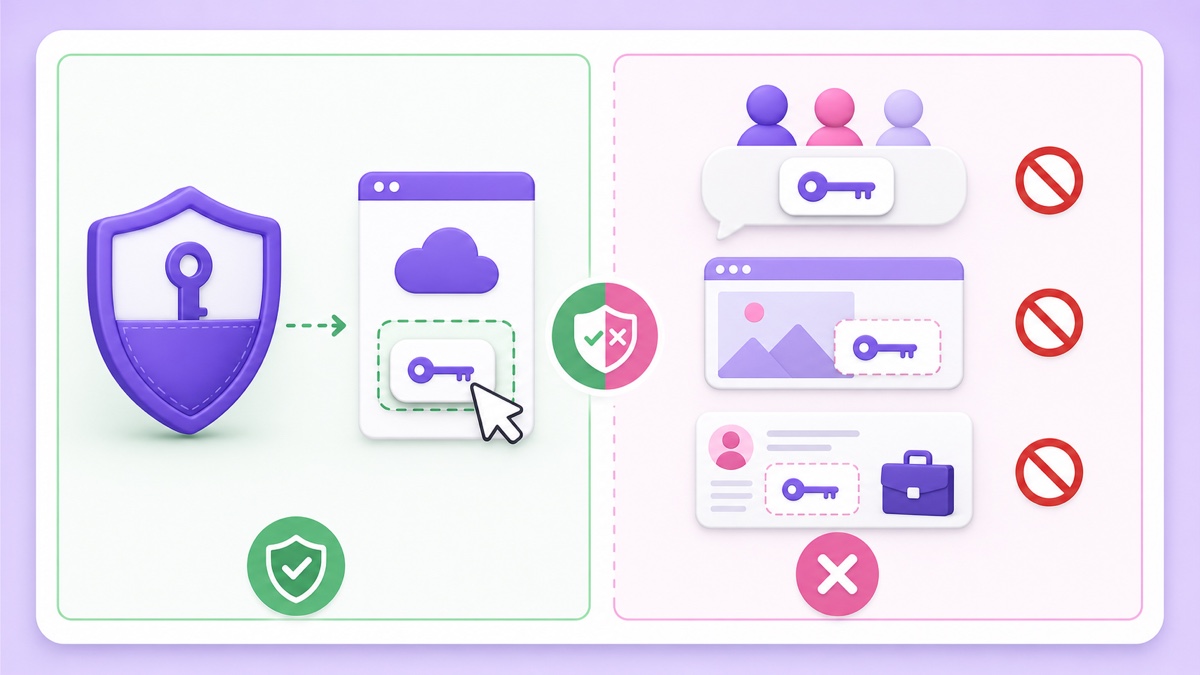
For a devotional, lo-fi, podcast, or teaching loop, operational access should stay with the smallest possible group. A volunteer can send you the approved MP4 without receiving the key. A designer can make the thumbnail without entering Live Control Room. Separation reduces accidental leaks.
If the key is leaked or shows as invalid
If the key appears in public—or is sent to someone who should not have it—treat it as compromised even if no suspicious stream has appeared.
- Open YouTube Studio → Create → Go Live → Stream.
- Find the hidden key under Stream settings.
- Click Reset beside it. YouTube generates a new value, and the old value can no longer publish.
- Copy the new key into every encoder or cloud service that should remain active.
- Stop any unknown live broadcast, review channel permissions and connected apps, and turn on two-step verification if it is not already enabled.
Resetting is intentionally disruptive: your legitimate encoder will also fail until it receives the new key. Plan a short maintenance window for an active 24/7 stream, update the trusted service immediately, and confirm that Live Control Room shows a healthy incoming signal.
An invalid key message does not automatically mean a leak. First check the selected channel, remove accidental spaces, confirm that the server URL and key are in the correct fields, and make sure you did not reset the key in Studio without updating the encoder. Then use the deeper guide to decode stream-key and publish-rejected errors.
If you see an unknown broadcast, unexpected channel changes, or signs that someone accessed more than the key, follow the full hacked or locked stream-key recovery checklist. A key reset fixes the publishing credential; it does not replace an account-security review.
FAQ
Does my YouTube stream key expire?
A reusable default key normally persists across streams until you reset or replace it. A key created for a specific production can be retired separately. If you reset any key, update the encoder before the next broadcast.
What if someone gets my key?
They may be able to broadcast on your channel. Reset the key immediately in YouTube Studio's Live Control Room, update only the encoders you still trust, and review the channel for an unknown live stream or suspicious access.
Can two apps use the key at once?
Do not run two independent publishers on one normal key. They can conflict or knock each other offline. YouTube's coordinated primary-and-backup ingest setup is the exception; it uses the displayed backup server for deliberate redundancy, not two competing tools.
Start free — 24-hour trial, no card. Use StreamNeo to run your uploaded video from the cloud after you connect the key, then close the laptop. You can also check the plans before you begin.