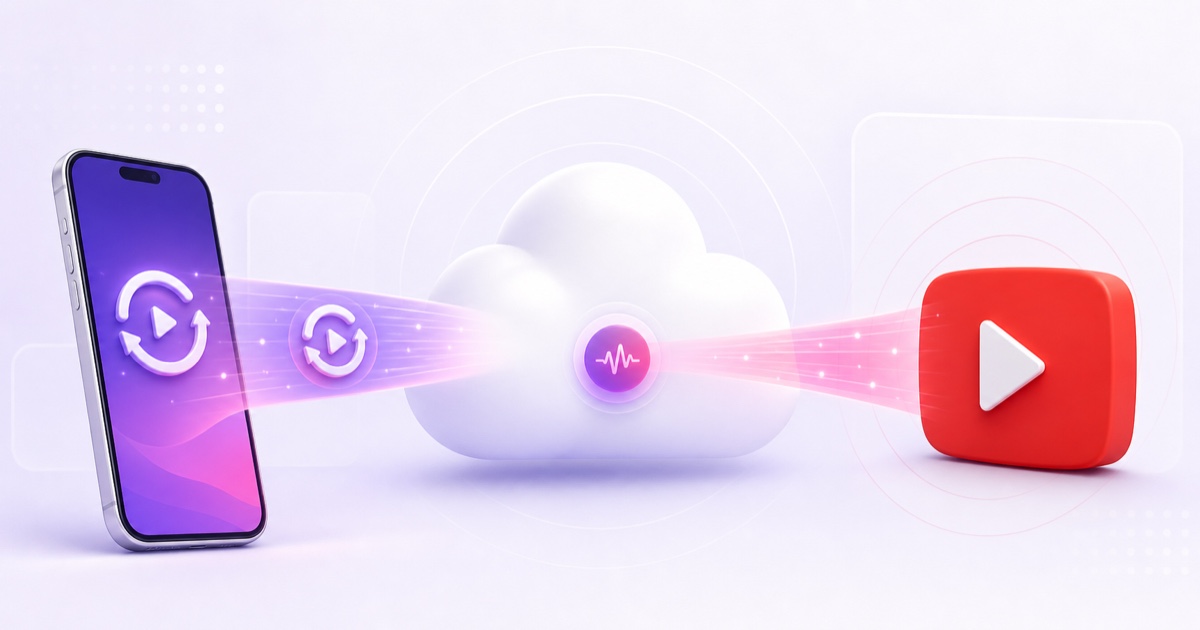
Yes, you can start a 24/7 live stream from your phone without owning a computer. The important detail is that the phone does not keep broadcasting all day. It prepares the video and controls a cloud encoder, then the cloud sends the stream to YouTube while your phone goes back in your pocket.
This is different from tapping Live in the YouTube app. That feature broadcasts your phone camera and depends on the phone staying awake, connected, powered and cool. A pre-recorded 24/7 loop needs a cloud service that keeps running after you close the browser. If you are still choosing one, use this mobile-only live streaming app checklist.
The architecture in one picture
Think of the setup as three separate jobs. Your phone records and uploads the file. StreamNeo, used as the worked example in this guide, stores that file and runs the encoder in the cloud. YouTube receives the encoded feed through your channel's stream key and shows it as a live broadcast.
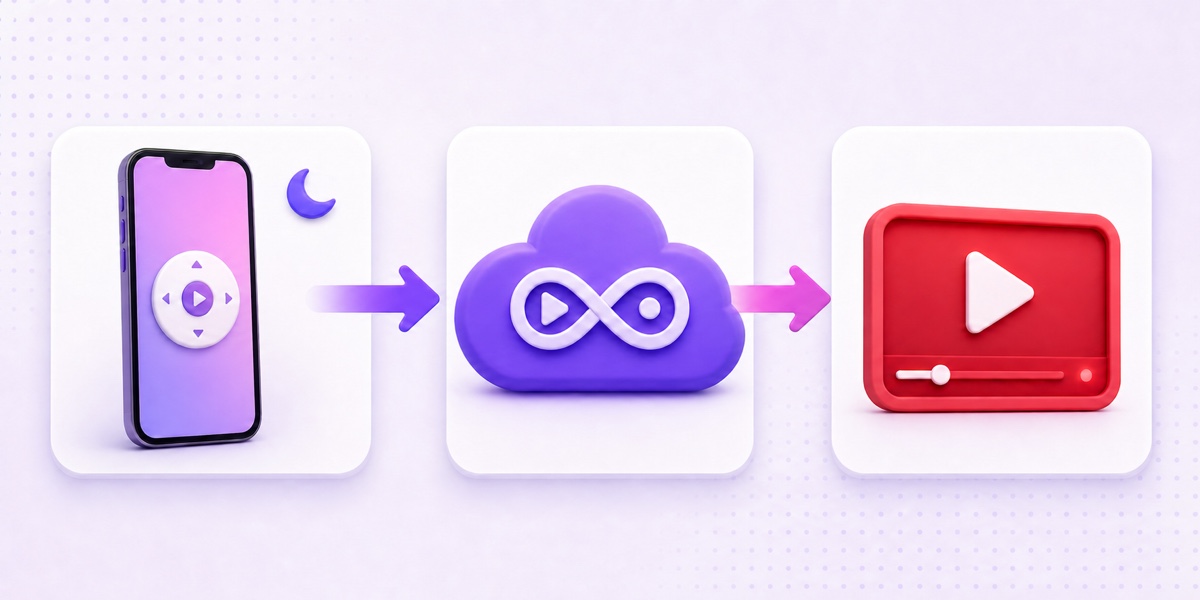
Once the stream starts, turning off your screen, taking a call or leaving home does not stop the encoder. Your phone only uses data when you upload the original file or open the dashboard and watch the stream. The continuous outgoing video traffic travels from the cloud service to YouTube.
The simple model: phone = remote control, cloud = always-on streaming machine, YouTube = the live destination.
You still need a YouTube channel with live streaming enabled. YouTube says the channel must be verified and have no live-streaming restrictions in the previous 90 days; first-time activation can take up to 24 hours. Enable it before preparing the rest of the setup. The 50-subscriber rule applies to camera streaming from the YouTube mobile app, not to what your cloud encoder does; a cloud service cannot bypass YouTube's channel eligibility or policy requirements.
Step 1: record and export on the phone
Start with a manageable test file, not your entire catalog. A clean 20- to 30-minute loop is easier to upload, inspect and replace than a 4 GB first attempt. Record with your phone camera or assemble the video in CapCut, VN, InShot or another editor you already understand.
For a dependable first export, choose:
- Container: MP4
- Video: H.264 at 1080p
- Audio: AAC, stereo
- Frame rate: keep the same rate you recorded, usually 25 or 30 fps
- Frame-rate mode: constant, if the editor offers the choice
- Orientation: 16:9 for a normal horizontal channel; use vertical only when that is an intentional format choice
These are practical, widely compatible defaults rather than magic quality settings. YouTube's current upload recommendations list MP4, H.264 and AAC-compatible audio, and recommend retaining the recorded frame rate. Constant frame rate also avoids timing surprises in long-running encoder workflows. For the reasoning behind each field, see the 24/7 streaming video format guide.
Watch the exported file once on the phone before uploading. Check the first and last ten seconds back-to-back, listen for a volume jump at the loop point, and confirm that text is readable on a small screen. A cloud encoder can repeat the file perfectly; it cannot repair a visible cut or clipped audio already baked into it.
Step 2: upload without heartbreak
Create your StreamNeo account, activate the free demo slot, then open Videos → Upload Video. A slot is the cloud streaming machine, so it must be active before the dashboard accepts an upload. Choose the exported file from Files or your gallery and leave the upload page open until it finishes.
A resumable upload matters more than a flashy speed meter on mobile. If a 2 GB file reaches 80% and the network drops, a resumable uploader can reconnect and continue from saved progress instead of sending the first 1.6 GB again. StreamNeo's uploader stores resume information and retries interrupted chunks, which is exactly the behavior you want on an uneven Jio, Airtel or home Wi-Fi connection.
Give the upload the best conditions you can:
- Prefer stable Wi-Fi. If evening congestion slows your connection, try a late-night upload.
- Plug the phone into power and temporarily extend the screen-lock time.
- Keep the browser tab in front; mobile operating systems may suspend heavy work in a background tab.
- Do not switch between Wi-Fi and mobile data on purpose during the upload.
- If the connection drops, reconnect and let the resumable uploader recover before starting a second copy.
A successful upload should appear in the Videos list and finish any processing before you select it for a stream. If you are testing the workflow, one shorter file is enough. Add a playlist only after the basic single-video stream works.
Step 3: get the YouTube key on your phone
A stream key is the credential that lets an encoder broadcast to your channel. Treat it like a password: do not place it in a screenshot, WhatsApp group or support message. StreamNeo needs it only because the cloud encoder is publishing on your behalf.
On Android, open Chrome and visit studio.youtube.com. Tap the three-dot menu, enable Desktop site, then refresh. Google documents this browser mode in its current Chrome mobile help. On iPhone, request the desktop version in your browser or set Chrome's default site view to Desktop before opening Studio.
Inside Studio, use Create → Go Live → Stream. If this is the channel's first encoder stream, create the stream and enter its title, description and visibility. Under Stream settings, reveal the stream key only long enough to tap Copy. YouTube's official encoder setup guide confirms this Live Control Room path.
Return to StreamNeo and open Streams. Select the active slot, choose YouTube under Stream To, and paste into Paste your stream key. Check that you copied the whole key and did not add a leading or trailing space. Then choose your uploaded video in the playlist panel.
If the Studio layout looks cramped, rotate the phone to landscape and zoom out. If it still refuses to show the Stream tab, confirm that Desktop site remains enabled after the redirect and that live streaming is already activated. The detailed key walkthrough is in How to Get Your YouTube Stream Key.
Step 4: start and verify the stream
In StreamNeo, review the selected YouTube destination and video, then tap Go Live Now. The cloud encoder begins sending the file. YouTube may show a short delay before the watch page displays the picture; latency is normal and is not proof that the stream failed.
Do not trust a green button alone. Open your channel's public or unlisted watch page in a second tab and verify what a viewer actually receives. Keep the volume low at first so you do not create feedback through the phone speaker.
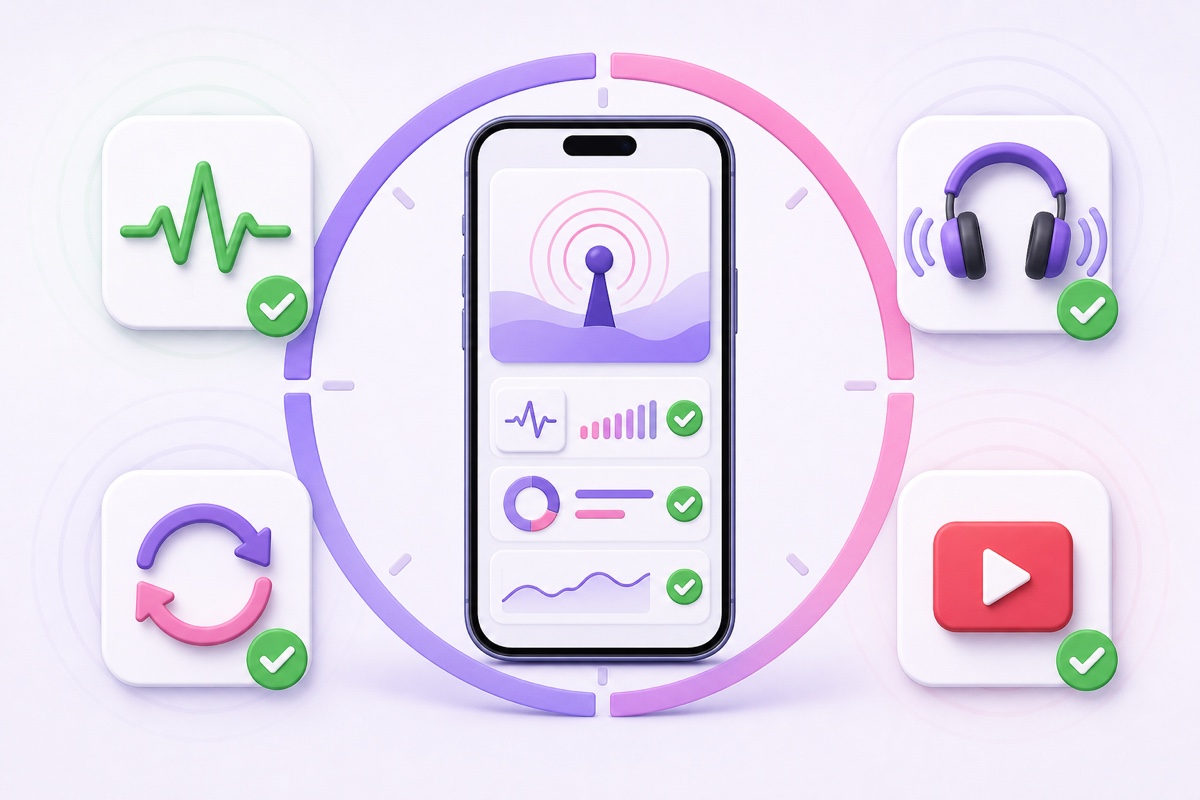
Your first 10-minute check
- Picture: confirm the correct video is visible, upright and not stretched.
- Sound: use earphones to check both channels, speech clarity and unexpected silence.
- Watch page: verify the live page opens from your channel, not only inside StreamNeo.
- Health: open YouTube Live Control Room and check that Stream health is not reporting a persistent warning.
- Continuity: lock the phone for two or three minutes, unlock it, and confirm the stream is still live. This proves the encoder is in the cloud.
- Loop seam: if your test file is short enough, watch the end roll into the beginning without a flash, silence or volume jump.
YouTube recommends checking the preview, monitoring stream health and confirming that the event is visible on the watch page. If picture or sound is wrong, stop cleanly, fix the source file or configuration, and restart. A longer test does not improve a bad input.
Step 5: run it from your pocket
After the first test, the routine becomes small. Glance at the StreamNeo dashboard once a day, then open the YouTube watch page to check the real viewer experience. Thirty focused seconds is more useful than leaving the control screen open for hours.
To change content later, upload the replacement first, open Streams, select the live slot and update its chosen video or playlist. Avoid deleting a file that a live slot is still using. When you intentionally finish a broadcast, use the dashboard's stop control and confirm the watch page ends; do not rotate the stream key as a normal stop button.
If an alert says the stream ended, check three surfaces in order: the YouTube watch page, YouTube Live Control Room and the StreamNeo slot status. This separates a viewer-page problem from a key rejection or encoder problem. Work through the live stream ended unexpectedly fixes before repeatedly tapping Go Live.
Keep the stream key private even after setup. If it appears in a screen recording or message, reset it in YouTube Studio and replace the old value in StreamNeo. Anyone holding a valid key can send video to the channel, although the key does not give them access to read the rest of your YouTube account.
Data and battery honesty
The large data event is the one-time upload. A 2 GB file uses roughly 2 GB of your connection, plus a small amount of protocol overhead. If you later upload a replacement, that is another file-sized transfer. Resuming after a short interruption avoids repeating chunks that reached the server successfully.
Once the cloud encoder is live, the 24/7 outgoing feed does not travel through your SIM or home Wi-Fi. Opening the dashboard and watching the YouTube stream still uses ordinary browsing or video-viewing data, so “no mobile data” means the continuous broadcast itself, not every check you perform.
The same distinction applies to battery. Uploading a large file keeps the radio, browser and screen busy, so use power during that stage. Afterward, the phone can be locked, restarted or switched off. The cloud continues streaming until you stop the slot, the platform rejects the feed, or the service encounters an issue; no honest service should promise that drops are impossible.
If you want to test the complete phone-only path on your own channel, Start free — 24-hour trial, no card.
FAQ
Can I really do this with zero computer?
Yes. Record and export on the phone, activate the cloud slot, upload through the mobile browser, use YouTube Studio in desktop mode to copy the stream key, and start the stream from StreamNeo. The cloud—not the phone—does the continuous encoding.
How much data does it use?
The setup uses roughly the uploaded file's size once, with a little overhead. After that, the cloud server sends the continuous stream to YouTube. Your phone only uses more data when you open the dashboard, watch the live page or upload another file.
Can my phone be off afterwards?
Yes. After StreamNeo has the video and the stream is running, your phone can be locked or powered off. Check the YouTube watch page and dashboard periodically, but the phone does not need to remain connected for the stream to continue.