You return to your channel and the red LIVE badge is gone. YouTube says the live stream ended unexpectedly, but that sentence does not tell you whether the failure began on your computer, your connection, your stream key, or YouTube itself.
Do not restart everything blindly. First capture the time the broadcast ended, then use the evidence trail below. In most cases, two checks are enough to separate an encoder-side death from a platform action.
Find your cause in 60 seconds
| What you see | Most likely cause | Check first |
|---|---|---|
| No YouTube email; OBS, ffmpeg, or the computer also stopped | Encoder, power, sleep, or network failure | Encoder logs and machine uptime |
| The stream dies when another app or service starts publishing | Two publishers using the same key | Every device and cloud dashboard |
| Email, Studio warning, strike, or a copyright placeholder appeared | YouTube enforcement | Studio Dashboard and channel email |
| Health warnings and dropped frames appeared before the end | Sustained upload or bitrate collapse | Stream Health and encoder statistics |
| It ends at roughly the same time on several nights | Scheduled task, ISP maintenance, thermal issue, or renewal job | One-week pattern diary |
Open YouTube Studio → Create → Go Live and select the affected broadcast in Live Control Room. YouTube places stream-status errors beside the health indicator and timestamps them, so note the final message before starting a new event. The official live-streaming error reference explains what the red and yellow messages mean.
Cause 1: the encoder stopped sending
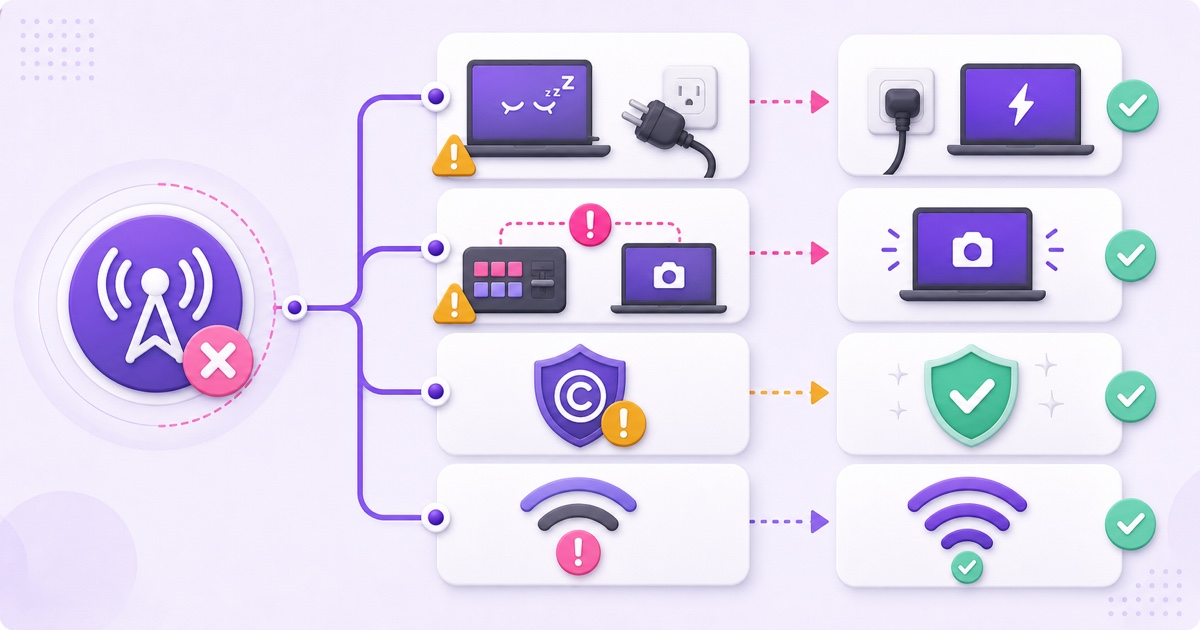
An encoder is the process delivering your video to YouTube. It may be OBS on a PC, ffmpeg on a VPS, a hardware encoder, or a managed cloud service. If that process exits or loses its network path, YouTube eventually has no media to broadcast.
YouTube does not publish one fixed public grace-period number that creators should design around. Treat any interruption as urgent: reconnect immediately, because a brief loss may recover while sustained no-data can leave the broadcast fully ended. This is why “it was only offline for a bit” is not a safe operational plan.
How to confirm an encoder-side death
- OBS: go to Help → Log Files → Show Last Log. Search around the end timestamp for disconnection, reconnect, encoding overload, or shutdown entries. Also check View → Stats for network-dropped frames.
- ffmpeg: inspect the process exit code and the final stderr lines. If systemd runs it, use the service journal around the exact minute rather than scrolling through an entire day.
- Windows: open Event Viewer → Windows Logs → System and check for sleep, restart, network-adapter, or power events.
- macOS: use Console and System Settings → Battery to check whether sleep or a power transition matched the end.
- Cloud service: compare its activity log with YouTube’s end time. A platform saying “streaming” is not proof; verify the public watch page from another device.
If the computer rebooted, the laptop slept, the Wi-Fi vanished, or ffmpeg exited at the same minute, you have your cause. A local failure normally leaves no copyright or policy email because YouTube did not stop you; it simply stopped receiving a usable feed.
Fix the actual trigger, then add recovery. Disable sleep while encoding, use wired Ethernet where possible, keep the machine on reliable power, and enable encoder reconnection. For a robust design, use a watchdog that detects a dead process and relaunches it; the mechanics are covered in how 24/7 live-stream auto-restart should work.
Cause 2: another publisher is using the stream key
A stream key authorizes an encoder to publish as your channel. The dangerous setup is not merely having the key stored in two places; it is letting two tools publish through the same key for the same intended feed. A forgotten OBS scene, a trial cloud service, and a production service can then compete, switch, or create confusing connection failures.
Ask one blunt question: what else was turned on at the moment this stream ended? Check OBS on every computer, mobile live apps, old VPS processes, browser-based studios, and every streaming-service dashboard you tested. Stop all publishers, wait until Live Control Room shows no incoming feed, then start only the chosen encoder.
Use separate custom keys for separate workflows, label them clearly, and never paste a production key into a casual test. If you do not know who has the key, reset it and update only the trusted encoder. Read how to find and protect your YouTube stream key; if the new key is rejected, use the stream-key invalid and publish-rejected checklist.
Cause 3: YouTube ended the broadcast
This branch has a different evidence trail. YouTube enforcement normally leaves a notice in Studio, an email to the channel owner, or both. Check the channel’s actual owner inbox—including Spam and Promotions—not just the address used for your streaming tool.
Copyright match during the live stream
YouTube scans live broadcasts for third-party material. Its current guidance says a matched stream may show a placeholder and warning; if the third-party content continues, the broadcast may be temporarily interrupted or terminated. Even properly licensed material can be interrupted when the channel is not allowlisted by the rights owner. See YouTube’s official copyright guidance for live streams.
Remove the matched segment from your rotation before going live again. Preserve the notification, identify the work named in the claim, and gather the licence or ownership record. Do not repeatedly restart the same unchanged file and hope the scanner misses it. The claim, strike, and live-enforcement differences are explained in the honest guide to copyright strikes on 24/7 loops.
Policy action or channel-level restriction
Open YouTube Studio → Dashboard and review the Channel violations card, then check Studio → Content → Live for restrictions on the affected broadcast. YouTube states that live-stream or channel restrictions are communicated by email with appeal instructions. Do not evade an active restriction through another channel; follow the stated review or appeal route.
If there is no enforcement email, no Studio violation, and the encoder stopped at the same time, return to Cause 1. That distinction prevents hours of blaming YouTube for a sleeping laptop—or rebuilding OBS when the real issue is a policy action.
Cause 4: sustained bitrate collapse starved the stream
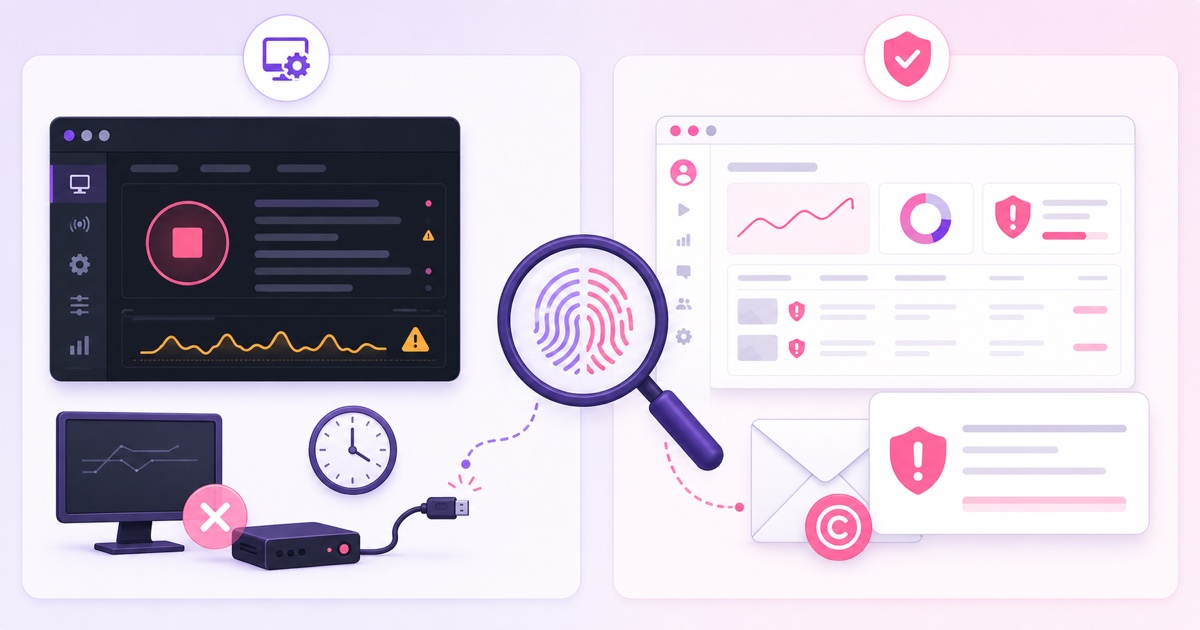
A connection does not have to disappear completely to kill a broadcast. If your encoder tries to send 6 Mbps but the available upload repeatedly falls below that, data queues build, frames drop, and the incoming feed may deteriorate into no usable data. This often looks fine in a short speed test and fails during evening congestion or a 3 a.m. ISP maintenance window.
Confirm it from both ends. In OBS, network-dropped frames rise while encoding-lag frames may stay low. In Live Control Room, Stream Health shows bitrate or ingestion errors with timestamps. YouTube’s current network guidance recommends enough upload for the primary stream, any backup stream, and 20% additional room.
For an always-on stream over a variable home connection, the more conservative operational rule is to keep measured sustained upload near 2× the total streaming bitrate. That is not a YouTube requirement; it is headroom for evening dips, shared Wi-Fi, cloud backups, and ordinary ISP jitter. Measure at the hours when failures occur, not only at noon when the line is quiet.
- Switch from Wi-Fi to Ethernet before changing codecs.
- Pause photo backup, file sync, torrents, and other upstream-heavy tasks.
- Lower bitrate or resolution until the worst-hour upload can carry it comfortably.
- Use constant bitrate and a two-second keyframe interval that follows YouTube’s encoder guidance.
- If the line degrades on a reliable schedule, ask the ISP about maintenance or move the encoder off that connection.
A repeating disconnect is different from a fully ended event. If viewers see buffering and the same broadcast recovers, start with the nine causes of YouTube Live disconnects. Use this article when the broadcast has progressed from a recoverable drop to an actual end.
Fix and prevent each cause
| Confirmed cause | Immediate fix | Prevention |
|---|---|---|
| Encoder or computer stopped | Restart the encoder and create a new broadcast if the old one is complete | Watchdog, auto-reconnect, no sleep, reliable power |
| Stream-key conflict | Stop every publisher; start one trusted encoder | One workflow per labelled key; rotate exposed keys |
| Copyright match | Remove the matched media and review the notice | Pre-clear every audio and video element; retain receipts |
| Policy restriction | Follow the Studio notice and appeal route where appropriate | Review policies and keep titles, thumbnails, and content honest |
| Bitrate collapse | Reduce bitrate and restore a stable wired path | Conservative headroom and worst-hour testing |
For a pre-recorded loop, moving the encoder to the cloud removes laptop sleep, home power, Wi-Fi, and local upload from the chain. A watchdog can also restart a failed cloud process. It does not eliminate copyright actions, key mistakes, or every infrastructure risk, so treat it as removing a cause class—not as an uptime promise.
If it keeps happening, build a pattern diary
Intermittent failures become diagnosable when you stop recording only “it died again.” For seven days, write down the exact end time, last Live Control Room message, encoder status, machine uptime, dropped-frame count, and whether YouTube sent a notice. Add any scheduled jobs running within 15 minutes of the event.
A 3:05 a.m. failure on several nights points toward ISP maintenance, backups, token renewal, log rotation, or a scheduled reboot. Deaths after a similar number of running hours suggest heat, memory growth, storage exhaustion, or an application timeout. Random failures that align with upload drops point back to the network.
Change one variable at a time. If you replace the router, halve the bitrate, update OBS, rotate the key, and move the PC in one evening, a stable night teaches you nothing. A clean diary plus one controlled change turns a ghost problem into evidence.
If the source is an uploaded video loop, you can compare that evidence against a cloud run without changing the channel or content. Review StreamNeo pricing, then give the watchdog one night shift: Start free — 24-hour trial, no card.
FAQ
How fast does YouTube end a silent stream?
YouTube’s public help pages do not give creators one guaranteed no-data duration. Reconnect immediately rather than relying on a rumoured minute count. A short interruption may recover, but sustained no-data can leave the broadcast ended.
Why did it end with no email?
Encoder-side failures do not create policy emails. If there is no Studio violation or copyright notice, check the encoder log, machine uptime, power events, and network status at the exact end time before blaming the platform.
Can I resume the same stream?
If YouTube still holds the broadcast open, reconnecting the intended encoder with the same key may continue it. Once Live Control Room marks the broadcast fully complete, restart as a new broadcast. See how long a YouTube live stream can run for the practical difference between a reconnect and a reset.