A red “Stream key invalid” or “Publish rejected” message feels vague, but the failure is usually happening at one precise stage. Randomly changing bitrate, restarting the router, and pasting the same key again only destroys useful evidence.
First identify whether the encoder failed to reach the server, reached it but failed authentication, lost a one-publisher conflict, or connected and then sent an unsupported media format. That one decision turns a cryptic RTMP error into a short checklist.
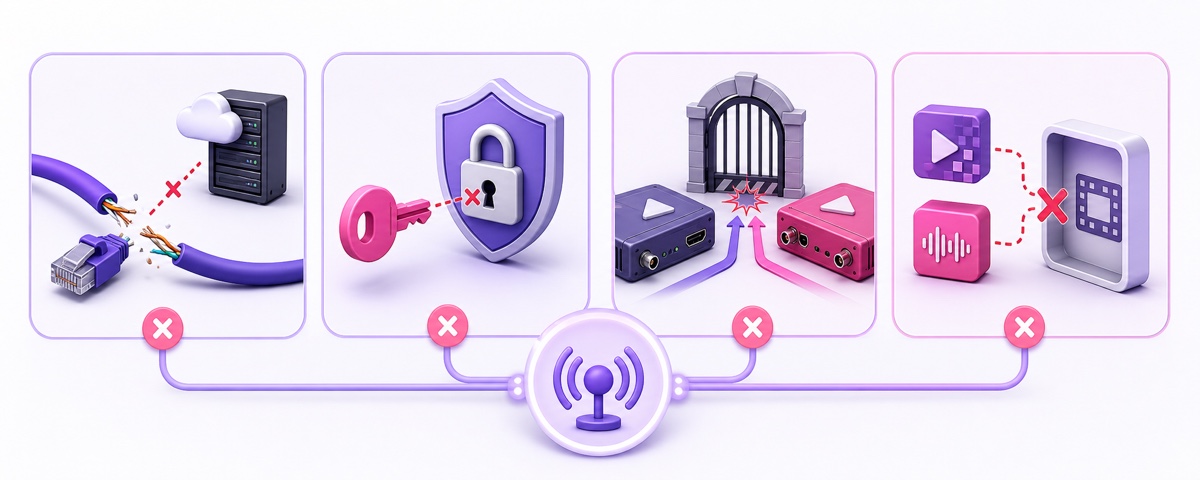
Start with the four error families
An RTMP publish has a sequence: network connection, secure handshake where applicable, authentication with the stream key, then media publishing. The last successful stage tells you which family owns the error—even when an app compresses everything into “RTMP connection failed.”
| Error family | Messages you may see | What it usually means | First move |
|---|---|---|---|
| Connection refused | Connection timed out, cannot connect, handshake failed, network unreachable | The encoder did not establish a usable session with the ingest server. | Check the server URL, protocol, port, DNS, firewall, and network. |
| Authentication rejected | Invalid stream key, authentication failed, bad name, publish rejected | The server answered, but the key or session is not valid for that destination. | Copy a current key directly from the platform; do not keep retrying the old one. |
| Already in use | Already publishing, publisher exists, resource busy, stream is active | Another encoder or service is already holding the publishing slot. | Stop every other publisher before reconnecting one encoder. |
| Format rejected | Unsupported codec, invalid audio/video data, could not write header, server closed connection after publish | Authentication worked, but the media does not fit the ingest path. | Test a minimal H.264/AAC output through the standard RTMP route. |
Message wording varies by encoder and platform. If the message is generic, open the detailed log and read the five to ten lines immediately before the disconnect. A timeout before authentication is not a bad key; a rejection immediately after a publish command probably is.
Fix the copy-paste classics first
The boring failure is also the first one worth eliminating: the right credentials placed in the wrong fields, or one invisible character attached to the key. Stream keys are exact strings. A trailing space or newline can be enough to fail authentication.
Run this four-line sanity check:
- Server field: it contains only the current server URL copied from the destination platform. It should not contain your stream key unless the tool explicitly asks for one combined URL.
- Key field: it contains only the stream key. No label, quotation marks, leading or trailing spaces, line break, or extra slash.
- Platform match: a YouTube key goes with YouTube’s ingest URL; a Facebook key goes with the Facebook Server URL from the same Live Producer session.
- Single clean destination: disable old custom destinations and test one newly entered destination instead of editing a chain of saved profiles.
Use a trusted offline text field if you must inspect the beginning or end of a copied value, then clear it. Never paste a stream key into an online “validator,” a support screenshot, chat, or shared document. Treat it like a password. For a refresher, see how to get and protect a YouTube stream key.
Replace rotated or expired credentials
A key can be correct in your memory and invalid on the server. On YouTube, resetting a stream key invalidates the value saved in OBS, a hardware encoder, or a cloud dashboard. YouTube custom keys can be reusable, but only until you reset or replace them; its official stream-settings guide shows the reset and reusable-key controls.
Facebook distinguishes standard stream keys from persistent keys. Meta’s streaming-software instructions state that a standard key cannot be reused, while the Persistent stream key option is designed for later broadcasts. A persistent key still permits only one live video at a time. Therefore, do not assume yesterday’s ordinary Live Producer key belongs to today’s session.
The clean ritual is simple: stop output, generate or reveal the current credential in the platform, replace it everywhere that stores it, save, and start exactly one encoder. “Everywhere” matters. Updating OBS while an automation service still holds the old key leaves the system looking randomly broken.
Resolve an “already publishing” conflict
One stream key normally represents one publishing slot. A second encoder cannot safely take over while the first still owns that slot. The rejected tool may be the one in front of you, while the actual publisher is a forgotten OBS process, a browser studio tab, a hardware box, or an old cloud stream.
Hunt methodically:
- Click Stop Streaming in OBS, Streamlabs, or the desktop encoder—not merely close its preview.
- Open every cloud streaming dashboard connected to the channel and stop its active job.
- Check hardware encoders and mobile apps that may reconnect automatically after network recovery.
- Confirm the platform preview stops receiving data, then start only the encoder you intend to keep.
If you cannot identify the holder, rotate the key, update one encoder, and test again. Rotation cuts off a forgotten publisher, but it also invalidates every legitimate saved copy. The safer long-term setup is documented in the stream-key safety guide, while a good auto-restart design should prevent overlapping recovery attempts.
Read platform-specific rejections correctly
Facebook: use the issued secure server details
In Facebook Live Producer, choose Streaming software, then copy the Server URL and key from that same broadcast setup. Enable RTMPS when the encoder supports it. Some custom-RTMP forms expose the secure port as :443; if Facebook’s issued URL includes it, preserve it exactly rather than shortening or hand-typing the address. The full walkthrough is in Facebook stream key and RTMPS setup.
Also check eligibility before blaming the key. Facebook currently applies account, Page/professional-profile, follower, and access requirements listed in its official Live help. If Live Producer itself says the account or Page cannot go live, a new RTMP key will not bypass that restriction.
YouTube: bind the encoder to the event you actually selected
For an immediate stream, use YouTube Studio → Create → Go live → Stream. For a scheduled event, use Go live → Manage, select the event, start the encoder, wait for its preview, then click Go live. That is the sequence in YouTube’s official encoder workflow.
A scheduled broadcast has a lifecycle. A ready event can receive the bound stream; a completed or revoked event cannot be restarted as though it were still upcoming. If the preview appears under a different event, stop and select the intended stream/key combination instead of pressing buttons on the wrong watch page.
YouTube also requires an eligible, verified channel with no active live-streaming restriction. First-time enablement may take time. Check YouTube Studio → Create → Go live and the channel’s live status directly; do not rotate credentials repeatedly when the platform is explicitly reporting an access restriction. YouTube publishes the current rules in its live-stream restriction guide.
Recognise a format-level rejection
A playable file is not automatically a publishable RTMP stream. Your computer may happily play HEVC, AV1, unusual audio, or a variable collection of tracks, while a classic RTMP/FLV ingest path expects a narrower combination. The practical compatibility baseline is H.264 video plus AAC audio.
This failure looks different from a bad key: the network connection and authentication may succeed, then the server closes the session as media headers or packets arrive. Logs may mention an unsupported codec, invalid video/audio data, a failed header, or a write failure after publishing begins. That timing is the clue.
Build one minimal test: H.264 video, AAC stereo audio, constant frame rate, a normal resolution, and no optional data tracks. If it publishes, credentials are fine; add your production settings back one at a time. If your source uses a modern codec, convert it once to a compatible master as explained in the H.264 and AAC format guide.
Changing bitrate cannot repair invalid authentication. Rotating a key cannot repair an unsupported codec. Match the fix to the stage that failed.
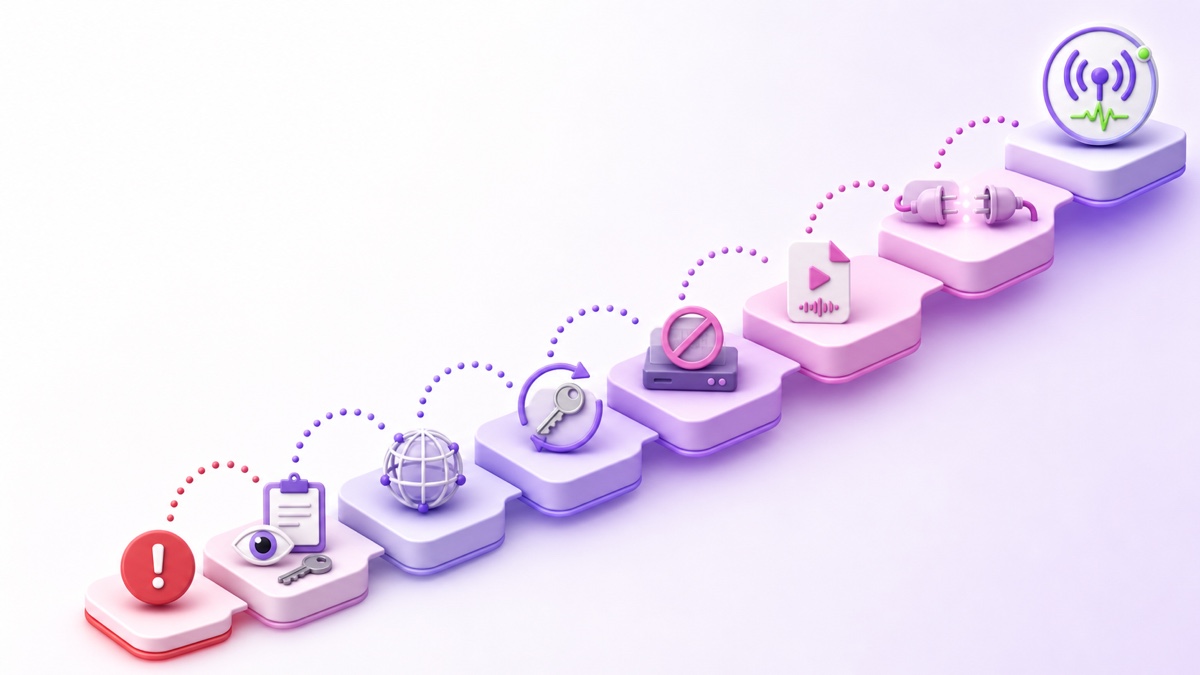
Use this systematic eight-step reset
Escalate in order. Each step removes one class of uncertainty, so stop as soon as the platform preview becomes healthy.
- Capture the evidence. Stop rapid retries, note the exact time, and save the detailed error line without exposing the key.
- Verify visually. Confirm destination platform, server field, key field, and the first and last few characters of the current key.
- Re-copy both values. Take the server URL and key from the same current YouTube or Facebook setup; remove accidental whitespace.
- Mint a fresh key. Reset YouTube’s key or create the current Facebook session key, then update every system that stores it.
- Clear other publishers. Stop desktop, browser, mobile, hardware, and cloud encoders until the platform reports no incoming data.
- Simplify the media. Use one clean encoder with H.264 video, AAC audio, and conservative settings. Turn off multistream fan-out and optional tracks.
- Test a clean destination. Create a fresh private or unlisted YouTube test stream, or a new Facebook Live Producer session with an appropriate test audience, and connect only the minimal encoder.
- Restore one layer at a time. Add scheduling, automation, playlists, and additional destinations separately. The layer that reintroduces the rejection owns the bug.
Finally, classify the error as transient or fatal. A timeout, temporary DNS failure, or brief network drop may deserve controlled retry with backoff. An invalid key, account restriction, occupied publisher slot, or unsupported codec needs a stop-and-fix response. Retrying a fatal error forever hides the useful message, pounds the platform, and makes operators think recovery is happening when it is not.
That distinction should be visible in any streaming product you choose. StreamNeo is designed to surface fatal publishing failures instead of silently hammering a rejected destination, while recoverable failures follow a bounded recovery path. Read how live-stream auto-restart should work before trusting an “always on” promise.
Start free with a 24-hour trial—no card required, or check the plans before moving your loop into the cloud.
More from the journal: Dropped Frames on a Long Stream: How to Read the Numbers Properly · Keyframe Interval for 24/7 Streams: Why 2 Seconds Is Not Always Right · 4K 24/7 Streaming: What It Really Costs in Bitrate and Sanity
FAQ
Why is my key suddenly invalid?
The usual causes are a reset or expired session credential, a saved tool still holding the old value, or a stray character from copying. Follow the reset ladder: verify the fields, re-copy both values, then mint a fresh key only if needed.
What does “Publish Rejected” mean?
The ingest server refused the publishing session. It may be an authentication problem, an existing publisher conflict, an account or event-state restriction, or an incompatible media format. Identify the last successful stage before choosing a fix.
Can two tools stream with one key?
No—not as two independent publishers to the same slot. The second tool typically receives a conflict or publish-rejected error. Stop the first publisher before starting the replacement, or give separate destinations their own supported keys and workflow.