A Facebook stream key is the credential that lets an encoder or cloud streaming service send video to your chosen Facebook destination. The idea is simple; finding the right panel, choosing the right key type, and pairing it with the correct server URL are where most first attempts go wrong.
This guide takes you from Live Producer to a clean preview without pretending Facebook's interface never changes. Keep the key private throughout. Anyone who has it can publish video to the destination it authorizes.
Where Facebook hides the key
The most reliable current entry point is facebook.com/live/create. It opens Live Producer after you sign in. Meta Business Suite can also lead Page managers into Facebook's live tools, but its menus vary by account and rollout; the direct Live Producer URL avoids a brittle trail of labels.
- Sign in to the Facebook account that has content access for the Page.
- Open Live Producer and choose where the live video will appear. Select the intended Page carefully if you manage more than one.
- Choose Go live, then select Streaming software as the video source.
- Open Advanced Settings if you need a persistent key.
- Copy the Server URL and Stream key shown for that destination.
Those steps follow Meta's current streaming-software setup guide. You do not need to reveal the key to read it; use the copy control and paste it directly into your encoder or service.
If the panel does not appear, check the destination first. A personal profile, Page, group, and event can expose different choices. For a Page-based channel, switch into or explicitly select the Page before copying anything. A key taken from the wrong destination will not become valid just because the same person manages both destinations.
Security rule: never put a real stream key in a screenshot, support ticket, WhatsApp group, or freelancer brief. Blur the entire value, not only the middle characters.
One-time vs persistent stream keys
A standard Facebook stream key belongs to the live setup that produced it. Meta says standard keys cannot be reused. That is useful for a single event because an old credential does not remain your permanent publishing route.
A Persistent stream key is designed for reuse. In Live Producer, open Advanced Settings and turn on the option named Persistent stream key before copying the credential. This is the practical choice for a recurring show, a cloud encoder, or an automated stream that needs to reconnect later without a fresh manual setup.
Persistent does not mean unlimited. Meta currently allows only one live video at a time with a persistent key, so do not start OBS and a cloud service against that same key together. Two publishers competing for one destination can create a rejected connection, a dropped session, or a confusing preview.
It is also more accurate to think “reusable after the event” than “survives a browser window.” Once your encoder is sending, closing the Live Producer tab is not what makes a standard key reusable or non-reusable. The key type controls future reuse; the encoder connection and Facebook's broadcast state control the current session.
RTMPS in plain words
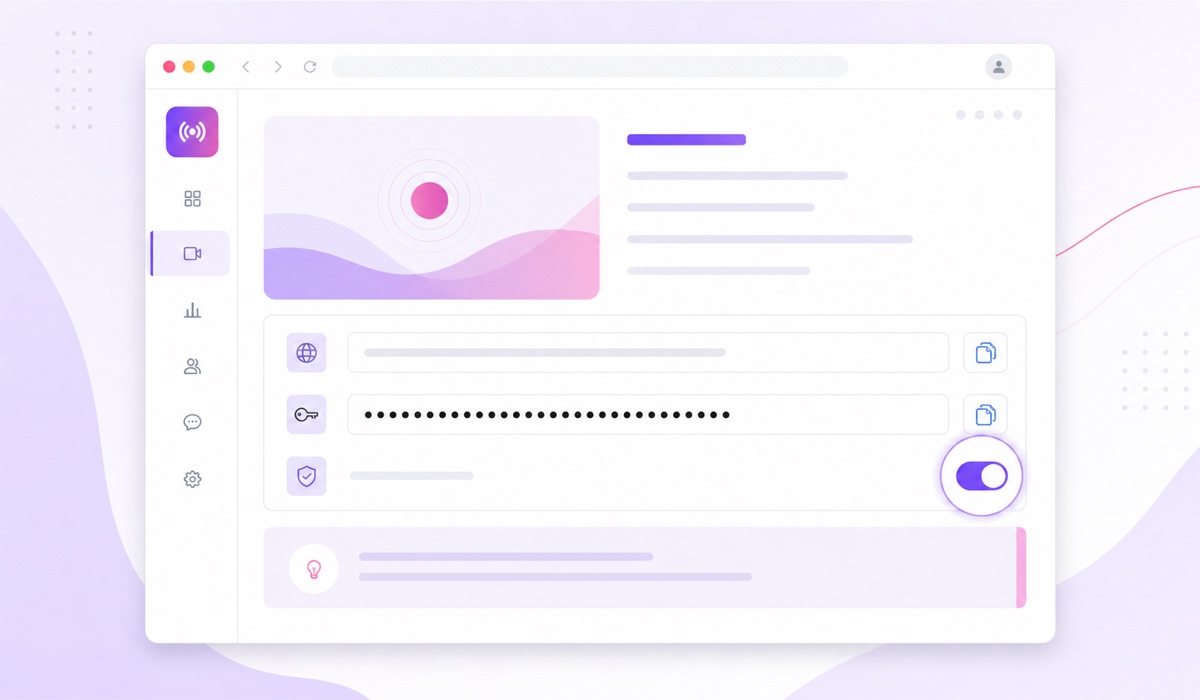
RTMP is the long-standing protocol encoders use to push live video. RTMPS carries that stream through a TLS-encrypted connection, much like HTTPS protects a normal web session. The final S is the secure part, and port 443 is commonly used for that encrypted connection.
A Facebook server URL commonly looks like rtmps://live-api-s.facebook.com:443/rtmp/. Copy the URL displayed in your own Live Producer session instead of typing this example, because the platform can return a different host or path.
Meta's current help text tells creators to enable a secure connection, RTMPS, when their streaming software supports it. That makes RTMPS the sensible production default. It would not be honest, however, to claim the same current document categorically rejects every plain-RTMP workflow: it still describes the encoder type as a custom or RTMP server. The safe rule is simpler—use the exact secure URL Facebook gives you and never downgrade it manually.
If a tool cannot accept an rtmps:// server URL, do not substitute rtmp:// and hope. Use a current encoder or a Facebook-capable cloud service. Encryption support is a compatibility requirement worth checking before you trust the tool with a reusable credential.
Pair the server URL and key correctly
The server URL tells your encoder where to connect. The stream key tells Facebook which live destination is authorized. They are a pair, but most interfaces keep them in separate fields. Do not paste both into the key field or add your own punctuation unless the tool explicitly asks for one combined publish URL.
Four checks before you hit start
- Same event: copy both values from the same Live Producer setup. A YouTube key cannot work against Facebook's server, and an older Facebook event key may no longer be reusable.
- Exact URL: keep the rtmps:// scheme, hostname, :443 port when Facebook shows it, and the full path. Do not “clean up” the address.
- Clean key: paste the key once, with no leading or trailing spaces. On mobile, a long press can accidentally select a nearby space or line break.
- One publisher: stop any other encoder using the same persistent key before starting the intended one.
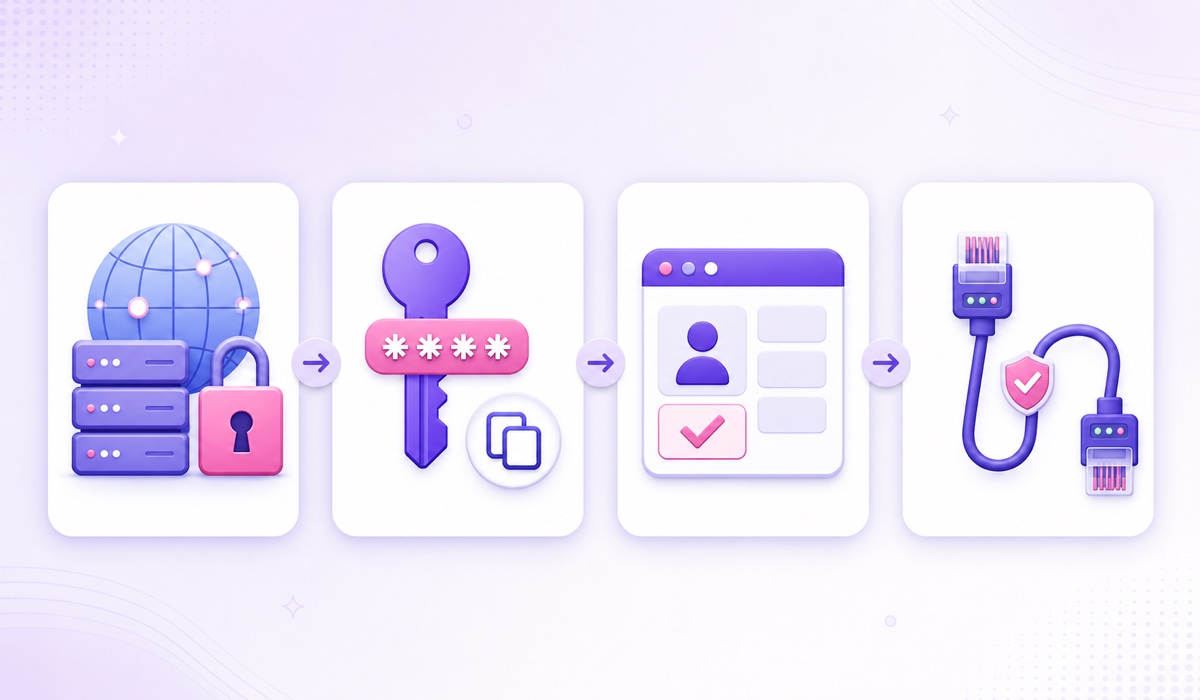
In OBS, the corresponding path is Settings → Stream → Service → Custom, followed by the Server and Stream Key fields. In a cloud loop service, the labels may be Facebook destination and stream key instead. A Facebook-ready tool handles the secure server pairing behind the scenes, so you paste the key rather than assembling an ingest address yourself. StreamNeo is not one of them — it publishes to YouTube only.
| What you see | Likely cause | First action |
|---|---|---|
| Invalid key or publish rejected | Expired standard key, stray whitespace, or wrong destination | Copy a fresh pair from Live Producer |
| Cannot connect to server | Changed URL, missing secure support, DNS, or firewall issue | Restore the exact RTMPS URL and test port 443 access |
| Connection works but no Page preview | Wrong Page selected or encoder has not sent valid video yet | Recheck the destination and encoder output |
| Second tool will not start | Another publisher is already using the key | Stop the first publisher, then reconnect once |
For error messages that remain after these checks, use the deeper stream-key error guide instead of resetting random settings.
Page access and permissions
Facebook no longer describes every Page permission with the old Admin and Editor role names. Meta's current model uses Facebook access and task access. To go live from a Page, the person needs access that allows them to create content; community-manager access by itself is for moderating live chat, not starting the broadcast.
You can inspect access by switching into the Page, then going to Settings & privacy → Settings → Page setup → Page access. Meta's Page-access guide explains the difference between Facebook access, task access through business tools, and community-manager access.
There are also account-level eligibility checks. Meta currently says the account must be at least 60 days old, a Page or professional-mode profile must have at least 100 followers, and a Page broadcaster must have Facebook access or task access to create content. These requirements can change, so use the linked Meta page as the live source of truth.
A permission failure can look like a key failure because both stop publication. Before rotating credentials, confirm three things: the correct Page is selected, your access includes content creation, and the Page or account is eligible to go live. The key is tied to the selected live destination; it is not a universal key for every Page your personal account can see.
Test it before trusting it
A Facebook Page live video is public once you actually publish it, so do not copy YouTube advice about choosing “Unlisted.” Facebook gives you a better ingest check inside Live Producer: start the encoder, wait for the preview, and do not click Go Live Now yet. Meta's official flow specifically places the preview between starting the software and publishing the broadcast.
- Create the live setup for the correct Page and copy the server/key pair.
- Start a short video with clear speech and visible motion in your encoder or cloud tool.
- Wait for the Live Producer preview. Confirm the image, listen for clean audio, and watch at least two minutes for reconnects or warnings.
- Check the title, description, destination, and persistent-key setting one last time.
- If this is only a connection test, stop the encoder without clicking Go Live Now. For the real broadcast, click Go Live Now only after the preview is stable.
This preview tests the ingest path without creating a public Page broadcast. If you need to test real viewer comments or notifications, use a deliberate short event on a separate eligible test Page; do not promise yourself a private Page-live mode that the current Page documentation does not offer. The full private live-stream testing guide covers platform-specific options.
One more planning fact: Meta currently lists an eight-hour maximum for a normal Facebook Live stream. A persistent key helps you reuse the credential, but it does not remove that broadcast-duration cap. If you are planning repeated pre-recorded broadcasts, read the Facebook pre-recorded streaming guide and the broader Facebook 24/7 setup guide.
When your preview is clean, compare the available streaming plans, then start free — 24-hour trial, no card. Keep Live Producer open for the first launch so you can verify the destination before publishing.
FAQ
Where is my persistent stream key on Facebook?
Open Live Producer, choose where to post, select Go live and Streaming software, then open Advanced Settings. Turn on Persistent stream key before copying the key. If the option is missing, verify that you selected the intended Page and have content-creation access.
Why did my Facebook stream key stop working overnight?
A standard key cannot be reused for a later live setup, so create a fresh one or enable the persistent option for recurring broadcasts. If an active stream ended overnight, do not blame the key automatically: check Facebook's duration cap, encoder logs, connection health, Page eligibility, and whether another publisher tried to use the same key.
Does Facebook support RTMP without the S?
Meta's current creator guide still refers to a custom or RTMP server and tells users to enable RTMPS when their software supports it, so a categorical “never” is not supported by that document. For a reliable setup, copy the exact rtmps:// URL from Live Producer, keep port 443 when shown, and use software that supports the secure connection.