A public launch is the worst time to discover that your audio is drifting, your thumbnail is cropped, or the loop freezes for three seconds at the seam. The reliable approach is to send the real encoder output through the real platform while keeping the audience restricted.
This guide shows you how to test a live stream without going live publicly on YouTube and Facebook. You will use the same video, stream key flow, bitrate, and viewing apps as the final broadcast. The only thing you change is who can see it.
Fast answer: On YouTube, create the stream with Visibility set to Unlisted. On Facebook, use an Only me audience on a profile or the test-broadcast option in Live Producer for a Page. Run at least 30 minutes for basic checks; use a 24-hour hidden soak test for an always-on loop.
Why testing beats hoping
A local preview proves that your video can play. It does not prove that YouTube or Facebook can ingest, transcode, publish, and deliver it correctly. A real hidden broadcast tests the entire route: source file → encoder or cloud service → RTMP/RTMPS ingest → platform transcode → viewer app.
That full route catches problems a preview misses:
- Loop seams: a flash, silence, repeated frame, or abrupt audio cut when the playlist returns to the beginning.
- Sync drift: audio and video match at minute one but separate gradually. If that happens, use this long-stream audio sync guide; a delay slider will not permanently fix rate-based drift.
- Bitrate and ingest health: dropped frames, an unstable upload, incorrect keyframe spacing, or a format the platform dislikes.
- Viewer-side rendering: the thumbnail, title, description, captions, latency, and picture quality after transcoding.
- Audience-setting side effects: a Made for Kids choice can disable features such as live chat, while the wrong visibility can expose a rehearsal.
Budget 30 minutes even if your show is shorter. Watch one complete loop, then stay long enough to compare sync near the beginning and end. Those 30 minutes are cheaper than apologizing to subscribers after a broken launch.
Method 1: use an unlisted stream on your real YouTube channel
This is the best default because it tests the channel, ingest server, stream key, metadata, and viewer experience you will actually use. YouTube lets encoder streams be Public, Private, or Unlisted in the stream settings, as confirmed in its official live-stream settings guide.
- Open YouTube Studio → Create → Go live → Stream.
- Create a new stream, or open the scheduled stream you want to test and select Edit.
- Set Visibility → Unlisted. Re-read the label before saving; do not rely on the last stream's setting.
- Finish the title, description, audience, thumbnail, latency, and auto-start settings exactly as you plan to use them.
- Copy the stream key into your encoder or cloud tool. If this is your first setup, follow the full YouTube stream-key guide.
- Start sending video. Wait for the Live Control Room preview and a stable health indicator, then start the broadcast if auto-start is off.
- Open the unlisted watch URL on a second device. Use mobile data for at least one viewing pass rather than the same Wi-Fi as the encoder.
Unlisted is hidden, not private. It does not normally appear in search, on your channel's Videos tab, or in the regular subscriber feed, but anyone with the link can watch and forward it. YouTube's unlisted-content documentation explicitly makes that distinction. Treat the URL as shareable access, not as a secret vault.
YouTube ties routine subscriber exposure to Public events. An Unlisted test does not send the normal channel-wide go-live notification, although a person who already has a scheduled link may interact with that page. For a confidential launch, do not distribute the link outside the test team.
After the test, end the broadcast and stop the encoder. Go to YouTube Studio → Content → Live, open the archive, and either keep it Unlisted for diagnostics, switch it to Private, or delete it if it contains material you do not need. Check the visibility again before reusing its settings.
Method 2: use a sandbox YouTube channel
A sandbox channel isolates the rehearsal from your real channel. It is useful when even the title or thumbnail must remain secret, when several people are learning the workflow, or when you expect repeated messy experiments.
You can create another channel under the same Google account through YouTube → profile picture → Settings → Add or manage channel(s) → Create a channel. YouTube documents the current flow in its channel-creation guide. Give the sandbox an unmistakable internal name and plain artwork so nobody mistakes it for the production channel.
The catch is timing. Live streaming is enabled per channel: verify the new channel, open YouTube Studio → Create → Go live, and start activation early. YouTube says that first-time encoder live enablement may take up to 24 hours. Create the sandbox at least a day before rehearsal, not ten minutes before airtime.
A sandbox is not a workaround for a restriction. If YouTube has restricted your main account from live streaming, its rules prohibit using another channel to evade that restriction. Use this method only for legitimate pre-launch isolation.
The sandbox proves file, encoder, bitrate, and general YouTube delivery behavior. It cannot fully prove production-channel settings, permissions, monetization, or the exact stream key. Finish with a short Unlisted check on the real channel when those channel-specific details matter.
Method 3: use Facebook's private test options
Facebook testing depends on where you publish. For a personal profile, open the live-video flow, select streaming software, and use the audience selector to choose Only me before sending the stream. Meta's audience documentation says Only me posts appear for you, not in friends' feeds.
For a Page, open Live Producer and look for Create a test broadcast before going live on the Go live card. Select streaming software, start the test, verify the incoming preview and viewer behavior available to Page-role users, then end the test broadcast. Meta changes labels and availability across Page/profile surfaces, so if the test control is absent, do not assume the default is private—use an explicitly restricted destination or a dedicated sandbox Page and confirm the audience shown beside the post.
Use the Server URL and key generated for that Facebook destination, and enable a secure connection. The full Facebook stream-key and RTMPS guide covers the setup. Do not treat a successful YouTube test as proof that Facebook will work: the RTMPS handshake, transcode ladder, metadata, and audience controls are platform-specific.
| Test method | Best for | Main limitation |
|---|---|---|
| YouTube Unlisted | Final check on the real channel | Anyone with the link can watch |
| Sandbox channel | Secret metadata and repeated experiments | Needs separate live activation and does not copy production settings |
| Facebook restricted/test broadcast | Validating Facebook ingest and Page/profile controls | Options vary by destination and account surface |
What to check: your live stream test scorecard
Do not spend the test watching only the producer preview. That preview is upstream of some failures and may use the same network as your encoder. Judge the broadcast as a viewer would.
Device and network checks
- ☐ Open the watch page on a phone using 4G or 5G. Confirm startup time, resolution changes, orientation, and audio.
- ☐ Watch on a desktop browser in a private window so your creator login does not hide access problems.
- ☐ If TV viewing matters to your audience, test the YouTube or Facebook TV app. Small thumbnails and fine graphics can fail from across a room.
- ☐ Ask one trusted tester in another location to use the unlisted link. Their network provides a useful independent check.
Playback and loop checks
- ☐ Note the first clear lip movement or beat, then compare sync after 30 minutes.
- ☐ Watch one complete loop boundary with headphones. Listen for a click, silence, doubled beat, or sudden volume change.
- ☐ Check motion during detailed scenes. Blockiness may mean the bitrate is too low; repeated freezes can point to ingest instability.
- ☐ Scrub or use DVR only if you plan to offer it. Confirm the live-edge behavior matches your latency setting.
Control-room and metadata checks
- ☐ Keep Live Control Room open and record every yellow or red health warning with its timestamp.
- ☐ Confirm the title, thumbnail, description, category, audience selection, and visibility on the actual watch page.
- ☐ Check audio loudness on phone speakers as well as headphones. Clear studio headphones can hide very quiet speech.
- ☐ Verify chat and moderation settings. If content is marked Made for Kids, confirm the resulting feature restrictions are acceptable.
- ☐ Capture the exact stream key name, tool, file version, bitrate, and test result in a simple launch note.
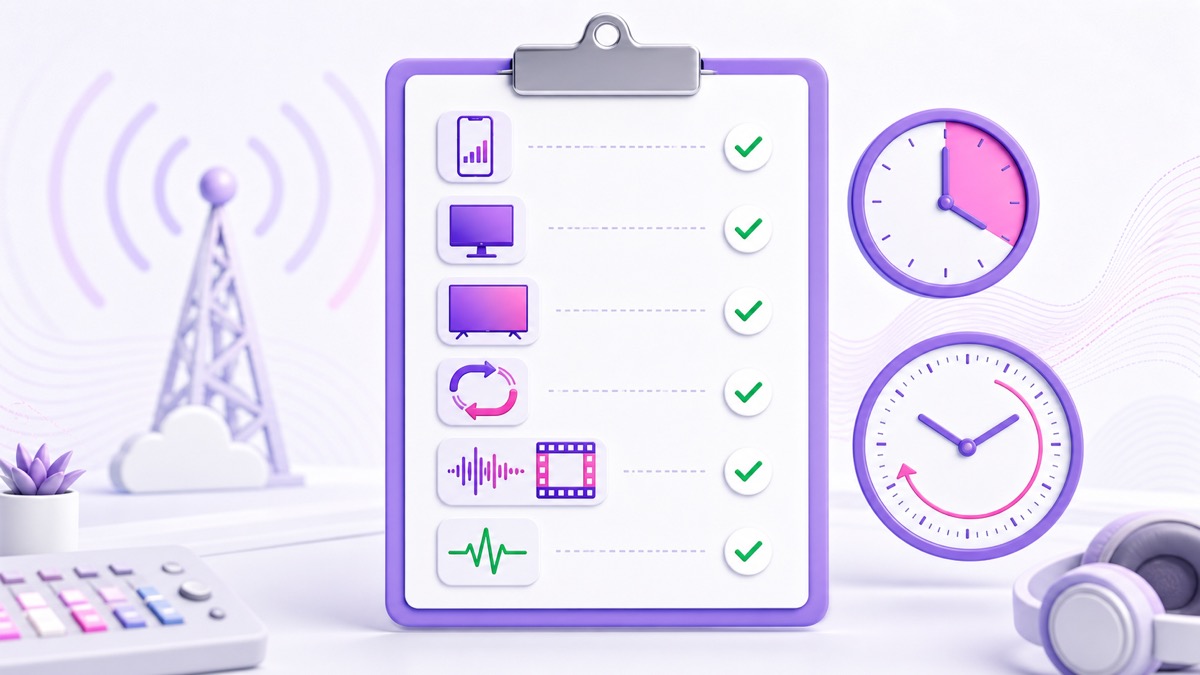
Run a 24-hour soak test before an always-on launch
A 30-minute test catches setup mistakes. It does not catch every time-dependent failure. Variable-frame-rate drift may become obvious only after hours. A damaged playlist item might not play until late in the rotation. A loop seam that seems harmless once may become irritating after dozens of repetitions. An encoder can also degrade under long-running CPU, memory, disk, or network pressure.
For a 24/7 channel, run the complete production playlist for a full day with the broadcast hidden. Use the intended resolution, bitrate, destination, and restart settings. Check at the start, after the first loop, before bed, after waking, and near hour 24. Do not babysit the screen continuously—the point is to learn whether the pipeline survives normal unattended time.
This is a practical use for StreamNeo's no-card trial: upload the same pre-recorded video or playlist you intend to publish, connect an Unlisted YouTube event, and let the whole cloud pipeline run for 24 hours. If it fails, you have found the issue without involving subscribers. For the complete production setup, use the pre-recorded video as live guide.
Your soak-test log should record the clock time, viewer result, Live Control Room health, approximate sync, current playlist item, and any restart. One line per checkpoint is enough. Evidence beats a vague memory that it seemed fine.
Keep the test clean and secure
Testing creates leftovers: watch links, archives, draft events, copied keys, and permissions in tools you may never use again. Clean them deliberately.
- End both sides. End the platform broadcast, then stop the encoder or cloud stream. Confirm the watch page shows the stream as ended.
- Rotate keys after abandoned tools. If you pasted a key into a third-party tool you will not keep, reset that key in the platform and update the tool you chose. A stream key should be treated like a password.
- Remove test archives you do not need. Before deleting anything, save screenshots or health timestamps required for diagnosis.
- Separate test and production names. Label stream keys and events clearly so a teammate cannot send the public show to the sandbox destination.
- Recheck visibility at launch. Open the final event, confirm the correct channel/Page and audience, then change Unlisted to Public only when you intend discovery and notifications to begin.
Never paste a stream key into chat, a screenshot, or a shared checklist. If you need a teammate to operate the channel, use platform permissions instead of sharing account credentials.
Your public launch should be the pipeline's second successful run, not its first experiment. Start free — 24-hour trial, no card.
More from the journal: The First 30 Days of a 24/7 YouTube Channel: A Day-by-Day Plan · Watch Hours From Shorts vs a 24/7 Stream: Which Path Is Faster? · Sponsored Lower-Thirds and Tickers on a 24/7 Loop Without Breaking Policy
FAQ
Do unlisted streams notify subscribers?
No normal channel-wide go-live notification is sent for an Unlisted stream. YouTube's help material associates subscriber notifications and subscription-feed exposure with Public events, while Unlisted content is accessible through its link. Still, do not share a confidential test URL widely: any link holder can watch or forward it, and people who already have a scheduled page may interact with that page.
Do unlisted watch hours count for monetization?
No. YouTube's current Partner Program eligibility guide excludes watch hours from Unlisted videos and Unlisted livestreams from valid public watch-hour thresholds. A test can still appear in your private analytics, but it does not add qualifying public watch hours. It also does not subtract public watch hours; it is simply outside that eligibility calculation.
How long should a pre-launch test run?
Run at least 30 minutes for basic ingest, metadata, device playback, and sync checks, and long enough to cross one complete loop seam. Before launching an always-on stream, run a 24-hour hidden soak test. That longer pass is what reveals gradual sync drift, late playlist problems, repeated-seam fatigue, and unattended recovery behavior.