Your stream began with clean lip-sync. Six hours later, the voice arrives after the face moves, and the gap is still widening. That pattern is useful evidence: you are probably dealing with drift, not a simple audio delay.
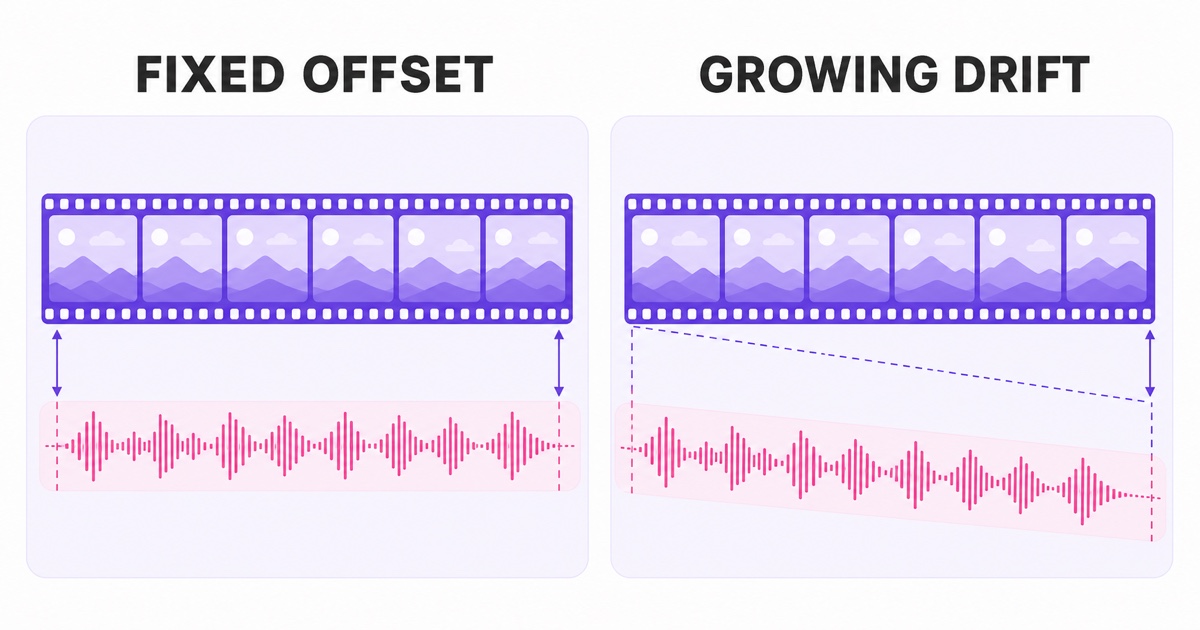
A delay slider can hide a fixed offset. It cannot permanently correct two timelines moving at different rates. For a long prerecorded loop, the durable fix usually happens in the source file: make video timing constant, audio timing uniform, and timestamps clean before the file reaches the encoder.
Drift vs offset: read the symptom first
Before changing anything, play the stream near its beginning and again much later. Use a clear sync marker such as a clap, a door closing, or a visible consonant. Do not judge only from background music; a beat over ambience can conceal a small error.
| What you see | Likely problem | First move |
|---|---|---|
| Audio is 300 ms late from minute one and stays 300 ms late | Fixed offset in the source, capture setup, or encoder | Correct the track alignment once, then export again |
| Sync is good at first but the gap grows over hours | Timing-rate mismatch, irregular timestamps, or real-time frame loss | Inspect frame-rate mode, sample rate, and encoder health |
| Only one viewer or device hears a delay | Player, Bluetooth, TV processing, or network playback issue | Compare the live archive on a second device before editing the file |
That last check prevents a common false diagnosis. Bluetooth headphones and some televisions add playback latency, while the broadcast itself remains correct. If the saved source and live archive show the same growing gap on multiple devices, continue with the file checks below.
Villain #1: variable frame rate sources
Phone cameras and screen recorders commonly create variable frame rate, or VFR, video. Instead of placing every frame at one perfectly regular interval, the file records frames when they are available. A normal video player follows those timestamps and usually makes the clip look fine.
A long live pipeline is less forgiving. A looping tool may remux the file, concatenate it with other files, or feed it into an RTMP encoder that expects a steady cadence. If timestamps are irregular or handled poorly at a boundary, the video clock can slowly move away from the audio clock. Tiny differences that are invisible in a five-minute preview become obvious after repeated loops.
VFR is not automatically corrupt, and a capable pipeline can process it correctly. It is simply the first suspect when a phone-recorded or screen-recorded loop starts in sync and drifts later. For repeatable 24/7 playback, constant frame rate gives every part of the chain a simpler timing contract.
Rule of thumb: if the gap grows with elapsed time, stop adjusting a fixed-delay control. A fixed number cannot cancel a changing error.
Check your file in 60 seconds
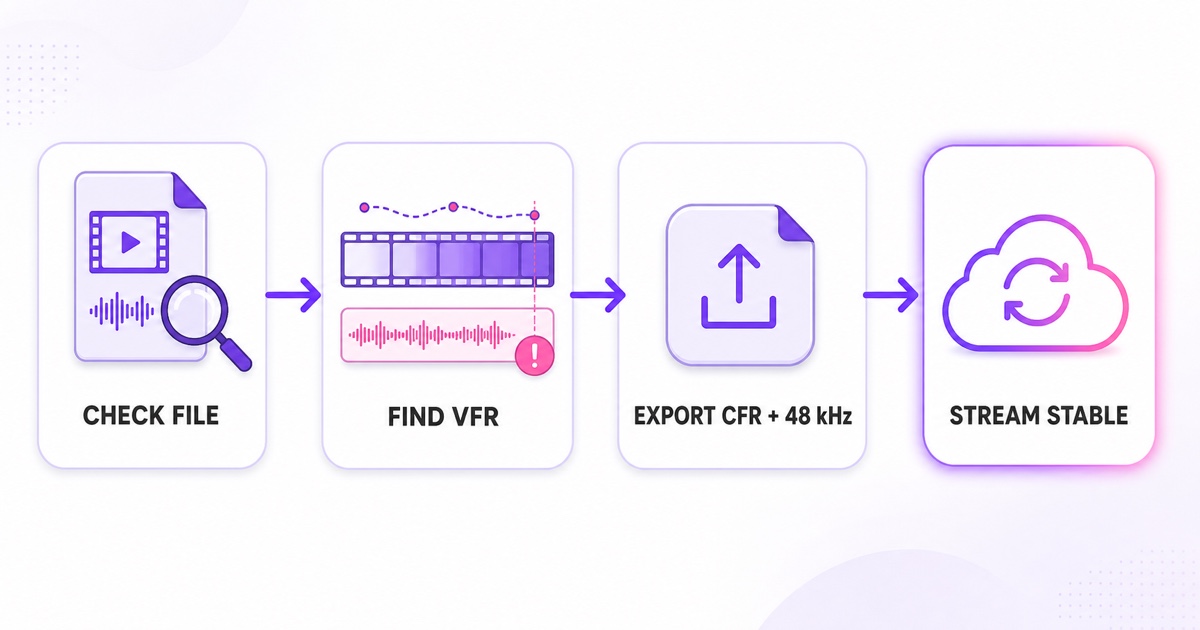
Install MediaInfo from its official source, then open the exact file being streamed. In the desktop app, choose View → Tree and expand the Video section. Find Frame rate mode. If it says Variable, you have found a strong candidate.
- Video: note Frame rate mode and Frame rate. Keep the intended project rate, such as 25, 29.97, or 30 fps.
- Audio: note Sampling rate. For a live-streaming library, standardize on 48.0 kHz.
- Playlist: repeat the check for every file, not only the first one. One outlier can create trouble at each transition.
- Duration: compare audio and video durations. A meaningful difference can point to damaged timing or an incomplete edit.
A Constant label rules out basic VFR, but it does not prove the timestamps are healthy. If the problem persists, run the file through FFmpeg with ffmpeg -v warning -i input.mp4 -f null -. Warnings about non-monotonic or invalid timestamps are a reason to make a clean export rather than repeatedly remux the file.
Do not rely on a five-minute VLC preview as your only test. Players are designed to smooth over timing irregularities. After any repair, loop the exported file for at least as long as it previously took the desync to become visible.
Villain #2: sample-rate and playlist mismatches
Audio sample rate is the audio clock. Music projects often use 44.1 kHz; video workflows typically use 48 kHz. Neither rate is inherently bad, but switching rates across a playlist forces a resampling decision somewhere in the pipeline.
Suppose file A is H.264 video with AAC audio at 48 kHz, while file B uses 44.1 kHz. A desktop player can adapt file by file. A continuous live encoder must preserve one uninterrupted output timeline. If the playlist tool resets, rounds, or carries timestamps incorrectly at every transition, small seams can repeat and become an audible gap or growing drift.
Make 48 kHz AAC your house rule and apply it to the whole library. Match resolution, frame rate, video codec, audio codec, channel layout, and sample rate across every item. The full uniformity checklist is in our guide to a seamless looping playlist live stream.
Do not convert a good file after every upload. Normalize each source once, keep that master, and reuse it. Repeated lossy exports waste time and can soften video or audio without improving timing.
Villain #3: broken timestamps from edits
Quick trim and join apps sometimes cut a compressed file without rebuilding its timing cleanly. The picture may begin at one presentation timestamp while the audio begins at another. Other files contain a timestamp jump after a screen-recording pause or a damaged segment.
Typical clues include a correct first loop followed by a bad second loop, a glitch at the exact same edit point, a duration mismatch between tracks, or FFmpeg warnings during inspection. If the offset changes abruptly at one cut, that is different from gradual VFR drift, but the permanent fix is similar: rebuild both tracks onto a clean timeline.
Remuxing changes the container without decoding the media. That is useful when only the container metadata is wrong, but it cannot create missing frames or repair every damaged timestamp. When the source has already failed a long test, one controlled re-export is safer than stacking more quick trims.
The permanent fixes
Start from the highest-quality source you still have. Avoid downloading your own compressed social upload and encoding it again if the original edit is available. Then choose a single target specification for the entire channel.
- Pick the project rate. Preserve the creative rate when practical: 25 fps for a 25 fps project, 29.97 for 29.97, or 30 for 30. Do not change rates merely because a larger number sounds better.
- Export constant frame rate. In HandBrake, open the source, go to Video → Framerate (FPS), select Same as Source, and choose Constant Framerate. In an editor, set the timeline and export frame rates to the same fixed value.
- Standardize audio. Export AAC at 48 kHz, with the same channel layout across the playlist. For most prerecorded channels, stereo is the uncomplicated choice.
- Use a streaming-friendly file. MP4 with H.264 video and AAC audio is the practical baseline. See the 24/7 streaming format guide for editor-specific export settings.
- Accept one deliberate encode. A proper CFR repair decodes and encodes the video once. Keep the repaired master so you do not repeat that generation loss; our copy-mode explanation shows why the next streaming stage should avoid another encode when possible.
- Run a long hidden test. Check sync at the start, after several loop boundaries, and beyond the old failure point. A short spot-check cannot validate a time-dependent fault.
Do not try to repair growing drift with YouTube latency settings, live-delay sliders, or a permanent 500 ms audio offset. Those controls shift one track by a fixed amount. If the clocks continue separating, the stream will only pass through one brief moment of correct sync and then drift again.
StreamNeo's upload-time optimization exists to normalize files to uniform streaming specs, including CFR video and 48 kHz audio, when optimization is needed. The goal is the same whether you use a service or a local tool: fix the file once, then stream the stable version repeatedly.
Encoder-side drift for completeness
Sometimes the file is healthy and the real-time encoder cannot keep up. When CPU or GPU load stays too high, video frames may be dropped while audio continues. The result can resemble source drift, but it usually arrives with encoder warnings, unstable frame rate, missed frames, or poor stream-health messages.
Play the exported file locally for a long test. If it stays synced, inspect the encoder during a private stream. In OBS, open View → Stats and watch for frames missed due to rendering lag or skipped due to encoding lag. Also check YouTube Studio's stream-health panel rather than judging only the viewer.
Reduce the workload methodically: stop unnecessary filters, use hardware encoding if it is stable on your system, lower output resolution or frame rate, and avoid running heavy editing or gaming tasks on the same machine. Our guide to encoder-side vs viewer-side streaming problems helps separate production faults from playback faults.
If the local file drifts, repair the file. If the local file stays synced but the encoder reports missed frames, fix the real-time pipeline. That single comparison saves hours of random setting changes.
Start free — 24-hour trial, no card. Use the full window as a long sync test with your repaired loop before making the broadcast public.
More from the journal: Keyframe Interval for 24/7 Streams: Why 2 Seconds Is Not Always Right · Preparing a Video File for a Month-Long Loop: The Encode Checklist · Why Your 24/7 Stream Buffers for Viewers but Not for You
FAQ
Why does sync worsen the longer I stream?
A growing gap means the audio and video timelines are advancing at slightly different effective rates. Variable frame rate, irregular timestamps, mismatched playlist specs, or encoder frame loss are common causes. It is usually a source or pipeline timing problem, not a platform delay that a fixed slider can solve.
Are phone videos really VFR?
Many phone cameras and screen recorders use variable frame rate to adapt to light, heat, and device load. Do not guess from the filename or average fps: open the exact source in MediaInfo and check Video → Frame rate mode.
Can I fix it without re-editing?
Usually yes. You do not need to rebuild the creative edit if it already looks right. Make one proper CFR export with H.264 video and 48 kHz AAC audio, then keep that repaired master. If the source contains a bad cut or missing media, return to the editor and rebuild that section before exporting.