
A playlist live stream loop sounds simple: play video A, then B, then C, and return to A forever. The difficult part is not the looping. It is crossing each file boundary without a stutter, black frame, audio pop, or dropped broadcast.
The good news is that transition problems are usually predictable. Match the technical properties of every file before you go live, and multiple videos can behave like one continuous program. This guide shows the exact checks, fixes, ordering decisions, and update workflow.
Why transitions glitch
A streaming platform expects a steady signal. If the first file sends 1920×1080 video at 30 frames per second with H.264 and AAC audio, the next file should continue that same contract. A 1280×720 clip at 25 fps with different audio forces the playback or encoding pipeline to adapt at the boundary.
That adaptation is where trouble appears. Depending on the tool, viewers may see a brief freeze, a black frame, a resolution change, lost audio, or a complete disconnect. The stream can look perfect for an hour and fail at the next transition because the internet connection was never the problem.
The precise villain is mismatched files. A stable upload cannot make incompatible playlist members identical. Diagnose the media first, especially when the failure repeats at the same point in every rotation.
The uniformity rule
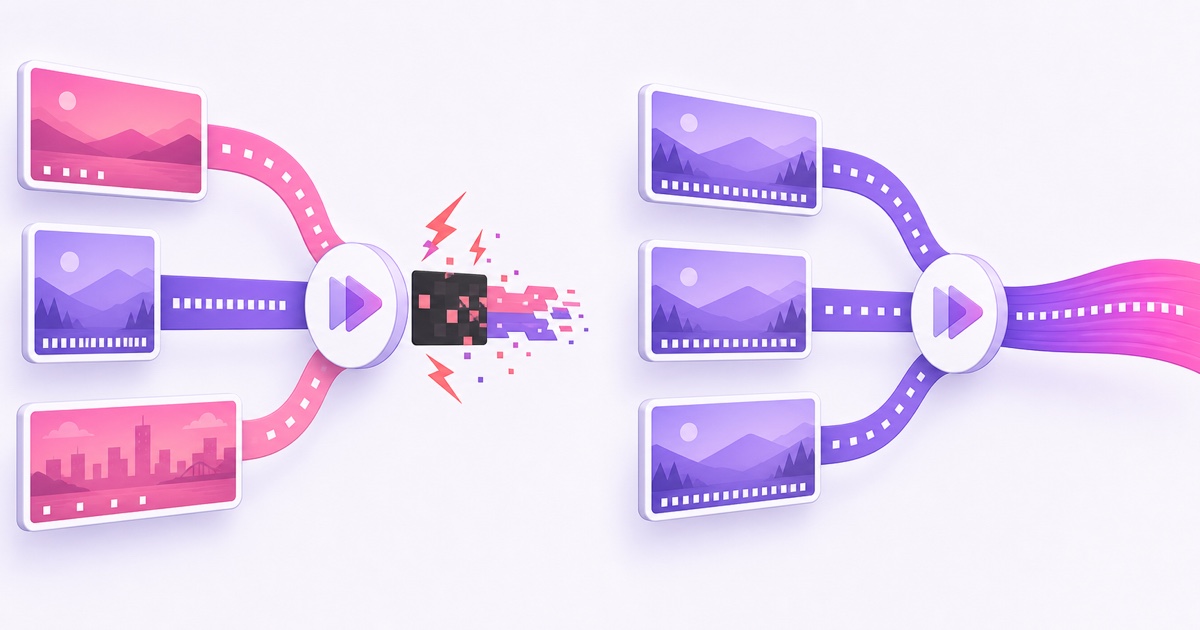
Use one house specification for the complete playlist. Every file needs the same resolution, frame rate, video codec, audio codec, and audio sample rate. Bitrate can vary within reason, but the properties that define how frames and audio samples are decoded should stay consistent.
One playlist, one specification: the same resolution, constant frame rate, H.264 video, and AAC audio at 48 kHz in every file.
| Property | Example house setting | What must match |
|---|---|---|
| Resolution | 1920×1080 | Width and height |
| Frame rate | 30 fps, constant | Rate and constant-frame-rate mode |
| Video codec | H.264 | Codec across every clip |
| Audio | AAC, 48 kHz | Codec and sample rate |
You do not have to choose 1080p or 30 fps. A uniform 720p/25 fps playlist can work well too. Choose a specification that fits most of your source library and the quality you want, then make the outliers conform to it.
Keep orientation and aspect ratio consistent as well. A vertical clip can sit inside a 1920×1080 canvas with intentional side space, but the exported file should still have the same 1920×1080 dimensions as the other playlist members.
Audit your files in five minutes
Install MediaInfo, then inspect the actual files rather than trusting filenames such as “final_1080p.mp4.” In MediaInfo, use View → Tree or View → Text, open each clip, and compare the Video and Audio sections.
- Record the Width and Height under Video.
- Record Frame rate and Frame rate mode. You want the same fps and, preferably, Constant mode.
- Check Video Format. It should read AVC/H.264 for the house specification above.
- Under Audio, check Format and Sampling rate. Look for AAC and 48.0 kHz.
Create a small audit sheet before re-exporting anything. Ten clips take only a few minutes once the columns are ready.
| Field | Matches | Must fix |
|---|---|---|
| Resolution | 1920×1080 | 1280×720, 1080×1920, or any other canvas |
| Frame rate | 30 fps, Constant | 25/29.97/60 fps or Variable |
| Video format | AVC/H.264 | HEVC/H.265, VP9, AV1, or another codec |
| Audio | AAC, 48.0 kHz | MP3/Opus/PCM or 44.1 kHz |
If one transition always breaks, compare the file before and after that boundary first. If audio gradually moves out of sync during a long rotation, inspect frame-rate mode and sample rate, then use the deeper long-stream audio sync guide.
Fix mismatched files once
Re-export only the outliers to the house specification. Work from the highest-quality source you still have—ideally the editor timeline or camera master—not from a copy downloaded from a social platform. Every unnecessary lossy encode throws away some detail.
For a typical 1080p playlist, set the canvas to 1920×1080, choose a constant 30 fps timeline, export H.264 video, and select AAC audio at 48 kHz. The exact menu names differ by editor, so keep the best format and export-settings guide beside you while fixing the files.
Do not automatically drag the entire library down to the lowest file. If nine clips are clean 1080p and one old intro is 720p, rebuild or upscale the intro thoughtfully. Converting all ten to 720p makes the audit green but needlessly reduces the stronger material.
After export, reopen the corrected files in MediaInfo. Do not assume an editor honored the requested frame-rate mode. Then play the complete playlist locally for at least two rotations and watch every boundary with headphones.
Order and pace the playlist for people
Technical uniformity hides the joins; programming determines whether anyone wants to stay. Put your strongest segment first because the stream start matters for your initial audience and any archive created from that broadcast. After that, remember that always-on viewers can enter at any point.
Alternate energy instead of stacking five similar clips. A lofi radio might move from a bright beat block to a calmer one, then to a vocal-free focus segment. A recipe channel can separate two long curries with a short snack recipe. A devotional channel can balance energetic bhajans with quieter passages while respecting the intended listening flow.
Aim for a total rotation of at least 60–90 minutes unless the format naturally supports tighter repetition. This is experience guidance, not an algorithm rule. The goal is simply to stop regular viewers from noticing the same opening every few minutes.
- Lead: the segment that best explains the channel in its first minute.
- Alternate: high and low energy, long and short, familiar and fresh.
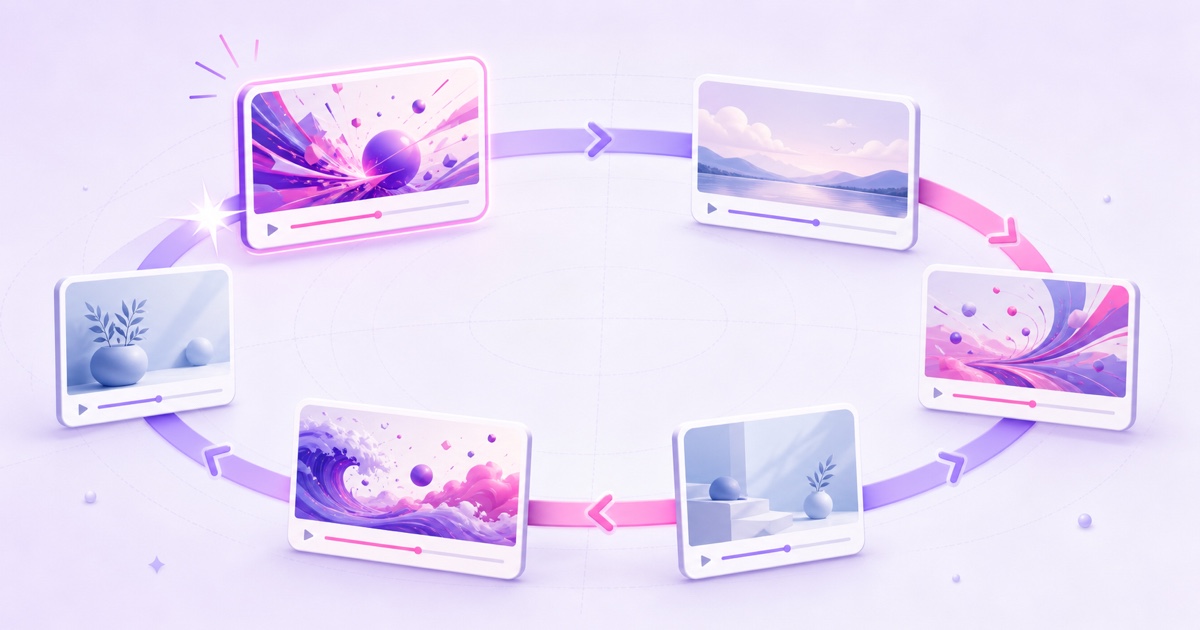
- Protect the loop point: make the final clip return naturally to the first.
- Preview the full circle: the last-to-first transition matters as much as A-to-B.
There is no algorithmic magic in a particular order. Good sequencing is viewer experience: clear entry points, controlled energy, and enough variety that the rotation does not feel like a short GIF.
The DIY route versus a service that normalizes
FFmpeg’s concat demuxer is a lean DIY option when the files already match. In three lines, the workflow is: create a text list with one file entry per clip, run FFmpeg with the concat demuxer, and use stream copy only when the streams are truly compatible.
- Create a playlist text file in the desired order, with entries such as file 'intro.mp4'.
- Run FFmpeg with -f concat -safe 0 -i playlist.txt and the output settings required by your destination.
- Use -c copy only when every input has matching streams and timing characteristics; otherwise normalize or intentionally transcode.
The sharp edges matter. Paths need correct quoting, bad duration metadata can create timing artifacts, and files that merely share an “.mp4” extension are not necessarily compatible. You also own process recovery, reconnection, monitoring, and every future playlist edit. For a single-video alternative or a comparison of other approaches, see the three loop methods guide.
A managed service can move the compatibility work to upload time. StreamNeo accepts a mixed playlist and prepares incompatible members toward a uniform streaming profile, while already compatible files can pass through without an unnecessary conversion. The practical outcome is the important part: the rotation is delivered with consistent properties instead of asking the destination to absorb a new format at every cut.
To build the stream, upload the videos, open your stream slot, arrange the playlist, and paste the key from YouTube Studio → Go Live → Stream. Start as Unlisted, watch every transition once, then change visibility when you are satisfied. You can review current plans on the pricing page.
Update the playlist later without guessing
Playlist-edit behavior varies by tool. Some services apply changes at the next item, some restart their sender, and some require the broadcast to end. Read the tool’s current behavior and test a change on an unlisted stream before promising viewers a seamless refresh.
In StreamNeo, the current path is Dashboard → Slots → select the live slot → Configure Stream. Change the selected videos for the destination, then choose Update Playlist. The running sender is replaced with the new selection. Treat it as a controlled live handoff, not a guarantee that every destination will show literally zero frames of interruption under every network condition.
Refresh on a schedule instead of changing clips impulsively. A monthly review works for many evergreen channels: remove stale segments, add the strongest new material, audit the new files, and run an unlisted transition test. Fast-moving channels can use a weekly cadence, while a carefully licensed 24/7 lofi radio may update when a new music block is cleared.
Keep a simple rotation sheet with filename, duration, rights status, technical specification, and last-added date. It prevents an innocent late addition from reintroducing the mismatch you fixed at launch.
“No visible seams” is a result you earn with matched files and testing. It is not a blanket promise any streaming tool should make for every source and network.
Ready to test your own rotation? Start free — 24-hour trial, no card.
FAQ
Why does my stream glitch between videos?
The usual cause is a mismatch between adjacent files: resolution, frame rate or frame-rate mode, video codec, audio codec, or sample rate. Compare the files in MediaInfo and re-export the outlier to the playlist’s house specification before streaming again.
Can I add a video without stopping the stream?
It depends on the tool. Some can update a running playlist; others apply the change only after restarting the sender or broadcast. StreamNeo provides an Update Playlist action for a live slot, but you should test the handoff as Unlisted because the destination and network still affect what viewers see.
How long should the full loop be?
Make it long enough that repetition does not feel constant. A 60–90 minute rotation is a comfortable starting point for most niches, while music, sleep, and study channels often benefit from several hours. Judge it by viewer experience, not an assumed algorithm reward.