You already have the finished video. The job now is to send that file to Facebook Live without filming a screen, leaving a laptop awake all night, or discovering too late that the stream key cannot be reused.
The clean setup has four parts: a Facebook Page, Live Producer, an RTMPS-capable sender, and a plan for Facebook’s broadcast-duration limit. This guide covers the no-PC cloud route first, then the OBS route, with the exact choices that matter for a recorded sermon, bhajan programme, class, product demo, or daily news recap.
Before you begin: broadcast only video, music, artwork, and footage that you own or are licensed to use. Calling a recorded programme “live” does not create new rights to its contents.
Use a Facebook Page, not a personal profile
A Page is the practical home for an organisation, church, temple, publisher, creator brand, or community channel. It gives multiple people controlled access, works with Meta’s publishing tools, and keeps the broadcast separate from one person’s private account.
Facebook does allow live video from an eligible professional-mode profile, so a Page is a recommendation rather than a technical absolute. As of July 2026, Meta’s streaming-software requirements say the account must be at least 60 days old, the Page or professional-mode profile must have at least 100 followers, and a Page operator needs Facebook access or task access to create content.
If you do not have a Page, open Facebook’s menu, choose Pages → Create new Page, then add the name, category, bio, profile image, and cover. Give collaborators only the Page access they need; do not share the owner’s password. Build the Page and eligibility before the intended launch day, not five minutes before airtime.
Know Facebook’s rules before building the loop
The number that shapes the whole plan is eight hours. Meta’s current Facebook Live format guidance lists eight hours as the normal maximum for a single stream from mobile, a computer, external software, or an API. Facebook may approve longer limits for some partners, but ordinary Page operators should design around eight hours.
That means a 24-hour Facebook presence is not one immortal post. It is a sequence of broadcasts. Each boundary can create a new live post, reset the player session, and make some viewers reload or move to the next broadcast. Any tool promising “24/7 Facebook Live” should explain this boundary instead of implying it can remove Meta’s limit.
Copyright enforcement also continues while you are live. Rights Manager can monitor live video, and a rights holder may block, claim, attribute, or report a match. Meta’s music guidance warns that a live video containing recorded music outside the applicable licences may be muted or blocked. Use original audio, commissioned music with written live-stream rights, or a library whose licence explicitly covers this use. For the wider risk checklist, read the honest guide to copyright claims on looped streams.
Find Live Producer and choose the right stream key
On a desktop browser, switch into the Page, then open facebook.com/live/create. Choose where to post, select Go live, and under Select a video source choose Streaming software. Facebook then shows a Server URL and a Stream key. You can also reach this screen from the Page by choosing Live video and then Streaming software.
Open Advanced settings and turn on Persistent stream key if this Page will broadcast repeatedly. A normal one-time key is tied to its live session and cannot be reused after that session ends. A persistent key can be reused, but Meta allows only one live video at a time on that persistent key. Copy it privately and treat it like a password: anyone holding it can publish to your Page.
- Set the destination to the correct Page before copying anything.
- Enable the persistent-key option for a repeat schedule.
- Copy the key directly into your sender; never put it in a screenshot or WhatsApp group.
- Add a clear title and description. If the programme is recorded, say “recorded replay” or “encore broadcast” where that context matters.
- Keep Live Producer open for the first test so you can see the incoming preview before publishing.
If you need a field-by-field explanation, use the dedicated Facebook stream-key and RTMPS guide.
RTMPS, explained in one breath
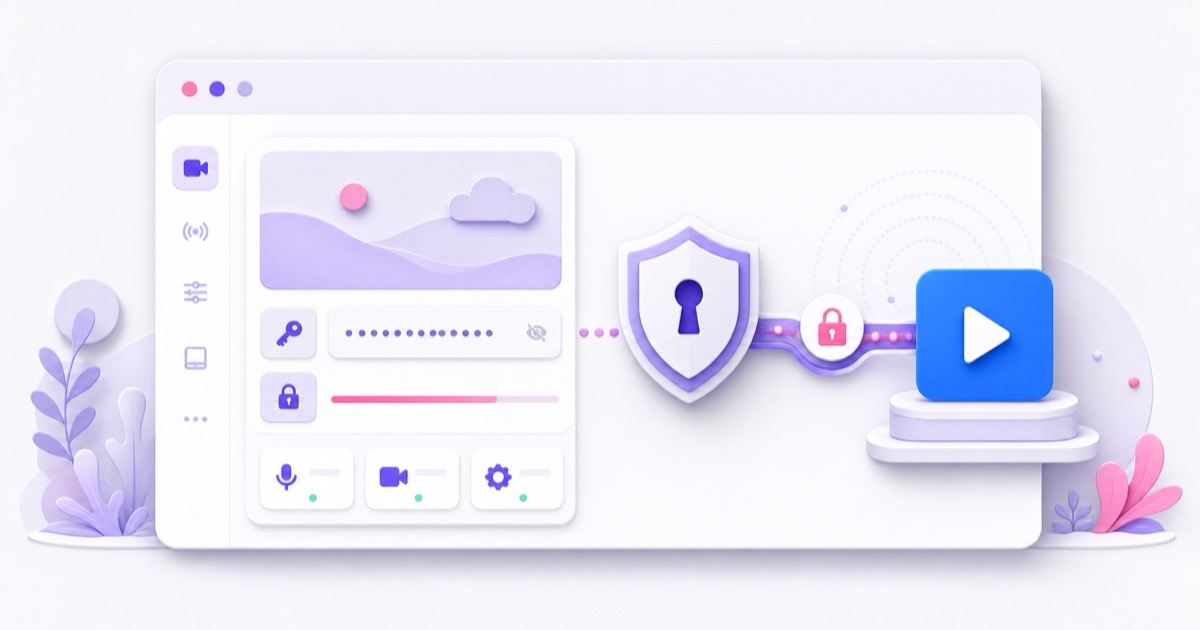
RTMPS is the encrypted form of RTMP: your encoder sends video through a TLS-protected connection on port 443. Facebook’s current server address is rtmps://live-api-s.facebook.com:443/rtmp/. The server URL and stream key are separate values in most tools; do not add spaces, quotes, or line breaks when pasting them.
For Facebook’s current custom-encoder workflow, use RTMPS. Plain rtmp:// was removed from Facebook Live publishing years ago, so an old hardware encoder or service that cannot negotiate RTMPS will fail before video reaches the preview. In OBS, a current Facebook Live service profile handles this; with a custom destination, paste the complete rtmps:// server URL yourself.
A successful connection first produces a preview in Live Producer. It does not always mean the Page is public yet. Check the preview, audio meter, title, audience, and Page identity, then click Go Live Now unless you deliberately enabled an automatic or scheduled start.
Start the pre-recorded video loop
Prepare the file once
MP4 with H.264 video and AAC audio is the least troublesome master. Meta’s current guidance recommends 1080p at 30 fps, a 3,000–6,000 Kbps video bitrate, a two-second keyframe interval, H.264 Level 4.1, and stereo AAC around 128 Kbps at 44.1 kHz. Those are reliable targets, not a reason to upscale a low-resolution recording.
Watch the entire loop seam before publishing. A one-frame flash, clipped final word, or sudden audio jump becomes much more irritating on the fifth repeat. For a devotional programme, include a natural pause or short branded transition rather than cutting directly from the closing aarti back to the opening bell.
Method 1: run it from the cloud with StreamNeo
This is the practical route when the source file is on your phone or drive and you do not want a computer running throughout the broadcast.
- In StreamNeo, open Upload and add the finished video.
- Open Streams, choose your slot, and edit its stream settings.
- Under Stream To, enable Facebook and paste the persistent key copied from Live Producer.
- Select the uploaded video or build a playlist, keep looping enabled, and start the stream.
- Return to Live Producer. Wait for the preview, confirm the Page and metadata, then publish the live video.
The cloud sends the file to Facebook, so closing your browser or locking your phone does not stop the encoder. A cloud tool that keeps your Facebook Page live must publish to Facebook; StreamNeo does not — it sends to YouTube only. Whatever you use, it cannot override Meta’s eight-hour post limit, repair an expired key, or clear a copyright block; those are platform-level events.
Method 2: use OBS on a computer
In OBS, choose Sources → + → Media Source, select the local file, and tick Loop. Then open Settings → Stream. Choose Facebook Live if available, or choose a custom service and enter Facebook’s RTMPS server URL plus the stream key.
Click Start Streaming, check the Live Producer preview, and publish from Facebook. OBS is free and gives you more scene control, but the computer must remain powered, awake, online, and running OBS. Disable sleep, test the upload connection, and do not let a system update reboot the machine mid-programme.
Make a continuous Facebook presence with broadcast cycles
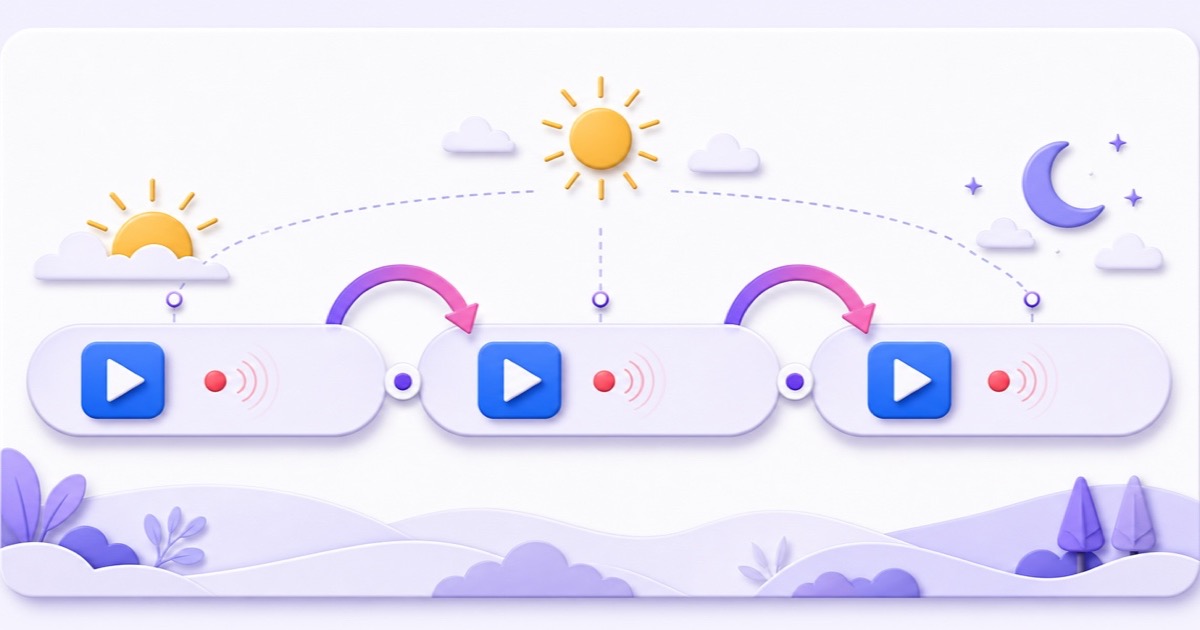
Plan the day as back-to-back sessions, not as one endless connection. With the normal eight-hour cap, a 24-hour schedule needs at least three broadcast cycles. Many operators choose slightly shorter windows, such as 7 hours 50 minutes, to leave time for an orderly stop, a new live post, and confirmation that the next preview is healthy.
| Cycle | Example window | What changes |
|---|---|---|
| Morning | 00:00–07:50 | First Facebook Live post and viewer session |
| Day | 08:00–15:50 | New post; viewers may need to open the fresh live video |
| Evening | 16:00–23:50 | New post; comments and reactions start with that session |
Good automation watches for the destination closing, stops the old sender cleanly, creates or prepares the next permitted broadcast, and starts a fresh RTMPS push without launching two publishers on the same key. The persistent key removes repeated secret-copying, but it does not by itself create the next public Facebook post. Confirm whether your chosen service has Facebook Live API access for full cycle creation or only reconnects the encoder; these are different capabilities.
A cloud loop with automatic recovery removes the laptop and ordinary sender babysitting from the setup. At a Meta-imposed session boundary, verify the next Facebook post and key state in Live Producer. If the Page rejects the key, generate or select a valid persistent key, update the stream settings, and start again—endless retries against a dead key are not useful automation.
Viewers experience the boundary as the old live video ending and a new one appearing. Pin a comment before the change, publish the next session’s link when available, and keep the title pattern recognisable. For example: “Morning Bhajans — Live Replay | Session 2” is more helpful than three indistinguishable posts called “LIVE NOW.” The broader setup checklist is in the complete Facebook 24/7 Live guide.
After you are live
Watch the Live Producer dashboard during the first 10 minutes and at each cycle boundary. Confirm that video is moving, audio is present, the status is healthy, and the public Page shows the correct post. Also check once from a second phone on mobile data; an encoder preview can look fine while the public audience or Page selection is wrong.
- Schedule the announcement: Facebook’s scheduling flow creates an announcement post and then the live-video post at the scheduled time. Use it for a known daily programme, but make sure the encoder arrives when the event expects it.
- Moderate honestly: answer comments, state when the content is a replay, and never use a recorded emergency or news clip in a way that suggests it is happening now.
- Crosspost deliberately: Meta says live crossposting requires a Page relationship and is limited to live videos created through the Live API; mobile-origin live video is not eligible. Each Page gets a separate broadcast, so comments and reactions do not merge.
- Keep a health log: record start time, end time, key used, any mute/block notice, and whether the next cycle started. Three lines per cycle are enough to reveal repeat failures.
- Separate platforms when needed: if the same file also goes to YouTube, use independent destinations so a Facebook rejection does not take down YouTube. See how to stream one video to YouTube and Facebook together.
The best first run is a short, low-stakes test rather than the flagship event. Confirm the loop seam, RTMPS preview, persistent-key reuse, one scheduled restart, and public-page visibility. Once those five pieces work, the full daily schedule becomes routine instead of guesswork.
Start free — 24-hour trial, no card. Use the trial to test one complete Facebook broadcast cycle from the actual phone, Page, file, and network you will use in production.
FAQ
How long can one Facebook live run?
For a normal Facebook Live broadcast, plan for a maximum of eight hours as of July 2026. A continuous presence therefore needs repeated broadcast cycles; it is not one unbroken 24-hour Facebook post.
Can I stream to my personal profile?
Yes, if the account is eligible and the profile uses professional mode; Meta currently lists an account age of at least 60 days and at least 100 followers. A Page is still the better operational choice for a brand or organisation because it supports Page access, publishing tools, and cleaner separation from a personal account.
Does Facebook accept normal RTMP?
No for the current custom-encoder setup. Use the RTMPS server URL supplied by Live Producer, normally rtmps://live-api-s.facebook.com:443/rtmp/. A sender that supports only unencrypted rtmp:// is not suitable for Facebook Live.