
Your YouTube subscribers and Facebook community should not force you to choose a side. Simulcasting lets one video appear live on both platforms at the same time, but the reliable setup is not simply two browser tabs and two Go Live buttons.
You need one source, two valid destinations, and a method that can keep both feeds healthy. This guide shows three practical ways to stream to YouTube and Facebook at the same time: local OBS, a cloud relay, and a cloud loop service for pre-recorded video.
What simulcasting actually involves
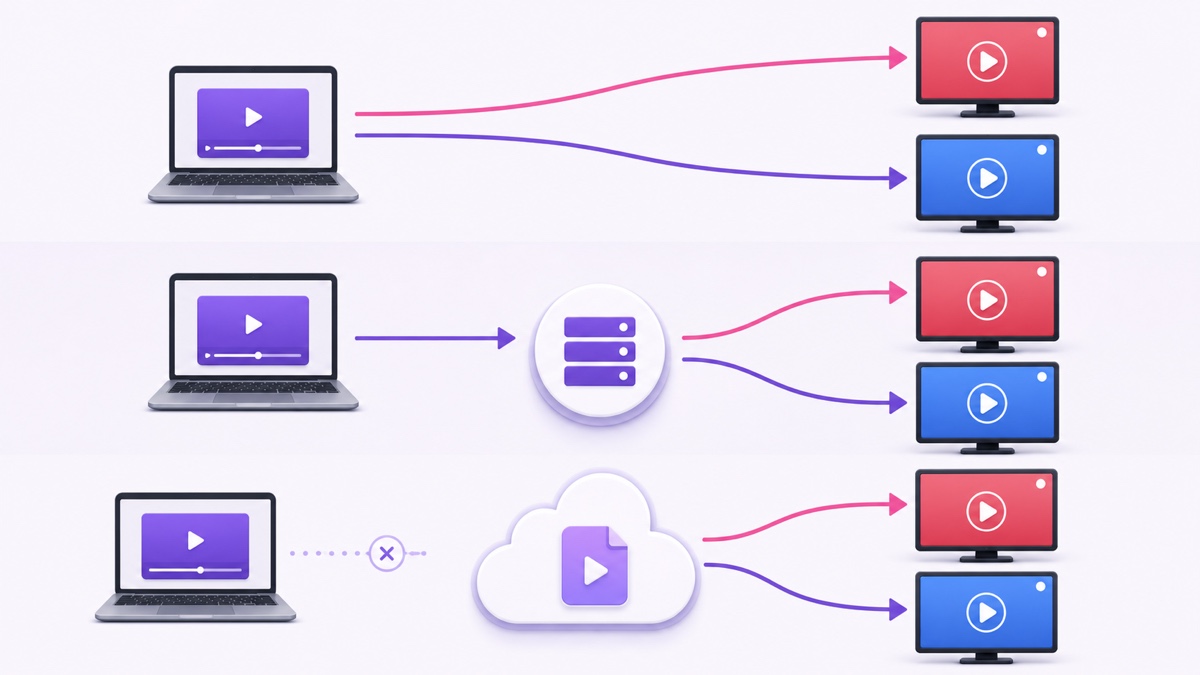
Think of the job as a fork in a pipe. Your source is a camera, an OBS scene, or a pre-recorded MP4. YouTube and Facebook are separate endpoints, each with its own server URL, stream key, event settings, health monitor, chat, and analytics.
That means the video is not copied from YouTube to Facebook. An encoder or cloud service sends two independent RTMP or RTMPS feeds. YouTube's own simulstreaming guidance confirms that the same content can go live across multiple platforms simultaneously.
Before choosing a method, enable live streaming on both accounts. In YouTube, open YouTube Studio → Create → Go live → Stream. In Facebook, open facebook.com/live/create → Choose where to post → Go live → Streaming software. Copy each destination's server URL and key, then store the keys like passwords. Never paste them into chat, screenshots, or shared documents.
| Method | Your upload | Your computer | Best fit |
|---|---|---|---|
| OBS + multi-output plugin | Two outbound feeds | Must stay on | Hands-on live production |
| Relay service | One outbound feed | Encoder still runs | Several live destinations with one ingest |
| Cloud loop service | Upload the file once | Can be off | Repeated or always-on pre-recorded video |
Option A: OBS plus a multi-output plugin
OBS normally has one streaming destination in Settings → Stream. A third-party multi-output plugin adds more RTMP targets. The Multiple RTMP Outputs listing on the OBS forum describes concurrent targets and the ability to share the main encoder, but it is still third-party software. Match the plugin release to your installed OBS version and download it only from the maintainer's linked repository.
- In OBS, add the source through Sources → + → Media Source. Choose your local video and enable Loop if it should repeat.
- Set a canvas and output size both platforms accept, such as 1920×1080 or 1280×720. Use H.264 video, AAC audio, and a two-second keyframe interval.
- Configure YouTube as the main output under Settings → Stream, using the YouTube server and key.
- Open the plugin's Multiple Outputs dock, add a Facebook target, and paste Facebook's RTMPS server URL and stream key.
- Start the YouTube output and the Facebook output. Confirm a clean preview and healthy status in both control rooms before making the events public.
The upload-speed calculation most setups miss
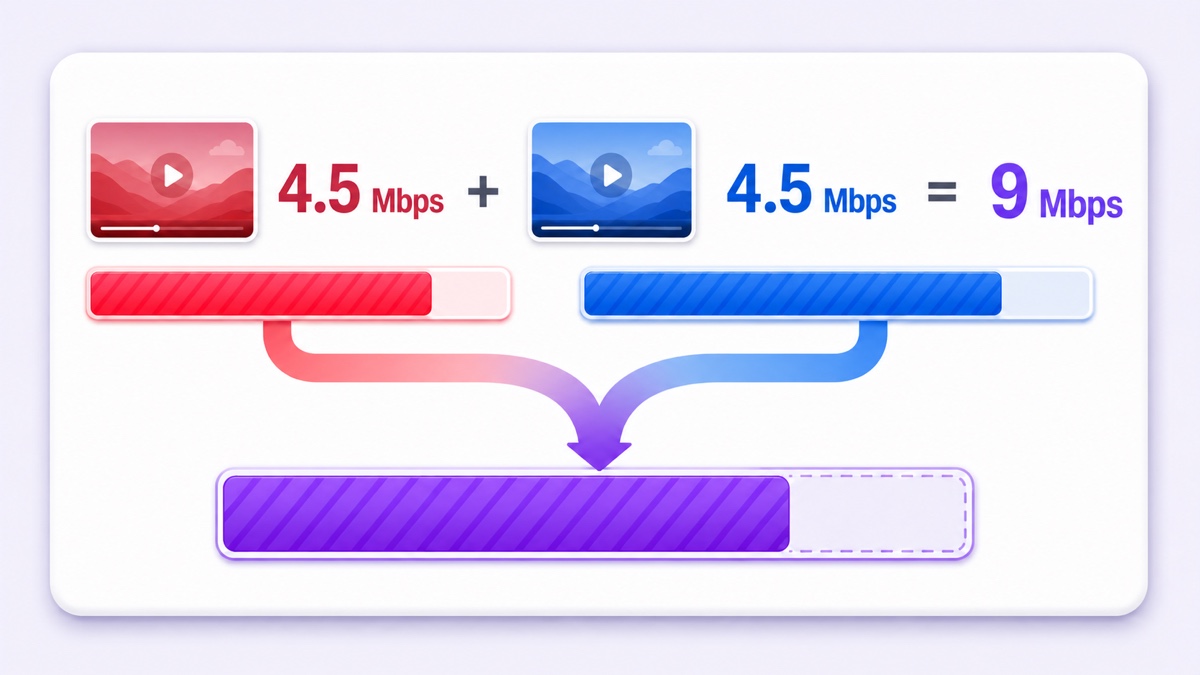
Your home connection carries both feeds. At 4.5 Mbps video per destination, the video alone consumes 4.5 + 4.5 = 9 Mbps of sustained upstream capacity. Audio and protocol overhead add more. YouTube recommends aiming for upload speed around 1.5–2 times the combined target, so two 4.5 Mbps feeds call for roughly 13.5–18 Mbps of stable, usable upload—not the best number from one speed-test burst.
Test while other people are using the same connection. A 20 Mbps plan can still struggle when Wi-Fi interference, cloud backups, video calls, or evening congestion reduce the upload available to OBS.
This is where local multistreaming often fails on Indian home broadband or 4G/5G hotspots. If either destination starts dropping frames, reduce resolution and bitrate together, move to wired Ethernet, or choose a one-upload method. Reusing one hardware encoder may reduce CPU load, but it does not turn two internet feeds into one.
Option B: use a relay service
A relay changes the network shape. OBS sends one feed to the relay, and the relay fans it out to YouTube and Facebook. Your home upload now carries one stream rather than two, so this is often the easiest fix when the computer is capable but upstream bandwidth is tight.
- Create a relay account and connect the YouTube channel and Facebook destination.
- Create the live events on both platforms and check their titles, visibility, thumbnails, and audience settings.
- In OBS, replace the platform destination with the relay's server URL and stream key.
- Enable both output channels inside the relay dashboard, start OBS, and inspect the preview and health status on YouTube and Facebook.
Read the plan limits before calling this a free solution. Restream's current free-plan documentation lists two channels, but says Facebook Pages, Facebook Groups, and custom RTMP destinations need a paid plan. The free plan also carries Restream branding. Limits can change, so verify them on the day you set up.
A relay does not remove the source encoder. If OBS is playing the file, your computer, power, and internet must stay available. It solves distribution, not unattended playout. That distinction is explored further in Restream vs 24/7 loop services.
Option C: use a cloud loop service with separate destinations
For a pre-recorded aarti, lofi mix, lesson, podcast episode, or product demo, a cloud loop is a different architecture. You upload the video once. The cloud server plays it and sends a dedicated feed to YouTube plus another dedicated feed to Facebook. Your laptop and mobile connection are no longer in the live path.
- Prepare an MP4 with H.264 video and AAC audio, then upload it to the cloud service handling each platform.
- Create the YouTube live event and add its server URL and stream key as one destination.
- Create the Facebook live event and add its RTMPS URL and key as a second destination. See the detailed Facebook stream-key guide if you need the exact key flow.
- Choose the same uploaded video or playlist for both destinations, start the feeds, and verify both platform previews.
- Monitor the first cycle, including the loop boundary, audio, and each platform's stream-health panel.
The quality bar is failure isolation. A good service runs each destination as its own process, so a rejected or expired Facebook key stops the Facebook push without taking the YouTube process down. StreamNeo covers only the YouTube half of this pairing. Ask any service you evaluate the same direct question: “If one destination fails or reconnects, does the other stream continue untouched?” A single shared job that crashes both outputs has merely moved the same weak point into the cloud.
This method is best when the video should repeat for hours, when the operator is mobile-first, or when an office or temple cannot leave a PC running. Check StreamNeo pricing for the destination and runtime that fit your channel. Start free — 24-hour trial, no card.
Platform differences you must respect
Simulcasting duplicates the picture, not the platform configuration. Set the title, description, thumbnail, visibility, audience, and monetization options separately on YouTube and Facebook. A change in one dashboard does not automatically update the other.
Facebook's software workflow uses an RTMPS server and a standard or persistent stream key. Its official setup instructions place the persistent-key switch under Advanced Settings and warn that only one live video can use that key at a time. For a longer guide, read Facebook 24/7 Live Streaming or the focused pre-recorded Facebook setup.
Facebook also applies duration cycles. Its current live-video guidelines list eight hours as the normal maximum per stream, with longer access only for selected approved partners. Plan a controlled Facebook restart before that limit. YouTube does not use that same eight-hour cap, although streams longer than 12 hours may not be automatically archived. A continuous simulcast therefore needs destination-specific lifecycle handling rather than one universal timer.
Keep separate keys even when a tool offers account login. A platform can rotate or reject its key without affecting the other account. Test with an unlisted YouTube event and a restricted Facebook audience where available, then replace temporary keys in your final setup.
What does not merge: chat and analytics
YouTube viewers remain in YouTube chat; Facebook viewers comment on Facebook. Those conversations do not merge natively, and each platform calculates reach, watch time, concurrent viewers, and engagement in its own dashboard. Some relays offer a combined operator view, but that is a convenience layer—not one shared public chat.
For a solo creator, keep both dashboards open on a tablet or second screen and check them on a fixed cadence. Pin a short message on each platform saying the stream is also available on the other, with a link only if it genuinely helps viewers. For a team, assign one moderator per community and keep a simple incident note: platform, time, symptom, and action taken.
Finally, only simulcast video, music, and artwork you own or are licensed to broadcast on both platforms. Two destinations mean two separate enforcement systems; permission for one upload does not automatically settle rights on the other.
More from the journal: Backing Up a 24/7 YouTube Channel: Files, Keys, Metadata and Recovery · Building a 24/7 YouTube Channel From a Single 20-Minute Video · One Video, Three Platforms: A Realistic Cross-Posting Workflow for Loop Channels
FAQ
Does streaming to both double my internet usage?
When your computer sends two separate 4.5 Mbps feeds, yes: the video payload is about 9 Mbps before audio and overhead. A relay uses one home upload, while a cloud loop uses the cloud server's bandwidth after your file has uploaded.
Is simulcasting allowed?
Yes for ordinary accounts in good standing; YouTube explicitly documents cross-platform simulstreaming. Still check any separate partner, league, music, or broadcast agreement you signed, because a private contract can impose exclusivity even when the platform's general feature allows simulcasting.
Do YouTube and Facebook chats combine?
No. Each platform keeps its own native chat and analytics. A third-party dashboard may display both feeds in one operator panel, but viewers still participate inside separate YouTube and Facebook conversations.