If an unknown video is live on your channel, act before you investigate. End the broadcast, replace the credential that allowed it, and then secure the account. Do not argue with the hijacker in chat, try to “hack back,” or organize mass reports from alternate accounts.
If nothing unknown is live but YouTube says live access is disabled, pause before resetting random settings. A leaked stream key, a compromised Google Account, and a platform restriction are three different incidents. Each needs a different recovery path.
Emergency order: stop the broadcast, contain access, preserve basic evidence, recover the account if needed, and only then rebuild your streaming setup.
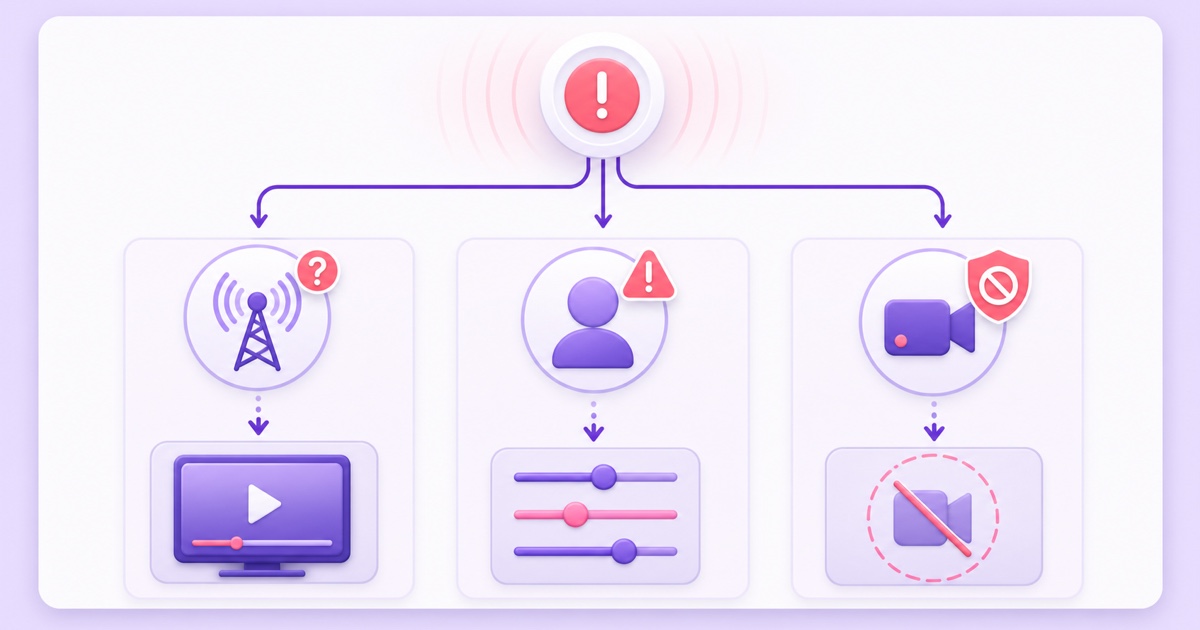
Triage: which emergency is this?
Use the visible symptom, not the stress level, to choose your first action.
- Scenario A — leaked key: Is an unfamiliar feed reaching your channel while your title, email, permissions, and other settings still look normal? Treat the stream key as exposed.
- Scenario B — compromised account: Did your password, recovery details, channel name, managers, uploads, or security emails change? The attacker may control the Google Account or a channel manager account. Resetting one key is not enough.
- Scenario C — platform restriction: Does YouTube Studio or an official email explicitly say live streaming is restricted, disabled, or suspended? Read the notice. A new key cannot bypass a policy restriction.
A generic “invalid key” or “publish rejected” message is not proof of hacking. First compare it with the authentication, session-conflict, and format errors in our stream-key error guide. If there is an unknown public broadcast or unauthorized account change, continue here immediately.
Scenario A: kill the leaked key
On YouTube, first open YouTube Studio → Create → Go live → Stream. If the unknown feed is active, use End stream in Live Control Room and stop every encoder or cloud service that you control. Ending the broadcast closes the incident you can see.
Next, find Stream settings → Stream key and select the reset icon beside the hidden key. YouTube’s current stream-settings instructions describe this as generating a new key for compromised credentials. Copy the new value only into the encoder you still trust.
Important nuance: resetting creates a new credential and prevents the old value from being used for a fresh authentication. YouTube’s public documentation does not promise an exact number of seconds before an already-connected RTMP session drops. That is why the safe procedure is end the active stream first, then reset the key—not reset and watch the hijack while hoping it disappears.
For Facebook, go to facebook.com/live/create → Streaming software and end the unwanted Live. Create a fresh Live setup and use the newly displayed standard stream key. Meta’s current streaming-software guide says standard keys are not reusable, while a persistent key is reusable and permits one live video at a time. If a persistent key leaked, do not keep using it or assume a new draft revoked it: disable persistent-key use for the replacement setup, review Page access, and escalate through Meta support if the exposed credential still connects.
Find every copy before you reconnect
A key usually leaks through an ordinary surface: a screenshot with the field revealed, a screen recording, a shared Google Doc, a support chat, an OBS profile copied to another machine, browser-sync data, or an old cloud-streaming tool. Search those locations and remove public exposure where possible.
Then disconnect abandoned tools and update the new key only in the one encoder you are bringing back online. If two services receive the replacement key immediately, you will not know which one is still unsafe. Keep the first restart deliberately simple.
- End the unknown broadcast.
- Stop your own encoders and scheduled cloud jobs.
- Reset or replace the stream key.
- Remove the leaked copy and revoke abandoned tool access.
- Connect one trusted encoder with the new key.
- Run an unlisted test before returning to the public event.
Scenario B: the account itself
If security details, channel permissions, branding, uploads, or emails changed, assume the problem is larger than a key. Every YouTube channel is attached to at least one Google Account, and YouTube’s hacked-channel recovery guide says to recover that Google Account first.
If you can still sign in, change the Google Account password immediately to a new, unique password. If you cannot sign in, use the official Google Account recovery page; answer from a familiar device, browser, and location when possible. Do not pay someone in Telegram, WhatsApp, or comments who claims they can “recover” the channel through an insider.
Once access is back, open Google Account → Security and complete these checks:
- Review recent security activity and choose “No, it’s not me” for an unfamiliar sign-in.
- Open Your devices → Manage all devices and sign out sessions you do not recognize.
- Change altered recovery phone and email details.
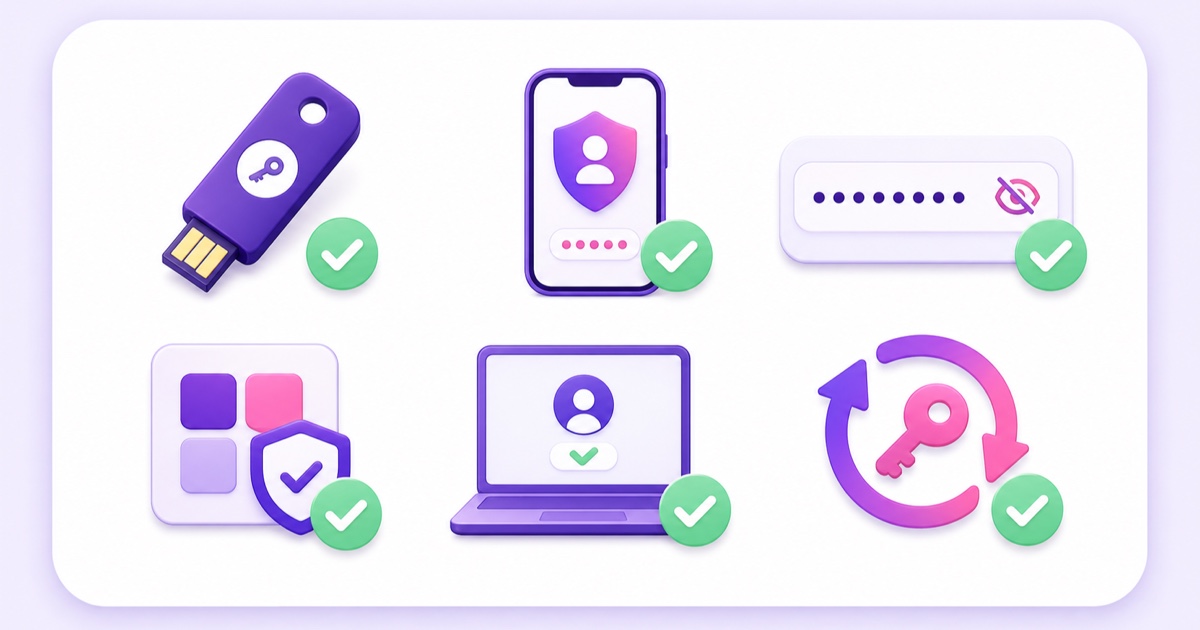
- Turn on 2-Step Verification, preferably with a passkey or security key.
- Open third-party connections and remove apps you no longer trust.
- Scan every machine used for channel work for malware before typing the new password or key into it.
Google’s compromised-account checklist and YouTube’s channel-security guidance cover these surfaces. Ask every channel owner or manager to secure their own Google Account too; one compromised manager can reopen the door.
Only after the account is secure should you reset the stream key and reconnect an encoder. Otherwise the attacker can simply reveal the new key, add a manager, or change the recovery information again.
Scenario C: locked or restricted live access
A restriction is enforced by YouTube on the channel or account. Changing OBS, buying another encoder, or rotating a key cannot remove it. YouTube also says you must not use another channel to work around an active live restriction; that can be treated as circumvention and lead to termination.
Check the original email, the alert in YouTube Studio, Dashboard → Channel violations, and the Content tab. Identify whether the notice is a Community Guidelines strike, copyright action, age/minor-safety restriction, daily live-creation limit, or another live-specific enforcement.
| Notice | What the current guidance says | What to do |
|---|---|---|
| First Community Guidelines strike | Posting, including live streams, is frozen for one week from acknowledgement; the strike remains for 90 days. | Appeal if wrong, or wait for automatic restoration. |
| Second strike within the same 90 days | Posting is frozen for two weeks. | Appeal if wrong; do not bypass it. |
| Live-specific restriction | YouTube says it may be temporary or permanent; its live guidance also describes a 14-day live block in some strike cases. | Follow the date and reason in your own notice. |
| Daily creation limit | YouTube says to try again in 24 hours. | Wait; a new key will not reset the limit. |
The one- and two-week terms come from YouTube’s current Community Guidelines strike documentation. Because live restrictions can have different causes, the exact notice on your channel is more reliable than a duration copied from a forum post.
If the decision is wrong, go to YouTube Studio → Dashboard → Channel violations → Appeal. YouTube’s appeal guide says a warning or strike can be appealed for six months and each strike can be appealed once. Do not delete the affected video first: deletion does not remove the strike and may remove your ability to appeal it.
Aftermath audit
Preserve a small evidence packet: screenshots of the unknown live and altered settings, video IDs, timestamps, security emails, suspicious device locations, and names of unauthorized managers. Never include the exposed key itself in that packet.
Then inspect YouTube Studio → Content → Live and the channel as a viewer. Review unauthorized live archives, uploads, playlists, comments, thumbnails, subscriptions, channel permissions, branding, AdSense association, and Content Manager settings if applicable.
YouTube’s cleanup guidance makes an important distinction: delete unauthorized uploads that have no strike, claim, or Content ID issue; if an unauthorized upload carries a strike or claim, contact YouTube for an investigation instead of destroying the evidence. For the policy difference, read our guide to copyright strikes on live loops.
If viewers saw the hijack, publish one calm update after control is restored: say the stream was unauthorized, confirm it has ended, and tell people to ignore links or payment requests from it. Avoid speculation and repeated alarm posts.
The prevention posture
Treat a stream key like a password. Do not put it in screenshots, chats, tickets, shared documents, or tutorial recordings. Keep the value hidden while screen-sharing, and rotate it whenever a contractor or streaming tool no longer needs access. Our stream-key safety guide gives the normal setup ritual.
Use individual channel permissions instead of sharing a master Google login. Require 2-Step Verification for every owner and manager, keep recovery details current, and review connected apps and signed-in devices on a schedule. A passkey or physical security key adds phishing resistance that an SMS code does not.
For third-party streaming services, ask four questions: Who can access stored keys? Are keys encrypted? Can you revoke the service cleanly? Does support ask you to reveal the key in chat? A service holding your stream key should be one you would trust with the channel. That is the bar, whether you choose StreamNeo or another provider; use a structured pre-purchase trust checklist, not feature count alone.
When you are ready to rebuild with one clean connection, start free — 24-hour trial, no card. Use the trial for an unlisted security test before returning to a public 24/7 stream.
FAQ
Someone is live on my channel — what first?
Open Live Control Room and end the unknown stream now. Stop your own encoders, reset the stream key, and reconnect only one trusted encoder. If account settings or permissions also changed, switch to full Google Account recovery instead of treating it as a key-only leak.
Does resetting the key stop them instantly?
Resetting generates a new key and prevents the old credential from being used for a new connection. YouTube does not publish an exact active-session drop time, so do not rely on reset alone: end the live session first, then reset the key and update your trusted encoder.
How long do live bans last?
It depends on the cause. Current YouTube guidance lists one week for a first Community Guidelines strike posting freeze, two weeks for a second strike within 90 days, and different temporary or permanent terms for other live restrictions. Check the date in your Studio notice and appeal through the Channel violations card if the action is wrong.