A 24/7 live stream used to mean a dedicated computer humming in a corner, OBS running around the clock, and a mild panic attack every time the power flickered.In 2026 you don't need any of that.You can run a round-the-clock YouTube live stream — lofi radio, ambience loops, sleep sounds, replays of your own content — without owning a PC at all, using cloud servers that do the encoding and streaming for you.
This guide walks through exactly how it works, what YouTube requires, the three realistic ways to do it (with honest pros and cons for each), and the settings that keep a stream alive for weeks at a time.
Why stream 24/7 without a PC?
The obvious reason is cost and hassle, but there's a strategic one too: an always-on live stream sits in YouTube's live tab permanently, accumulates concurrent viewers around the clock across time zones, and gives your channel a persistent "front door." Lofi Girl built one of the most recognizable channels on YouTube on exactly this model.
Running that from a home PC has real problems:
- Electricity: a typical streaming PC draws around 120W continuously.That's roughly 86 kWh per month — about ₹690/month in India at ₹8/kWh, or roughly $13–14/month in the US.Just for power.
- Uptime: Windows updates, ISP drops, power cuts, and thermal throttling all kill streams.A stream that dies at 3 a.m.stays dead until you wake up.
- Upload bandwidth: you're pushing 4,500–9,000 kbps upstream 24/7, forever competing with everything else on your connection.
We break down the full math in How Much Does 24/7 Streaming Really Cost? — the short version is that a home PC is rarely the cheap option it looks like.
What you need before you start
Regardless of which method you pick, you need four things:
- A YouTube channel with live streaming enabled. Verify your phone number at youtube.com/verify, then enable live streaming in YouTube Studio.The first time you enable it, YouTube imposes a 24-hour waiting period before you can go live.Your channel must have no live-streaming restrictions in the past 90 days.
- Your stream key. In YouTube Studio → Go Live → Stream, you'll find your stream key and the ingest URL rtmp://a.rtmp.youtube.com/live2.YouTube's default key is persistent and reusable — the same key works every time you go live, which is exactly what you want for an unattended stream that may reconnect on its own.
- A video file (or playlist) you have the rights to. This matters more than people think — more on YouTube policy below.
- Something to push the video to YouTube 24/7. That's the part we're replacing the PC with.
For a deeper dive into keys, encoder settings, and channel rules, see YouTube 24/7 Live Stream Requirements.
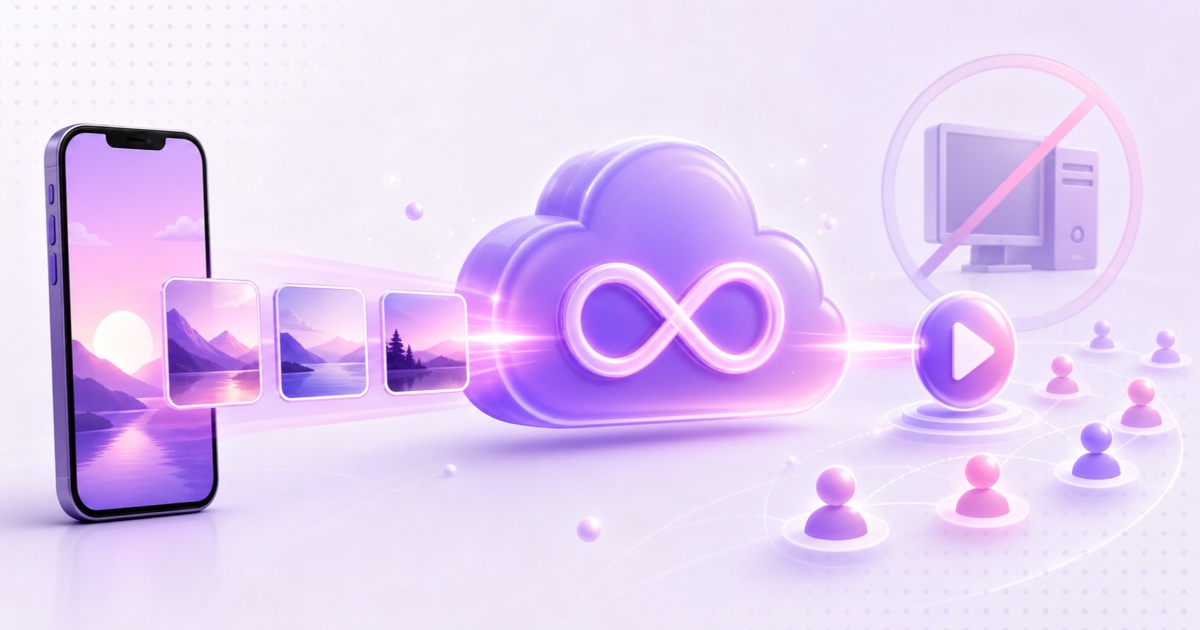
Method 1: A cloud streaming service (easiest)
Cloud streaming services run the encoder on their servers.You upload your video once, paste your stream key, and their infrastructure loops it to YouTube from a datacenter with enterprise bandwidth and no power cuts.
The typical workflow, using StreamNeo as the example (it's the tool this blog belongs to, and the steps are similar on any comparable service):
- Create an account and upload your video. StreamNeo supports resumable uploads up to your storage quota, so a flaky connection mid-upload doesn't force a restart from zero.
- Prepare the file correctly. Export as MP4 with H.264 video and AAC audio.If your file is already H.264/AAC, StreamNeo can stream it in copy mode — the file is passed through to YouTube without re-encoding, so there is zero generational quality loss and the server load is minimal.If your file is HEVC/H.265 or uses another codec, it gets re-encoded first, so exporting H.264/AAC yourself always gives the best result.
- Paste your YouTube stream key and the ingest URL (rtmp://a.rtmp.youtube.com/live2).
- Start the stream. The video loops indefinitely.If the connection to YouTube ever drops, automatic crash recovery reconnects and resumes — because YouTube's stream key is persistent, the broadcast simply continues.
- Monitor from your phone. A mobile dashboard means you can check stream health from anywhere without carrying a laptop.
Cost: StreamNeo is ₹49/day or ₹999/month per stream slot in India, and $9.99/month internationally.There's a free demo slot (email verification required) if you want to test a full loop before paying anything.
Honest downside: you're streaming a pre-recorded file.If you want live interaction — reading chat on camera, live gameplay, real-time commentary — a cloud looping service is the wrong tool and OBS on a real machine is the right one.
Method 2: A VPS with ffmpeg (cheapest if you're technical)
Rent a small Linux VPS (₹300–800/month, $4–10) and run ffmpeg yourself:
- Upload your video via SFTP.
- Run something like: ffmpeg -re -stream_loop -1 -i video.mp4 -c copy -f flv rtmp://a.rtmp.youtube.com/live2/YOUR-KEY
- Wrap it in a systemd service or a shell loop so it restarts automatically when it crashes — and it will crash occasionally.
This is genuinely the cheapest option and it's what cloud services run under the hood.The trade-off is that you become the ops team: you handle crashes, disk space, ffmpeg quirks (the -stream_loop flag has known edge cases with some files, like timestamp resets at the loop point), and monitoring.If a misconfigured loop drops the stream at 2 a.m., nothing recovers it unless you built that recovery yourself.We compare the methods head-to-head in How to Loop a Video on YouTube Live.
Method 3: A Raspberry Pi or old laptop (not recommended for 24/7)
A Raspberry Pi 5 draws only ~8–12W and can push an H.264 file with -c copy just fine.It solves the electricity problem but not the reliability one: you still depend on home internet, home power, and an SD card that will eventually corrupt under continuous writes.It's a fun weekend project and a reasonable choice for a stream you check daily — it's a poor choice for a stream you want to forget about for a month.

Recommended encoder settings for a 24/7 loop
| Setting | Recommended value | Why |
|---|---|---|
| Container / codecs | MP4, H.264 + AAC | Required by YouTube RTMP ingest; enables lossless copy-mode |
| Resolution | 1080p (or 720p) | 1080p is the sweet spot for quality vs.bitrate |
| Bitrate (1080p30) | 4,500–6,000 kbps | YouTube's recommended range; higher wastes bandwidth on static scenes |
| Bitrate (1080p60) | 6,000–9,000 kbps | Only needed for motion-heavy content |
| Bitrate (720p30) | 2,500–4,000 kbps | Ideal for ambience/lofi where visuals are simple |
| Keyframe interval | 2 seconds | YouTube's recommendation; longer intervals delay stream start for viewers |
| Audio | AAC, 128–256 kbps, 44.1/48 kHz stereo | Music streams should use 192+ kbps |
| Frame rate | Constant (30 or 60) | Variable frame rate causes drift and A/V desync over long runs |
One long-run-specific tip: make your loop file at least 30–60 minutes long.Very short loops (under ~5 minutes) mean thousands of loop transitions per week, and every transition is a chance for a timestamp hiccup.A 1-hour file looping 24 times a day is far more robust than a 3-minute file looping 480 times.
The part nobody tells you: YouTube policy
Be realistic about the rules, because a terminated channel costs more than any streaming service:
- Copyright: you must own or license everything in the loop — video and audio.Content ID scans live streams in real time and will interrupt or terminate broadcasts with matched third-party music."Royalty-free" tracks still need a license that covers streaming.
- Reused content / spam policies: a 24/7 stream of content you didn't create, or endless loops with no original value, can be flagged under YouTube's spam and reused-content policies.Streams of original music, your own recorded content, or genuinely transformative compilations are fine; re-broadcasting someone else's TV channel is not.
- Monetization is never guaranteed. A 24/7 stream can help watch-hours, but YPP acceptance and ad revenue depend on originality and advertiser-friendliness.Don't build a business plan on "loop something and collect ad money."
Which method should you actually pick?
- You want set-and-forget with a dashboard: cloud streaming service.
- You're comfortable with Linux and want minimum cost: VPS + ffmpeg.
- You need live interaction or overlays that change in real time: keep OBS and a real computer — see our OBS vs cloud comparison.
If you land in the first camp, StreamNeo's free demo slot is a zero-risk way to see the whole flow — upload a file, paste your key, watch it loop live on your channel.You can create an account here and test it before spending anything; if the demo convinces you a VPS is enough for your needs instead, that's a fine outcome too.
FAQ
Can I really stream 24/7 on YouTube from my phone?
You can manage a 24/7 stream from your phone if a cloud service is doing the streaming — start, stop, and monitor from a mobile dashboard.Actually broadcasting from the phone itself 24/7 isn't practical: the phone would need to stay on, plugged in, and connected continuously, and YouTube's mobile live feature also requires at least 50 subscribers.
Does a 24/7 stream count toward the 4,000 watch hours for monetization?
Live stream watch time counts toward the 4,000 public watch hours requirement.However, YouTube also reviews channels for reused content and spam before accepting them into the Partner Program, so hours from a low-effort loop don't guarantee acceptance.
How long can a YouTube live stream run before it's cut off?
YouTube doesn't enforce a maximum live duration — streams have run for years.Note that YouTube only creates an automatic VOD archive for streams under 12 hours; a continuous 24/7 broadcast won't produce replay videos, which is usually fine since the stream itself is the product.
What happens to my stream if the cloud server disconnects for a minute?
Because YouTube's default stream key is persistent, YouTube keeps the broadcast "live" for a short grace window when the signal drops.If the encoder reconnects quickly (StreamNeo's crash recovery does this automatically), viewers see a brief buffer and the same broadcast continues rather than ending.
What internet speed do I need if the cloud does the streaming?
Only enough to upload your video file once and open the dashboard.The 24/7 RTMP push to YouTube happens from the datacenter, not your connection — that's the whole point of going PC-free.
Is a 24/7 loop stream allowed under YouTube's rules?
Yes, looping pre-recorded content live is allowed, provided you own the rights to it and it doesn't violate spam, reused-content, or copyright policies.Thousands of lofi, ambience, and radio-style channels operate this way.