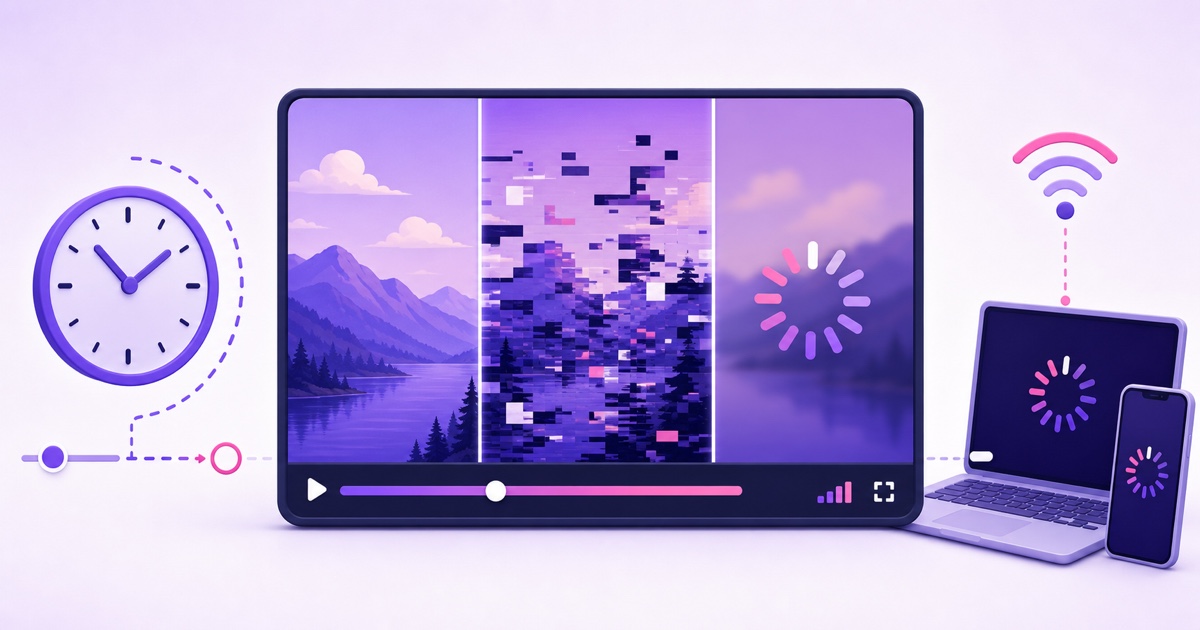
Someone types “the stream is lagging,” and the troubleshooting scramble begins. The problem is that lag can describe three different experiences: an intentional delay, a damaged feed, or a viewer whose player cannot download video quickly enough. Changing encoder settings before identifying which one you have can make a healthy stream worse.
The fastest diagnosis needs no special software. Ask whether everyone sees the same failure at the same moment, then check the stream on a second device using a different internet connection. That answer tells you which side to investigate.
Three problems wearing one word
A viewer may call all three symptoms “lag,” but they happen at different points between your encoder and their screen.
| What is happening | What viewers notice | Where to look first |
|---|---|---|
| Latency | The video plays smoothly but is several seconds behind the source | Platform latency setting; usually nothing is broken |
| Encoder-side breakup | The same freeze, jump, missing audio, or blocky frame appears for many viewers | Encoder performance and upload path |
| Viewer-side buffering | One person gets a spinner, pauses, or falling quality while others watch normally | That viewer’s device, Wi-Fi, ISP, or selected quality |
Latency is an end-to-end delay. If you clap in front of a camera and viewers see the clap later, but playback stays smooth, the stream is simply behind real time. Platforms deliberately keep some video ready in the player so short network fluctuations do not become pauses.
Encoder-side breakup damages the feed before or while it reaches the platform. An overloaded machine may miss frames; an unstable upload may fail to deliver them. Because the damaged input is shared, viewers on unrelated networks tend to see the same fault at roughly the same timestamp.
Viewer-side buffering happens after the platform has a healthy stream. One viewer’s player runs out of ready-to-play video, so it pauses to refill. Calling these three things by their proper names turns a vague complaint into a useful signal.
Latency isn’t broken
YouTube currently offers Normal latency, Low latency, and Ultra-low latency for encoder-based streams. You choose one in YouTube Studio → Create → Go live → Stream or Manage → Stream settings → Stream latency. Webcam and mobile streams are configured for interactivity automatically, so YouTube does not expose the same selector for them.
YouTube’s official latency guide says most viewers receive Low latency in under 10 seconds and Ultra-low latency in under 5 seconds. It does not publish one guaranteed delay for Normal latency. Actual delay can vary with network conditions, device, player buffer, resolution, and the path through the platform.
- Normal latency: designed for non-interactive broadcasts, supports all live resolutions and features, and gives the player more room to absorb network variation.
- Low latency: a middle ground for limited interaction; most viewers see under 10 seconds of delay, but 4K is not supported.
- Ultra-low latency: intended for rapid conversation; most viewers see under 5 seconds, with a greater chance of playback buffering and no 4K support.
Lower delay is not automatically better. Reducing the player’s read-ahead buffer makes upstream instability more visible. A live interview may justify that trade-off because the host needs timely chat responses. A 24/7 bhajan, lofi, or ambience loop has no meaningful “now,” so Normal latency is usually the sensible stability-first choice.
Do not promise viewers “zero lag.” Even a healthy pipeline must capture or read a frame, encode it, upload it, process it, distribute it, and buffer enough data to play. Smooth and dependable is a more useful target than artificially close to real time.
The one-question test
Ask: Do viewers on different connections see the problem at the same moment? If yes, investigate the feed before it reaches them. If no, investigate the affected viewer’s playback path.
- Open the live stream on a second phone or tablet. Do not use the encoder preview as your second sample; that only shows the signal before platform delivery.
- Move the second device off the same Wi-Fi. Use mobile data so it follows a genuinely different route to the platform.
- Keep both players near the live edge. If one has been paused or rewound, tap “Live” before comparing.
- Watch the same 60–90-second window. Note the wall-clock time of any freeze, spinner, or audio break.
- If both devices break together, check the platform dashboard and encoder. If only one breaks, change that device’s quality or network first.
A second device is a clean sample, not absolute proof. Two devices on the same congested router can fail together even when the outgoing stream is fine. That is why the mobile-data step matters.
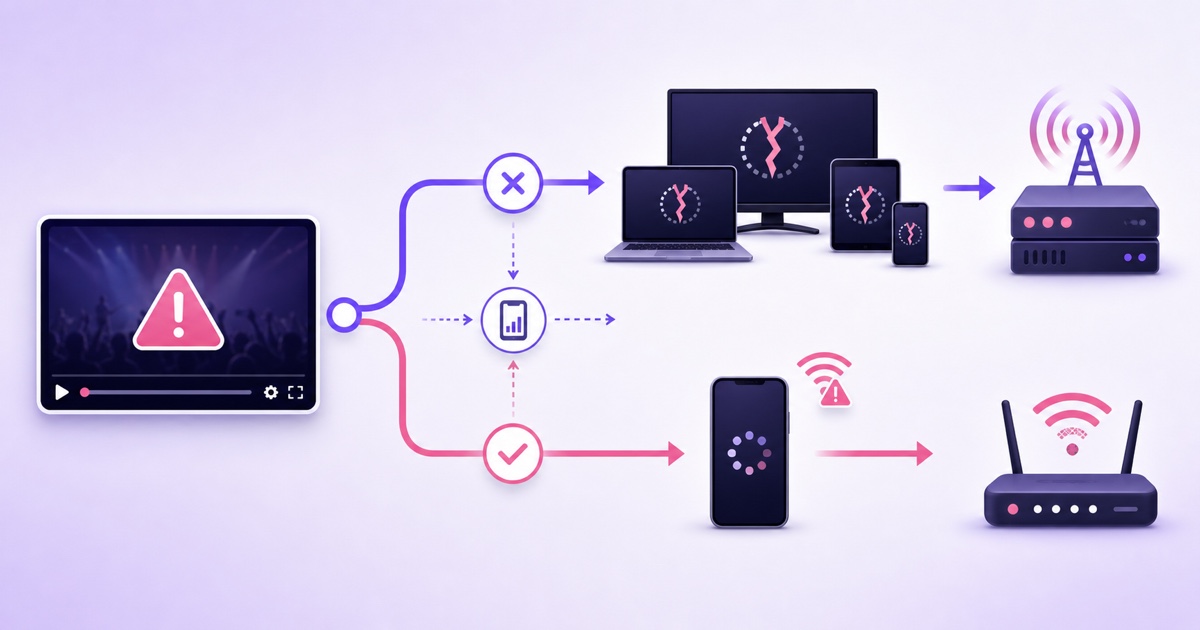
Encoder-side causes and the fix ladder
When everyone sees the same choppy moment, start with evidence. YouTube Live Control Room places warnings beside its stream health indicator and timestamps recurring errors. OBS Studio → View → Stats separates several useful counters: dropped frames from the network, frames missed because of rendering lag, and skipped frames because of encoding lag.
Those counters point in different directions. Rising network dropped frames suggest the upload path cannot deliver the selected bitrate consistently. Rendering lag commonly means the GPU cannot build frames on time. Encoding lag means the encoder cannot compress them on schedule, which may reflect CPU or GPU saturation depending on the selected encoder.
For an FFmpeg process, watch the progress output and system metrics together. Sustained processing speed below 1.0x, repeated write or connection errors, or a process that keeps reconnecting are actionable clues. CPU usage, thermal throttling, memory pressure, and outbound throughput provide the context; one isolated log line does not.
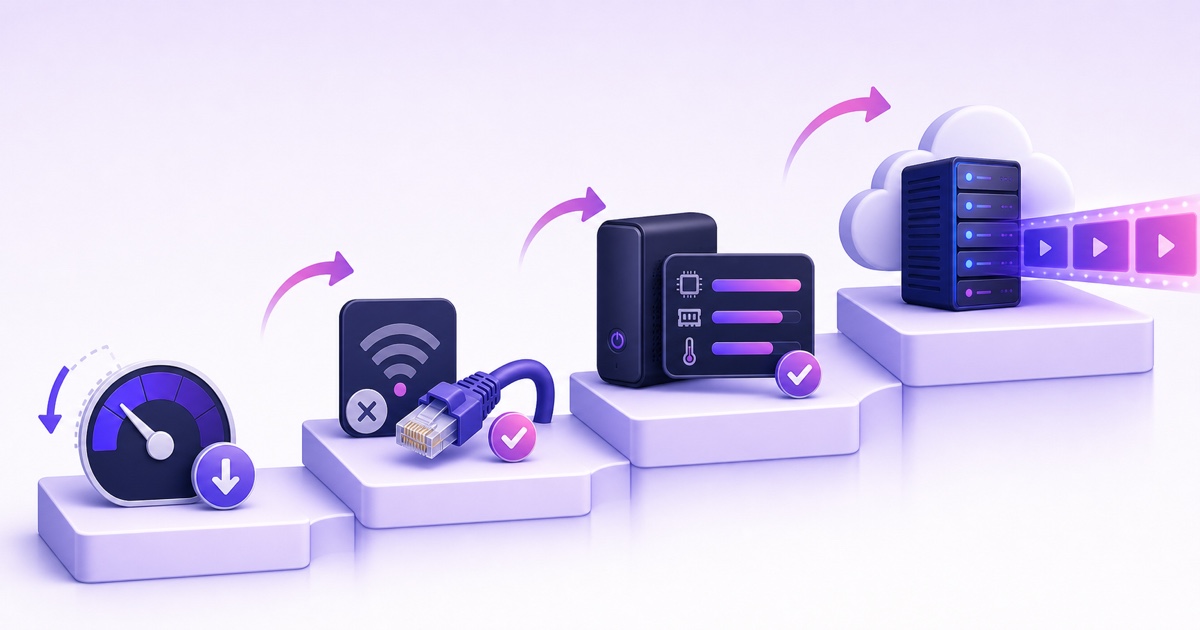
Apply fixes in this order, testing after each change:
- Lower the video bitrate. Give the upstream connection headroom instead of setting bitrate equal to a speed-test peak. Stay within the platform’s current encoder guidance for your resolution and frame rate. Use this 10-minute bitrate test before committing to a 24/7 run.
- Replace Wi-Fi with Ethernet. A fast Wi-Fi result does not rule out interference, retransmissions, or brief evening congestion. A wired path removes a variable without changing picture quality.
- Reduce encoder load or use a dedicated machine. Close competing renders, browser tabs, games, and sync jobs. If performance counters still climb, reduce resolution or frame rate, choose an appropriate hardware encoder, or move the stream off the everyday computer.
- Move encoding to a cloud service. A datacenter connection avoids local Wi-Fi, home-ISP upload variation, power cuts, and laptop contention. It does not fix a damaged source file or a platform incident, so still monitor the delivered stream.
If Live Control Room shows warnings, use the timestamp and message instead of guessing; the yellow/red stream-health guide maps those signals to checks. For repeated ingest drops rather than choppy frames, work through the disconnecting-stream checklist.
Viewer-side causes and canned answers
If the second-device test is clean, do not restart a healthy encoder because one person sees a spinner. Their Wi-Fi may be weak, another household device may be using bandwidth, their ISP route may be congested, or an older device may struggle with the selected resolution.
YouTube automatically transcodes an incoming live feed into multiple output formats for different devices and networks. That gives viewers a practical first fix: open the player’s Settings → Quality menu and choose a lower resolution. “Auto” normally adapts, but manually dropping from 1080p to 720p or 480p can recover playback faster on an unstable connection.
Playback pausing for you? Please tap Settings → Quality and try a lower option, or switch between Wi-Fi and mobile data. The stream is healthy on our second connection; if it continues, tell us your device, selected quality, and approximate time.
That is a useful pinned comment because it is polite, specific, and does not blame the viewer. It also asks for details you can compare with other reports. If multiple people on unrelated networks then report the same timestamp, promote the incident back to encoder-side investigation.
For a deeper split between platform input and individual playback, use the encoder-side vs viewer-side buffering guide. The important habit is to change only one variable at a time; otherwise you cannot tell what restored playback.
The 24/7 monitoring angle
An always-on channel gives you patterns that a short broadcast may hide. Encoder trouble often appears as a cluster of complaints at particular hours. Home upload contention may rise when the household returns in the evening, scheduled backups may start at midnight, and a laptop may throttle after a room warms up.
Keep a simple incident log with the wall-clock time, symptom, affected viewers, platform health message, OBS or FFmpeg counters, CPU/GPU load, and upload result. Compare complaints with that timeline. “Three unrelated viewers froze at 20:42 while network dropped frames climbed” is diagnostic evidence; “someone said lag” is not.
For a pre-recorded 24/7 loop, a datacenter-side encoder removes the home-network and personal-computer variables. That is the honest benefit: fewer local failure points, not immunity from internet routing, source-file errors, or platform outages.
StreamNeo runs uploaded video from cloud infrastructure, so your laptop and home connection do not have to remain online. Check the plans, or start free — 24-hour trial, no card. Diagnose first, then move only the part of the pipeline that is actually failing.
FAQ
Why is my stream seconds behind real time?
A smooth stream that arrives late is showing normal latency, not necessarily a fault. On YouTube, most Low-latency viewers are under 10 seconds and most Ultra-low-latency viewers are under 5 seconds; YouTube does not guarantee a single Normal-latency delay. Choose the mode for your need, remembering that less delay leaves less playback buffer.
One viewer reports buffering — should I act?
Test the stream from a second device on mobile data. If that sample plays cleanly and other viewers are unaffected, first ask the affected viewer to lower playback quality or try another network. Do not restart the encoder solely on one unconfirmed report.
What fixes choppy video for everyone?
Treat it as an encoder-side stability problem. Check platform health timestamps and OBS or FFmpeg indicators, then lower bitrate, use Ethernet, reduce encoder load or dedicate a machine, and consider a cloud encoder. Retest after each step so the real cause remains visible.