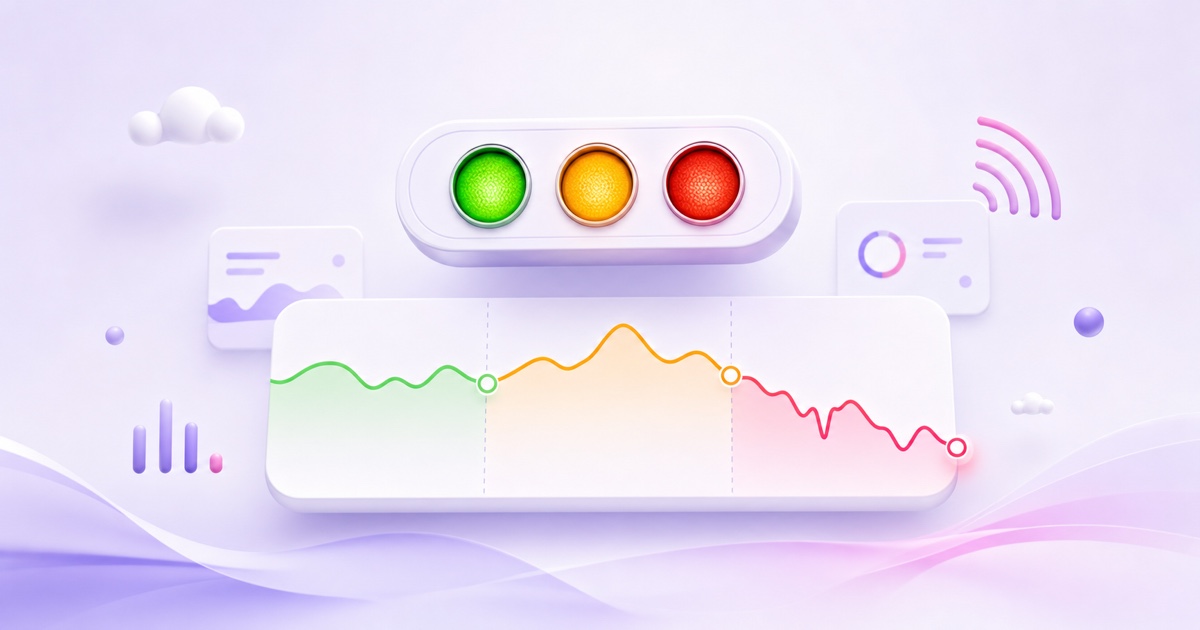
A yellow or red health indicator is not a verdict on your channel. It is YouTube telling you that the feed arriving from your encoder is incomplete, inconsistent, or configured differently from what its ingest system expects.
Use the warning message, not just the colour, as your starting point. For yellow, fix the named setting and watch the stream for five minutes. For red or no data, check the encoder, network, and stream key in that order. The sections below give the exact path for each case.
Where stream health lives and what the colours mean
Open YouTube Studio → Create → Go live to enter Live Control Room. Select the active stream and look at the health indicator and stream-status messages on its dashboard. YouTube documents these messages as checks on the stream you are sending; the dashboard places a timestamp beside each detected error.
Current YouTube documentation describes yellow errors as moderate: the event can continue, but its quality may be degraded. Red errors are critical: they may prevent the event from starting or create viewer problems. Behind the interface, the Live Streaming API uses the health states good, ok, bad, and noData. Interface labels and translations can vary, so the written message is more useful than trying to match a screenshot exactly.
The important reframe: stream health grades ingest—the audio and video reaching YouTube from your encoder. It does not directly measure every viewer's playback. A yellow warning can exist while viewers still see a clean picture, and a viewer can buffer while your ingest remains healthy.
You can confirm this distinction in YouTube's live streaming error-message guide and its live-stream health-status reference. Treat the dashboard as an input diagnostic panel, then use a second device on another network if you also need to test playback.
| Indicator | What it usually means | First response |
|---|---|---|
| Healthy / green | No current warning-level ingest configuration issue | Leave the settings alone and monitor normally |
| Yellow | The stream is reaching YouTube, but a setting or delivery pattern is suboptimal | Read the message, correct that one item, then observe |
| Red | A critical ingest error may block or disrupt the broadcast | Start the encoder-network-key diagnosis immediately |
| No data | YouTube has no usable health information because it is not receiving the feed | Confirm the encoder is actually sending |
Fix “bitrate is lower than recommended” or unstable bitrate
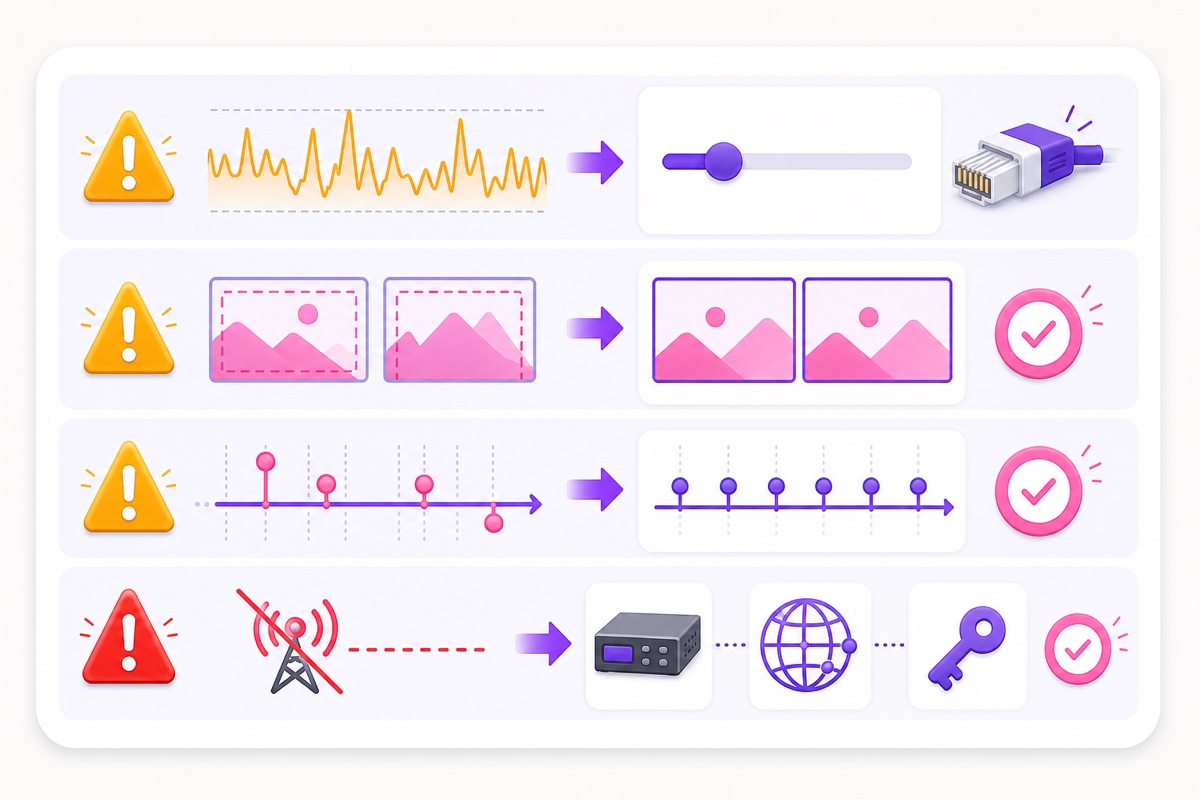
This warning means the bitrate arriving at YouTube is below the expected level or is arriving unevenly. The usual causes are an upload connection that cannot sustain the target, an encoder overloaded by resolution or frame rate, or another app consuming upstream bandwidth.
Fix it in this order:
- Lower the target bitrate one step. Do not increase it to chase the recommendation while the connection is already struggling. Pick a value inside YouTube's range for your actual resolution and frame rate, then favour stability over the top of that range.
- Use Ethernet. Connect the encoder machine to the router with a cable. Wi-Fi can show an impressive speed-test peak and still suffer brief interference that starves a live feed.
- Stop competing uploads. Pause cloud backups, file sync, video calls, security-camera uploads, and large phone backups on the same connection.
- Check encoder load. In OBS, open View → Stats. Network dropped frames point toward the connection; frames missed due to rendering or encoding lag point toward GPU or CPU pressure. Lowering resolution, frame rate, or encoder load is then more useful than changing the router.
- Use constant bitrate. YouTube's current encoder guidance calls for CBR. In OBS, check Settings → Output → Streaming → Rate Control → CBR.
Do not judge the connection from one speed-test number. A livestream needs sustained upstream delivery. A datacenter-side encoder generally holds a steadier path than a laptop on home Wi-Fi because it removes local radio interference, household traffic, and power interruptions from the ongoing push. That is a network-topology advantage, not an uptime promise.
Fix resolution or frame-rate mismatch warnings
A mismatch appears when the incoming feed does not match the stream configuration or when primary and backup feeds disagree. One common example is sending 1920×1080 video through a custom stream key configured for 1280×720. Another is switching between 30 fps and 60 fps sources during the same event.
First, inspect the source file with a media-information tool and write down its width, height, frame rate, video codec, and audio codec. Then make the broadcast and encoder agree with those values. For a 1080p30 file, send a 1920×1080 canvas and output at 30 fps; do not configure the event as 720p or make OBS rescale only the output without a reason.
For a prerecorded playlist, normalise every file before the stream starts. Export with a constant frame rate (CFR), not variable frame rate (VFR), and keep resolution, frame rate, audio sample rate, and codecs consistent across the playlist. Phone recordings and screen captures are frequent VFR sources. The recommended 24/7 video-format guide gives a practical H.264/AAC baseline.
In OBS, check Settings → Video for Base (Canvas) Resolution, Output (Scaled) Resolution, and Common FPS Values. If you use a custom YouTube stream key with fixed settings, edit or replace that key so its expected resolution and frame rate match the encoder. Make one change, restart the test feed if necessary, and wait for a fresh timestamped health message.
Fix keyframe-interval warnings
YouTube currently recommends a two-second keyframe interval and says not to exceed four seconds. A keyframe is a complete video frame from which the following compressed frames can be decoded. If keyframes arrive too far apart, recovery and transcoding become harder and buffering can increase.
In OBS, go to Settings → Output, select Advanced Output Mode, open the Streaming tab, and set Keyframe Interval to 2 s. Also keep Rate Control on CBR. Apply the change, restart the encoder output, and give Live Control Room enough time to report a new health sample.
With FFmpeg, the GOP length must equal two seconds of frames. At 30 fps, that is 60 frames; at 60 fps, it is 120. For a 30 fps H.264 output, the relevant options are -g 60 -keyint_min 60 -sc_threshold 0. The final command still needs the correct input, codec, bitrate, audio, and RTMP destination, so do not paste those flags into an unrelated command blindly.
YouTube's current encoder-settings page is the source of record for this recommendation. Managed cloud loop services normally preset GOP, CBR, codec, and ingest parameters, which removes this manual-settings class of warning. You should still keep the uploaded files consistent.
Fix red “no data” or disconnected health
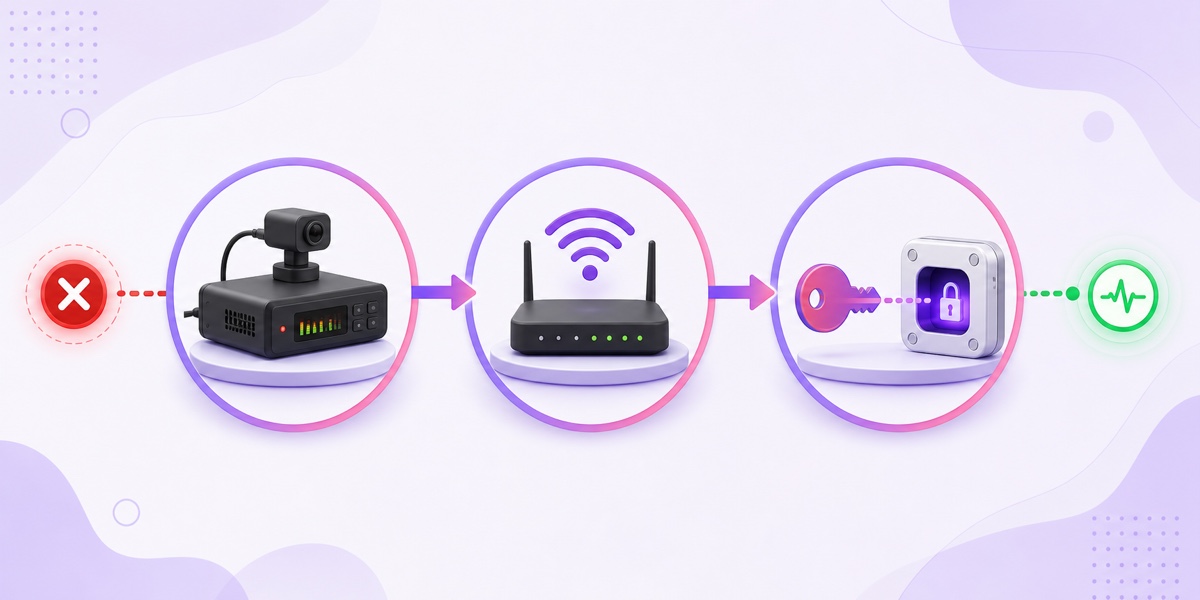
Red with no data is different from a weak yellow feed: the encoder is not reaching the ingest endpoint with usable audio-video data. Work through the chain without skipping ahead.
- Is the encoder running? In OBS, the button should read Stop Streaming, not Start Streaming, and its status bar should show active output. For FFmpeg, confirm the process is alive and inspect its latest error rather than assuming it is still pushing.
- Is the local network up? Open a normal website from the encoder machine. Then check the Ethernet link, router, modem, VPN, firewall, and ISP connection. A working phone on mobile data does not prove the encoder's network is working.
- Is the stream key valid? Compare the encoder destination with Live Control Room's current stream URL and selected key. Remove accidental spaces. If the key was reset, rotated, or copied from another event, update the encoder. Follow the detailed stream-key invalid and publish-rejected checklist when authentication is the failure.
If the feed was running and then stopped, the encoder log and Live Control Room timestamp should tell you which side failed first. Check the unexpected stream-ending diagnosis for auto-stop, encoder exit, power, and platform-side cases. Never publish or screenshot a stream key; if it has been exposed, reset it in Live Control Room and replace it everywhere it was used.
When yellow is actually fine
A short yellow event does not always justify a configuration overhaul. In prerecorded playlists, the encoder may briefly reinitialise at a file boundary. If adjacent files differ in frame rate, audio layout, codec profile, or time-base behaviour, the transition can momentarily disturb bitrate delivery or trigger a fresh warning.
Watch the stream for five minutes after a single dip. If health returns to normal, the viewer playback stays clean on a second device, and the warning does not repeat at every transition, record the timestamp and keep monitoring. Constantly changing bitrate, resolution, and latency can create more variables than the original warning.
Act when the warning persists, repeats at the same playlist boundary, coincides with OBS dropped frames, or matches visible breakup on multiple networks. For repeatable transition dips, re-export the files to identical CFR, resolution, codec, audio sample rate, and channel layout. Uniform inputs let the encoder move between items without renegotiating the whole pipeline.
Use this prevention checklist
The fastest repair is the warning you prevent before the public watch page matters. Run this pre-flight routine whenever you change an encoder, stream key, source-file template, router, or target quality:
- Create an unlisted event and run the exact content, motion, and audio you plan to broadcast.
- Use the 10-minute bitrate test to check sustained delivery rather than a single upload-speed peak.
- Match every playlist file to one resolution, one constant frame rate, one codec profile, and one audio format.
- Set CBR and a two-second keyframe interval before the encoder connects.
- Open the stream from a second device on mobile data to separate ingest health from local playback.
- Record the encoder settings that passed, along with the test date, so later troubleshooting starts from a known-good baseline.
For an always-on channel, check Live Control Room once a day and investigate a new repeated warning. You do not need hourly anxiety around a healthy stream. A daily glance, encoder alerts, and a consistent file pipeline catch useful signals without inviting random tuning.
If you want the ongoing stream to run from a preset-correct cloud encoder instead of your home connection, start free — 24-hour trial, no card. Upload the file once, configure the destination, and let the cloud encoder handle the continuous push.
FAQ
Does yellow health mean viewers see problems?
Not necessarily. Yellow reports a moderate problem with what your encoder is sending to YouTube. Viewers may still see clean playback, especially during a brief dip. Read the specific warning, check playback from a second network, and act if the warning persists or lines up with visible problems.
What keyframe interval should I use?
Use a two-second keyframe interval for YouTube Live. YouTube's current recommendation is two seconds and its published maximum is four seconds. In OBS Advanced Output settings, enter 2 s; in FFmpeg, use a GOP of 60 frames at 30 fps or 120 frames at 60 fps.
Why does health dip when my playlist changes videos?
The encoder may briefly reinitialise at a boundary, especially when two files differ in resolution, frame rate, codec profile, audio format, or timing. Export every playlist item to matching CFR and media settings. If the warning clears quickly and does not affect playback, observe it before changing a stable configuration.