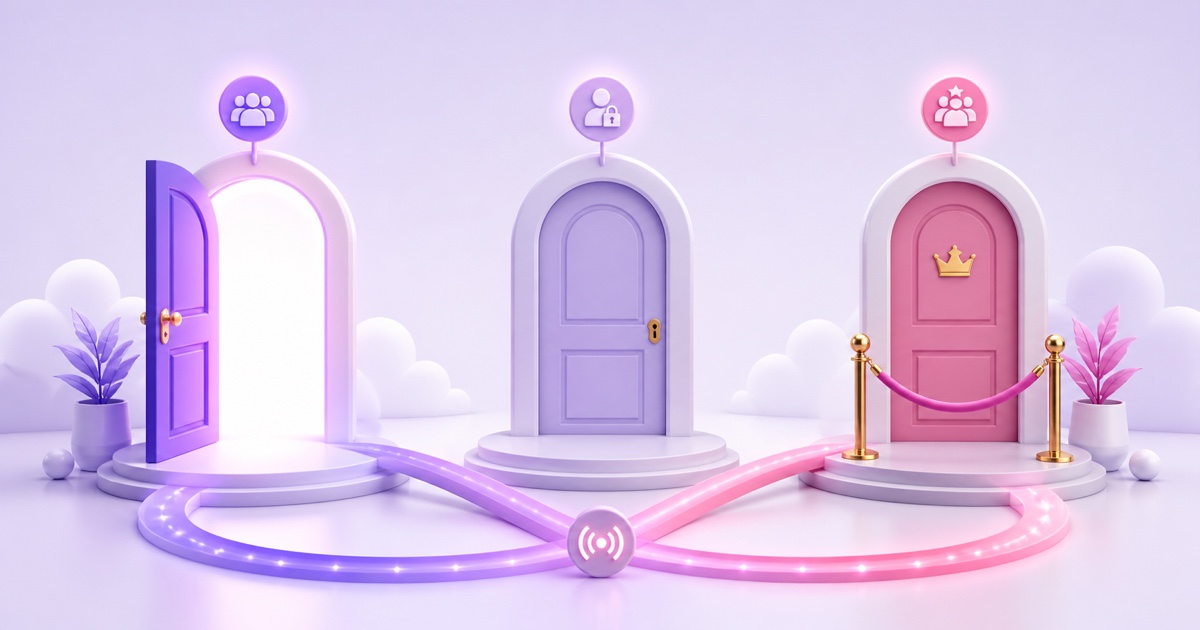
The visibility dropdown looks like a small setup choice. For a 24/7 stream, it decides who can enter, whether YouTube can help new viewers find you, and whether a test accidentally becomes your public launch.
The practical default is simple: test as Unlisted, then switch to Public after video, audio, looping, and metadata are correct. Use Private only for a tightly controlled review, and Members-only only when restricted access is the product—not when channel growth is the goal.
The three options (plus one)
YouTube gives every live broadcaster three standard privacy choices. A fourth, members-only, appears when an eligible channel has Channel Memberships enabled.
- Public: anyone can watch, and the stream is eligible to appear in search, recommendations, subscriber feeds, and YouTube's live surfaces.
- Unlisted: anyone with the link can watch, but the stream is normally absent from search and your channel's public video list.
- Private: only the Google or YouTube accounts you explicitly invite can watch after signing in.
- Members-only: active channel members at the level you choose can watch; non-members may see the title and thumbnail but cannot enter the stream.
You set the standard options in YouTube Studio → Create → Go live → Stream → Visibility. YouTube's current live-stream settings documentation confirms that streamers can choose Public, Private, or Unlisted. Members-only access is configured from the same Visibility area on channels that have the feature.
Visibility is a YouTube broadcast setting, not an encoder setting. OBS, FFmpeg, or a cloud loop service sends video to the stream key; it does not turn an Unlisted broadcast into a Public one. StreamNeo likewise pushes the loop to the broadcast you created, with the visibility that broadcast already has.
Public: the growth default
Choose Public when you want the stream to acquire viewers beyond people who already have its link. Public is the only standard setting that makes a live broadcast broadly discoverable across YouTube. “Eligible” matters: Public does not guarantee a search position or recommendation, but the other privacy settings remove most or all public discovery paths.
For an always-on lofi, devotional, ambience, or radio-style stream, Public also makes the watch page reliably findable. A returning viewer can search for the title, reach it from your channel, save it, or encounter it through a recommendation. That consistency is part of the value of a 24/7 channel.
Public visibility does not rescue weak packaging. Use an accurate title and thumbnail, explain that the content is continuous or looped where relevant, and avoid suggesting that recorded footage is happening live in real time. The goal is a stable, honest destination—not merely a green “LIVE” badge.
There is also a monetization-accounting reason to understand the setting. YouTube says watch time from Unlisted and Private videos does not count as valid public watch hours for YouTube Partner Program thresholds. If your objective includes building valid public watch time, keeping the main stream Unlisted works against that objective.
Do not start Public merely to see whether the encoder connects. A silent first minute, wrong aspect ratio, broken loop seam, or accidental desktop audio becomes the first experience for real viewers. Public should be the launch state, not the workshop.
Unlisted: the workhorse for testing
Unlisted is the safest practical staging area for most creators. The watch page works, and anyone with its URL can open it without being individually approved. Yet the stream is not presented as a normal public upload in search or on your channel's public video list.
A reliable pre-launch pattern looks like this:
- Create or schedule the broadcast as Unlisted.
- Start the encoder or cloud loop and wait for a stable preview.
- Open the watch URL in a signed-out browser or on a second phone using mobile data.
- Check picture, stereo audio, lip-sync where relevant, bitrate stability, title, description, thumbnail, and the loop transition.
- Leave it running long enough to cross at least one complete loop boundary.
- When every check passes, edit Visibility to Public and save.
For a tighter runbook, use the unlisted live-stream test checklist. It separates encoder health from viewer-side playback, which is important when Studio looks healthy but a phone on a different network still buffers.
Unlisted is also useful when the watch experience belongs inside your own website. You can embed the player on a course page, event page, digital signage dashboard, or community portal without placing the stream in normal YouTube discovery. Test the actual embed before launch; browser autoplay rules, cookies, and mobile layouts can behave differently from the YouTube watch page.
Unlisted is not private. Anyone who receives the link can watch it and forward it. The URL may travel through messages, browser history, analytics, shared documents, or a public playlist.
If access control matters more than convenience, do not treat an obscure URL as a lock. Use Private for named reviewers or Members-only for paying channel supporters.
Private: narrow but real
Private is appropriate when the audience is known in advance and small: an internal company preview, a temple committee reviewing a bhajan loop, a client approving branded footage, or a moderator checking a sensitive broadcast before release.
The current mechanics are stricter than Unlisted. You share a Private video with specific email addresses, viewers must use the invited Google or YouTube account, and YouTube documents a limit of up to 50 invited email addresses. Private content does not appear in public search or on the public channel page. A forwarded URL alone does not grant access.
That makes Private genuinely controlled, but operationally awkward for a broad audience. Invitations can fail because a reviewer opens the link under the wrong Google account. External embeds that need anonymous access are not a fit. For a distributed volunteer team or community test, Unlisted plus careful link handling is usually smoother; for confidential review, accept Private's extra friction.
Before relying on Private for a deadline, run a two-person access test. Invite one reviewer, ask them to open the link in the exact account you added, and confirm that both desktop and mobile playback work. Do not discover an account mismatch five minutes before approval.
Members-only: monetized intimacy
Members-only live streaming is not simply another privacy label. It is a Channel Memberships perk. In YouTube Studio → Create → Go live → Visibility, an eligible creator can choose Members-only, then allow all paid members or select a membership level and above.
As of July 2026, access to fan-funding features requires acceptance into the YouTube Partner Program, age 18 or older, an available country or region, and acceptance of the relevant commerce terms. In countries with the expanded YPP, the entry threshold is 500 subscribers, three valid public uploads in the previous 90 days, plus either 3,000 valid public watch hours in 12 months or 3 million valid public Shorts views in 90 days. Feature eligibility still depends on YouTube's review and policies.
Memberships also are not available to channels set as Made for Kids or channels with a significant amount of ineligible kids content or music-claimed content. If your format is children's programming, read the kids story loop safety playbook before planning any gated offering.
A members-only continuous stream can work as a practice room, premium focus soundscape, patron-only ambience feed, or backstage community channel. The value must be clear enough to justify recurring payment, and the content must be original and eligible. The broader monetization guide explains how Memberships and Super Chat behave on always-on streams.
The trade-off is public reach. Non-members may encounter the stream's thumbnail and metadata as a promotion for Memberships, but they cannot watch the gated broadcast. It therefore produces no normal public viewing discovery. If growth is the main target, keep the primary stream Public and make the members-only feed a distinct bonus rather than hiding your only live destination.
Switching visibility on a running stream
YouTube lets creators edit live-broadcast visibility. From YouTube Studio, open Content → Live, select the active broadcast, change Visibility, and save. The access rule updates on the existing broadcast rather than requiring a new stream key or a new encoder session.
For a standard launch, create the broadcast as Unlisted, begin sending video, verify the real watch page, then change it to Public. The stream can keep ingesting while you edit the setting. After saving, open the channel page or search from a signed-out window to confirm the public state instead of assuming the dropdown change is enough.
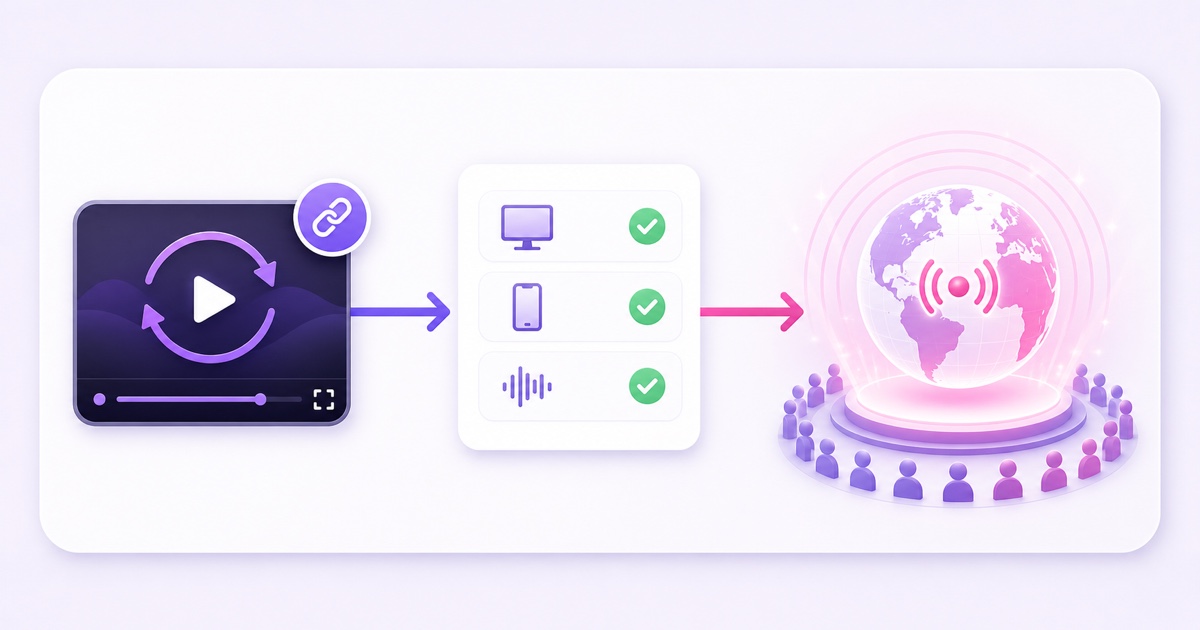
Changing access can affect people already watching. Moving Public to Private or Members-only removes access for viewers who no longer qualify. YouTube also offers a planned Public-to-Members-only transition with an on-screen warning for non-members; use that designed flow when a public live event has a premium segment rather than abruptly changing a generic privacy setting.
Visibility does not repair encoder problems. If the stream is offline, yellow, or receiving no data, changing it to Public only exposes the failure. Confirm incoming video, audio, and stream health first. With StreamNeo, launch the loop against the Unlisted YouTube broadcast, perform the viewer checks, and publish only after the output is clean.
The decision card
| Your main goal | Choose | Why | Main caution |
|---|---|---|---|
| Grow through YouTube discovery | Public | Eligible for search, recommendations, channel surfaces, and public watch time | Test before exposing the stream |
| Test or use a link/embed | Unlisted | Full watch page without normal public discovery | Anyone can forward the link |
| Show named internal reviewers | Private | Only explicitly invited signed-in accounts can watch | Account friction and a small invite limit |
| Serve paying superfans | Members-only | Access can be limited by membership level | Requires eligibility and sacrifices public viewing reach |
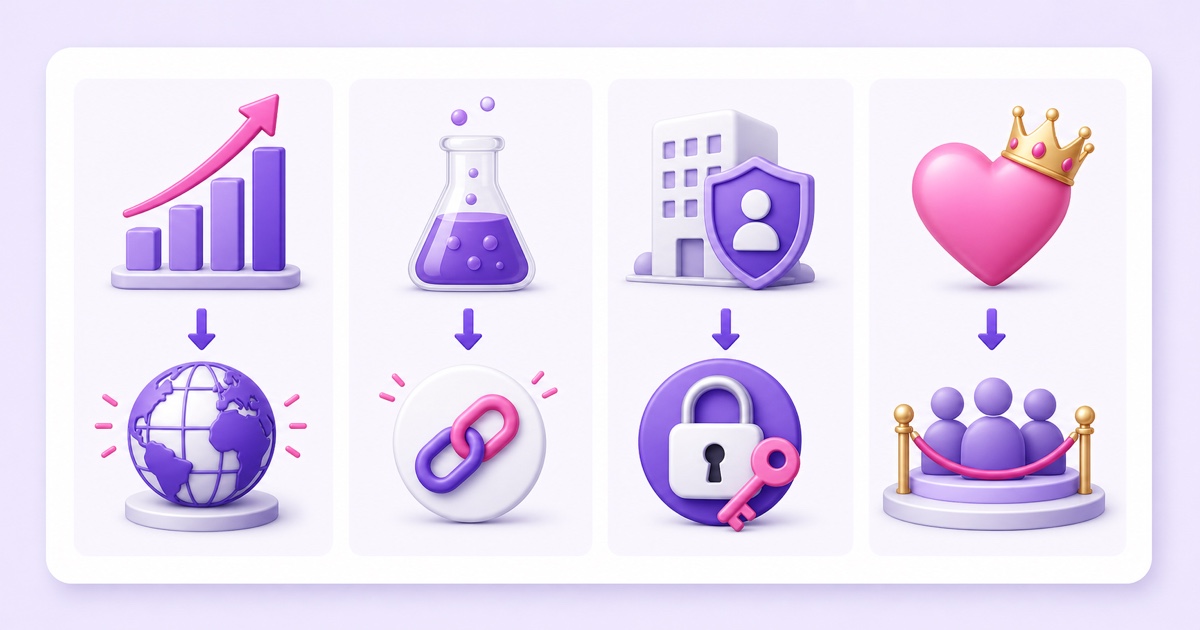
If two goals compete, separate the stages or the streams. Test Unlisted and launch Public. Keep a Public flagship stream and offer a different Members-only bonus. Use Private for approval, then switch to the intended audience only after sign-off.
See which loop capacity fits your launch on the StreamNeo pricing page. When your visibility plan is ready: Start free — 24-hour trial, no card.
FAQ
Can I test unlisted and then go public?
Yes. Create the live broadcast as Unlisted, start the encoder, verify the watch page and one full loop, then edit Visibility to Public and save. This is the recommended launch pattern because it keeps setup mistakes away from your public audience without requiring a new encoder session.
Do unlisted streams appear in search?
No, an Unlisted stream is normally excluded from YouTube search and your channel's public video list. Anyone with the URL can still watch and share it, so Unlisted is appropriate for testing and embeds—not confidential access.
What do members-only streams require?
You need Channel Memberships enabled on an eligible YouTube Partner Program channel. Current fan-funding requirements include age and location eligibility, commerce terms, and the applicable YPP threshold. Once enabled, choose Members-only in the live stream's Visibility settings and select all paid members or a qualifying level.