
Your exported video is crisp. The local player shows clean captions and sharp edges. Yet the live version looks pixelated, or YouTube offers 1080p but the picture still resembles enlarged 360p. That does not automatically mean your PC is weak—especially when a cloud service, not your computer, is sending the video.
A blurry YouTube live stream usually comes from one of three places: the source has less real detail than its resolution label suggests, the bitrate cannot support the chosen resolution, or the file is being compressed again before YouTube receives it. Diagnose those in order and you can fix the image instead of randomly changing settings.
Check the boring thing first: open the quality menu
In the YouTube player, choose Settings → Quality and select the highest available resolution instead of Auto. If 1080p is available and looks clean when selected manually, the stream was fine; the viewer was simply receiving a lower rendition.
If the intended resolution is missing, or manual 1080p remains soft, continue upstream.
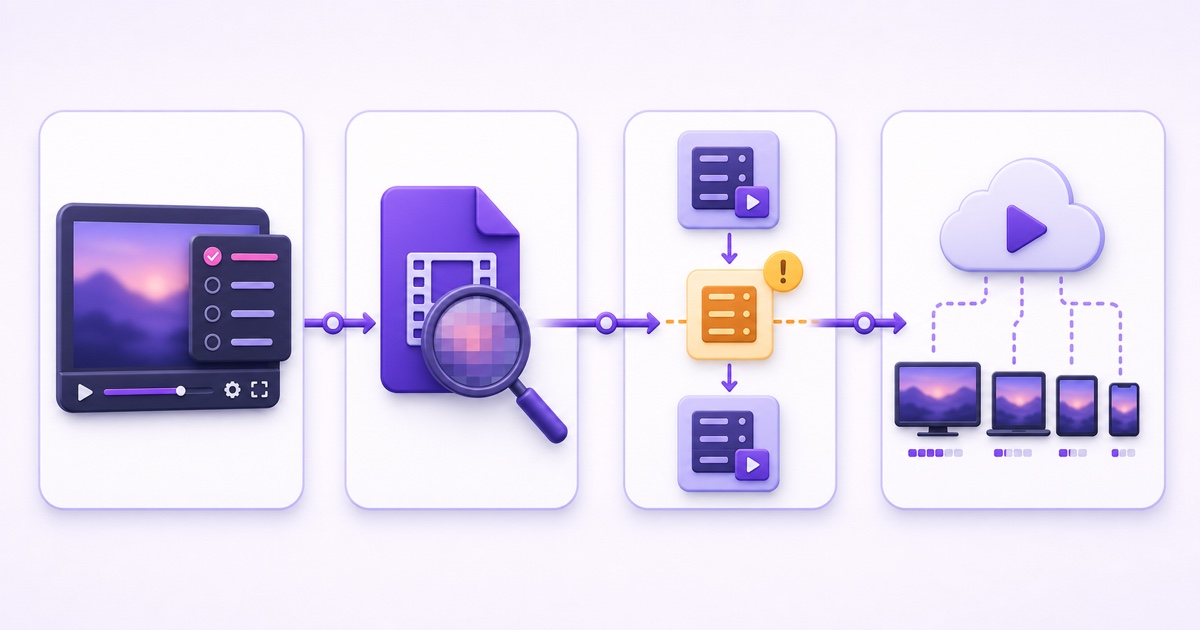
Fix 1: treat the source file as the ceiling
No encoder, cloud server, or platform can add genuine detail that never reached the file. A 1920×1080 container can still hold an upscaled 720p export, a low-quality screen recording, or a clip that has already passed through several messaging apps. The player reports the container dimensions, not how much useful texture survived inside them.
Interrogate the actual delivery file with FFprobe:
ffprobe -v error -show_entries stream=codec_name,profile,width,height,r_frame_rate,bit_rate,pix_fmt -of default=noprint_wrappers=1 file.mp4
Read the output as evidence, not a score. width=1920 and height=1080 confirm the frame size. r_frame_rate=30/1 means 30 fps. pix_fmt=yuv420p is a broadly compatible SDR format. The stream-level bitrate may be absent in some variable-bitrate files, so also inspect the container with ffprobe -v error -show_entries format=duration,size,bit_rate -of default=noprint_wrappers=1 file.mp4.
Then view a revealing frame at 100% scale. Small text, hair, foliage, diagonal lines, and subtle gradients expose weak sources faster than a static face against a plain wall. If those details are already smeared locally, streaming settings cannot repair them.
- Upscaled export: return to the original footage and export at its native resolution. Scaling a soft 720p render to 1080p creates more pixels, not more information.
- Low-quality screen capture: recapture at the final resolution and frame rate, with browser or OS scaling kept consistent.
- Previously compressed copy: export again from the editing master, not a downloaded social-media copy or a file forwarded through chat.
- Mixed playlist: inspect every item. One weak clip can make a continuous loop appear to change quality at regular intervals.
For a reliable platform-ready baseline, use the codec and audio checks in the best video format for 24/7 streaming guide. The fix here is a better source export, not a more expensive machine.
Fix 2: match bitrate to resolution and motion
Resolution describes how many pixels an encoder must represent; bitrate limits how much data it can spend representing them each second. When too few bits must cover too many changing pixels, the encoder prioritises broad shapes and motion. Fine text loses its edges, gradients split into bands, and moving texture collapses into blocks.
As of July 2026, YouTube's official H.264 live guidance recommends these video bitrates:
| Ingest format | Recommended H.264 bitrate | Practical use |
|---|---|---|
| 720p at 30 fps | 4 Mbps | Talk, devotional loops, study video, moderate motion |
| 720p at 60 fps | 6 Mbps | Fast gameplay or motion where 60 fps matters |
| 1080p at 30 fps | 10 Mbps | Detailed 1080p video, text, landscapes, most pre-recorded loops |
| 1080p at 60 fps | 12 Mbps | High-motion 1080p when the source truly contains 60 fps |
Those are ingest recommendations, not guarantees that every scene will look identical after platform transcoding. A rain scene, gaming replay, confetti animation, or dense tree canopy is harder to compress than a still lyric card. Audio also consumes bandwidth, so do not confuse total file bitrate with video bitrate.
If a 1080p30 file is far below the current recommendation and motion looks mushy, create one clean export from the master at an appropriate bitrate. Do not transcode the weak delivery copy again; that preserves its existing damage and adds another generation.
When bandwidth, storage, or the original material cannot support clean 1080p, choose honest 720p. On a mobile-heavy audience, clean 720p usually communicates more detail than starved 1080p because viewers see intact edges instead of a larger grid of compromised pixels. Use the fuller trade-off in our 720p versus 1080p bitrate guide.
Fix 3: remove the second encode you did not ask for
Your export is already compressed. If a streaming tool decodes it into raw frames and runs a live encoder before pushing it, YouTube receives generation two. YouTube then makes its own viewing renditions, so the viewer may watch a third lossy generation.
This is normal when a workflow must composite a webcam, overlay, browser source, colour effect, or scene transition. It is unnecessary when the job is simply to play an already compatible H.264/AAC file. Matching the live encoder's codec and bitrate to the file does not turn it into passthrough; once the pixels are decoded and encoded, it is a new generation.
Use a controlled comparison. Pause the local file on a frame containing small text or thin lines and inspect it at 100% zoom. Send the same clip through your normal pipeline to an unlisted event, manually select the highest player rendition, and capture the matching frame at the same display size. Soft letter edges, halos around contrast, gradient banding, and motion blocks that do not exist locally point to encoding loss in the delivery path.

Copy mode—also called stream copy, direct copy, or passthrough—moves compatible compressed packets into the live delivery path without recompressing their pixels. It cannot improve a poor source, and YouTube will still create viewer renditions, but it removes the avoidable middle generation. See why re-encoding ruins quality for the packet-level explanation.
StreamNeo uses copy mode by default when the uploaded file is compatible, so the file you approved is the encoded video sent upstream rather than material for another live encode.
Understand the platform's side accurately
YouTube does not send your single ingest feed unchanged to every viewer. Its encoder guidance states that live streams are automatically transcoded into multiple output formats for different devices and networks. The quality menu is that ladder in action.
The highest rung can only be as good as the feed you supplied. Lower rungs intentionally contain less data, which is why checking Auto versus a manually selected resolution comes first. Do not assume softness is a penalty for a small channel; YouTube's documented mechanics point to the inbound feed, its configuration, the created renditions, and the viewer's selected rendition.
There is no need to rely on a folklore timer for “HD to activate.” Judge only after the quality menu offers the resolution you intended to send. If that resolution never appears, check the detected ingest resolution and Stream Health messages rather than waiting blindly.
Read Stream Health instead of guessing
Open YouTube Studio → Create → Go live → Stream. At the top of Live Control Room, read the Health Indicator and its timestamped messages. YouTube's live streaming error reference describes yellow errors as moderate issues that may degrade quality and red errors as critical issues that can prevent an event from starting or cause viewer problems.
Do not reduce the panel to a colour alone. Read the actual message. “Current bitrate is lower than the recommended bitrate,” “Please check the video resolution,” an incorrect frame rate, or an unsupported codec tells you what YouTube is receiving—not what your export preset claims to send. A recurring message remains visible with a fresh timestamp until the condition is fixed.
If the player is soft but Live Control Room reports no relevant ingest issue and detects the expected format, look back at the source and extra-encode comparison. If the panel flags bitrate, resolution, keyframes, or starving input, fix the push first. The sibling guide to yellow and red Stream Health messages maps those warnings to exact corrections.
Settings that quietly cost sharpness
- Keyframes: YouTube recommends a keyframe every two seconds and says not to exceed four seconds. At 30 fps, set a closed GOP of 60 frames; at 60 fps, use 120.
- Pixel format: for a conventional SDR H.264 workflow, export
yuv420p. Less common chroma or bit-depth combinations may trigger conversion or compatibility trouble somewhere in the path. - Variable frame rate: phone and screen recordings may vary their frame timing. Normalise a troublesome source once to a constant delivery frame rate before building the loop.
- Editor upscaling: keep the sequence and export resolution aligned with the real source. A 1080p label cannot reverse blur already introduced by enlarging a smaller render.
- Accidental 60 fps: do not double a 30 fps source merely because 60 sounds better. It raises the recommended bitrate without creating new captured motion.
- Repeated exports: preserve a high-quality master and always create the delivery file from it. Avoid editing and exporting yesterday's compressed delivery copy.
Change one variable at a time. If resolution, bitrate, frame rate, and delivery tool all change together, an improved result will not tell you which fix worked.
Run the ten-minute diagnosis in this order
- Minute 0–1: open the player quality menu and select the highest available rendition manually.
- Minute 1–3: run FFprobe on the exact file being streamed; confirm codec, dimensions, frame rate, pixel format, and bitrate evidence.
- Minute 3–5: compare a revealing local source frame with the highest live rendition at equal size and 100% zoom.
- Minute 5–7: read the timestamped messages beside the Health Indicator in Live Control Room.
- Minute 7–10: choose one cause—weak source, bitrate mismatch, or extra encode—change only that variable, and repeat the same frame comparison.
That order prevents the classic waste: rebuilding an encoder because Auto selected 360p, raising bitrate on an upscaled source, or blaming YouTube when a middle service recompressed the file. The discipline is the fix: observe, isolate, change one thing, and compare the same evidence.
Ready to test a clean copy-mode path with your own file? Start free — 24-hour trial, no card. You can also review the StreamNeo pricing options before moving an always-on loop.
FAQ
Why is my live stream blurry when the file looks fine?
The player may be on a lower Auto rendition, the file may contain less real detail than its dimensions suggest, its bitrate may be too low for the resolution and motion, or a tool may re-encode it before YouTube. Check the quality menu, inspect the exact file, compare matching frames, and read Stream Health in that order.
Does YouTube reduce quality for small channels?
YouTube's public live documentation describes automatic transcoding into multiple viewer formats; it does not document a small-channel sharpness penalty. Send a clean, appropriately encoded feed, confirm the intended resolution appears in the quality menu, and use Live Control Room messages to diagnose what YouTube receives.
Is 720p better than blurry 1080p?
Yes. When the available bitrate or source detail cannot support clean 1080p, 720p can preserve edges and motion more convincingly. This is especially practical for viewers on phones, where intact detail matters more than a resolution badge. Start from the best master and export directly to the chosen delivery resolution.