What live DVR is
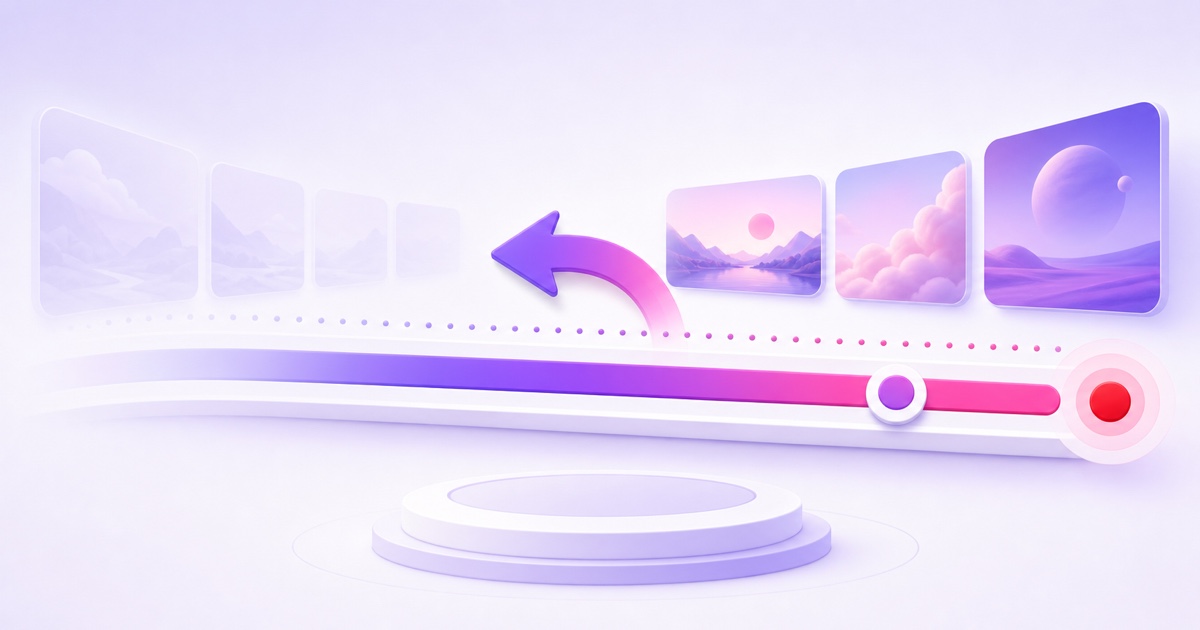
YouTube Live DVR is a rolling playback buffer for a broadcast that is still live. When it is available, a viewer can pause the stream, drag the playhead backward, replay a moment, and continue from that earlier position. The red live point keeps moving while they watch behind it.
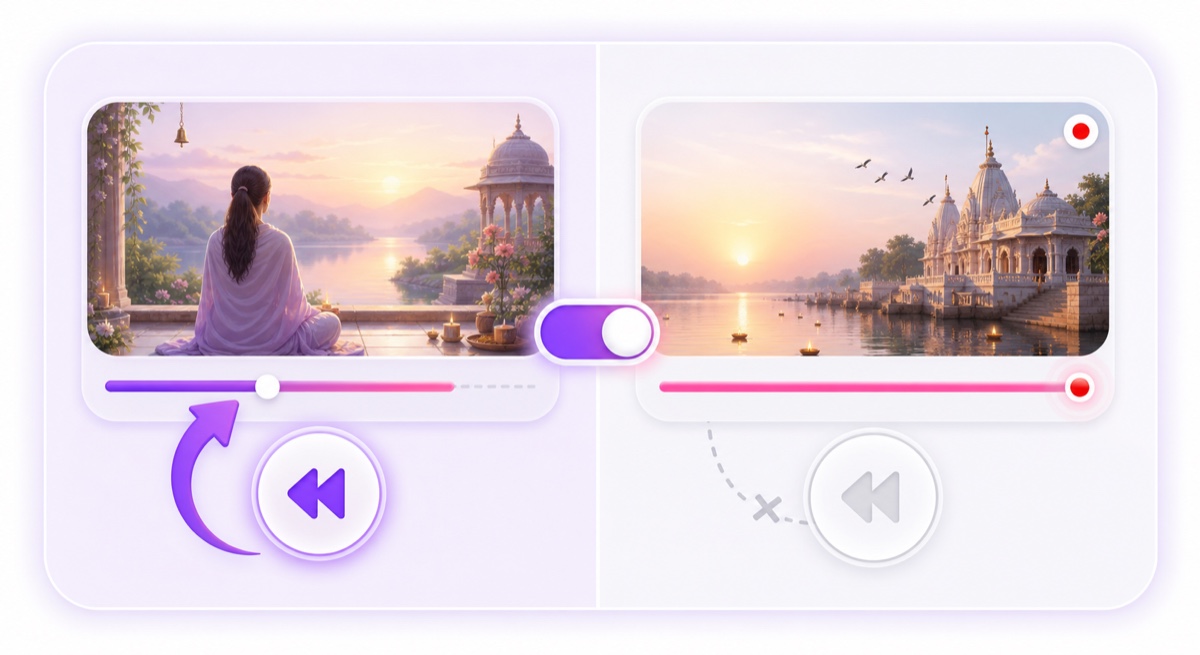
Think of it as a personal delay, not a command sent to the channel. If one viewer pauses your morning aarti for ten minutes, everyone else continues watching normally. Each viewer has an independent playback position, so one person's pause, rewind, or jump to live never changes the feed for anyone else.
Resuming after a pause does not automatically skip the missed section. YouTube continues from the point where that viewer paused. They can use the player to jump forward when they want to catch up to the current live point.
This is especially useful when a viewer arrives halfway through a song, prayer, tutorial step, or announcement. It is not the same as replaying a finished video, and it does not turn an endless broadcast into an endlessly searchable recording.
The DVR window on long streams
The seek bar only represents the portion YouTube currently makes available to that viewer. It does not represent every hour since your encoder first connected. As new video reaches the player, older video can leave the reachable buffer, which is why a person joining a 24/7 stream cannot drag all the way back to day one.
There is an important precision here: YouTube's current help page does not promise one fixed maximum rewind duration for every device and every long broadcast. It says DVR capabilities may be limited or unavailable for streams longer than 12 hours. Apple TV, AirPlay, and older app versions can have lower limits. Treat 12 hours as YouTube's documented long-stream limitation threshold, not as a guaranteed 12-hour rewind window.
For a broadcast that has been live for less than 12 hours, viewers still cannot seek to any point before you actually went live. For an always-on channel, the practical rule is simpler: recent material may be rewindable, but yesterday's segment is not dependable viewer access. If an older segment matters, publish it separately as a normal video.
You can check the current platform wording in YouTube's official DVR help page. This distinction matters because promising “rewind the last 12 hours” sets an expectation that YouTube itself does not guarantee.
What the seek bar is really showing
- Right edge: the current live point, subject to normal player latency.
- Selected point: this viewer's personal playback position.
- Left edge: the oldest point currently available in that playback session, not necessarily the broadcast start.
- Missing history: content outside the available buffer; it cannot be recovered by dragging harder or refreshing.
Enabling and disabling it
For an encoder-based stream, open YouTube Studio → Create → Go live. Choose the Stream tab for a new stream or Manage for a scheduled one, open the stream dashboard, then go to Stream settings → Additional settings → Enable DVR. Turn the toggle on or off and confirm the state before promoting rewind as a feature.
YouTube's public documentation explains the control but does not state a universal default for every creation flow, reused event, or account. Do not rely on memory or assume a new event inherited the setting you wanted. Reused stream settings can carry earlier choices, so a ten-second check in Live Control Room is safer.
You can change DVR while an encoder stream is already live. The change is not retroactive: YouTube says it applies only to viewers who start playing the stream after the change. Two people can therefore report different rewind behavior during the transition and both be correct. Ask an affected viewer to reopen the watch page after you verify the toggle.
There are also creation-method limits. YouTube says disabling DVR is not supported for webcam and mobile streaming. A cloud loop service normally sends an encoder feed, but DVR itself remains a YouTube player setting; changing the source or encoder does not create a larger rewind window.
Should a 24/7 channel keep DVR on?
For most ambience, devotional, study, and educational loops, leaving DVR enabled is a useful default. Someone who enters during the final verse can move back to the beginning of that aarti. A study viewer can replay an instruction without waiting for the playlist to cycle. The benefit is small but real, and it requires no special behavior from other viewers.
The main trade-off is presentation. Rewinding may reveal a repeated transition, the same rain scene, or a playlist boundary. DVR did not create that repetition; it only made the existing structure easier to inspect. If the repeat feels awkward, improve the loop seam, vary the playlist, or set honest expectations in the description instead of hiding a weak transition with a player restriction.
There are cases where disabling DVR is reasonable. A tightly timed live sale, quiz, or synchronized event may be confusing when viewers respond from an earlier position. A rights agreement may also require live-only access, although disabling DVR is not a substitute for having the necessary rights. For a passive 24/7 loop, those cases are less common.
| Channel format | Usually choose | Reason |
|---|---|---|
| Bhajan, aarti, or meditation loop | DVR on | Late joiners can revisit the start of a recent segment. |
| Lo-fi, rain, or ambience | DVR on | Pause and resume improves convenience with little downside. |
| Scheduled lesson or demonstration | DVR on | Viewers can repeat a recent step while the lesson continues. |
| Time-sensitive quiz or sale | Consider DVR off | Behind-live responses can create timing confusion. |
DVR vs archive vs your source file
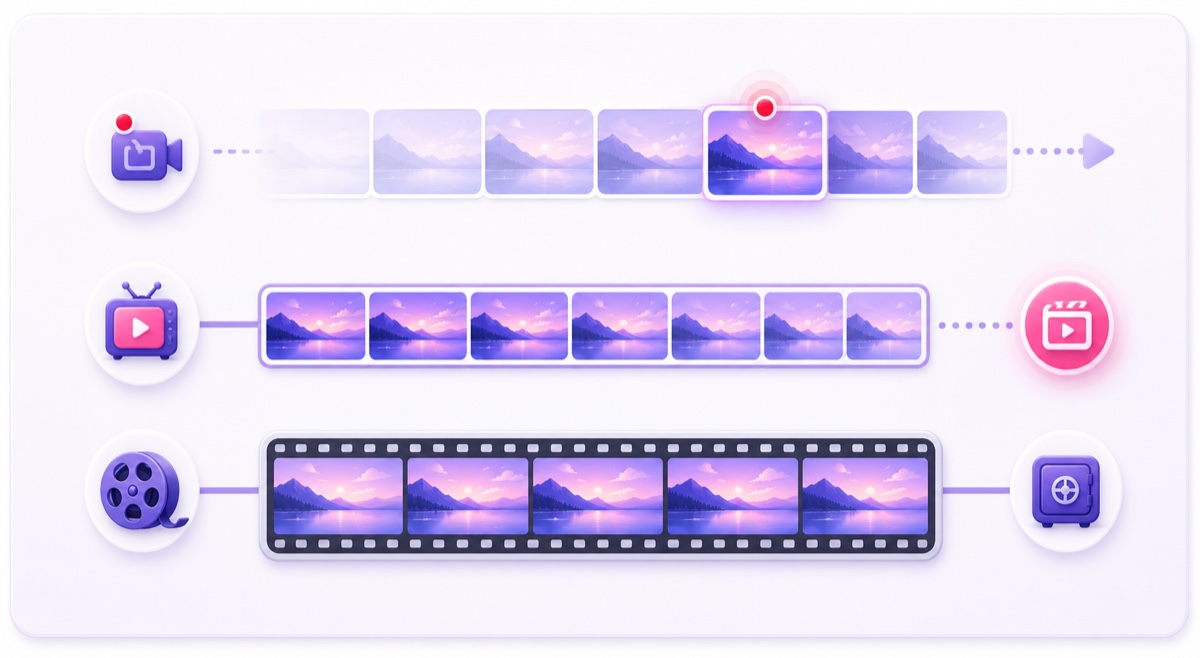
Three different timelines are often called “the recording,” but they solve different problems. Keeping them separate prevents most support confusion.
- Live DVR buffer: temporary, viewer-facing history while the broadcast is running. It rolls forward and can be limited on very long streams.
- Post-stream archive: the replay YouTube may process after a broadcast ends. It belongs in Studio's content system and follows separate archive limits. Read the full guide to YouTube live stream archives before depending on it.
- Source file: the original MP4, audio, graphics, or playlist you control. This is the durable master from which you can make clips, uploads, or a new live feed.
DVR being enabled does not guarantee that a multi-day stream will become a complete replay. Likewise, an archive appearing after the broadcast does not extend the live rewind buffer. If viewers need reliable access to yesterday's pravachan or lesson, publish that segment as a normal upload and link it from the live description.
File-based loop creators have an advantage: the source already exists. Keep that master safely stored instead of treating YouTube's live player as your only copy. StreamNeo can run the uploaded loop while YouTube controls the DVR experience on its watch page; the two jobs remain separate.
If you are also deciding how long one live event should run before a deliberate reset, see how long a YouTube live stream can run. If the word “loop” itself is causing confusion, this explanation of what looping a YouTube live stream really means separates playlist repetition from player replay.
Viewer questions you'll field
Clear, short answers work better than pretending every device exposes the same history. These are ready to adapt for your pinned comment or channel FAQ.
“Why can't I rewind to yesterday?”
This is a continuous live stream, and YouTube only exposes a limited rolling DVR history. Older sections leave the available window. Check our uploaded videos for saved sessions.
“Why did my paused stream jump back to live?”
Your paused position may have fallen outside the available DVR range, or your app/device may support a smaller range. Reopen the stream and use the current seek bar; the missing position may no longer be available.
“My friend can rewind, but I can't. Is the stream broken?”
DVR behavior can vary by device, app version, and when playback started. Refresh or reopen the watch page. Apple TV, AirPlay, and older app versions may have lower limits.
“Does pausing make everyone late?”
No. Your playback position is personal. The broadcast and every other viewer continue normally while you pause or rewind.
When diagnosing a report, ask for the device, app version, approximate time the viewer started watching, and whether they reopened the page after a DVR setting change. That is more useful than asking only whether the red live dot was visible.
For a clean always-on setup, keep the player promise modest: viewers can rewind recent material when YouTube makes DVR available, but the source library is where lasting access belongs. When you are ready to run your own file-based loop, review StreamNeo pricing or start free — 24-hour trial, no card.
FAQ
How far back can viewers rewind?
There is no guaranteed universal window for every long stream and device. YouTube says DVR may be limited or unavailable after a stream runs longer than 12 hours, with lower limits on some devices. Viewers can never rewind to before the broadcast began, and they should not expect to reach the start of a 24/7 stream.
Can I turn DVR off?
Yes for supported encoder streams. Go to YouTube Studio → Create → Go live → Stream or Manage → Stream settings → Additional settings, then turn Enable DVR off. YouTube does not support disabling DVR for webcam and mobile streaming. A change made while live affects viewers who start playback afterward.
Does one viewer pausing affect others?
No. DVR playback position is per viewer. One person can pause, rewind, or return to live while the broadcast continues and every other viewer watches from their own position.