Your stream ran for three days, ended, and now the replay is missing. That result is alarming if you expected YouTube to turn the whole broadcast into a normal video. For an always-on channel, however, a complete replay was never something to count on.
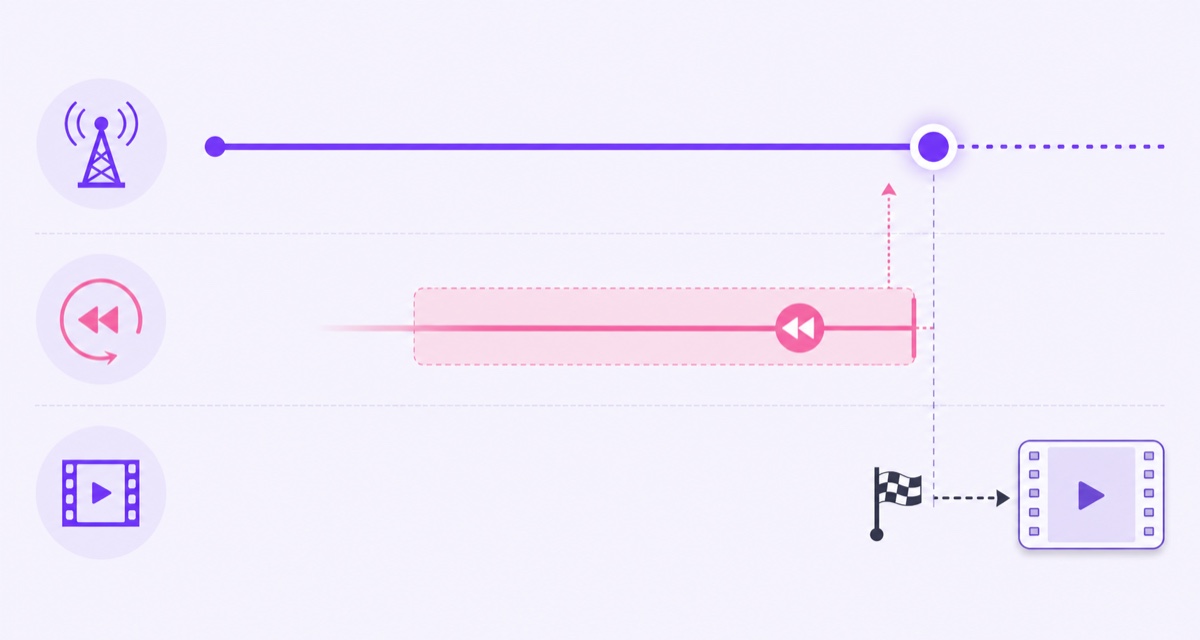
The key is to separate three things: the live feed, the rewind buffer available while it is live, and the video archive created after it ends. Once those are treated as different assets, you can decide whether a continuous watch page or a reliable VOD matters more.
The rule in one line
YouTube can automatically archive a live stream that is less than 12 hours long, but a stream that exceeds 12 hours may not be captured at all. That is the current wording in YouTube’s official live-stream archive guidance, which applies to encoder, webcam, and mobile streams.
The careful words matter. “Less than 12 hours” is the supported side of the boundary; 12 hours is not a target to hit with second-level precision. If a replay is important, leave margin for startup, shutdown, and operational delays rather than ending at 11:59:59.
Practical rule: treat every broadcast longer than 12 hours as ephemeral. If YouTube produces something usable, that is a bonus—not your backup plan.
This is an archive limit, not a maximum live duration. A stream can continue beyond 12 hours, but archive reliability changes. For the broader distinction, see how long a YouTube live stream can run.
What actually happens to a three-day stream
When a shorter stream ends and YouTube creates a replay, you can normally find it in YouTube Studio → Content → Live. Open the item’s details to review it. YouTube’s help page documents that same path for changing the archive’s visibility or deleting it.
With a 72-hour broadcast, do not expect Studio to contain a complete 72-hour VOD. You may find no usable replay. More importantly, YouTube’s official rule does not promise that the first or last 12 hours will be preserved, so “at least one chunk should survive” is not a safe operating assumption.
If the stream has just ended, first check Studio → Content → Live rather than the regular Videos tab. Then open the original watch page in a private browser window. If no complete archive becomes available, there is no creator-side switch that can make YouTube reconstruct the missing broadcast later.
A missing replay does not mean the live event never happened. Live analytics can still describe the event, and viewers may have watched it in real time. It only means the post-stream recording is not a dependable copy of a broadcast that crossed the archive boundary.
- Do not end a replacement stream just to experiment. Protect the current broadcast while you investigate the old one.
- Do not assume changing visibility will create a missing archive. Visibility controls an archive that exists; it is not a recovery tool.
- Do not plan around partial capture. YouTube says an over-12-hour stream may not be captured at all.
DVR and archive are two different clocks
DVR is the rewind experience during a live broadcast. With DVR enabled, a viewer can pause, scrub backward within the available window, and resume from that point. It does not convert the rolling live buffer into a permanent post-stream file.
An archive is the replay YouTube makes available after the broadcast ends. It behaves like a video on your channel when it exists. Your uploaded or locally stored source file is a third asset again: it is independent of both YouTube’s live rewind window and its archive process.
| Asset | When it exists | What it is for | Can it be your master? |
|---|---|---|---|
| Live feed | While the encoder is sending | Real-time viewing | No |
| DVR window | While live, if available | Pause and rewind for viewers | No |
| Live archive | After the stream ends, if captured | Replay on YouTube | Not for long broadcasts |
| Source file | Before, during, and after the stream | Re-streaming, editing, clips, and backup | Yes |
YouTube also warns in its official DVR guidance that DVR may be limited or unavailable for streams longer than 12 hours. That is a separate limitation with a similar threshold. Read the full YouTube Live DVR explainer if rewind behavior is the problem you are trying to solve.
If you want VODs, plan for them
There are two dependable strategies. Pick one before going live, because the choice affects your watch pages, notifications, comments, and operating routine.
Strategy 1: run deliberate sub-12-hour broadcast cycles
Use finite events—eight, ten, or eleven hours, for example—and end each one with headroom below the archive boundary. Start the next event at a low-viewer time. A channel covering the full day will need at least two such cycles, not one daily 24-hour event.
- Create the next broadcast in YouTube Studio → Create → Go live → Manage.
- Reuse the relevant settings, then confirm title, description, visibility, audience, thumbnail, and stream key.
- At the planned boundary, end the current broadcast cleanly and confirm that YouTube registers it as ended.
- Start the next broadcast and verify its watch page, sound, picture, and stream health from a second device.
- Check Studio → Content → Live later to confirm the prior event has a playable archive.
This gives YouTube a supported-duration event to archive, but it deliberately breaks continuous presence. Ending the broadcast creates a new event and usually a new watch page. If your goal is maintenance without intentionally ending the event, use the separate guide to restart a YouTube stream without losing its watch page; that reconnect workflow does not turn a multi-day event into guaranteed VOD chunks.
Strategy 2: keep the live continuous and publish VODs separately
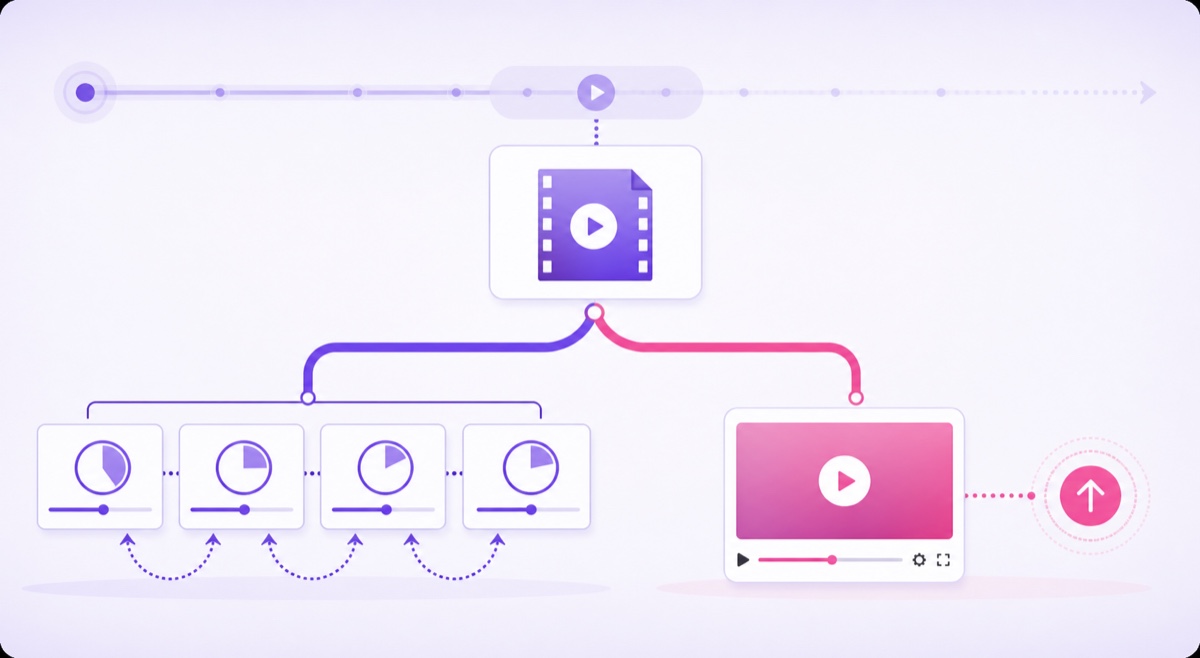
Treat the live stream as a channel people join now, not as the future recording. Keep your original source file, then upload it through YouTube Studio → Create → Upload videos as a normal video. Give that VOD its own searchable title, thumbnail, description, chapters, and playlist placement.
This is usually cleaner for a looping bhajan, lofi, ambience, or study channel. The live watch page stays continuous, while viewers who want an on-demand version get a deliberately packaged upload rather than a huge, repetitive archive.
You can also export shorter highlights from the master file and publish them on a schedule. That produces cleaner starts, endings, and audio than screen-recording the player or trying to recover a section from a long live replay.
The loop streamer’s advantage
A camera-live creator may have only one copy of an event unless they record locally. A prerecorded-loop creator begins with the most important asset: the master video. The live stream is a distribution channel for that file, not the only place the content exists.
Keep the highest-quality export in at least two controlled locations, such as your editing drive and a separate cloud or physical backup. Preserve the project file, licensed music records, captions, and thumbnail source too. A compressed YouTube replay should never be the only copy of something costly to recreate.
With a file-based service such as StreamNeo, the uploaded asset drives the loop and remains available in the dashboard workflow, while the original still belongs in your own backup system. If an archive fails, you can cut a clip from the clean master or upload the full source as a normal VOD instead of trying to rescue the live output.
Housekeeping for channels that create regular archives
If you choose shorter cycles, the Live tab will fill quickly. Give each event a consistent name such as “Morning bhajans — 26 July 2026 — Part 1” so you can distinguish an archive from the next scheduled broadcast without opening every item.
After each cycle, follow a small checklist:
- Open YouTube Studio → Content → Live and confirm the replay is present and playable.
- Review Visibility rather than assuming the replay is public, unlisted, or private. YouTube allows archive privacy changes from the item’s details.
- Check the beginning and end for dead air, failed transitions, or content you do not want left on demand.
- Add useful archives to a playlist; use a predictable title and thumbnail so viewers know it is a replay.
- Keep analytics or editorial notes before removing an archive you no longer want on the channel.
YouTube’s delete control is permanent, so hiding a questionable replay while you review it is safer than making an impulsive deletion. Also remember that an archived live may receive post-stream copyright processing. Stream only material you own or have the rights to use, even when the source is “just a loop.”
The calm operating model is simple: use YouTube for delivery and discovery, use the source file as the master, and design VOD creation as a separate workflow. If you want the loop to run from the cloud, review StreamNeo pricing, then start free — 24-hour trial, no card.
FAQ
Does YouTube save my 24/7 stream?
Do not rely on it. YouTube says streams under 12 hours can be automatically archived, while a stream exceeding 12 hours may not be captured at all. Keep the live continuous only if you are comfortable planning VODs separately.
Can I recover an unarchived stream?
YouTube does not provide a control that reconstructs a long stream it failed to capture. Recovery is possible only from another copy you already have, such as the original loop file, a local encoder recording, or an independent backup.
Should I end my stream daily just for VODs?
Only if reliable replays matter more than one continuous broadcast and watch page. Use comfortably sub-12-hour cycles for archive planning; otherwise keep the stream running and upload the master file separately as a normal VOD.