A restart does not have to erase the watch page your viewers already know. The safe method is to interrupt only the incoming video, return on the same stream key while the existing broadcast is still live, and verify the original URL before declaring success.
The risky part is that two different things are often called “the stream”: your encoder’s RTMP connection and the YouTube broadcast that owns the watch page. Stop the wrong one, wait too long, or let Auto-stop complete the broadcast, and the next session gets a new video ID.
This guide shows how to restart YouTube live stream without ending it, including the checks to make before planned maintenance and the honest viewer impact during the gap.
What actually creates a new stream
A YouTube watch page belongs to a broadcast. That broadcast is a distinct video with its own video ID, URL, metadata, chat, and lifecycle. The stream is the incoming video resource bound to it. Google’s Live Streaming API overview makes this separation explicit.
Your stream key is the credential and routing address that tells YouTube where to accept the encoder’s feed. It is not the watch-page ID. This leads to three very different outcomes:
- The encoder disconnects, then returns quickly on the same key: if the broadcast has not completed, the same watch page can continue.
- You click End stream, or Auto-stop completes the broadcast: that video is finished. Sending data again cannot revive its old URL.
- You reuse the same settings or custom stream key later: YouTube can copy the setup, but the new broadcast still receives a new video ID.
The continuity test is not “Did I reuse my key?” It is “Did the original broadcast remain live while that key briefly stopped receiving data?”
This is why a same-key reconnect can preserve the page, while a same-key restart after completion cannot.
YouTube’s reconnect window in practice
YouTube’s public documentation does not promise one universal grace period for every encoder disconnect. Its API describes an incoming stream as active while YouTube is receiving data and inactive when it is not, but it does not publish a guaranteed multi-minute reconnect window for all broadcasts. Treat forum numbers such as “60 seconds” or “90 seconds” as observations, not a service contract.
There is one important documented timer. When Auto-stop is enabled, YouTube says it automatically ends the broadcast around one minute after transmission stops. YouTube Studio exposes Auto-start and Auto-stop in live stream settings. Check that setting before maintenance; discovering it after the encoder goes dark is too late.
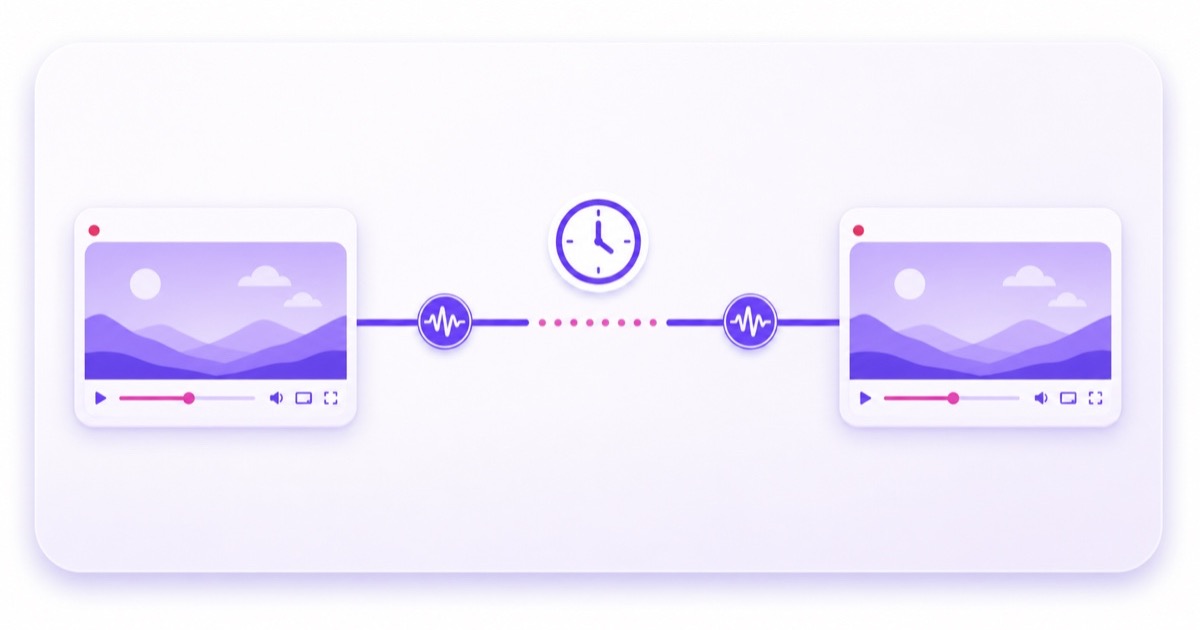
For a planned restart, make under 20 seconds your operational target. That is a conservative production goal, not a YouTube guarantee. Prepare everything first, rehearse the clicks, and never consume an assumed one-minute allowance casually.
Viewers may see the last buffered frame, a spinner, or a playback error while packets are missing. The exact experience varies by device and latency mode. YouTube explains that lower latency gives the player less read-ahead buffer, so an ultra-low-latency audience may notice the interruption sooner than viewers on normal latency.
Safe restart, step by step
The fastest restart begins before you stop anything. If you plan to replace a file, upload and validate it first. If you are changing software settings, save the new profile and confirm it points to the existing YouTube destination. Do not use the outage itself as preparation time.
Before the cutover
- Record the original page. Open the public watch page, copy its URL, and note the video ID after watch?v=. Leave this tab open.
- Confirm the active broadcast. Go to YouTube Studio → Create → Go Live → Stream. Check that Live Control Room is showing the broadcast you intend to preserve, not a scheduled copy.
- Confirm the destination. Note the selected custom stream-key name and the Auto-stop setting. Do not reset the key during the restart unless it has been exposed; a reset deliberately invalidates the encoder’s old credential.
- Stage the replacement. Preload the media or scene, save the encoder configuration, and close unnecessary applications. When swapping media, keep resolution, frame rate, and codec family compatible; the detailed workflow is in how to change a running stream’s video.
- Open an independent viewer. Load the original URL on a phone or signed-out browser. Keep Live Control Room visible on another screen.
During the cutover
- Stop only the encoder output. In OBS, click Stop Streaming. Do not click End stream in YouTube Studio.
- Make the prepared change. Restart OBS, switch the media source, or restart the encoder process. Avoid operating-system updates, downloads, or edits that can turn seconds into minutes.
- Send to the exact same key. In OBS, verify Settings → Stream still shows the intended YouTube service and existing key, then click Start Streaming. A cloud encoder should likewise retain the same RTMP destination and key.
- Watch Live Control Room. Wait for incoming data and stream health to return. Do not create a new broadcast just because the preview briefly looks frozen.
After data returns
- Refresh the old public URL and compare its video ID with the one you recorded.
- Play ten seconds on the independent device with sound on. Confirm motion, audio, and lip-sync or loop timing.
- Check Studio for fresh health warnings, especially bitrate, keyframe interval, resolution, and no-data messages.
- Keep monitoring for ten minutes. A process that reconnects and immediately crashes is not recovered.
If Studio already says the broadcast is complete, stop trying to force the old page back. The recovery path has closed; create a new broadcast, explain the change to viewers, and diagnose the outage with the unexpected stream ending checklist.
What still resets on a successful reconnect
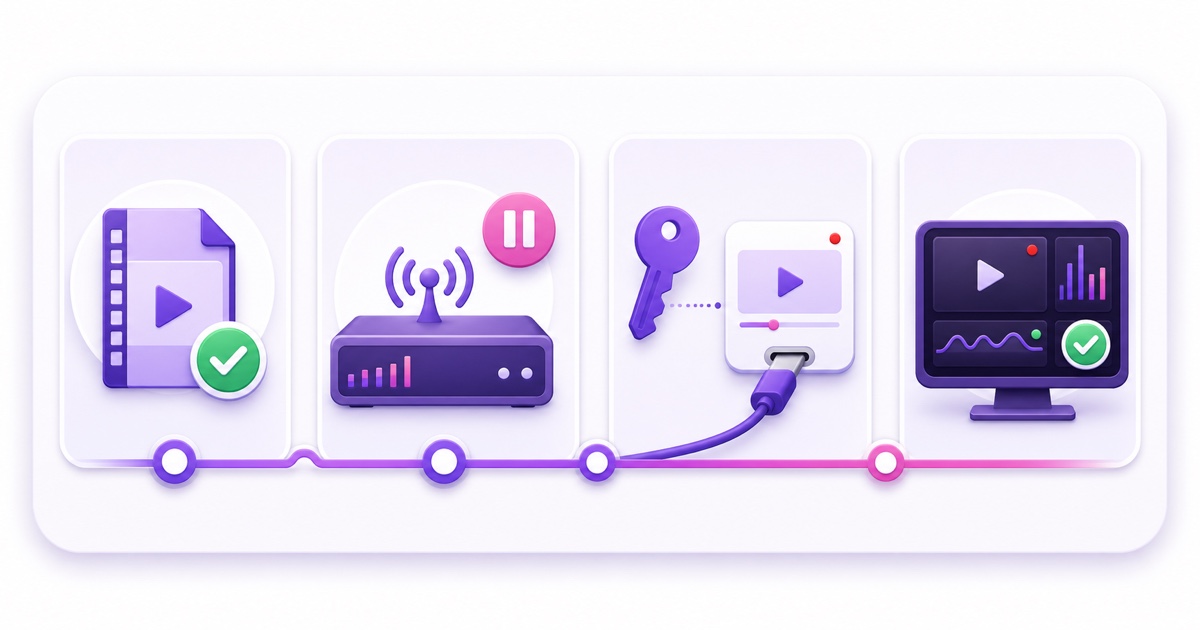
Keeping the URL is not the same as delivering an invisible cut. There is no video or audio for the period when the encoder sends nothing. Every viewer may see a brief stall, and some will leave rather than wait. Concurrent viewers can dip even though the watch page survives.
The live chat remains attached to the same broadcast, but viewers can temporarily appear disconnected. Encoder-side counters such as dropped frames, elapsed session time, and local output statistics commonly restart when the encoder process does. Those local counters are not proof that YouTube created a new page.
DVR also cannot manufacture frames that never reached YouTube. Viewers rewinding across the interruption may see a jump, frozen section, or unavailable moment depending on the player and processing state. The buffered content before and after the gap can remain, but the missing interval is still missing.
Finally, a reconnect can start with a short quality ramp or audio reacquisition. Confirm the actual player, not only a green health indicator. The honest goal is broadcast continuity with a controlled brief transition, not a promise of zero viewer impact.
When you want a fresh watch page
A persistent URL is valuable, but it is not sacred. End deliberately when a new broadcast makes the channel easier to operate or understand.
- Archive chunking matters: YouTube’s automatic archiving has duration limits, so creators who need usable VODs may schedule shorter broadcast cycles. See the live stream archive guide before deciding.
- The programme has genuinely changed: a festival special, product launch, or new season may deserve its own title, thumbnail, chat, analytics, and scheduled reminder.
- You need a clean operational boundary: planned infrastructure work may exceed any safe reconnect tolerance.
- The stream key was exposed: security wins over URL continuity. Reset the key and plan a controlled relaunch.
For a deliberate reset, tell regular viewers when the old stream will end, prepare the new broadcast first, and place the next URL in the description or pinned chat message where appropriate. Then stop the encoder, click End stream, and wait until Studio marks the broadcast complete. Go to YouTube Studio → Go Live → Manage → Schedule stream, finish the new metadata, and publish the new URL.
You may reuse a safe custom stream key for the new event, but that does not reuse the watch page. The new broadcast is a fresh video by design. Save both URLs in your operations log so a deliberate archive boundary never looks like an unexplained failure.
How loop services handle this
A reliable loop service keeps the platform destination and stream key stable, then replaces or respawns its encoder quickly enough that the existing broadcast can continue. It should also distinguish a recoverable process crash from a fatal problem such as a rejected or invalid key. Blind retries cannot rescue a broadcast after YouTube has completed it.
Disclosure: StreamNeo publishes this guide. In StreamNeo, upload the replacement before touching the live slot. Open the slot, select the new file or playlist under the YouTube platform section, and choose Update Playlist. The worker replaces the encoder push while retaining that destination’s stored key. A short visible transition can occur; the product does not click End stream or intentionally create a new YouTube broadcast.
For an unexpected encoder exit, the recovery worker is designed to respawn the same destination rather than ask you to rebuild the broadcast at 3 a.m. Repeated failures or a rejected key still require attention. The engineering principles behind that behaviour are explained in how 24/7 auto-restart should work.
Whichever tool you use, test with an unlisted broadcast first. Record the old video ID, interrupt the encoder for a few seconds, reconnect on the same key, and verify the address bar. A rehearsed recovery is much safer than learning the distinction during a live bhajan, lofi, or news loop.
Start free — 24-hour trial, no card.
FAQ
Does stopping my encoder end the stream instantly?
Not necessarily. YouTube can keep the existing broadcast alive through a short loss of incoming data. However, when Auto-stop is enabled, YouTube documents that the broadcast ends around one minute after transmission stops. There is no universal guaranteed grace window, so reconnect immediately on the same key and never click End stream during a planned restart.
Will viewers stay through a reconnect?
The same page, video ID, and chat can survive, but every viewer will not. Some people will wait through a spinner or frozen frame; others will leave, so concurrent viewers may fall. Keep the gap short and verify playback as soon as data returns.
How do I keep one URL forever?
Keep one YouTube broadcast live, publish through the same stream key, and recover encoder failures quickly. “Forever” is an operational aim, not a guarantee: YouTube can end a broadcast, keys can expire or be reset, and deliberate archive cycles create new URLs. Monitoring and fast same-key recovery give the page its best chance of lasting.