Your 24/7 stream has been live for weeks, but the video is starting to feel stale. You want to add a new bhajan recording, replace an old lofi mix, or rotate a seasonal ambience loop without throwing away the watch page viewers already know.
You can change video without stopping live stream, but “zero downtime” needs an honest definition. The goal is to keep the broadcast, stream key, and watch-page URL alive. A brief stall or spinner can still appear while one video hands off to the next. No responsible setup should promise that every viewer receives an uninterrupted frame.
The safest swap has three parts: prepare a compatible file, change only the video source, and watch the live output after the change. Here are three practical ways to do it.
Why naive swapping breaks streams
The dangerous move is not selecting a different file. It is stopping the encoder first, spending several minutes changing settings, and then starting it again. During that gap, YouTube or Facebook stops receiving the RTMP feed. If the platform closes the broadcast, your old watch page cannot be rescued by simply pasting the same key later.
A short reconnect may leave the broadcast open, but the tolerance is not a timer you should build your workflow around. It can vary with the platform and the state of the event. Treat every unnecessary gap as a risk rather than assuming you have a guaranteed number of seconds.
The continuity rule: keep the destination and stream key unchanged, and make the source handoff as one controlled operation.
Do not click End stream in YouTube Live Control Room, do not create a new scheduled event, and do not replace the stream key during a routine content refresh. If you need to recover after an encoder interruption, use the checklist in how to restart a 24/7 YouTube stream without losing your watch page.
Before touching the source, open the public watch page in a separate browser or phone. Also keep YouTube Studio → Go Live → Stream visible. That gives you two views: the encoder-side health signal and the actual viewer experience.
Rule 1: match the specs
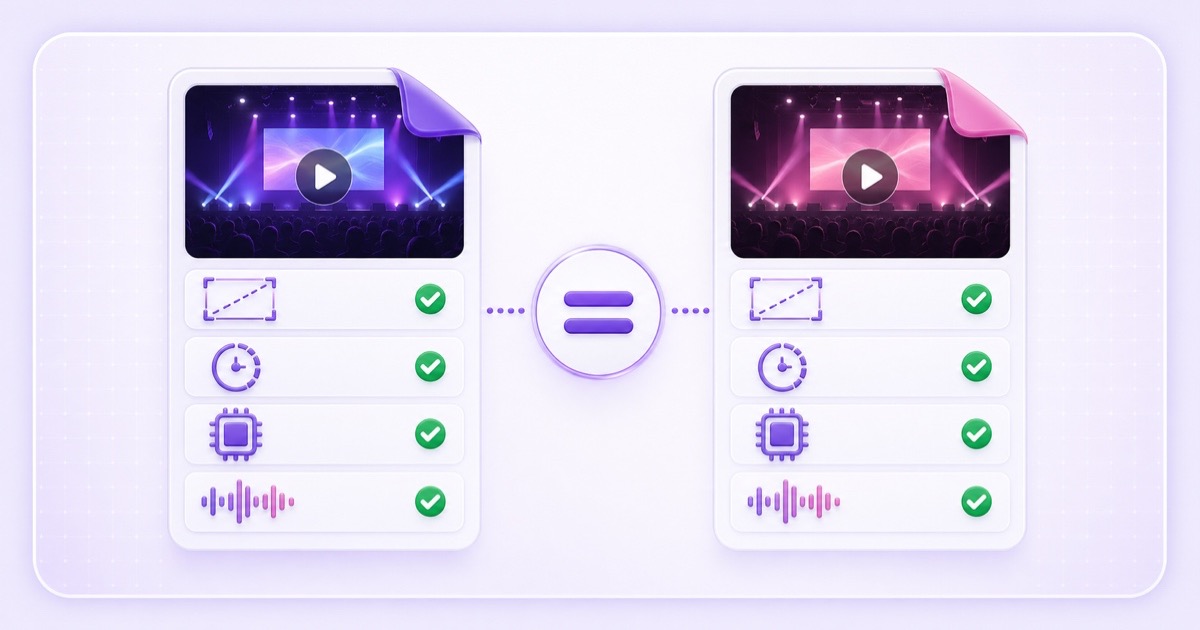
The replacement should belong to the same technical family as the running file. Matching the filename extension is not enough: two MP4 files can contain different codecs, frame rates, resolutions, or audio formats.
If the current loop is 1920×1080 at 30 fps with H.264 video, AAC audio, and a constant frame rate, export the new one the same way. A sudden move from 1080p to 720p, 30 fps to 60 fps, or H.264 to a different codec can force renegotiation or live transcoding at the worst possible moment.
| Check | Running file example | Replacement target |
|---|---|---|
| Resolution | 1920×1080 | 1920×1080 |
| Frame rate | 30 fps, constant | 30 fps, constant |
| Video codec | H.264 | H.264 |
| Audio | AAC, 48 kHz | AAC, 48 kHz |
| Orientation | 16:9 landscape | 16:9 landscape |
These values are an example, not a command to convert every library to 1080p30. Match the stream you already run. If its settings are unclear, inspect the file in your editor or media-information tool and compare every row before upload. Our best video format for 24/7 live streaming guide explains the H.264, AAC, MP4, and constant-frame-rate choices in plain language.
YouTube's own live error guidance identifies H.264 video and AAC audio as the expected encoder format. A correct export reduces the chance of format errors, but it does not replace a rehearsal. Test a short version as an unlisted stream when you are changing both your content workflow and your export preset for the first time.
Method A: change the video in a cloud service
A cloud loop service is the most direct option when you do not want a home PC involved. The service owns the encoder process, so it can replace that process and resume the destination push with the same saved stream key.
In StreamNeo, the current control is called Update Playlist. It swaps the video on the running YouTube stream without a manual restart.
- Upload early. Add the replacement from the video library, or use + Upload Video inside the stream configuration. Wait until it appears in the library before the maintenance window.
- Open the live slot. Go to the StreamNeo dashboard → Slots, select the running slot, and open Configure Stream. Confirm that its status is Live.
- Choose the destination. Select the YouTube or Facebook platform tab. On mobile, tap Choose Videos; on desktop, use the video library beside Stream Settings.
- Build the new selection. Select the new file, or arrange the intended files in the platform playlist. The first item becomes the next source when the update starts.
- Leave the key alone. Verify that the existing stream key is still present. Do not press Stop and do not create a new live event.
- Apply the handoff. Press Update Playlist for that live platform. Wait for the success message before closing the dialog.
- Repeat only where needed. If YouTube and Facebook use the same slot, open the other platform tab and update it separately.
StreamNeo checks the requested selection before replacing the running destination worker. Once accepted, it starts the chosen video or playlist against the saved destination key. That design protects the watch-page identity, but the underlying media process still changes. Viewers may see a short pause, a frozen frame, or a spinner during the handoff.
Keep the watch page open throughout the operation. If the dashboard reports an error, do not repeatedly click the button. First check whether the old video is still playing, then read the stream-health message and confirm that the new file completed processing. A failed start should be treated as an active incident, not a successful swap.
The same principle applies to another cloud provider: look for a documented mid-stream video or playlist update that retains the current destination key. If its workflow tells you to end the broadcast and launch a new event, it is a restart rather than a zero-downtime video change.
Method B: swap an OBS media source
OBS can make a genuinely continuous source change because the RTMP encoder stays connected while scenes change. The trade-off is operational: your computer, power, internet connection, and OBS process must remain healthy for the entire 24/7 run.
Do not browse for a new file inside the only active Media Source while viewers are watching. Preload the replacement in a second scene so you can inspect it before putting it on air.
- In OBS, note the current Settings → Video canvas and output resolution. Export the replacement to match that canvas and the running frame rate.
- Create a new scene and add Sources → + → Media Source → Create new. Enable Local File, browse to the replacement, and enable Loop.
- Match the old scene's crop, scale, audio level, and any overlays. Let the source play in preview long enough to catch a black first frame, missing audio, or a bad loop seam.
- Turn on Studio Mode. Put the new scene in Preview while the old scene remains in Program.
- Choose a short Cut or Fade and press Transition. Do not touch Start Streaming, Output settings, the service, or the stream key.
- Watch OBS Stats, the platform health panel, and the public page for at least ten minutes.
A scene transition changes the content inside the already-running encoder; it does not deliberately disconnect RTMP. That is why it is cleaner than stopping OBS, editing the source, and starting again. For a pure one-video loop, use a Cut if the two files join naturally. Use a brief Fade when the visual change would otherwise look accidental, and monitor the audio so two tracks do not overlap loudly.
This method is economical if you already own a stable machine, but it is not “set and forget.” Laptop sleep, an operating-system restart, router trouble, or someone closing OBS can end the feed regardless of how smooth the source swap was.
Method C: use playlist rotation as the strategy
The best emergency swap is often the one you never need. Keep three to five compatible files in a looping playlist, then refresh one item at a time. A devotional channel might rotate morning aarti, instrumental bhajans, evening chants, and a rights-cleared discourse. A study channel might alternate focus blocks, break screens, and several music beds.
With that structure, freshness becomes routine library maintenance instead of a full-program replacement. Prepare the new item, insert it into the playlist, move it to the intended position, apply the playlist update, and retire the stale item only after you have seen the new one play correctly.
Make every item compatible with the same output profile. Mixed resolutions and frame rates can force the encoder to adapt at each boundary, producing more opportunities for visible glitches. Also stream only media you own or have permission to rebroadcast; putting a file in a playlist does not grant music, footage, or performance rights.
For ordering, loop modes, and clean joins, follow the looping playlist live stream guide. The small extra planning effort pays off when a single weak file needs to be replaced without rebuilding the whole channel.
A refresh cadence that works
Start with a monthly review, then adjust it to the nature of the channel. Daily news or rashifal content may need frequent changes; a rain loop or meditation library can stay useful much longer. A calendar reminder is better than waiting until regular viewers complain that the sequence feels stale.
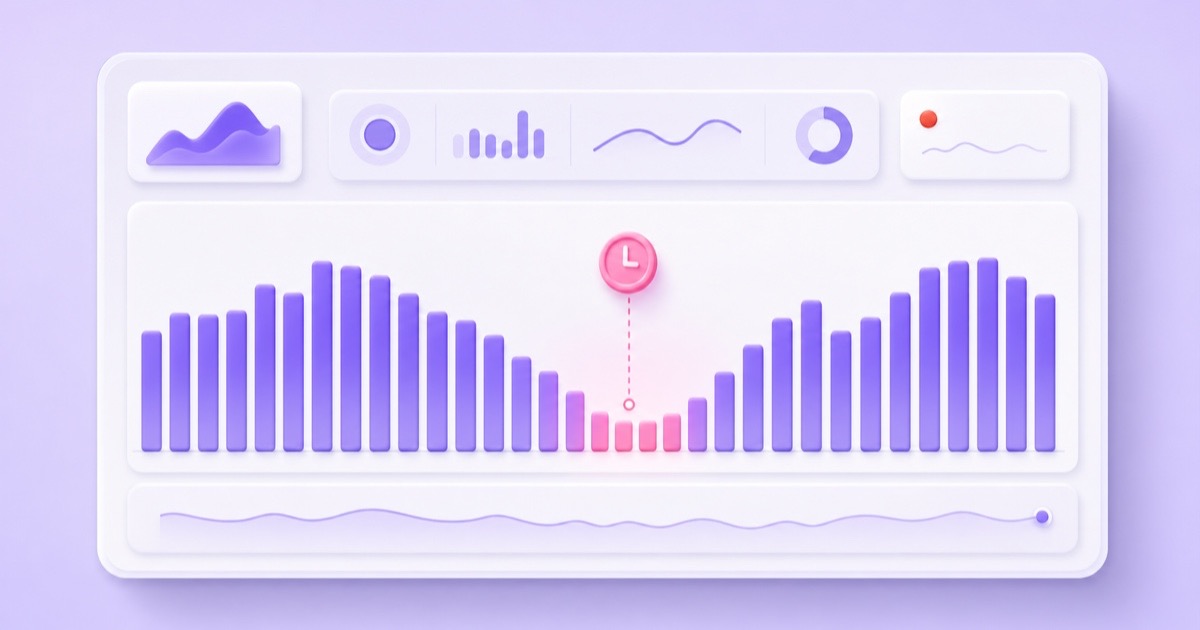
Choose the lowest-viewer hour from your own data, not a generic “best time.” In YouTube Studio, use Content → Live → select the stream → Analytics → Engagement and inspect the concurrent-viewer pattern. Live Control Room also shows concurrent viewers and stream health while the feed is running. If your audience is mainly in India, do not automatically schedule the swap at midnight; devotional, study, and overseas-audience channels can peak at very different hours.
Use this repeatable maintenance checklist:
- Seven days before: choose the files and confirm usage rights.
- One day before: export, inspect, upload, and confirm the replacement is ready.
- Ten minutes before: open the public watch page, dashboard, platform health panel, and analytics.
- At the quiet hour: perform one planned change; avoid altering metadata, keys, and encoder settings at the same time.
- For ten minutes after: check picture, audio, lip sync, loop behavior, dropped-frame warnings, and viewer comments.
- After one full cycle: confirm every playlist boundary, not just the first minute of the new file.
Write down the old playlist, new playlist, swap time, and result. That tiny log makes rollback much faster and reveals whether a particular export preset or file keeps causing trouble.
If you want the encoder to stay in the cloud while you manage content from a phone or laptop, review StreamNeo pricing. When your next refresh is prepared, start free — 24-hour trial, no card, and rehearse the handoff on a low-risk stream before updating your main channel.
More from the journal: Run a 24/7 YouTube Stream on a Chromebook, Tablet or Low-End Laptop · Running Two or Three 24/7 YouTube Channels Without Losing Track · Reused Content and 24/7 Loops: How to Protect Your YouTube Channel
FAQ
Can I change the video without ending the stream?
Yes. Use a cloud service's mid-stream playlist update, transition between preloaded OBS scenes, or rotate files inside a prepared playlist. The crucial conditions are keeping the same destination and stream key, avoiding an unnecessary encoder stop, and verifying the public output immediately afterward.
Will viewers notice the swap?
They might. An OBS scene transition can look like a normal cut or fade because the encoder remains connected. A cloud worker replacement may produce a brief stall, frozen frame, or spinner even when the watch page and live broadcast survive. Plan the change for a quiet hour and never promise a literally frame-perfect handoff.
Must the files have identical settings?
Exact byte-for-byte settings are not required, but the codec, resolution, frame-rate family, orientation, and audio format should match. Keeping H.264 video, AAC audio, a constant frame rate, and the same canvas avoids needless renegotiation and makes the transition more predictable.