Yes, you can loop a live stream on YouTube—but the method depends on what you mean by “loop.” You might want to broadcast one video repeatedly as live, turn a finished live stream into a continuous new broadcast, or simply repeat a video for yourself.
Those are three different jobs. Only the first two involve sending a live feed to YouTube; the third is a playback control on the viewer’s device. Here is how to identify your job and use the right tool without accidentally replacing, resuming, or mislabelling anything.
Three things people mean by “loop a live stream”
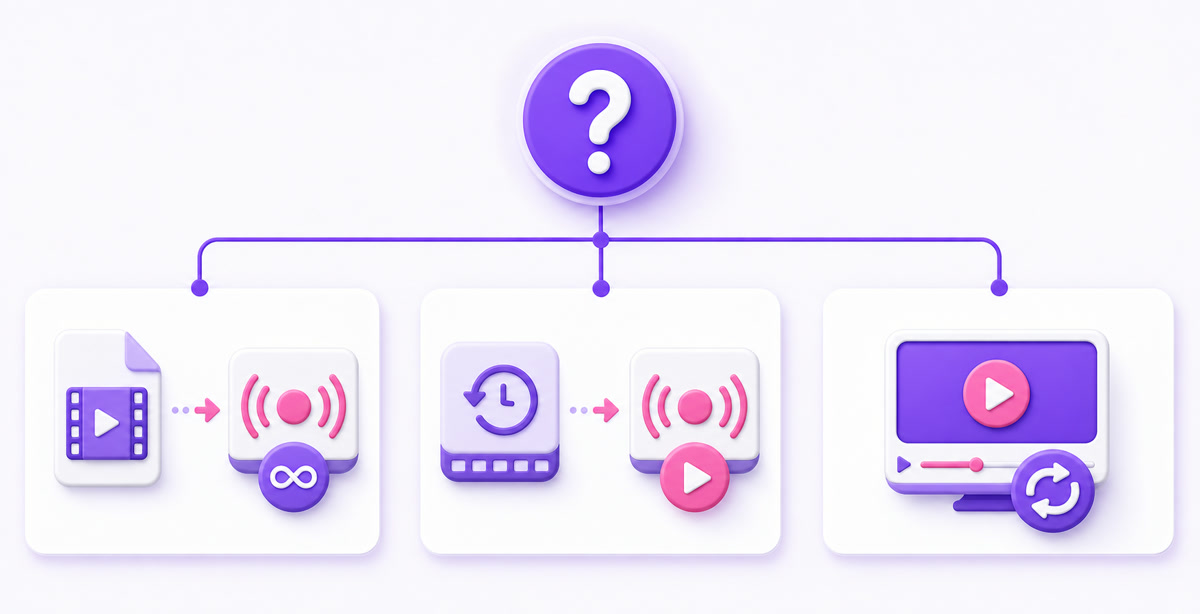
Start with this quick distinction:
| What you want | Can you do it? | What actually happens |
|---|---|---|
| Repeat an uploaded video as a live broadcast | Yes | An encoder plays the file repeatedly and sends a continuous feed to YouTube. |
| Replay an ended live stream continuously | Yes, as a new broadcast | You re-stream the source or archive. The ended broadcast remains a replay and does not resume. |
| Make one video repeat for one viewer | Yes | The YouTube player loops the VOD locally; no live feed is created. |
The important dividing line is the encoder. A real loop stream has a source sending video continuously to YouTube’s ingest server. A viewer-side loop only tells one player to start again when the video reaches the end.
Meaning A: streaming a video on repeat as live
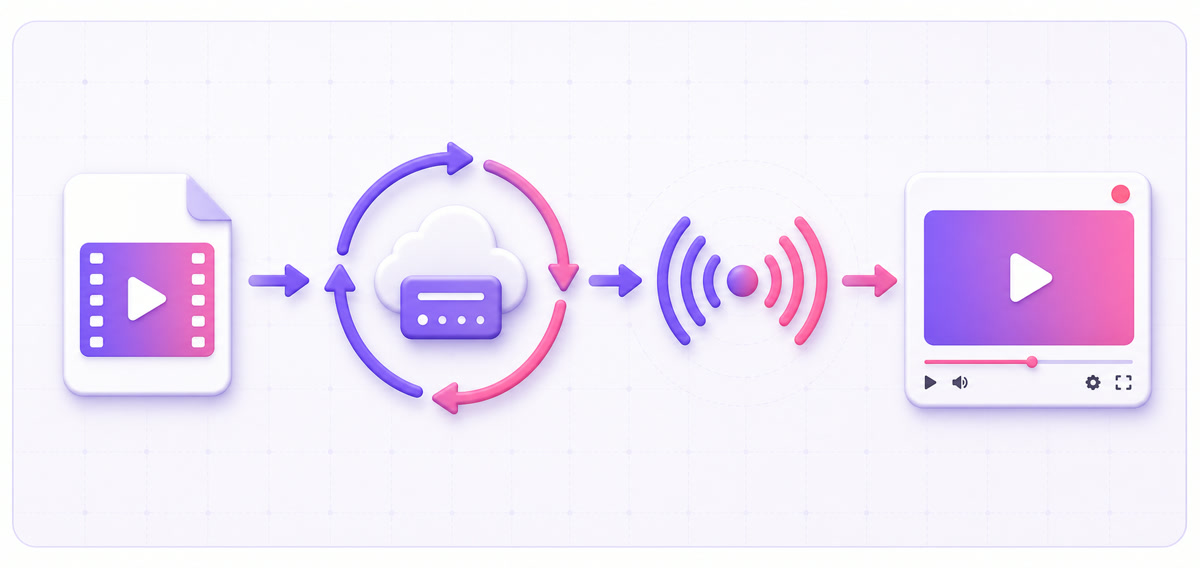
This is what most creator tools mean by loop streaming. You begin with a video file, such as an MP4 containing your own lofi set, devotional programme, class, podcast episode, or ambience footage. A software or cloud encoder reads that file at normal playback speed, returns to the start at the end, and keeps sending the resulting feed to YouTube.
Video file → looping encoder → RTMP/RTMPS → YouTube live watch page
YouTube receives an ordinary live input. It does not reach into your uploaded video library and press a hidden “broadcast on repeat” switch. The repetition happens before the feed reaches YouTube, inside the encoder.
That encoder can run in three places: a managed cloud service, OBS on your computer, or a command-line process such as FFmpeg. All three perform the same core job, but the operating burden changes. A cloud encoder continues when your phone or laptop is off; OBS and FFmpeg stop if their host computer, power, or internet connection stops.
The watch page behaves like a live broadcast, with the visibility, chat, latency, and other settings you choose in Live Control Room. YouTube’s official encoder setup guide confirms the path: create the stream in Live Control Room, put YouTube’s stream URL and key into your encoder, then start the encoder and wait for the preview.
Before running continuously, edit the file so the end joins the beginning cleanly. Check the picture seam and the audio seam separately; a single black frame, clipped word, or volume jump will recur every cycle. The detailed comparison of cloud, OBS, and FFmpeg is in our three-method YouTube loop guide.
Meaning B: looping a finished live stream
An ended live stream is no longer an active broadcast. In YouTube Studio it becomes a Live Replay when an archive is available. You can edit or play that replay, but you cannot reconnect an encoder and make the ended event live again. To keep the programme running, create a new broadcast and stream the recording into it.
Use the best source you have. Your local master recording is usually preferable because it has not passed through YouTube’s live processing. If that file is unavailable, open YouTube Studio → Content → Live, find your own archived stream, open its menu, and choose Download. YouTube documents that download route in its help page for creator-uploaded videos. For archive limits and backup planning, see how YouTube handles live-stream archives.
Then follow this sequence:
- Prepare the source. Trim dead air, countdowns, repeated greetings, or the original ending if they would feel awkward in a loop. Repair the join between the last and first frame.
- Create a new broadcast. Open YouTube Studio → Create → Go live. Create a stream now, schedule a new one, or use Reuse settings to copy suitable metadata and stream settings from an earlier event.
- Connect a looping encoder. Add the cleaned file, enter the new broadcast’s stream key, and enable repeat inside the encoder.
- Label the replay honestly. Say that the programme is recorded or replayed in the title or description when viewers could otherwise mistake it for a real-time event.
The old URL remains the old replay. The new live broadcast gets its own live lifecycle and, depending on how you create it, a different watch page. If your broadcast is still active and you only need to recover a broken input, that is a restart problem instead; use the guide to restart a running 24/7 stream without abandoning its page. Once the event has been ended in YouTube, plan on a new broadcast.
Meaning C: the viewer-side loop
This option repeats a video for one person and does not broadcast anything. On a desktop browser, open the VOD or Live Replay, right-click inside the player, and select Loop. In the YouTube mobile app, open Settings → Additional settings → Loop video. YouTube’s current loop playback instructions also cover playlists, TVs, and consoles.
The repeat setting belongs to that viewing session or device. It does not create a live badge, live chat, concurrent live viewers, an RTMP connection, or a stream in Live Control Room. Use it when you want background playback for yourself. Do not use it as a channel-distribution plan: closing the player ends the experience, and other viewers are unaffected.
Is looping allowed?
Looping content is not automatically against YouTube’s rules. The safe version is straightforward: broadcast video, audio, artwork, and music that you own or are licensed to use, and describe the programme accurately. YouTube’s live-stream terms require creators to hold the necessary rights for live content, including music rights, and the normal Community Guidelines still apply.
A loop does not create rights you did not already have. Repeating a film, cricket broadcast, TV episode, commercial song, or another creator’s upload can still trigger copyright enforcement. Permission also needs to cover live broadcasting and repeated use; a licence for personal listening or a normal upload may not grant those rights.
Honest metadata matters just as much as source ownership. “Recorded temple ambience — continuous live stream” tells viewers what they are getting. “Live camera from the temple right now” would be misleading if the picture was recorded last month. YouTube does not automatically add a “loop” label, so the description is the right place to disclose the format.
Monetization is a separate review. Owning a looping video does not guarantee that a channel qualifies for the YouTube Partner Program. YouTube’s channel monetization policies assess whether content is original and authentic, and they can reject mass-produced, minimally varied, or repurposed channels even when copyright claims are absent. Build a recognisable programme, contribute real creative value, and avoid publishing a library of interchangeable loops.
Read the full YouTube loop-streaming policy guide before choosing source material. If revenue is part of the plan, also review how monetization works for 24/7 loops. Policies decide whether the content and channel are acceptable; the encoder only transports what you give it.
Doing Meaning A today
Choose the route according to what must remain switched on:
| Route | Best fit | What stays running |
|---|---|---|
| Cloud loop service | Always-on channels and mobile-first creators | The provider’s cloud encoder |
| OBS Media Source | Supervised streams with overlays or multiple scenes | Your computer, OBS, power, and upload connection |
| FFmpeg | Technical creators managing a computer or VPS | The FFmpeg process, host, and network |
Here is the cloud route as a worked example with StreamNeo:
- Open YouTube Studio → Create → Go live → Stream. Create or select the broadcast, then copy its stream key. Treat that key like a password.
- Create your StreamNeo account, open Videos, upload the prepared file, and wait for processing to finish.
- Open Streams, select your slot, enable YouTube, paste the stream key, and choose the video from your library.
- Start the stream. In YouTube Live Control Room, wait for the preview and a healthy connection; click Go live if the scheduled workflow presents that final button.
- Watch at least one full cycle as an unlisted test. Check the transition, audio level, picture quality, title, description, and mobile playback before changing visibility to Public.
For OBS, add Sources → + → Media Source, select Local File, enable Loop, and connect OBS under Settings → Stream. For FFmpeg, use a looping input and send its real-time output to YouTube’s RTMPS endpoint; add monitoring and restart handling before treating a terminal command as an always-on service.
The complete setup paths are covered in the step-by-step pre-recorded live-stream guide. Whichever route you choose, begin unlisted, keep the stream key private, retain a local master, and make the recorded nature of the programme easy to understand.
Ready to turn an owned video into a dependable live loop? Check the StreamNeo plans, then Start free — 24-hour trial, no card.
FAQ
Can I loop my ended live stream?
Yes, by re-streaming the source file or your downloaded archive as a new broadcast. The ended stream remains a Live Replay and cannot be resumed; create a fresh broadcast, connect a looping encoder, and label it as recorded or replayed content.
Is loop streaming against the rules?
Not when you own or properly license every element and use honest titles and descriptions. Copyright, Community Guidelines, and monetization rules still apply, so a technically successful loop is not permission to rebroadcast somebody else’s work.
Do viewers know it’s a loop?
YouTube does not automatically identify a live feed as a prerecorded loop. Tell viewers in the title or description when the distinction could matter, especially for worship, news-like updates, events, or camera-style ambience.