A 24/7 stream does not get one launch moment. Its thumbnail keeps reporting for duty in search, suggested videos, subscriptions, and channel pages long after the broadcast starts.
If YouTube grabbed an awkward frame from your loop, replacing it is one of the fastest packaging fixes you can make. A strong live stream thumbnail does not need to shout. It needs to tell the right viewer what is playing, establish the mood, and remain readable when it is barely larger than a postage stamp.
Why live thumbnails work differently
A normal upload often gets its most concentrated attention near publication. An always-live broadcast can compete for clicks for weeks or months, so the thumbnail is closer to permanent shop signage than a launch poster. Small weaknesses keep costing opportunities until you fix them; a clear design keeps doing useful work without another upload.
That changes the design brief in three ways. First, avoid time-sensitive art unless the stream really changes with the date. Second, make the promise understandable without relying on a long title. Third, build something you can refresh without making the channel look like a different brand every month.
YouTube applies live-state treatments differently across desktop, mobile, TV, search, and recommendation surfaces. A red live indicator may appear beside or over the thumbnail, and interface placement can change. Do not assume one permanently safe corner. Keep essential faces, objects, and small words away from both lower corners and the outer edge.
Design for the smallest, busiest surface—not for the full-size Canva canvas.
A thumbnail cannot create demand by itself, but it can stop hiding a stream that already matches a viewer’s intent. If your broadcast still has almost no reach after the packaging is clear, work through the broader live-stream discovery checks instead of endlessly redesigning one image.
The always-on formula
Use a simple three-part formula: promise + mood + small-size legibility. The promise answers what is playing. The mood lets viewers feel the experience before they click. Legibility makes both survive at roughly 120 pixels wide.
- Lofi focus radio: use one cosy desk, headphones, and a night window. A short phrase such as Focus Radio can support the scene, but the image should still read as calm study music with the words removed.
- Devotional or aarti stream: use one diya as the focal point, a warm gold halo, and restrained temple ambience. Avoid a collage of deities, flowers, bells, and five lines of Hindi and English text competing for attention.
- Rain or sleep ambience: use a close rain-window texture, a deep blue palette, and one warm interior silhouette. The colour contrast communicates shelter and calm faster than a paragraph about relaxation.
- News or commentary loop: use crisp directional shapes and a single recognisable topic object. Reserve breaking-news urgency for genuinely current coverage; an evergreen recorded loop should not pretend that an event is unfolding now.
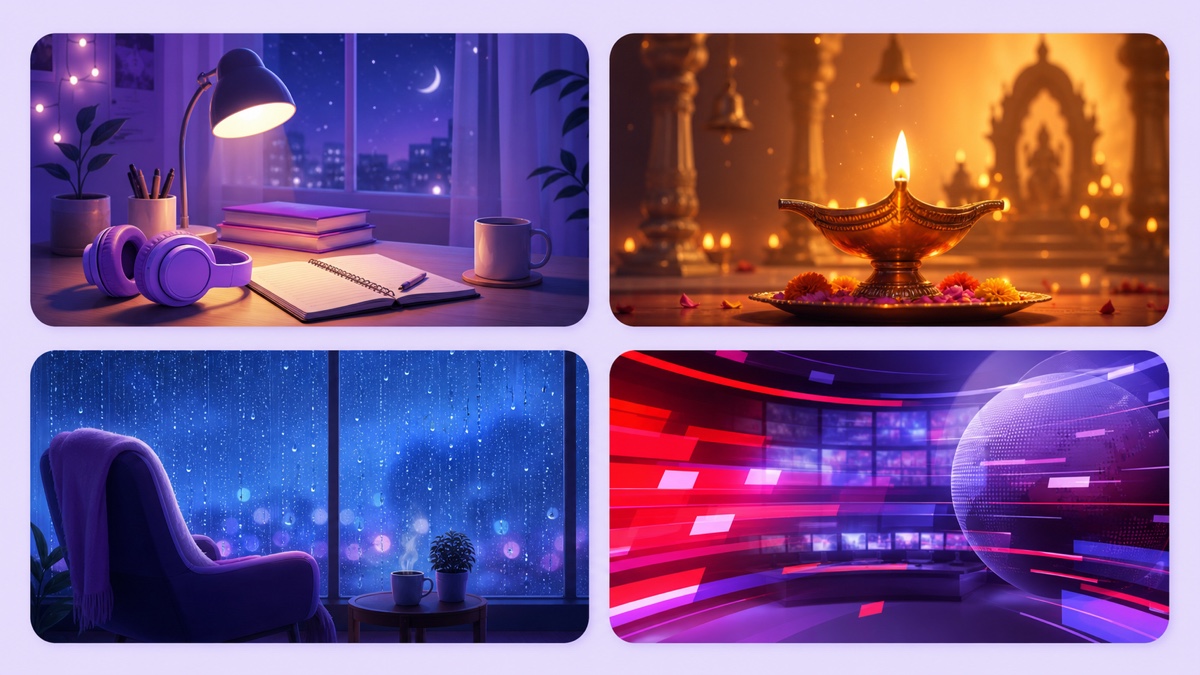
Give each thumbnail one focal object, one dominant contrast, and at most one short text block. Shrink the design until it is about 120 pixels wide. If the focal object becomes unrecognisable or the words merge into a stripe, simplify rather than enlarging everything.
The thumbnail and title should divide the work. Let the image carry mood and instant recognition; let the title carry the searchable phrase and precise promise. The 24/7 live-stream title formulas show how to build that other half without repeating every word inside the artwork.
Set and change it while live
For an encoder-based broadcast on desktop, open YouTube Studio → Create → Go live. In Live Control Room, open the current stream, choose Edit, replace the custom thumbnail in the details panel, and save. YouTube’s current live-stream settings guide confirms that metadata is edited from the stream settings page; labels may move slightly as Studio changes.
The thumbnail is metadata, not part of the RTMP video feed. Saving a replacement does not require you to stop the encoder or restart the stream. Keep the broadcast running, save the change, and then check the public watch page. YouTube notes that thumbnail updates can take time to appear, so a cached old image for a few minutes is not proof that the change failed.
You may also find the active broadcast under YouTube Studio → Content → Live. Select it, open its details, and replace the thumbnail there. Use whichever route exposes the active broadcast on your account; Live Control Room is the clearest fallback while the stream is running.
Before saving, check four things:
- The new image describes what a viewer will see right now.
- The central focal object remains clear in a tiny preview.
- Neither lower corner contains essential text or detail.
- You have recorded the date and the one element you changed.
Do not change the title, thumbnail, and stream content together if you want to learn from the result. YouTube’s native title and thumbnail testing is not a dependable workflow for an active always-on live: current eligibility excludes scheduled lives and explicitly supports live archives. For a running channel, use slow manual tests and keep a simple change log.
What to avoid
The expensive mistake is not an ugly thumbnail. It is a compelling thumbnail that promises the wrong experience. A click from someone expecting a live camera is useless when they immediately discover a recorded ambience loop and leave.
| Mistake | Why it hurts | Better move |
|---|---|---|
| Fake LIVE CAM frame | It implies a real-time camera feed that a prerecorded loop does not deliver. | Describe the actual format: 24/7 ambience, radio, replay, or loop. |
| Text wall | Small words collapse on phones and compete with the title. | Keep one short phrase; move details to the title and description. |
| Red-heavy lower edge | It can visually swallow the platform’s live-state treatment. | Use red sparingly and keep both lower corners quiet. |
| Unrelated dramatic image | It may win a curiosity click but damages trust when the stream opens. | Show the actual subject, setting, or mood viewers receive. |
| Monthly total redesign | You cannot tell which change helped, and regular viewers lose recognition. | Change one variable: focal object, words, colour, or crop. |
YouTube’s thumbnail policy prohibits imagery that misleads viewers about what is in the video, while its spam policy covers maliciously misleading thumbnails and metadata. Honest labelling is not just a retention tactic. It is the safer publishing standard.
Make it in an hour on a phone
A practical Canva-mobile canvas is 1280 × 720. It is 16:9, light enough to edit on an ordinary phone, and provides a 720p thumbnail. YouTube’s current desktop guidance recommends an even larger 3840 × 2160 image where practical, with a minimum width of 640 pixels. Its current upload caps vary by device: 2 MB for a video thumbnail uploaded from mobile and 50 MB from desktop. The official custom-thumbnail guide is the source to recheck if those limits change.
- In Canva, tap Custom size and enter 1280 by 720 pixels.
- Add one full-bleed background that matches the stream’s dominant mood. Use your own image or artwork you have permission to publish.
- Place one focal object near the centre, not hard against an edge. Make it large enough to recognise after the design is shrunk.
- If words are necessary, use two to four words in a heavy, clean typeface. Add contrast with a solid shape or subtle shadow, not several effects.
- Leave generous space around every edge and keep both lower corners free of essential material.
- Zoom out until the canvas is thumbnail-sized. If you have to pinch-zoom to read it, viewers will not read it in a feed.
- Export as JPG. On mobile, confirm the file remains below 2 MB; reduce JPG quality slightly if needed rather than changing the aspect ratio.
- In the YouTube Studio app, open Content, select the broadcast, tap Edit → Edit thumbnail → Custom thumbnail, choose the JPG, and save. If the active live is not editable in the app, upload through desktop Live Control Room without stopping the encoder.
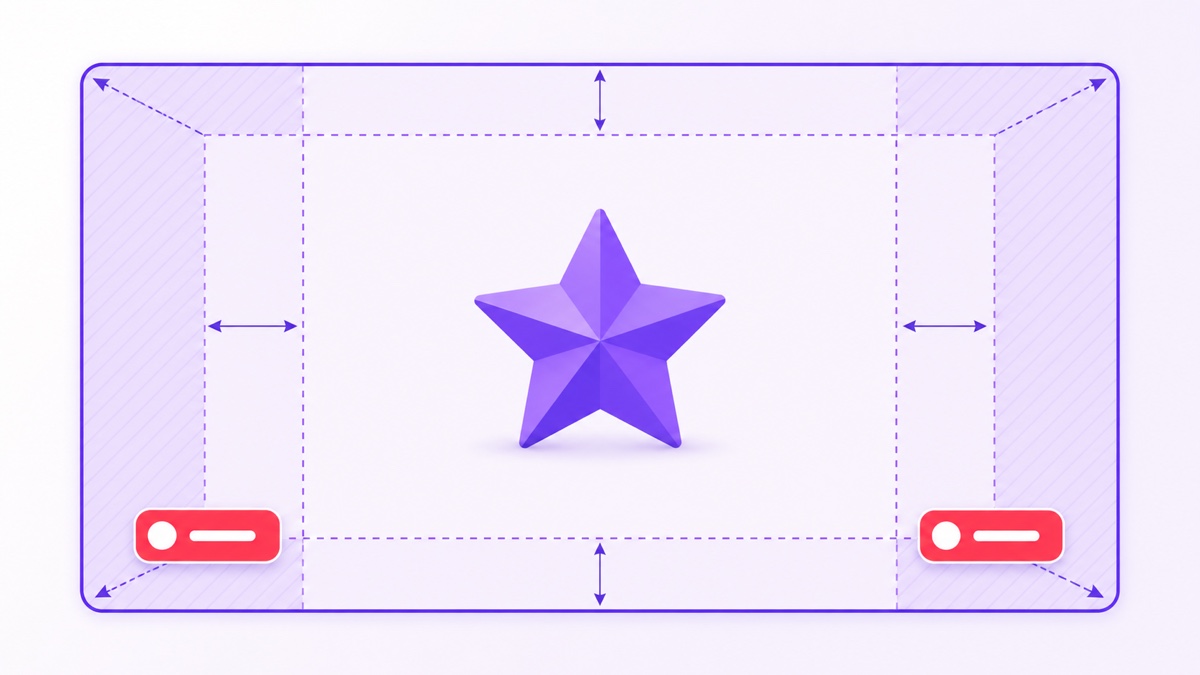
Treat the diagram as a defensive layout, not a map of one permanent YouTube interface. Platform badges, cropping, and controls vary by surface. The centre is where the promise belongs; the edge is decoration territory.
Read the numbers, slowly
Open YouTube Studio → Analytics → Content → Live to see how live streams perform during and after a broadcast. YouTube’s live analytics guide lists impressions and impressions click-through rate for live content. At an individual-stream level, the Reach view can provide more detail about how thumbnail impressions became views.
Read four signals together:
- Impressions: how often YouTube registered the thumbnail as shown on eligible surfaces.
- Impressions CTR: how often a registered impression led to a view. It measures the package—thumbnail, title, topic, and audience context—not the artwork alone.
- Average view duration: whether people who clicked found the promised experience worth staying for.
- Traffic sources: whether the audience came from search, browse, suggested videos, the channel page, or somewhere else. Different sources can produce different CTR patterns.
Use a monthly rhythm for an established 24/7 stream. Record the previous 28 days, change one element, note the exact date, and wait for a comparable window before judging. Account for festivals, exams, news cycles, and other demand changes that can move traffic independently of your design.
YouTube itself warns creators not to decide without enough impressions or chase small CTR changes. A higher CTR with collapsing view duration may mean the new image overpromises. A lower CTR can also appear when YouTube shows the stream to a broader, less familiar audience. There is no universal CTR target and no thumbnail can guarantee distribution.
For a wider packaging review, pair this process with the live-stream SEO guide. Then keep the stream stable while you learn. A cloud loop that runs without your phone or laptop frees you to work on the thumbnail and audience fit; when you are ready, Start free — 24-hour trial, no card.
More from the journal: 24/7 YouTube Streaming: The Complete 2026 Guide · Can You Run a 24/7 Live Stream on TikTok? What Is Actually Possible · Backing Up a 24/7 YouTube Channel: Files, Keys, Metadata and Recovery · Running Two or Three 24/7 YouTube Channels Without Losing Track
FAQ
Can I change a live thumbnail without restarting?
Yes. Open the active broadcast in YouTube Live Control Room, choose Edit, replace the thumbnail in its details, and save while the encoder continues sending video. The public image may take a little time to refresh.
What size should it be?
For quick phone creation, 1280 × 720 is a solid 16:9 baseline. YouTube’s current guidance recommends 3840 × 2160 where practical, with a minimum width of 640 pixels. Keep mobile uploads below the current 2 MB cap; desktop currently allows up to 50 MB.
Should the thumbnail say LIVE?
Usually not. YouTube already adds live-state treatment on relevant surfaces. Spend the limited space on the content promise—lofi focus, aarti, rain sounds, or commentary—and use 24/7 only when it clarifies the format honestly.