A reliable stream can run for days and still feel invisible. That does not automatically mean the content is bad or the channel is being suppressed. Often, YouTube has not received a clear enough promise from the title, thumbnail, description, and viewer response to match the stream with the right search.
Live stream SEO is the work of making that promise specific, accurate, and easy to test. It is not a keyword-stuffing exercise. The goal is to help a person understand the stream in one glance, click for the right reason, and find exactly what the packaging promised.
How live appears in search and browse
A public live stream is not limited to your subscriber notification. YouTube’s own Live analytics documentation lists Browse features, YouTube Search, Suggested videos, and Channel pages among the places that can send viewers to a live stream. Browse includes surfaces such as Home and Subscriptions. A channel’s Live tab also gives visitors a direct route to current, upcoming, and past live content.
In search results, an active broadcast carries a live status indicator. That makes a stream especially useful for queries with now intent: the viewer wants something playing at this moment, not merely a recording about the topic. Examples include lofi radio, rain sounds live, bhajan live, or study music live.
That does not create a guaranteed live-stream advantage. YouTube says its search system considers relevance, engagement, and quality, including how well the title, tags, description, and video content match a query. A live result can appear above recorded videos when it is the better answer for that viewer and query; the red badge alone does not earn the position. Read the platform’s current explanations of Live traffic sources and YouTube Search instead of treating discovery as folklore.
Start with one question: what would the right viewer type when they need this stream right now? Build the page around that answer. If the feed is a rainy-window sleep scene, broad terms such as relaxing video hide the actual use case. Rain on window sounds for sleeping names the sound, setting, and job clearly.
The title formula for always-on streams
A practical always-on title has three parts:
[What it is] + [who or what it helps] + [live availability marker]
For example: Rain on window sounds for sleeping — 24/7 live. The main search phrase arrives first, before a phone screen truncates the ending. The availability marker sits at the end because it qualifies the promise without pushing the useful subject words out of view.
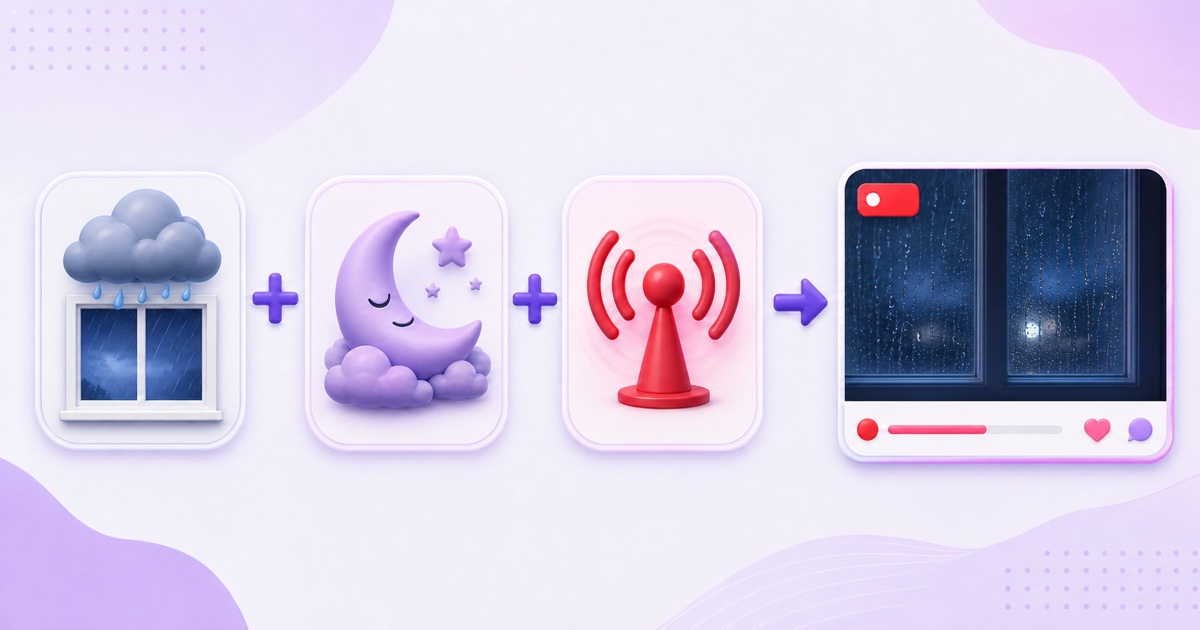
Adapt the formula to the niche rather than copying one rigid template:
| Niche | Clear title | Why it works |
|---|---|---|
| Sleep ambience | Rain on a tin roof for deep sleep — 24/7 live | Names the sound texture and the use |
| Devotional | Morning bhajans for daily prayer — live devotional radio | States the content and worship moment |
| Focus | Deep-focus lofi for study and coding — live radio | Combines format with two related jobs |
| Meditation | Calm flute music for meditation — 24/7 live | Keeps the promise simple and accurate |
Do not force every nearby keyword into the title. A line such as LIVE 24/7 BEST SLEEP RELAX STUDY RAIN WHITE NOISE asks one asset to target several different needs and reads poorly. Use the most specific honest phrase, then let the description provide supporting context.
Accuracy is also a distribution mechanic. YouTube’s title guidance says that when a title does not represent the video, viewers may stop watching and discoverability can suffer. If your stream contains changing temple music, do not package it as a continuous Hanuman Chalisa. If a rain loop has audible music, do not call it pure rain noise. Misleading packaging can also become a policy issue; see the guide to looped-stream policy and deceptive metadata.
Descriptions that work while you sleep
Treat the description as the stream’s small homepage. Its opening should confirm the title in natural language because those first lines are the quickest context for viewers and search systems. Do not waste that space on a greeting, a wall of emoji, or twenty social links.
Rain on window sounds for sleeping, studying, and quiet nights. This 24/7 live ambience stream uses our original rain recordings and visuals.
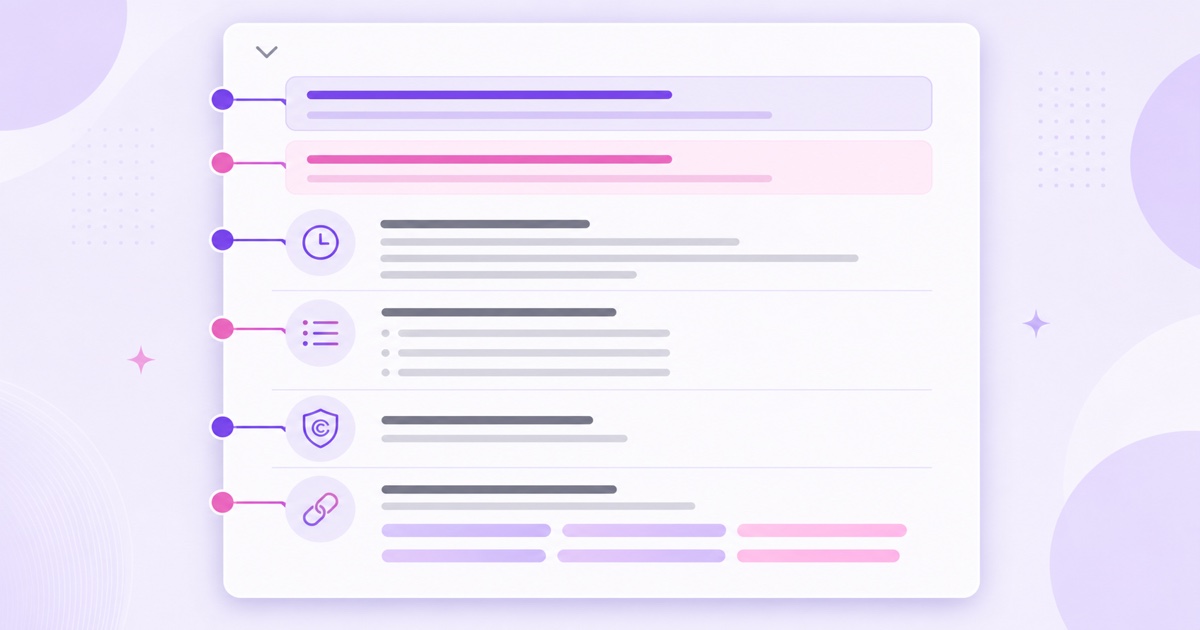
That example contains the subject, likely uses, availability, and an ownership statement without sounding like a keyword list. After the opening, organize the rest for a person who may arrive at 3 a.m. on a phone:
- Schedule and refresh note: explain whether the stream is continuous and when the scene or playlist changes.
- Content index: list the types of scenes, tracks, prayers, or segments viewers can expect.
- Credits and rights: name licensed contributors and state what you created or have permission to broadcast.
- Useful next links: point to a related playlist, a focused upload, or another owned resource.
- One simple action: invite the viewer to subscribe for a real benefit, such as a new mix every Monday.
Hashtags can be selected from a title, below a title, or from a description, and they lead to hashtag result pages. That makes a few precise hashtags reasonable; it does not make a block of loosely related hashtags useful. Try one to three such as #RainSounds, #SleepSounds, and #Live only when each genuinely describes the stream. YouTube’s hashtag help page explains the current discovery behavior.
Thumbnails for live
Upload a custom thumbnail when you set up the event in YouTube Studio → Create → Go live. Do not let a random encoder frame become the storefront for an always-on channel. The title explains the promise; the live stream thumbnail should make the same promise visible before the viewer reads.
Niche conventions are useful starting points, not universal rules. Sleep streams often use dark, calm rooms. Devotional streams may use warm color, a recognizable deity or temple scene, and a short readable phrase. Lofi channels frequently center distinctive character art. Before designing, search your actual query on both a phone and desktop. Note what the current top results communicate, then build a recognizable asset of your own rather than tracing another channel’s look.
- Show one idea: one window, one desk, one shrine, or one character is easier to parse than a collage.
- Protect the focal point: keep it away from corners where duration, badges, and interface elements may compete.
- Check small size: shrink the image until it resembles a mobile search result. If the scene becomes mud, simplify it.
- Match the feed: a bright beach thumbnail on a dark rain stream may win the wrong click and lose the viewer.
- Use text sparingly: if words are necessary, use a short phrase that adds information rather than repeating the title.
You can edit an active encoder stream’s metadata from Live Control Room by opening the stream and selecting Edit; current YouTube guidance describes metadata as editable from the stream settings page. That includes the title and event details, and the custom thumbnail can be replaced from the details editor. Save deliberate changes, not nervous hourly tweaks. The platform’s live stream settings guide is the reliable place to check the current path.
Tags and the truth about them
Tags deserve about five minutes, not fifty. YouTube explicitly says the title, thumbnail, and description matter more for discovery, while tags play a minimal role unless the content is commonly misspelled. That is unusually clear official advice.
Add a small set of literal variants: lofi and lo fi, a transliterated devotional name, a common spelling mistake, the scene type, and the core use. Do not paste tags into the public description, repeat the same phrase dozens of times, or collect unrelated trending terms. Read YouTube’s official tag guidance, finish the field, and spend the saved time improving the thumbnail.
The VOD flywheel
An always-on stream is the destination; shorter content can be the set of roads leading to it. Cut an original moment, scene change, prayer segment, or useful focus clip from material you own. Publish it as a regular video or Short with its own complete value, then give an interested viewer a clean next step to the live feed.
For long-form videos, use the description, cards where eligible, and end screens to connect related content. For Shorts, do not rely on a pasted URL in the description: YouTube says URLs in Shorts descriptions and comments are non-clickable. Instead, use YouTube Studio → Content → select the Short → Related video, then select your public or unlisted live stream. The viewer receives a clickable link below the channel handle. This feature requires advanced feature access; the current steps are in YouTube’s Related video for Shorts guide.
Add the live feed to a tightly named playlist beside related uploads, and announce meaningful refreshes through community posts. A post saying New monsoon window scene added tonight gives people a reason to return; We are still live does not. For more formats worth building around, browse these 24/7 live stream ideas. Once viewers arrive, use on-screen subscriber tactics to turn a useful drop-in visit into a repeat habit.
Iterate like a scientist
The fastest way to learn nothing is to replace the title, thumbnail, first description lines, and stream content on the same afternoon. If performance changes, you will not know which decision helped. Pick one variable, write down the change, and leave the other packaging stable.
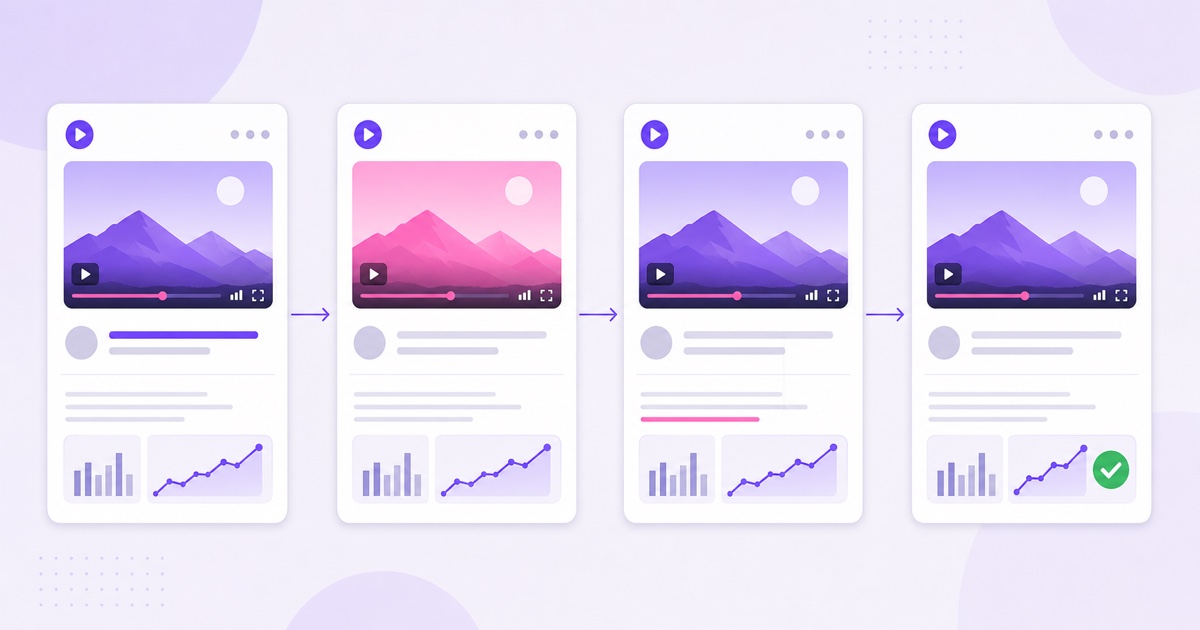
Use this weekly loop:
- Open YouTube Studio → Analytics → Content → Live, then select the stream.
- Record the current impressions, impressions click-through rate, average view duration, and the traffic-source mix.
- Choose one hypothesis, such as putting rain on window first will improve relevance for that search term.
- Change only the title, thumbnail, or opening description lines.
- Wait a week, or until you have a useful amount of comparable traffic, before judging.
- Keep, revise, or reverse the change and record why.
A simple log needs six columns: date, variable, old version, new version, observation window, and decision. Add the key metrics you actually used. Do not copy somebody else’s CTR target; compare the stream with its own earlier periods and separate traffic sources where possible. A thumbnail may behave differently on Home than a query-focused title behaves in Search.
Also mark content changes, outages, promotions, festivals, and seasonal spikes. If a devotional stream receives more search traffic around a festival, the metadata may not be the only cause. If the loop itself changed during a thumbnail test, record the confound instead of declaring a winner.
One week is a cadence, not a law of statistical certainty. A small channel may need longer to gather enough impressions. The discipline is what matters: one clear hypothesis, one controlled change, and a decision based on evidence rather than mood. For a wider view of documented and inferred discovery signals, read how YouTube treats live streams.
Clear packaging earns the right click; strong content earns the continued watch. When you are ready to keep your own pre-recorded content broadcasting without leaving a computer on, StreamNeo handles the always-on delivery. See pricing or Start free — 24-hour trial, no card.
More from the journal: Ad Breaks on an Always-On YouTube Stream: Manual, Automatic and Pre-Roll · 4,000 Watch Hours With a 24/7 Stream: The Honest Timeline · Ad Revenue on a Regional-Language 24/7 Channel in India
FAQ
Do live streams rank in normal YouTube search?
Yes. Public live streams can appear in regular YouTube Search with a live status indicator. Queries with immediate intent, such as rain sounds live, are a natural fit, but live status does not guarantee rank. Relevance, engagement, quality, and viewer context still shape results.
Can I change the title or thumbnail while live?
Yes. In YouTube Studio, open Live Control Room, select the active stream, choose Edit, update the details or custom thumbnail, and save. Make one purposeful change at a time so the analytics remain interpretable.
Do tags still matter?
Only marginally for most streams. YouTube says tags are mainly useful for commonly misspelled terms; title, thumbnail, and description are more important for discovery. Add a few accurate variants, then move on to packaging and content quality.