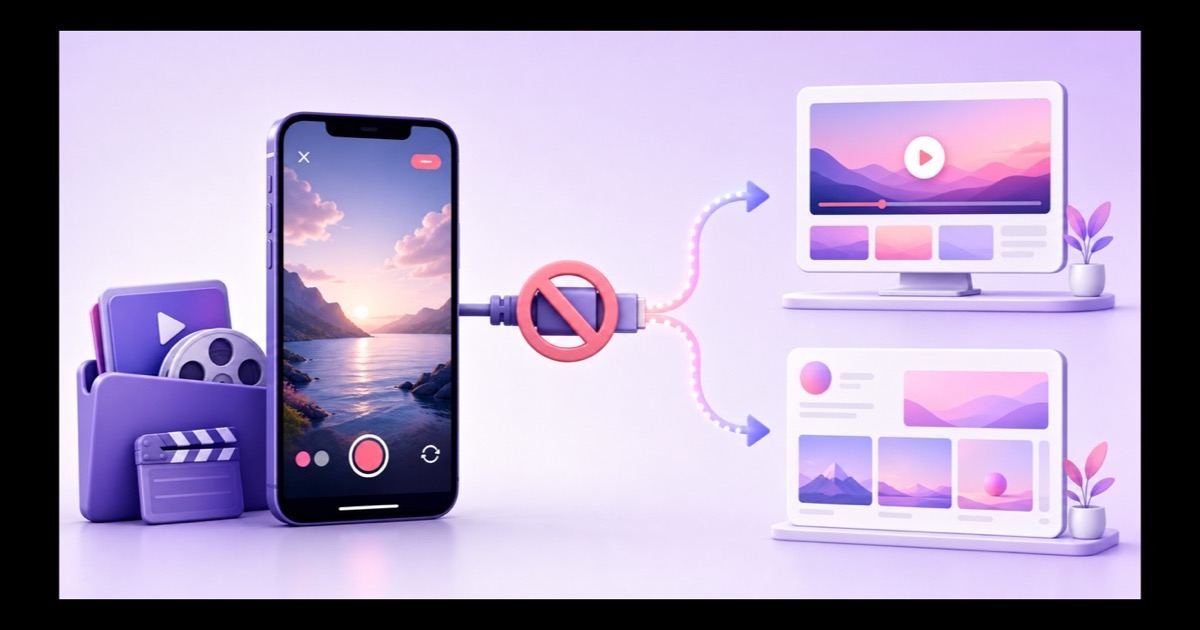
As of 26 July 2026, most accounts cannot use a documented, generally available Instagram RTMP workflow to stream a pre-recorded video. Instagram's public path is still mobile and camera-first. If your professional account actually shows Live Producer, you may have account-gated encoder access, but you should not build a 24/7 channel around it.
That distinction matters. A creator may truthfully say, “I can stream from OBS to Instagram,” while another creator sees no stream key at all. This guide explains both cases, the limits of the common workarounds, and the safer role for Instagram beside a YouTube or Facebook strategy.
The short answer, up front
There is no universal Instagram setting that lets every user upload an MP4, loop it, and press Go Live. Meta's current Instagram Help Centre entry for starting a live broadcast says the feature is available in the Android and iPhone apps and unavailable on computers. It does not document a public RTMP server, stream-key flow, or Live Producer workflow for all accounts.
Some eligible professional accounts have nevertheless received Instagram Live Producer. If you sign in at Instagram.com and genuinely see Create → Live video, follow the credentials and restrictions shown inside your own account. That is different from buying an “Instagram stream key” from a third party or using an unofficial endpoint.
So the practical answer is: yes only when Instagram itself gives your account Live Producer access; otherwise, no supported pre-recorded-to-Live route is exposed. Even with access, Live is a session format, not a dependable always-on loop destination.
What the app itself allows
The normal mobile flow is simple: open Instagram, tap Create or swipe right from Feed, choose Live, check the audience and title options available to you, then start the camera broadcast. The default source is your phone camera and microphone. There is no “choose a video from gallery” control in that Live flow.
Meta's last explicit platform-wide duration statement that we could verify says Instagram Live can run for up to four hours. Meta published that change in October 2020; the current start-live help page does not restate a newer cap. Treat the limit shown inside your app or Live Producer as authoritative because eligibility and product controls can change by account or region.
While you are live, followers can find the broadcast through the Live ring on your profile picture at the top of Feed. Instagram's viewer guidance also says people can watch in the app or on Instagram.com. A finished broadcast does not become a normal Reel automatically.
After ending, Instagram lets you download the video, delete it, or share a replay to your profile and Feed. Its replay guidance notes that the replay will not carry over the original likes or comments, its viewer count starts again, and you cannot trim the broadcast before sharing it. That makes Live useful for a real event, but awkward as a pre-recorded publishing pipeline.
| Surface | Supported external encoder path | Good use for pre-recorded video | 24/7 loop fit |
|---|---|---|---|
| Instagram Live | Only when Live Producer is visible on the account | Occasional produced session with active moderation | Poor |
| Facebook Page | Yes, through Live Producer and RTMPS | Clearly labelled, finite pre-recorded broadcasts | Not for continuously repeated clips |
| YouTube Live | Yes, through YouTube Studio and an encoder | Long-running owned video or playlists | Strongest of these three |
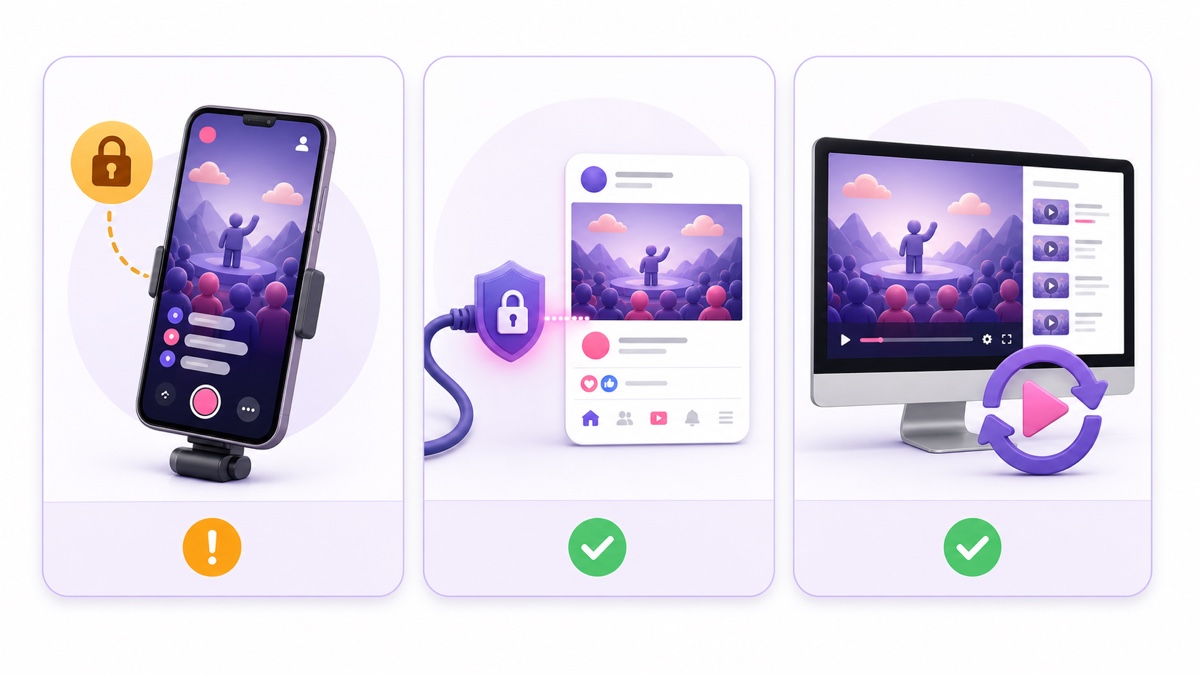
The workarounds people try, and what they actually cost
Pointing a phone at another screen
This technically puts a recorded picture inside a camera-led Live, but the result looks worse than the source. The phone captures the screen's refresh pattern, producing flicker or moiré; exposure drifts; reflections appear; and speaker-to-microphone audio sounds hollow. The phone must stay awake, powered, cool, and untouched for the whole session.
It also creates a trust problem. Viewers receive a Live notification but see a screen recording of a screen. If the material is not actually happening now, say clearly that it is pre-recorded. Do not present an old darshan, class, sale, or news clip as a current event.
Virtual cameras and screen mirroring
A desktop virtual camera can turn a media player into a webcam for services that accept a browser camera. That does not create Instagram RTMP access. You still need an official Instagram input surface that recognizes the virtual camera, and Meta's public help page does not promise one for general accounts.
Phone mirroring and device-emulation setups add another chain of failure: operating-system permissions, capture drivers, orientation, audio routing, notifications, sleep settings, and app updates. They may work for a short test and fail during the actual broadcast. Never give an emulator or automation script your Instagram password.
Third-party “IG RTMP” services
Ask one question before paying: does Instagram itself show Live Producer and issue the RTMP URL and stream key? If yes, the service may simply be acting as your encoder. If no, it may depend on private interfaces, session cookies, credential sharing, or access that can disappear without notice.
Instagram's Terms of Use prohibit unauthorized access and attempts to circumvent technical limitations. A tool that needs your login rather than a normal Meta authorization screen deserves extra scrutiny. At minimum, test on a non-critical account, use two-factor authentication, do not reuse passwords, and revoke access after testing. None of these workarounds is a sensible foundation for an always-on channel.
What Instagram is genuinely good at instead
Use Instagram for discovery and conversation, not as the machine room. Start with the same video master you own and already use elsewhere. Find three moments that make sense without a long introduction: a beat drop, the most calming rain shot, a useful teaching point, a striking aarti frame, or the answer to one audience question.
- Create a vertical 9:16 sequence from each moment. Reframe the important subject rather than merely cropping the centre.
- Keep each cut between 30 and 60 seconds. Add readable captions inside the safe area and make the opening two seconds visually clear.
- Export three distinct Reels, each with its own hook and caption. Do not post three near-identical cuts on the same day.
- Point interested viewers to the long-running channel through the link in your bio. Save a Story explaining the channel under a permanent Highlight such as “Listen live” or “Watch 24/7.”
- Use Instagram Live for genuinely live moments: a weekly request session, a creator Q&A, a behind-the-scenes check-in, or the launch of a new loop.
For framing, captions, and safe areas, use this guide to vertical live and Shorts-style video. The goal is one creative source with platform-native edits, not the exact same file forced into every surface.
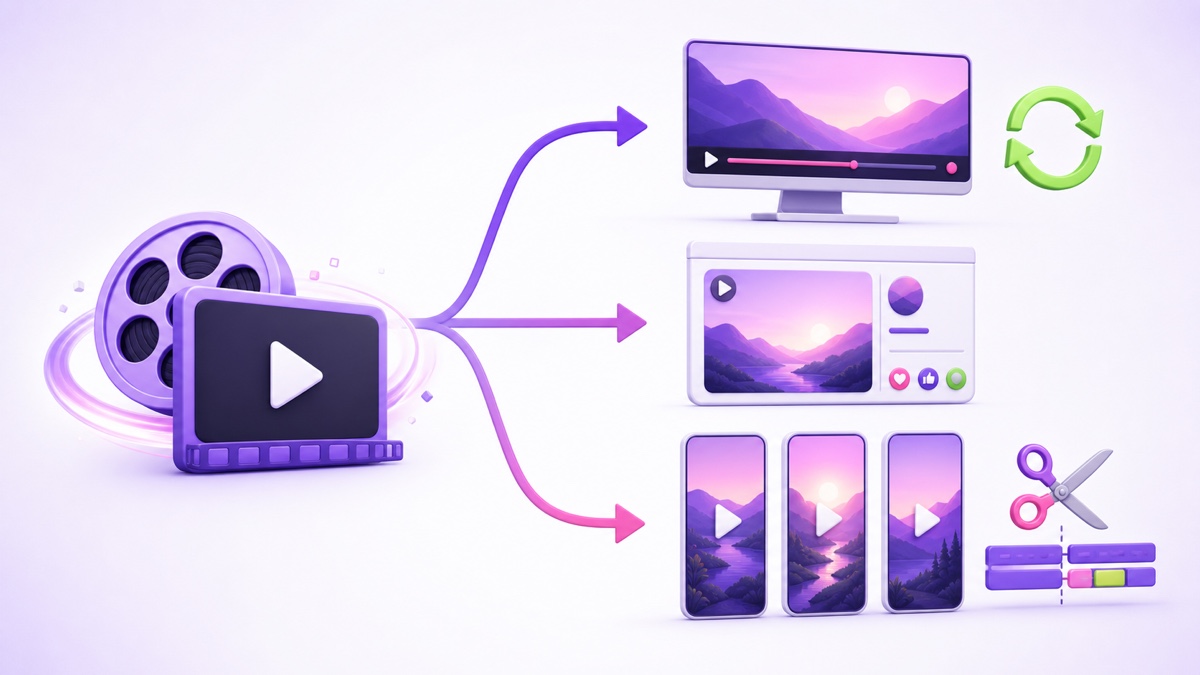
Where a pre-recorded loop actually belongs in Meta's world
Facebook has the supported encoder path that Instagram does not expose to everyone. For a Page, open Facebook → Live video → Select → Streaming software, then copy the server URL and stream key into your encoder. Meta's streaming-software instructions support a persistent stream key and recommend a secure RTMPS connection; RTMPS commonly travels over port 443.
However, supported ingest does not mean every content format is allowed. The current Facebook Live Policies require pre-recorded footage to be clearly marked in the video, title, or description. They also say Facebook Live should not be used for looping videos and give a continuously repeated 20-minute clip as an example.
That means a finite, clearly labelled replay or programmed block can be appropriate; a permanent repeated clip is not. Read the policy immediately before launch, stream only video and audio you own or license, and see the complete pre-recorded Facebook Live setup. If you are choosing between an upload event and a live broadcast, compare Facebook Premiere and Facebook Live.
For a continuous owned loop, use YouTube as the primary home. StreamNeo can power that YouTube leg. YouTube is the only destination it publishes to, so neither Instagram nor Facebook is part of it. If you plan a compliant finite Facebook broadcast alongside YouTube, you will need a Facebook-capable encoder for that side; review the YouTube and Facebook simulcast guide and current StreamNeo plans.
A practical three-surface plan for India
YouTube: the long-running destination
Put the full devotional, lofi, education, or ambience stream on YouTube, where viewers search by intent and long sessions make sense. Build a playlist from material you own, use a stable thumbnail and descriptive title, and monitor YouTube Studio → Content → Live for copyright notices and stream health. If it is a loop, say so in the description instead of implying that a recorded temple view or market update is happening right now.
Facebook: the community appointment
Use a Facebook Page for scheduled, finite broadcasts that suit community sharing and WhatsApp-forward discovery. Announce the time, label pre-recorded segments, keep an admin available for comments, and avoid endlessly repeating one clip. A Sunday bhajan block, a recorded class with a live host intro, or a weekly recap is a better policy fit than a 24/7 loop.
Instagram: the discovery layer
Publish the three vertical clips across the week, then add them to Stories when useful. Use a Highlight to explain where the full stream lives. Go Live from the phone for a short, real interaction: take song requests, answer setup questions, introduce the week's new video, or show the recording process. One master now feeds search, community, and discovery without pretending all three platforms work the same way.
What would have to change for the answer to flip
The answer changes when Meta publishes a stable, generally available Instagram Live Producer or RTMP workflow and exposes it broadly enough that creators can depend on it. A help page should spell out eligibility, encoder settings, session limits, replay behaviour, and permitted uses of pre-recorded sources.
Until that happens, check your own account rather than relying on an old tutorial. On Instagram.com, look for Create → Live video; in Meta's Instagram Help Centre, search for “Live Producer” and “streaming software.” Re-check the date and policy before every important launch. This article's finding is dated 26 July 2026.
If your real goal is a reliable pre-recorded channel rather than an Instagram experiment, start free — 24-hour trial, no card. Keep Instagram focused on the clips and conversations it handles best.
FAQ
Can I stream a pre-recorded video to Instagram Live?
Not through a supported RTMP path available to every account. Instagram Live remains app-and-camera-first for general users. If Instagram itself shows Live Producer on your professional account, you can use the temporary encoder credentials it provides; if the option is absent, there is no supported switch to enable it yourself.
What about apps that claim to do it?
Some are normal encoders for accounts that already have Live Producer. Others depend on private access, stored credentials, or methods Meta may change. Confirm that the RTMP URL and key come from Instagram, read the permissions carefully, and treat any unofficial route as temporary rather than the basis of a 24/7 operation.
Where should my loop live instead?
YouTube is the clearest home for a continuous loop of content you own or license. A Facebook Page can carry finite, clearly labelled pre-recorded broadcasts, but Meta's Live Policies say not to use Facebook Live for looping videos. Use Instagram Reels and short real Lives to attract and talk with viewers.