Your library is already vertical: podcast clips, mobile edits, devotional close-ups, or short explainers built for a phone screen. You do not have to rebuild all of it in landscape before sending it to YouTube Live.
A 9:16 file can be looped into an always-on broadcast through the same encoder workflow as a landscape file. The real decision is not whether it connects. It is whether native vertical framing serves the devices your viewers actually use—and whether you are comfortable with discovery and thumbnail behavior that differs across YouTube surfaces.
Short answer: you can push vertical video
A vertical live stream on YouTube is technically valid. The encoder sends the pixels in your source, so a 1080 × 1920 file produces a portrait feed; there is no separate “make this video vertical” switch required for a normal single-feed RTMP workflow. YouTube reads the incoming resolution and frame rate, then creates playback versions for viewers.
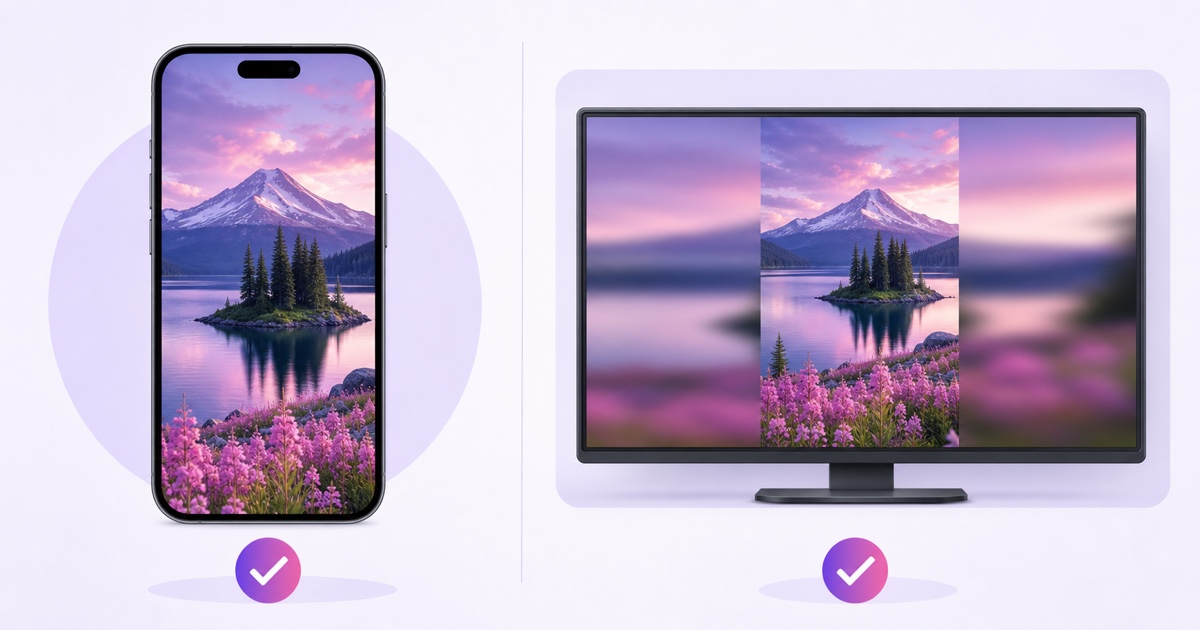
Use a true portrait export rather than placing black bars inside a 1920 × 1080 file. YouTube’s formatting guidance says the player frames non-standard aspect ratios without cropping or stretching. On a phone, a portrait live can occupy the full vertical viewing experience. In a wide desktop player, the video remains tall, leaving space at its sides instead of being stretched to fill the monitor.
That distinction matters: the broadcast can stay healthy while the composition feels wrong on one device. A face, temple idol, vertical product demo, or one-person podcast frame may look intentional in portrait. A wide rain scene squeezed into the middle of a television usually does not.
Connectivity is the easy part. Device fit is the creative decision.
Where vertical lives actually appear
YouTube currently has a scrollable vertical live feed in its mobile app. Its official live-streaming overview says eligible vertical live streams can be discovered while people browse Shorts, including by viewers who are not already subscribed. That is a possible discovery surface, not a promise that YouTube will place every vertical stream there or send it a particular number of viewers.
There are important boundaries. The vertical live-feed help page says the feed is available in the YouTube app, not currently on tablets, and that scheduled live streams and Premieres do not appear in it. If Shorts-feed discovery is part of your test, an always-on public stream is a better experiment than assuming a scheduled event will enter that feed.
On desktop, television, and ordinary watch-page surfaces, viewers still get the standard player experience. A native 9:16 feed stays vertical, so a wide display naturally shows unused space beside the picture. Controls and surrounding page layout can vary, but you should expect the image itself to remain portrait rather than magically becoming a landscape composition.
YouTube also offers eligible creators a dual-stream setup in Live Control Room: one horizontal and one vertical version under a shared watch URL and chat. It can automatically create a vertical layout from a horizontal feed, or accept a second vertical feed through an encoder where the feature is available. That is useful for live productions, but it is not required to loop one existing 9:16 file.
Measure the result after launch. In YouTube Analytics, compare playback locations and device types, and review vertical-live-feed metrics when they become available. Treat Shorts discovery as a channel you can test, never as the business case for running the stream.
When vertical genuinely fits
Native vertical works best when the subject was designed around a phone from the first frame. A speaker centered from chest to head, a close devotional darshan, a single recipe step, a portrait product demonstration, or a rotation of podcast clips can use the screen naturally. Large captions and central action also survive the swipe-based mobile experience better than tiny landscape details.
A portrait live stream running 24/7 is especially sensible when the existing audience already discovers you through Shorts and watches mainly on phones. It lets you reuse the intended composition without cropping faces, shrinking subtitles, or rebuilding dozens of clips. The loop still needs enough variety; repeating one 30-second clip indefinitely is technically possible but rarely useful to a returning viewer.
Landscape remains the safer default for ambience, lofi radio, long meditation visuals, multi-person panels, gameplay, and any format people are likely to leave playing on a laptop or television. That is reasoning from the shape of the content and screen, not a claim about universal audience statistics. Check your own YouTube Studio → Analytics → Audience device data before choosing.
If your library mixes portrait and landscape files, do not throw them directly into one rotation. Normalize the canvas, frame rate, codec, and audio first. The looping playlist guide explains why uniform files produce cleaner transitions.
Prepare the vertical file
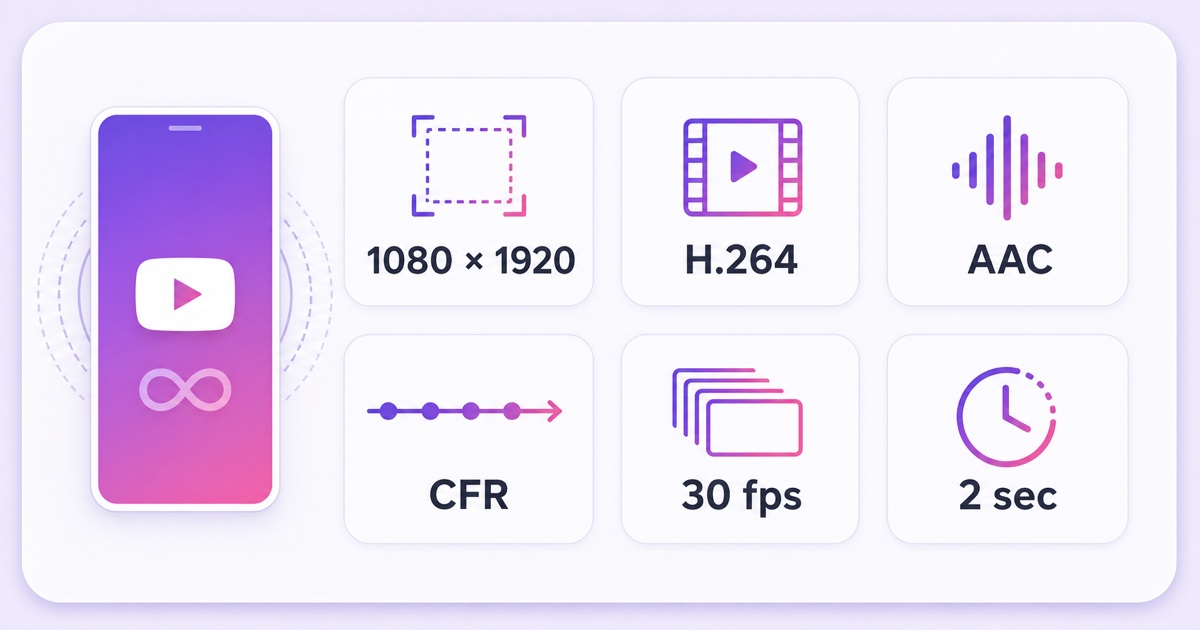
Start with a 1080 × 1920 MP4. Export H.264 video, AAC stereo audio, progressive scan, square pixels, and a constant frame rate. If the source was recorded at 30 fps, keep it at 30 instead of inventing 60 fps. A two-second keyframe interval is a reliable live-stream target.
YouTube’s current live encoder settings list RTMP/RTMPS ingest, H.264 support, AAC audio, constant-bitrate delivery, and a recommended two-second keyframe frequency. The platform automatically detects resolution and frame rate by default. For a plain 1080p 30 fps stream, the same page currently recommends 10 Mbps for H.264; test the actual file and destination rather than assuming a higher number always improves playback.
CapCut’s labels vary slightly by device and version, but the practical path is New project → Ratio → 9:16 → Export. Choose 1080p, retain the recorded frame rate, and select MP4/H.264 where the export options expose the codec. Turn off frame interpolation unless you deliberately want it. After export, inspect the first and final five seconds together: an abrupt audio cut or blank frame will repeat at every loop seam.
For several clips, give every file the same 1080 × 1920 canvas, frame rate, audio sample rate, channel layout, and codec family. A playlist that jumps from 1080 × 1920 at 30 fps to 720 × 1280 at variable frame rate can force extra processing or produce a rough transition. Use the complete 24/7 video-format guide before exporting a large library.
Prepare a custom 16:9 thumbnail as well, but know where it may change. YouTube recommends 16:9 because that shape is common across players and previews. Its current thumbnail guidance also says vertical videos may receive an auto-generated 4:5 thumbnail on Home, Explore, and Subscriptions, while the custom thumbnail can still appear on the watch feed, watch history, and non-mobile platforms. Check the public result on each important surface instead of judging only the Studio preview.
Set up the 24/7 vertical loop
First enable live streaming on the channel. In a desktop browser, open YouTube Studio → Create → Go live → Stream. Create or select the stream, add the title, description, audience setting, visibility, and thumbnail, then copy the stream key. Treat the key like a password; anyone who has it can publish to the channel.
Run the first test as unlisted. This verifies encoding and device layout without using your audience as the test team. If your channel depends on appearing in the vertical live feed, remember that unlisted testing proves playback, not public discovery.
For a cloud loop in StreamNeo:
- Open Videos → Upload Video and upload the finished vertical MP4 from your phone or computer.
- Open Streams, select your slot, and choose Configure Stream.
- Under Stream To, enable YouTube and paste the stream key from Live Control Room.
- Choose the uploaded video—or several matching portrait clips in order—and save the configuration.
- Select Go Live Now, then wait for YouTube’s incoming preview and stream-health status.
StreamNeo loops the aspect ratio you upload, so a portrait file stays portrait. The encoding runs in the cloud; locking your phone or closing the browser does not stop the sender. If your whole workflow is mobile-first, compare the broader options in our guide to 24/7 streaming apps for mobile-only creators.
Before walking away, open the public watch page on a phone and a desktop. On the phone, check full-screen framing, caption safe areas, chat overlap, audio, and the loop transition. On desktop, confirm the tall frame still looks deliberate and that important text is readable. Let the loop cross its seam at least twice, then watch YouTube’s stream-health panel for ten minutes.
- Phone check: no face, caption, diya, or product detail hidden by interface controls.
- Desktop check: side space looks acceptable and the main subject is large enough.
- Loop check: no black flash, clipped sentence, volume jump, or frozen final frame.
- Rights check: every clip, track, image, and voice is yours or licensed for live rebroadcast.
The hybrid alternative: portrait inside a 16:9 canvas
A hybrid canvas keeps the complete portrait video in the center of a 1920 × 1080 frame and fills the side areas with a blurred, enlarged copy of the same scene. It gives desktop and television viewers a visually complete widescreen image without cropping the original vertical subject.
Choose hybrid when your audience uses mixed devices, the side space of native vertical feels unfinished, or the stream includes landscape-friendly elements such as a track list, programme schedule, logo, or QR destination. Choose native vertical when full-screen phone viewing and possible vertical-feed discovery are more important. A hybrid export is technically horizontal, so do not assume it will be treated as a vertical live stream in Shorts browsing.
Here is a five-step CapCut recipe:
- Create a new project and set Format/Ratio → 16:9.
- Add the vertical clip, duplicate it, and place the duplicate on the lower track.
- Scale the lower copy until it fills the widescreen canvas, then apply a strong blur.
- Keep the upper copy at full portrait height in the center; add a subtle shadow only if separation is needed.
- Export at 1920 × 1080 with the same H.264, AAC, constant-frame-rate, and keyframe choices used for the rest of the playlist.
Do one fair test before converting an entire catalog: run the same 30-minute rotation as native vertical and as hybrid on separate days. Compare device mix, average view duration, vertical-live-feed traffic, chat feedback, and how the frame looks on your own television. The better format is the one that serves the viewers you actually have.
Ready to test your 9:16 file without keeping a PC awake? Start free — 24-hour trial, no card. Review StreamNeo pricing if the native or hybrid test earns a permanent slot.
More from the journal: Repurposing a 24/7 Loop Into Shorts, Reels and TikToks · One Video, Three Platforms: A Realistic Cross-Posting Workflow for Loop Channels · Channel Memberships on a Loop Channel: Perks That Do Not Need You Online
FAQ
Can I live stream in 9:16 on YouTube?
Yes. Send a portrait resolution such as 1080 × 1920 through the normal encoder and stream-key workflow. YouTube detects the incoming format, presents it vertically on supported mobile experiences, and preserves the tall composition with side space on wider displays.
Will my vertical live show in the Shorts feed?
It can. YouTube currently says vertical live streams are discoverable while viewers browse Shorts in the mobile app, but it does not guarantee placement or reach for any individual stream. Scheduled live streams and Premieres are currently excluded from the vertical live feed, so do not base the project on automatic Shorts distribution.
Should an ambience channel go vertical?
Usually not. Ambience, lofi, sleep, and meditation visuals often benefit from filling laptops and televisions, making 16:9 the more flexible starting point. Use native vertical only when your own analytics show a strongly phone-first audience and the scene was composed for portrait viewing; otherwise test the hybrid canvas.