An always-on stream creates a moderation gap that a normal live show does not. Your video may be running cleanly at 4 a.m., but its chat can still collect crypto links, copied channel identities, abusive messages, and fake support offers while nobody from your team is watching.
The target is not maximum conversation at every hour. It is a chat that cannot become a liability when you are asleep. Set the native controls first, decide how much participation the stream genuinely needs, and only then add people or bots. The paths below were checked against the platforms' current help pages on 26 July 2026.
Why unattended chat is a different problem
A hosted stream has a person who can read context, warn someone, remove a message, and stop a scam before viewers act on it. A 24/7 loop can go through an entire night without that judgement. One malicious account can repeat the same offer for hours, while an impersonator can copy your display name and avatar in minutes.
Moderation therefore needs layers. A blocked-word list catches known patterns. Automatic review catches a broader set of risky messages. Participant restrictions make disposable accounts more expensive to use. A moderator handles what automation misses. If the subject does not benefit from chat, switching chat off removes the problem altogether.
Useful rule: configure for the least supervised hour, not the busiest hour. You can loosen controls when a host arrives.
Change the channel-level settings first
On desktop, open YouTube Studio → Settings → Community moderation → Content controls. This is the current path; older tutorials may still show Community, Automated Filters, or Defaults. YouTube's channel moderation guide lists the controls available here.
- Messages in your live chat: choose Strict for an unattended stream. YouTube currently offers None, Basic, and Strict. Basic holds potentially inappropriate messages; Strict holds a broader range. Held messages stay hidden unless an authorised person approves them.
- Blocked words: add words and phrases separated by commas. Start with scam language you have actually seen: giveaway claims, payment requests, wallet phrases, messaging-app handles, and misspellings used to evade your filter. Add your channel name and common lookalikes if impersonation is recurring, but test this carefully because genuine viewers may mention you by name.
- Link text: enable this as a baseline for comments and viewer posts. YouTube's detailed current help wording explicitly says it holds hashtags and URLs in those surfaces, while a broader live-chat tips page says web links can be blocked in community settings. Because that wording is inconsistent, test the live chat from a second account instead of assuming every URL format is covered. Add recurring domains and URL fragments to Blocked words as a second layer.
- User management: in Community moderation → User management, maintain Managing moderators, Standard moderators, Approved users, and Hidden users. Approved users bypass some friction, so keep that list short.
Do not paste a generic internet profanity list with thousands of entries and call the job done. It will create false positives while missing the phrases aimed at your particular audience. Review the held queue for a week, add patterns from real attacks, and remove terms that catch normal conversation.
Set controls for each live broadcast
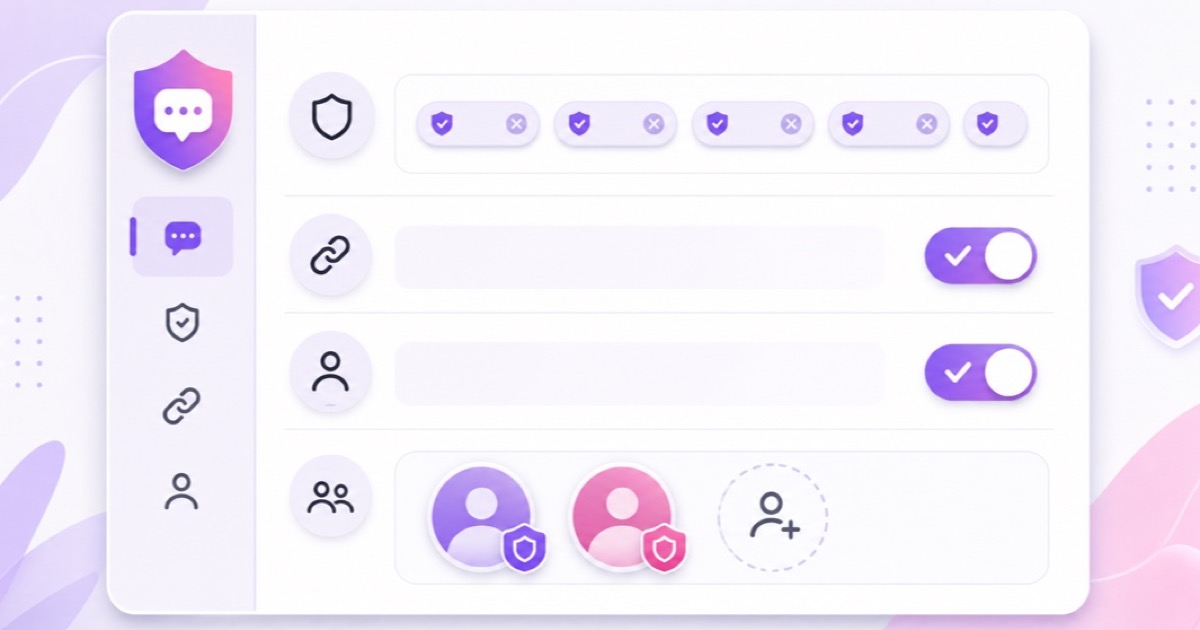
Channel defaults are only half the setup. Open YouTube Studio → Create → Go live, select the broadcast, then choose Edit → Customization. The exact options appear under Live chat, participant controls, and message delay; YouTube documents them in its live chat moderation guide.
Slow mode sets a delay between messages from the same viewer. The owner, moderators, and channel members are exempt. For an unattended overnight loop, a 60-second delay is a reasonable starting point: it makes floods slower without closing the room. During a hosted programme, 15 seconds is often enough unless the chat is unusually busy.
Under Who can send a message, use Subscribers to turn on subscribers-only chat and choose a required subscription duration. This will not stop a determined scammer, but it removes instant drive-by posting. Members-only chat is stronger but is appropriate only when channel membership is central to the experience. Subscribers-only and slow mode can run together; subscribers-only and members-only cannot.
Live commentary is the tightest participation mode. Only channels in your Approved users list can send messages, while everyone else can watch. It works well for a scheduled devotional reading, business demonstration, or expert replay where two known people provide context and open chat adds little value.
| Situation | Moderation | Participation | Message delay |
|---|---|---|---|
| Unattended overnight | Strict | Subscribers, with a meaningful subscription period | Start at 60 seconds |
| Actively hosted | Basic or Strict | Everyone or subscribers | Start at 15 seconds |
| Approved speakers only | Strict | Live commentary | Usually unnecessary |
Treat those numbers as starting points, not universal rules. Run a test from a non-moderator account, send an ordinary message, a repeated message, and a harmless test URL, then confirm what viewers actually see.
Turning chat off is a valid moderation choice
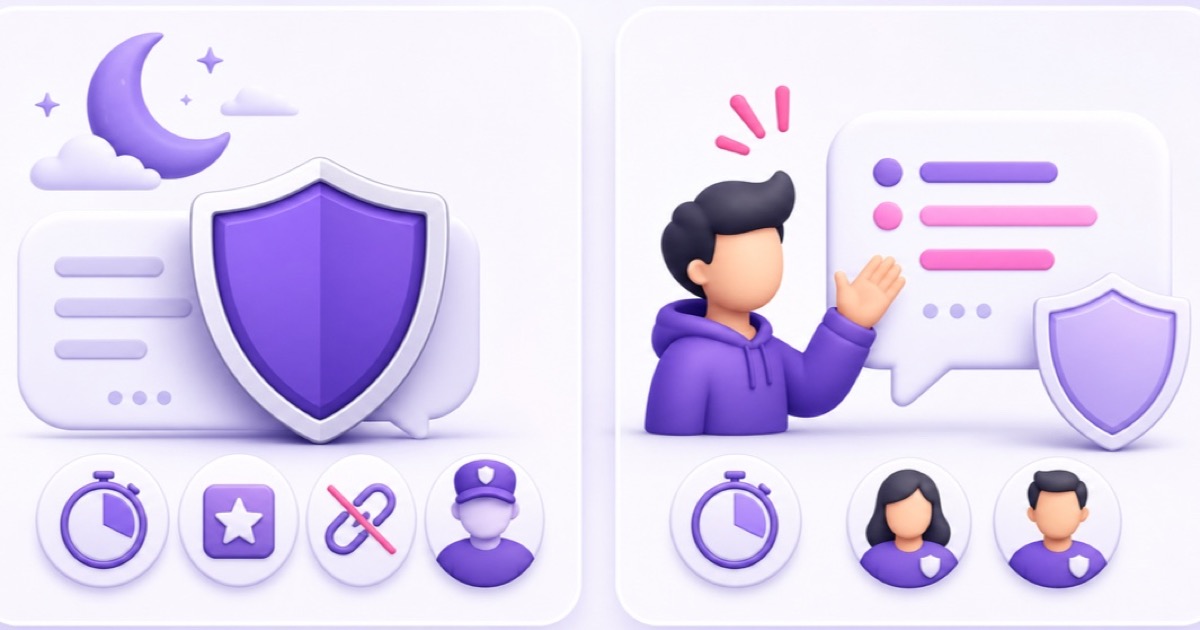
Disable chat when the stream's value is the programme rather than a real-time conversation. Sleep sounds, unattended bhajan or aarti loops, storefront demonstrations, and kids-adjacent learning content often lose little when the chat panel disappears. You remove link spam, impersonation, harassment, and the need for someone to review held messages.
From Live Control Room, open the broadcast and use Edit → Live chat → Enable live chat to turn it off. YouTube says chat can be changed even after a live event starts, although Premieres are an exception. Disabling chat also removes live-chat features such as fan messages, so consider the trade-off described in Super Chat and memberships on always-on streams.
For content set as made for kids, live chat, live chat replay, and Super Chat are unavailable under YouTube's audience restrictions. Do not switch the audience setting merely to control chat; set it accurately based on the content. If your channel serves young viewers, review the broader requirements in the kids' learning loops policy guide.
Use human moderators with a written standard
A trusted regular can remove messages, put users in timeout, hide users from the channel, and review messages held by your filters. YouTube has two roles. A Standard moderator handles core actions; a Managing moderator can also change participant mode, message delay, blocked words, approved users, and several live-chat controls. Managing moderators still do not receive access to Live Control Room or YouTube Studio.
Choose people for judgement and reliability, not simply because they chat often. One moderator whose normal waking hours overlap your overnight period is more useful than a large team that is asleep at the same time. Add them through Settings → Community moderation → User management, using the channel URL in the relevant moderator field.
Give every moderator the same two-line standard: Remove scams, payment requests, impersonation, harassment, and exposed personal information immediately. For borderline promotion or off-topic messages, use a timeout first and record what happened. Also define who may add blocked words or approved users, because those changes affect every broadcast.
Bots help, but native filters stay in charge
A third-party bot can recognise repeated text, run custom URL rules, post safety reminders, and respond to commands. It is useful when its rules reflect your channel. It is not a replacement for Strict moderation, subscriber controls, blocked words, or a human who can recognise context.
The restart caveat is real but tool-specific. A YouTube chat belongs to an active live event, and Google's Live Streaming API exposes a distinct live chat ID for the broadcast. Nightbot's own setup documentation says its YouTube bot joins only when a stream is live and public; its troubleshooting page recommends using Join Channel and notes that a 24/7 stream may need a restart when the bot stops responding. Other tools may reconnect automatically, so verify the bot after every new broadcast ID or recovery restart.
- Restart or replace the live broadcast.
- Open the public watch page from a signed-out window.
- Send a harmless command and a repeated test phrase.
- Check the bot's dashboard or logs; if it is absent, re-authorise or rejoin using that tool's documented flow.
Never grant a bot broader Google or Page permissions than it needs. Remove integrations you no longer use, and keep a native moderation configuration that remains safe when the bot is offline.
Follow this impersonation response playbook
The common attack is simple: an account copies your channel name and picture, replies to viewers, then moves the conversation to Telegram, WhatsApp, email, or a fake payment page. The permanent live stream gives the fake identity a believable place to operate.
- Capture the profile URL and message before removing it.
- Use the message menu to Hide user from this channel, then report the account for impersonation or scam behaviour.
- Add the copied name pattern, giveaway wording, payment phrase, and destination domain to Blocked words. Include spelling variants seen in the attack.
- Pin a message from the real channel: We never contact viewers first or ask for payment in chat. Verify every offer on our official website.
- Never leave a payment QR code, UPI ID, wallet address, or private messaging number on a permanent public stream. It gives copycats a ready-made script and viewers no reliable way to distinguish a real request.
If scam messages appear from your own channel, or settings changed without your action, treat that as an account-security incident rather than ordinary spam. Secure the Google account and follow the steps in recovering a hacked or locked stream key. For a product showcase, keep contact and purchase paths on a controlled page; the always-on storefront guide explains that model.
Configure Facebook and Twitch separately
Multistreaming does not carry moderation settings between platforms. On Facebook, use Page-level moderation and blocked-word controls, then configure the Live producer's comment restrictions. Meta currently documents options that can limit comment frequency, require a minimum comment length, require viewers to follow the Page, use protected mode for established followers, restrict newer accounts, or limit chat to subscribers. A person with Page community-manager access can delete or report live comments, suspend a user for 15 minutes, ban them from one or all Page live streams, and pin comments.
On Twitch, go to Creator Dashboard → Moderation → Settings (Moderation) → AutoMod & Message Filtering. AutoMod uses levels 0 through 4, where 4 is the strongest, and holds flagged messages for moderators to allow or deny. Add Blocked Terms and Permitted Terms, disable links where appropriate, and consider follower or phone/email verification, Slow Mode, Sub-Only Mode, or Shield Mode. Twitch's AutoMod guide also makes an important distinction: AutoMod holds a message; it does not itself timeout or ban the sender.
Repeat your harmless URL, repeat-spam, and ordinary-viewer tests on every destination. A safe YouTube chat does nothing for an unconfigured Facebook Page or Twitch channel.
A ten-minute pre-launch check
- Set YouTube live chat moderation to Strict and review the Blocked words list.
- Test links instead of assuming the Link text toggle covers every live-chat URL.
- Choose subscribers-only, Live commentary, or chat off for unattended hours.
- Add at least one moderator whose availability matches your risk window.
- Verify the bot after any broadcast restart.
- Pin the no-DM, no-payment warning from the real channel.
- Repeat the setup on every platform receiving the stream.
A stream designed to run unattended is exactly why these settings deserve attention before launch. Once the chat cannot surprise you, start free — 24-hour trial, no card, and let the video run without leaving the door open to scammers.
FAQ
How do I stop spam in my live chat overnight?
Use Strict live-chat moderation, channel-specific blocked words, subscriber restrictions, and slow mode, then test links from a second account. Add a moderator for uncovered hours. If conversation is not important to the programme, disable chat entirely.
Should I turn off chat on a 24/7 stream?
Often, yes. For devotional, kids-adjacent, sleep, and business loops, the risk can outweigh the limited overnight conversation. Keep chat only when it gives viewers a clear benefit and you have reliable moderation coverage.
Can a bot moderate my 24/7 chat?
A bot can catch repeated spam, enforce custom rules, and post warnings, but it depends on an active broadcast connection. It may need to rejoin or be re-authorised after a restart, so test it every time the broadcast changes. Keep native filters active even when the bot is working.