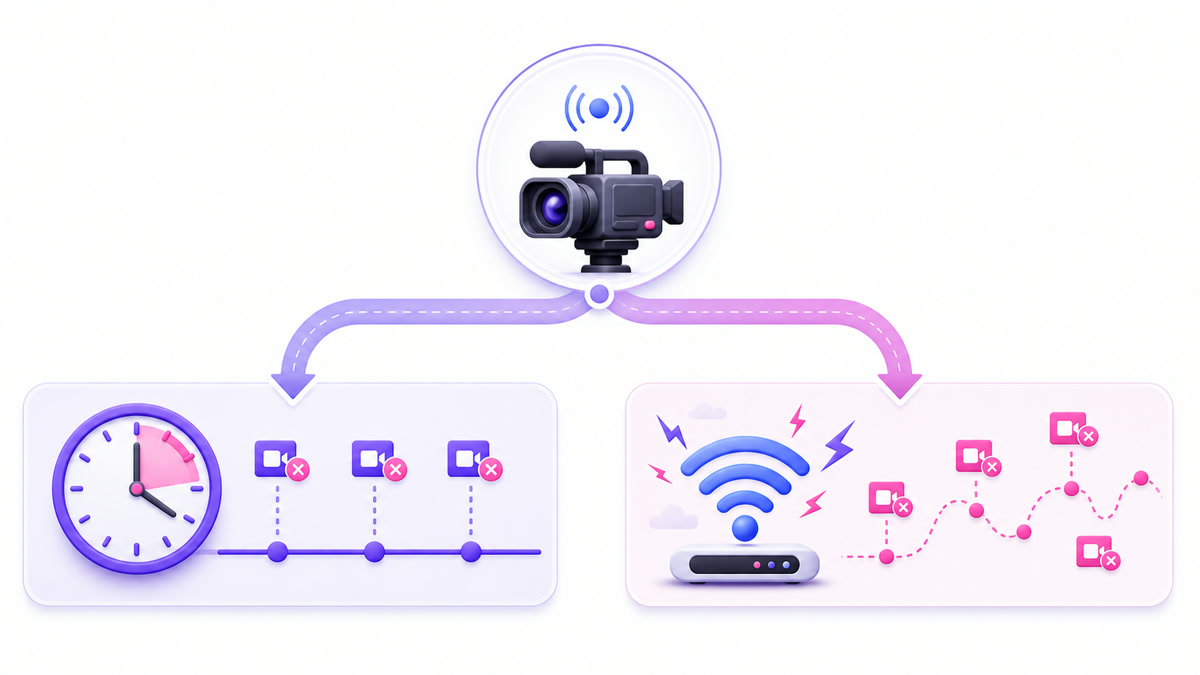
When Facebook Live keeps stopping, the fastest fix starts with one detail: does it fail after roughly the same amount of time, or at unpredictable moments? A repeatable stopping time usually points to a platform limit, an expired credential, or a scheduled process. Random failures usually point to the connection, encoder, rights enforcement, or account state.
Do not change five settings at once. Note the exact stop time, preserve the encoder log, and inspect Facebook's notification trail. That evidence separates a real Facebook-side ending from a computer that simply stopped sending video.
Start with when it stops
Use this table before restarting. The symptom is more useful than a generic “stream disconnected” message.
| What you observe | Most likely cause | First check |
|---|---|---|
| Ends at almost the same duration every time | Facebook's session cap | Compare runtime with the limit shown for the broadcast |
| Worked yesterday, but the saved key fails today | One-time stream key expired | Create a fresh key or enable a persistent key |
| Never reaches a preview, or drops during connection | Wrong server URL or insecure RTMP | Copy the RTMPS URL again from Live Producer |
| Stops randomly with dropped-frame warnings | Upload instability | Check Stream Health and encoder network statistics |
| Stops when the computer becomes hot or busy | Encoder overload | Check CPU/GPU load and encoding lag |
| Viewers lose audio or video after a music notice | Rights enforcement | Open the live notification and identify the matched track |
| Failure follows a team or Page-permission change | Page access changed | Verify content access for the streaming account |
| Facebook shows a restriction or violation | Policy action | Open Account Status and Page Status |
If the pattern is still unclear, keep a small incident log for three broadcasts: start time, stop time, total runtime, last Live Producer warning, last encoder warning, network type, and CPU load. Three clean entries usually reveal whether the trigger follows a clock, a machine, or a specific piece of content.
Cause 1: the broadcast reached Facebook's time limit
Meta's current live-video format guidelines list eight hours as the normal maximum duration per stream, including broadcasts from a computer, mobile device, external encoder, or API. Meta notes that selected premium partners, gaming creators, and media organisations may receive longer access, but that is not the default.
This is why an otherwise healthy stream can die at a suspiciously round runtime with no gradual bitrate collapse. Compare the broadcast's start and end timestamps. If the duration is close to the limit assigned to your account, replacing the router or raising the bitrate will not help.
The practical fix is a planned broadcast cycle: end cleanly and start the next eligible broadcast before the cap, with the next title, description, and destination ready. For a compliant long-form pre-recorded broadcast, a managed cloud service can handle those technical cycles instead of requiring a nightly alarm. The full event setup is covered in the pre-recorded Facebook guide.
A cycle solves the duration limit; it does not override Facebook's content rules. Always check the current Live policies for the format you intend to broadcast.
Cause 2: a one-time stream key expired
A standard Facebook stream key is tied to its live setup and is not reusable after that session. Saving it in OBS, FFmpeg, or a cloud dashboard can create the classic pattern: everything worked yesterday, but today's connection is rejected before a preview appears.
Open facebook.com/live/create → Choose where to post → Go live → Streaming software. Under Advanced Settings, Facebook offers a Persistent stream key option. Meta's streaming-software instructions confirm that standard keys cannot be reused, while a persistent key can be used for future broadcasts. Only one live video can use that persistent key at a time.
Choose one of two clean workflows: generate and paste a fresh standard key for every event, or deliberately enable the persistent key and update the encoder once. Do not mix them. If you rotate the key, update every tool that publishes to Facebook and stop any forgotten encoder that may still be using the old credential.
Treat either key like a password. Never place it in a screenshot, support ticket, public repository, or stream description. Follow the focused Facebook stream-key and RTMPS guide for the complete setup.
Cause 3: the encoder is using plain RTMP
For a software encoder, copy the Server URL exactly as Facebook shows it. The secure endpoint should begin with rtmps://; Facebook's usual secure ingest uses port 443. A legacy configuration beginning with rtmp://, a missing port, or a manually reconstructed address can fail before preview or disconnect early.
- Open Live Producer and select Streaming software.
- Copy the Server URL again instead of editing the old value.
- Paste the stream key into the separate key field. Do not append it twice.
- Start the encoder and wait for Facebook's preview before clicking Go Live.
If the encoder has a “secure connection” switch, enable it. If it cannot send RTMPS, update or replace the encoder rather than falling back to an insecure URL. On an office, school, or temple network, also confirm that the firewall permits outbound TLS traffic on port 443.
Causes 4–5: unstable upload or an overloaded encoder
These two failures can look identical to viewers, but their evidence appears in different places. Open the active broadcast in Live Producer and inspect Stream Health or the equivalent source-health view. Then compare it with your encoder's own statistics. In OBS, use View → Stats.
Cause 4: network instability
Rising dropped frames (network), a falling outbound bitrate, or repeated reconnects point to the upload path. A speed test taken once is not enough; live video needs sustained upstream capacity. Wi-Fi interference, a 4G/5G handoff, cloud backups, another video call, or evening ISP congestion can create short gaps even when the headline speed looks good.
Move to wired Ethernet, pause backups and large uploads, and run a sustained test at the same time of day as the broadcast. If the connection cannot hold the configured rate, lower the stream profile within Meta's supported settings. Meta's current guideline lists H.264 video, a two-second keyframe interval, 1080p at 30 fps, and 3,000–6,000 Kbps. Do not send an oversized 10 or 12 Mbps feed just because the encoder allows it.
Cause 5: encoder overload
If network-dropped frames remain near zero but OBS shows encoding lag or rendering lag, the machine is the bottleneck. High CPU use, a saturated GPU, complex browser sources, background exports, insufficient cooling, and aggressive 1080p settings can make the encoder stop delivering frames.
Close non-essential apps, simplify scenes, use a supported hardware encoder, reduce resolution or frame rate, and keep the machine awake. Test for at least one full programme cycle; a five-minute preview may not reveal thermal throttling. If an unattended stream depends on that computer, power sleep, updates, and local crashes remain part of the failure path.
Cause 6: detected music interrupted the broadcast
A technically healthy feed can still disappear for viewers when Facebook detects music that conflicts with its licensing agreements. Meta says a live broadcaster may receive a notification while filming so the audio can be changed before an interruption; a video may be muted or blocked if the issue is not resolved. Rights Manager also allows rights holders to block matching video or report it.
Open the notification instead of assuming the ISP failed. Identify the track and the action Facebook applied. Remove the matched audio from the source, restart only after the source is clean, and keep the licence, invoice, and permission record if you genuinely hold broadcast rights. “Royalty-free” is not a substitute for reading the specific licence.
Meta's music guidance explains the warning and interruption behaviour. For a fuller response plan, read the live-stream copyright guide. The reliable prevention rule is simple: broadcast only music and footage you own or are explicitly licensed to use live.
Causes 7–8: Page access changed or Facebook applied a policy restriction
Cause 7: the streaming account lost Page access
Facebook no longer describes Page teams only with the old admin/editor labels. The current terms are Facebook access and task access. Meta's live eligibility instructions say a person needs Facebook access or task access with permission to create content in order to go live from a Page.
If the failures began after an agency handoff, employee departure, password reset, Business Portfolio change, or Page-access cleanup, verify the publishing identity first. Switch into the Page, then open Settings & privacy → Settings → Page setup → Page access. Confirm that the person or integration running the stream can create content. Restoring chat-moderator access alone is not enough; community managers can moderate live chat but cannot publish the broadcast.
Cause 8: an account or Page restriction stopped publishing
Look for evidence in two places. From your personal profile, open profile picture → Help & support → Account Status. Then switch into the Page and open Settings & privacy → Settings → Page setup → Page Status. Meta says these areas show restrictions, recent violations, intellectual-property issues, and limits affecting the things you manage, although Page Status does not cover every policy area.
Read the exact notice and request review when Facebook offers that option. Do not keep rotating keys to bypass an account restriction; that treats an enforcement decision like a network error and may make diagnosis harder.
Also check the Facebook Live Policies before relaunching pre-recorded media. The current policy says pre-recorded content must be clearly marked, must not be presented as real-time footage, and Facebook Live should not be used for looping videos, static images, or poll-only broadcasts. A streaming tool can automate delivery, but it cannot make a prohibited format compliant.
The stay-up checklist
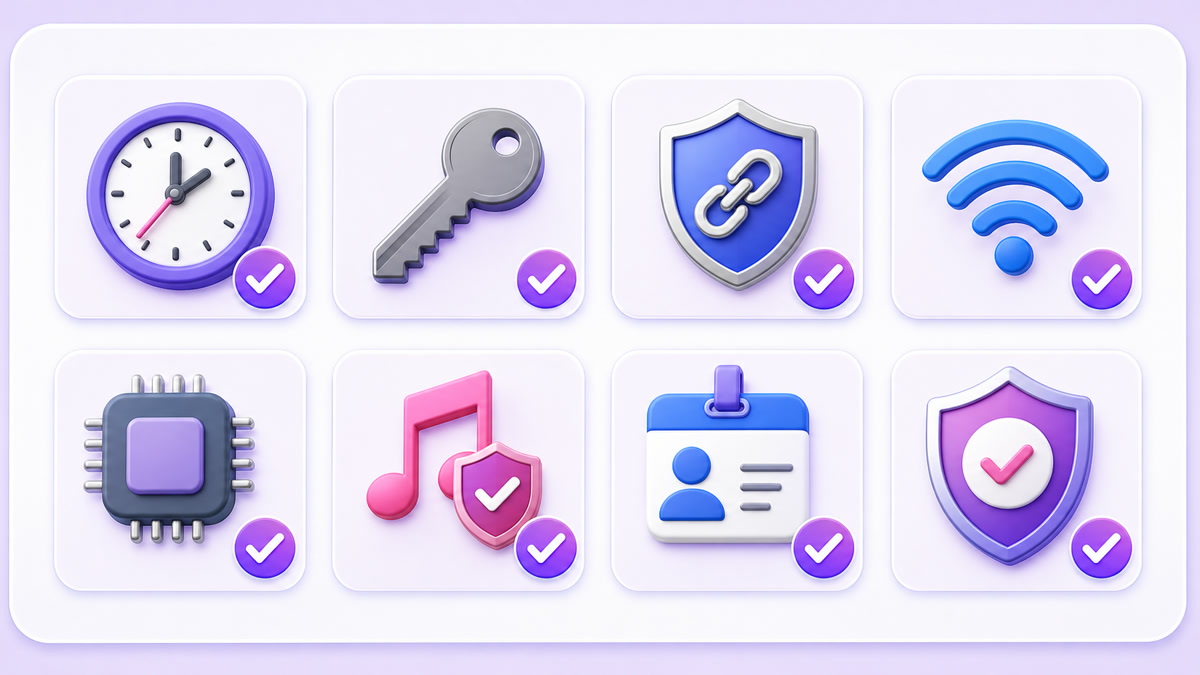
- Cycle: know the duration assigned to the broadcast and schedule a clean end before it.
- Key: use a fresh standard key or intentionally enable the persistent key; never confuse the two.
- Transport: copy the RTMPS server URL from Live Producer and confirm port 443.
- Network: prefer wired Ethernet and leave stable upstream capacity for the configured bitrate.
- Encoder: check network drops, rendering lag, encoding lag, heat, sleep, and updates.
- Rights: use cleared audio and keep licence documents with the programme file.
- Access: confirm the publishing account still has Page content permissions.
- Policy: review Account Status, Page Status, and the current Live rules before restarting.
After a failure, record the timestamp and the last message from both Facebook and the encoder. That two-sided incident note prevents a week of random setting changes.
If the same pre-recorded playout also runs on a YouTube channel, StreamNeo can move that side off your laptop; it publishes to YouTube only, so the Facebook Page still needs OBS, ffmpeg or a Facebook-capable service. Review the complete Facebook setup guide, check current pricing, or start free — 24-hour trial, no card.
More from the journal: Limited or No Ads on a Live Stream: Causes and the Review Path · Why Your 24/7 Stream Buffers for Viewers but Not for You · YouTube Monetisation Requirements in 2026: The 24/7 Streamer’s Version
FAQ
Why does my FB Live stop at the same time daily?
A repeatable stop at roughly the same runtime usually means the broadcast is reaching its session cap. Meta currently lists eight hours as the normal maximum, with longer access limited to selected approved accounts. Confirm the actual runtime, then plan compliant broadcast cycles before that limit.
Why did yesterday's key fail today?
A standard Facebook stream key cannot be reused after its session. Create a new standard key in Live Producer or enable the Persistent stream key option under Advanced Settings. If you choose the persistent key, remember that only one live video can use it at a time.
Does Facebook tell me why it stopped?
Partially. Network and encoder failures appear mainly in Stream Health and encoder logs; music issues produce live notifications; access and policy problems appear in Account Status, Page Status, or the Support Inbox. Check all of those before blaming the platform or replacing hardware.