Your Twitch stream key is the credential that lets an encoder publish to your channel. Finding it takes less than a minute once you know the dashboard path, but copying it is only half the setup. You also need the right ingest server, compatible encoder settings, and honest rerun labels before a recorded loop goes live.
This guide uses Twitch’s official documentation and current ingest list as checked in July 2026. Keep your real key out of screenshots, chat messages, command history, and support tickets while you follow along.
The exact path to your Twitch stream key
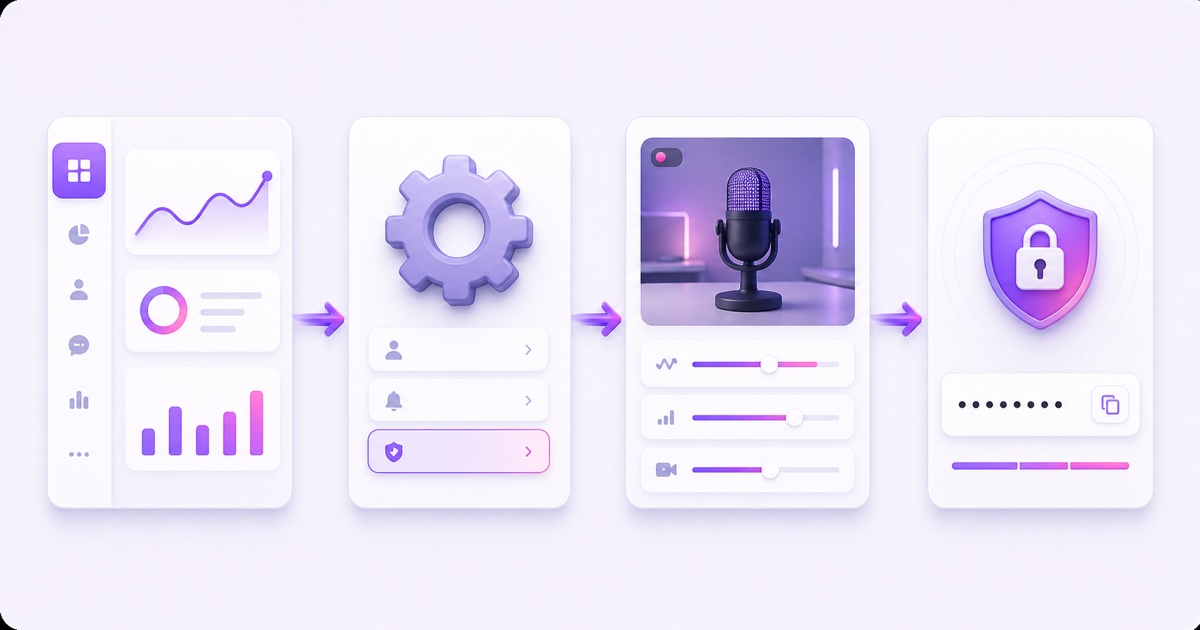
On a desktop browser, sign in to Twitch, click your profile picture, and open Creator Dashboard → Settings → Stream. You can also go directly to dashboard.twitch.tv/u/your-username/settings/stream after replacing the username in that address. Twitch’s current Stream Key FAQ confirms the Settings → Stream path.
Look for Primary Stream key. The key is masked by default. Use Copy when you are ready to paste it into your encoder; reveal it only when troubleshooting demands it. Twitch requires two-factor authentication before you can access the key, so enable 2FA under your account’s Security settings if the value does not appear.
- Open Creator Dashboard.
- Expand Settings in the left navigation.
- Select Stream.
- Find Primary Stream key and choose Copy.
- Paste it directly into the destination’s Stream Key field, then clear your clipboard if your device supports that.
A phone is workable in an emergency, but a desktop browser is safer for credential handling and easier for checking every setting. Do not photograph the page. If you need to document the setup for a teammate, blur the entire key area rather than masking only a few characters.
The ingest URL is the other half
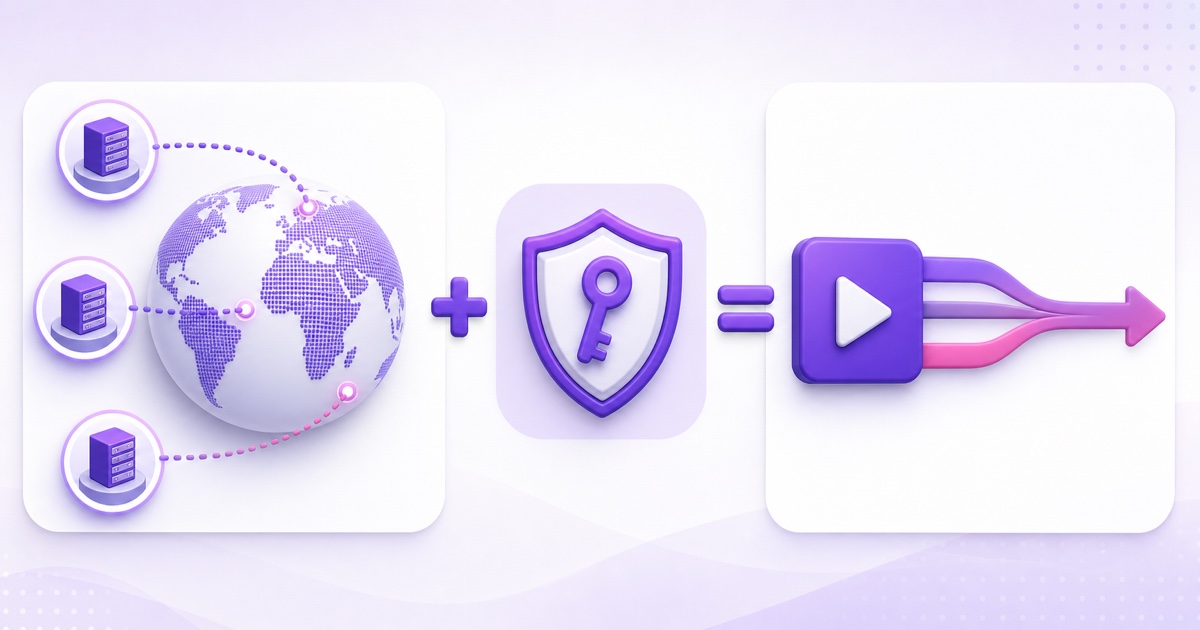
A Twitch stream needs two pieces: an ingest server URL and your private key. Many apps connect your Twitch account and choose the server automatically. A custom RTMP tool may ask for the server and key separately, while another field may expect one joined destination.
Older guides commonly show rtmp://live.twitch.tv/app/. Twitch still uses live.twitch.tv as an example in its key FAQ, but its current recommended ingest page lists this global default:
rtmp://ingest.global-contribute.live-video.net/app/
Regional routes can shorten the network path. In the official ingest API checked in July 2026, Mumbai is rtmp://aps30.contribute.live-video.net/app/, Singapore is rtmp://aps10.contribute.live-video.net/app/, and Tokyo is rtmp://apn10.contribute.live-video.net/app/. Do not hard-code a regional hostname forever; Twitch can revise the list, and the geographically closest server is not always the best route from your ISP.
If a tool wants one combined URL, the shape is:
rtmp://ingest.global-contribute.live-video.net/app/live_123456_abcdef
The final value above is a fake placeholder, not a usable credential. When an app has separate fields, enter the URL ending in /app/ under Server and put only the key under Stream Key. Do not add the key twice or introduce a doubled slash.
Treat the key like a channel password
Anyone holding your primary stream key can try to broadcast to your channel. It does not grant normal dashboard access, but that distinction will not matter if an unwanted video appears under your name. Never put a real key in a tutorial, public Git repository, ffmpeg screenshot, or shared spreadsheet.
If the key leaks, return to Creator Dashboard → Settings → Stream and reset it immediately. Twitch also resets your primary key when your password changes. After either event, update every encoder, automation service, and saved destination that used the old value; otherwise they will continue attempting to authenticate with a dead credential.
Twitch supports authorised broadcasters through separate guest keys. Resetting your primary key does not invalidate those guest credentials, so review Settings → Stream → Permissions separately after a security incident. For normal operation, keep one intended primary publisher active. Stop an old encoder before starting the replacement so two tools are not competing to control the same channel.
If you also publish on YouTube, keep the credentials separate and follow the same discipline described in the YouTube stream key safety guide. A platform key should never be reused as a password or pasted into a field belonging to another destination.
Settings Twitch actually cares about
Twitch’s current broadcasting guidance calls for H.264 video, AAC audio, constant bitrate, and a 2-second keyframe interval. The service tells broadcasters to stay at or below 6,000 kbps for video. These are delivery requirements, not quality guarantees: sending more bitrate can make the connection less stable without making the viewer’s picture better.
| Output | Video bitrate | Frame rate | Keyframe interval |
|---|---|---|---|
| 720p | 3,000 kbps | 30 fps | 2 seconds |
| 720p | 4,500 kbps | 60 fps | 2 seconds |
| 1080p | 4,500 kbps | 30 fps | 2 seconds |
| 1080p | 6,000 kbps | 60 fps | 2 seconds |
Use H.264 Main or High profile and AAC audio no higher than 160 kbps. For a talk, devotional, study, or mostly static loop, 720p30 at 3,000 kbps is often the sensible starting point. Motion-heavy gameplay may justify 720p60 or 1080p60, provided the source and connection can sustain it. The deeper trade-offs are covered in our 720p versus 1080p bitrate guide.
The India-specific catch is transcoding. Twitch guarantees standard quality options for Partners, while non-Partners receive them when server resources are available. If no lower rendition appears, a viewer on weak mobile data must take your source quality or leave. Twitch’s Enhanced Broadcasting can send multiple encodes from compatible desktop software, but a single-output cloud loop should still choose a source bitrate its target audience can actually watch.
Before you point a loop at it: label the rerun
Twitch allows reruns, but it expects viewers to be told that the content is pre-recorded. Its current on-demand content guidance gives three concrete steps: select the Rerun checkbox in Edit Stream Info, add [Rerun] to the beginning of the stream title, and add [Rerun] to the beginning of the Go Live notification. The checkbox adds a visible Rerun tag to the channel page.
Do this before connecting the loop, not after somebody complains in chat. A clear title such as [Rerun] Recorded bhajan session — continuous replay tells the truth without making the stream harder to understand. Only broadcast footage, music, and artwork you own or have permission to use; repetition does not turn unlicensed material into fair use.
Twitch’s public help page does not currently promise how a rerun will perform in discovery or whether it will advance a particular creator achievement, so do not build a business case around unsourced claims. For the complete policy-and-rights workflow, read streaming pre-recorded video on Twitch.
Pointing a 24/7 setup at the key
In a custom RTMP tool, use the current global or recommended regional server plus your key. The older command fragment copied in many tutorials is -f flv rtmp://live.twitch.tv/app/<key>. With Twitch’s current default ingest, the equivalent fragment is -f flv rtmp://ingest.global-contribute.live-video.net/app/<key>. Keep the real value in a protected environment or secret field instead of typing it into shell history.
In a cloud dashboard, add Twitch as a destination, paste the key into the credential field, confirm the server selection, and start with a short private test where the platform and tool permit one. StreamNeo is not that dashboard: it publishes to YouTube only, so a Twitch key never enters it.
“24/7” on Twitch does not mean one immortal session. Twitch’s broadcasting guidelines state a maximum stream duration of 48 hours. A continuous channel therefore needs a planned stop and reconnect before that boundary, plus monitoring to confirm the next session actually started. Your title and rerun label must also be restored if the reconnect workflow does not preserve stream information.
Archive expectations are different too. As of July 2026, Twitch says saved past broadcasts last 7 days for most broadcasters, 14 days for Affiliates, and 60 days for Partners, Prime users, and Turbo users. Storage must be enabled, and it is not a substitute for keeping your master videos. Treat Twitch as a live destination, not the only home of your library.
When the key does not work
Start with the boring checks. Paste the key again without a leading or trailing space. Confirm the Server field contains an ingest URL and the Stream Key field contains only the key. If you reset the key or changed your Twitch password, replace the old value everywhere.
- The key is not visible: enable two-factor authentication, refresh the dashboard, and return to Settings → Stream.
- Authentication fails: copy the current primary key again; do not rely on a saved value from before a reset.
- The connection times out or drops: switch from a manually chosen region to Twitch’s global recommended ingest, then test the route with Twitch Inspector.
- The channel is already being published: close the previous encoder or cloud job before retrying with the intended publisher.
- The stream stops near two days: this is the documented 48-hour session limit, so fix the restart schedule rather than rotating the key.
- The account cannot go live: check Twitch’s account status and suspension notices before changing encoder settings.
Do not reset a key for a network failure: a new credential cannot repair packet loss, insufficient upload speed, or an unreachable ingest route. Conversely, do not spend an hour changing bitrate when Twitch explicitly reports an authentication problem. Our invalid stream key and publish rejected guide explains the same cause-first troubleshooting method across destinations.
Start free — 24-hour trial, no card.
FAQ
Where is the Twitch stream key?
Open Twitch’s Creator Dashboard, then go to Settings → Stream and find Primary Stream key. The value is masked, and Twitch requires two-factor authentication before you can access it. Use Copy rather than retyping it, never show it on stream, and reset it immediately if it appears in a screenshot or public file.
What RTMP URL does Twitch use?
Twitch’s current recommended default is rtmp://ingest.global-contribute.live-video.net/app/. Its official recommendation page may offer a regional route; July 2026 examples include Mumbai at aps30.contribute.live-video.net and Singapore at aps10.contribute.live-video.net. Most connected broadcasting apps choose an ingest automatically, so manual selection is optional.
Can I run a 24/7 rerun on Twitch?
You can send pre-recorded content, but label it clearly: enable the Rerun checkbox and prefix both the title and Go Live notification with [Rerun]. Use only content you have rights to. Because Twitch caps one broadcast session at 48 hours, an always-on channel also needs a deliberate reconnect plan and monitoring between sessions.