Yes, you can stream pre-recorded video on Twitch. The safe version is not to disguise a recording as a live performance. It is to mark the broadcast as a rerun, use only material you can legally transmit, and operate the channel as if a viewer could arrive and ask a question at any moment.
That last point matters. Twitch is built around live interaction, so a silent file loop faces a different challenge from the same loop on YouTube. This guide separates Twitch's documented requirements from assumptions creators often repeat, then gives you a setup you can actually test.
Start with the rules, not the setup
Twitch's current Terms of Service expressly contemplates both live and pre-recorded audiovisual works. Pre-recorded content itself is not the violation. The disclosure and rights around that content are where creators get into trouble.
Twitch's current Video on Demand help page calls reruns “non-live content” and tells broadcasters to identify them in three places:
- Select the Rerun checkbox in the Edit Stream Info panel.
- Put [Rerun] at the beginning of the stream title.
- Put [Rerun] at the beginning of the Go Live notification.
The useful official wording is: “Make sure to let your viewers know when you're broadcasting pre-recorded content.” Treat that as the minimum, not a decorative option. Add a plain sentence in the channel description or overlay too, such as “Previously recorded gameplay, replaying now.”
This is also more precise than saying Twitch bans every pre-recorded broadcast that looks live. Twitch's published help page frames missing disclosure as a community-trust problem and provides the Rerun label for clarity. Do not invent a harsher rule, but do not ignore the label either. For a broader explanation of honest format labels, read how pre-recorded live streaming should be labelled.
Use Twitch's own rerun workflow first
Go to Creator Dashboard → Content → Video Producer. Twitch lets you manage Past Broadcasts, Highlights, and Uploads there. Uploads are currently limited to Affiliates and Partners, and Twitch lists a 100-hour combined storage limit for Highlights and Uploads. From a video's three-dot menu, the current help documentation shows Add to → Rerun Queue.
The important wrinkle is that Twitch's present rerun instructions still tell you to capture and stream the VOD with an encoder, then apply the Rerun checkbox, title prefix, and notification prefix. Twitch also lists Reruns and Premieres as Partner VOD features, but its current public help flow does not promise that every account will see the same Premiere controls. Check your own Video Producer instead of designing a channel around a button that may not be available to you.
| Choice | Best when | Trade-off |
|---|---|---|
| Video Producer / rerun assets | You are replaying an existing Twitch VOD or eligible upload | Account access and storage limits apply; an encoder may still be needed |
| Your file over RTMP | You need a curated playlist, scheduled blocks, or one source sent to several platforms | You own the file preparation, disclosure, monitoring, and restarts |
There is no current official promise that reruns receive normal recommendations, identical Go Live notification treatment, or credit toward every Affiliate or Partner metric. Twitch's Achievements documentation states the current thresholds, but does not explain rerun credit. Do not plan against an undocumented assumption. Run a labelled test, inspect your own Achievements and analytics, and ask Twitch Support if qualification credit is central to your plan.
Push your own file over RTMP when you need control
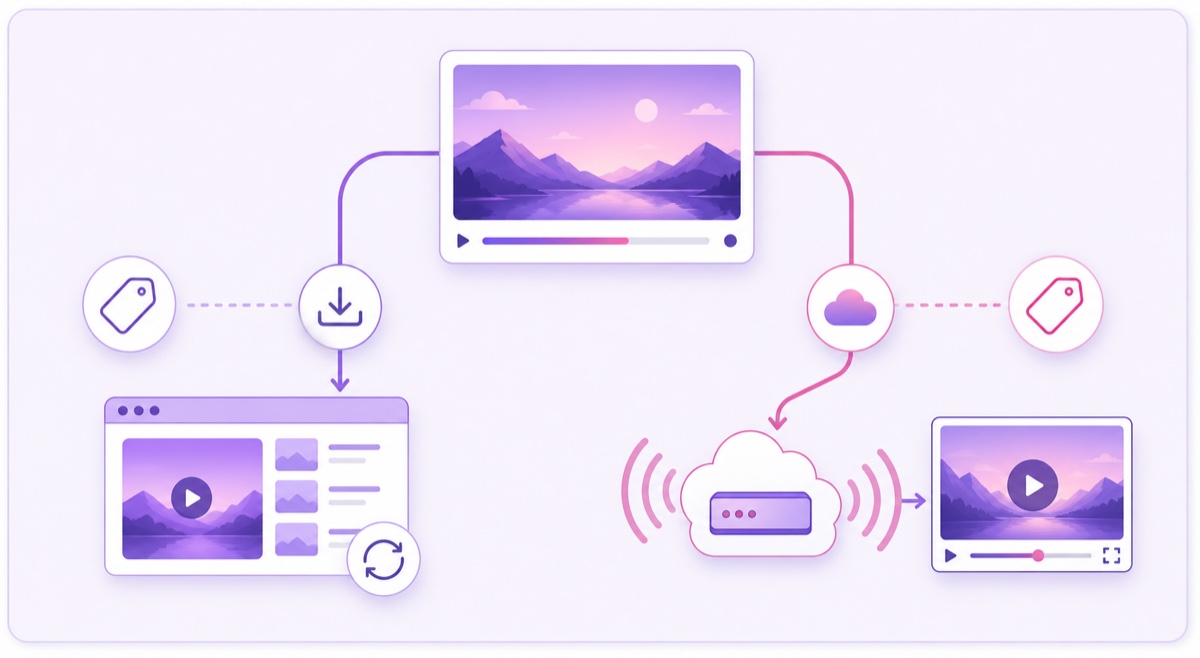
An external encoder is the practical route for a curated loop or multi-platform feed. Get the credential through Creator Dashboard → Settings → Stream; the detailed path is in our guide to finding your Twitch stream key. Keep that key private and reset it if it appears in a screenshot, chat, support ticket, or recording.
Twitch documents the RTMP pattern as rtmp://TWITCH-INGEST-SERVER/app/STREAM-KEY, with live.twitch.tv given as an example ingest host. Most services choose a nearby server automatically. For manual configuration, use Twitch's recommended ingest endpoint rather than guessing a city.
Encode H.264 video with AAC-LC audio, constant bitrate, and a two-second keyframe interval. A sensible starting point for a replay is 720p30 at 3,000 kbps; Twitch's current guidance also shows 4,500 kbps for 720p60 and a maximum of 6,000 kbps. A lower source can be kinder to mobile viewers when a quality selector is unavailable.
Changing the plumbing does not change the disclosure. Before starting the encoder, open Creator Dashboard → Stream Manager → Edit Stream Info, enable Rerun, add the two [Rerun] prefixes, and choose the category that matches the recording.
Know what Twitch bans outright
Do not broadcast movies, television episodes, sports matches, other creators' streams, pirated games, or music you lack rights to share. Twitch's Community Guidelines lists those examples under Intellectual Property Rights. A Netflix, Spotify, or sports subscription normally buys personal access, not public-broadcast rights.
Gameplay footage is not automatically clean just because you captured it. The game's publisher may allow streaming while the soundtrack is licensed separately. A reaction clip can contain copyrighted video and audio even when your face and commentary are original. Fair use or a similar exception is fact-specific; it is not a checkbox a streaming service can grant.
Do not use reruns or static footage to farm game Drops. Twitch's current Community Guidelines specifically prohibit rebroadcasting past VODs or footage when the core purpose is Drop farming without community interaction.
Music is the repeat offender in long loops. Twitch scans VODs and clips for copyrighted audio and may mute detected portions. A mute is not itself a copyright strike, but it does not prevent a rights holder from sending a DMCA notice. Twitch says a user will generally be treated as a repeat infringer after three copyright strikes. Repeating one unlicensed bed for hours creates repeated exposure; it does not turn the track into permitted background music. Use the checks in our guide to music you can legally stream 24/7.
Do a 24/7 reality check before committing
A single Twitch broadcast cannot literally run forever. Twitch's current Broadcasting Guidelines state a maximum stream duration of 48 hours, so an always-on operation needs controlled restarts before that ceiling. Plan a short reset window and confirm that the next session applies the same title, category, and rerun disclosure.
Quality availability is another constraint. Twitch says server-side transcodes are provided to many, but not all, streamers. Without transcodes, a viewer receives your source quality; a high-bitrate 1080p feed can be difficult on mobile data or a weak connection. Test the channel from a signed-out phone and look for the Quality menu before choosing an aggressive bitrate.
Stored VODs are temporary too: Twitch currently documents 60 days for Partners, Prime, and Turbo users, 14 days for Affiliates, and 7 days for other broadcasters. Keep your masters outside Twitch. Your Video Producer library is a publishing surface, not your archive.
Finally, compare the format with the audience behaviour. Twitch tells creators to engage with chat, and its simulcasting terms require that the Twitch experience be no worse than elsewhere, including community engagement. A labelled replay can fill a gap between live sessions, but a completely unattended loop gives people little reason to stay. For most always-on creators, Twitch works better as a tested secondary destination than as the only home for the channel.
Clear rights before you loop
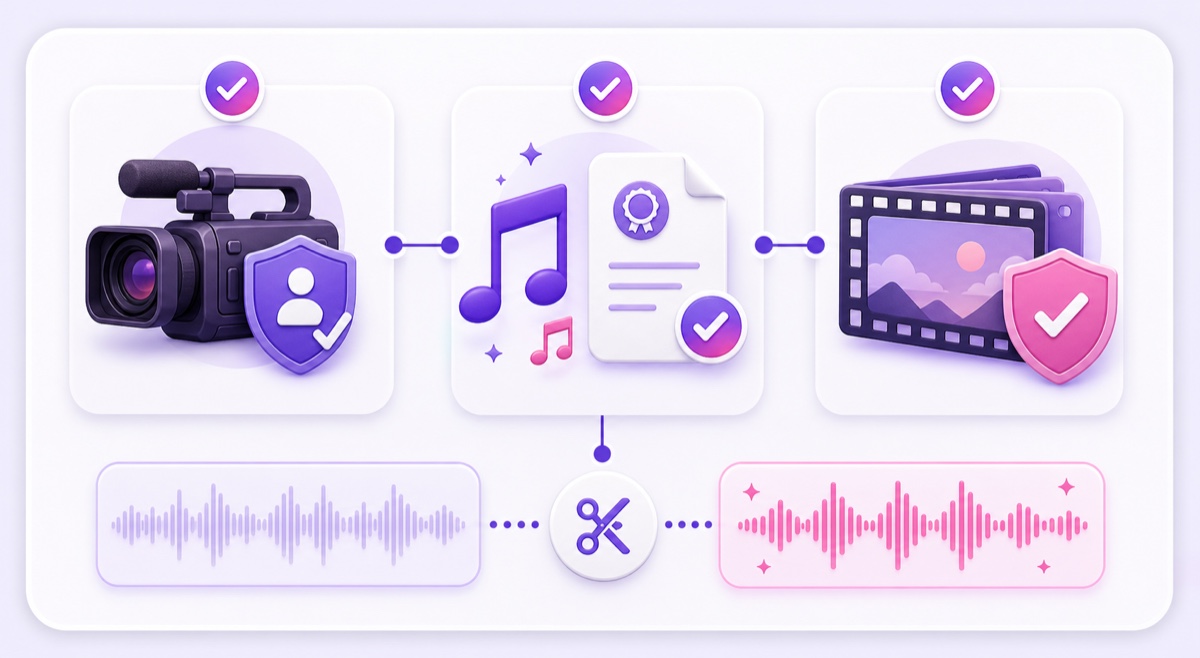
Run a rights audit on the exported file, not just the project folder. Write down the source and permission for each layer:
- Footage: you recorded it, commissioned it with transfer rights, or hold a licence that covers livestreaming.
- Game content: the publisher's streaming policy permits the footage, including any cutscenes you use.
- Music and sound effects: the licence covers live broadcasts, VOD storage, the relevant channels, and monetisation if applicable.
- Third-party clips: you have written permission or qualified legal advice for the specific use.
- People and locations: releases and venue rules cover this rebroadcast where needed.
If the picture is yours but the audio is doubtful, strip the existing track before looping. In your editor, mute or detach the questionable music, preserve speech and permitted game audio where possible, then add a cleared replacement bed at a sensible level. Export a new master and keep the licence receipt plus a screenshot or PDF of its terms. A playlist named “copyright free” is not evidence.
Build a clean setup step by step
- Choose a short owned block. Start with 60–120 minutes of your strongest replay material. Remove dated calls to action and moments that depend on a live chat response.
- Replace or clear every audio layer. Save the evidence with the master file so a future editor can trace it.
- Normalise the export. Use H.264, AAC-LC, constant frame rate, a two-second GOP, and one resolution throughout the playlist.
- Prepare Twitch honestly. Enable Rerun, prefix the title and notification with [Rerun], state “pre-recorded replay” in the description or overlay, and select the real category.
- Connect the encoder. Paste the Twitch ingest URL and stream key. Use Twitch Inspector's bandwidth-test option before the public run, then verify audio, motion, and the Rerun label on another device.
- Set the restart plan. End and restart well before Twitch's 48-hour maximum. Confirm the label and metadata after every new session.
- Keep each destination independent. A cloud loop can feed Twitch and YouTube separately, so a Twitch key reset or rejected session does not end the YouTube leg.
If you simulcast, follow Twitch's current conditions: keep Twitch's experience at least as good, do not direct its viewers away to the other live service, and do not merge cross-platform activity into the Twitch stream. Our platform-by-platform multistreaming rules cover the details.
StreamNeo fits only at the delivery layer, and only on YouTube: upload the cleared block once and keep the YouTube feed running without leaving your laptop on. The Twitch leg needs its own tool. Start free — 24-hour trial, no card. Review pricing only after the Twitch test proves that the second destination is useful for your audience.
Watch these signals in week one
Do not call the setup successful because the player stayed green. Review a complete seven-day sample and record what actually happened:
- Did followers receive the notification copy you set, and did it clearly say Rerun?
- Did the channel page show the Rerun label on every restarted session?
- Were quality options available, and could a mobile viewer watch without buffering?
- Did Twitch send a muted-audio warning, DMCA email, suspension notice, or other claim?
- Did viewers chat, follow, or return for a genuinely live session later?
- Did your Achievements and analytics change in the way you expected?
- If you simulcast, did the Twitch leg receive enough attention to satisfy the platform's experience rule?
If the Twitch replay gets no useful reach or interaction, shorten it, schedule it near your live sessions, or remove Twitch from the loop. The clean outcome is the one supported by your own data, not a promise that every platform rewards always-on video.
FAQ
Does Twitch allow pre-recorded streams?
Yes. Twitch's Terms of Service covers pre-recorded audiovisual works, and its Help Center provides a rerun workflow. Enable the Rerun checkbox, begin the title and Go Live notification with [Rerun], and only stream material you have rights to use.
Do Twitch reruns get recommended?
Twitch does not currently publish a guarantee that reruns receive the same recommendations or notification treatment as live broadcasts. Label the stream correctly, then measure channel-page visibility, notifications, analytics, and viewer response on your own account.
Can I run the same loop on Twitch and YouTube?
Yes, subject to Twitch's Simulcast Guidelines. The Twitch experience must be at least as good as the other destination; you must not direct Twitch viewers away or merge cross-platform activity into the Twitch broadcast. Keep both destination sessions independent and label the Twitch leg as a rerun.