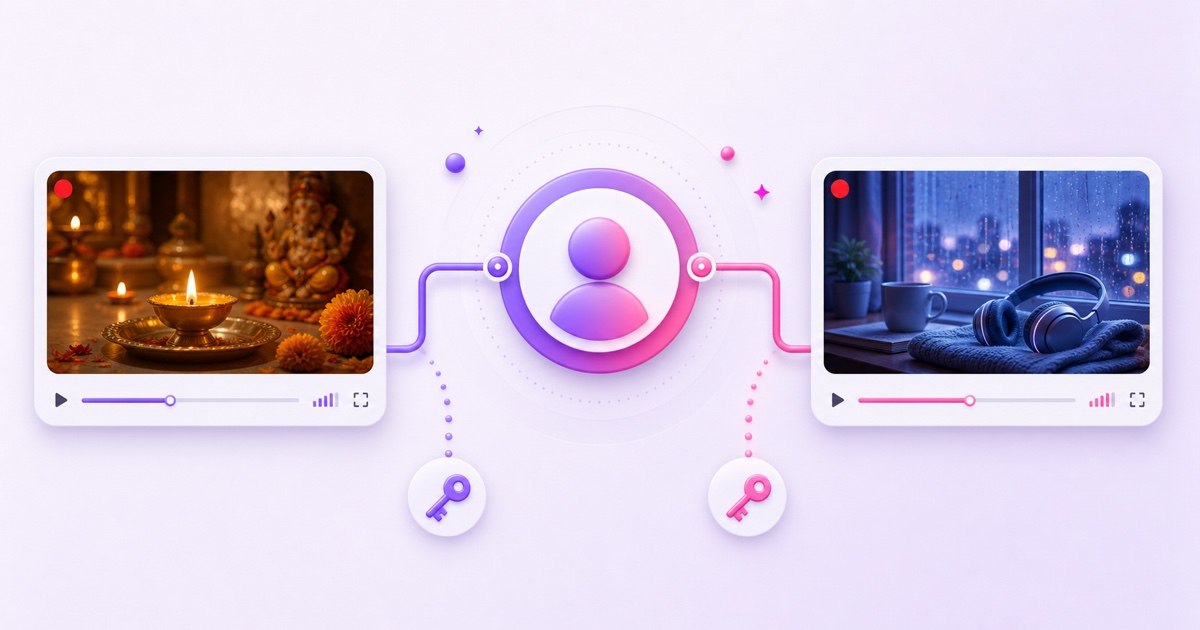
Your first always-on stream is working. Now you want to add a second format—perhaps a bhajan loop beside an aarti broadcast, or lofi beats beside rain sounds—without building another channel from zero. You can do it, but the setup needs one clean boundary: each different live feed gets its own broadcast, stream key, and encoder or cloud slot.
The channel is the home; the broadcasts are separate rooms. Viewers get a different watch page for each room, and you manage both from the same YouTube Studio account. Here is how to run two live streams on the same YouTube channel without mixing keys, videos, or analytics.
Yes—one channel can broadcast multiple lives at once
YouTube currently allows up to 10 active streams per channel at the same time. Its help page also lists a limit of three active streams per stream key. Those are platform ceilings, not a reason to reuse one key for two different programs. For two independent video feeds, the reliable model is still one broadcast and one distinct key per feed.
A YouTube broadcast is the public-facing event: its title, thumbnail, visibility, chat, watch URL, and analytics. A stream is the incoming audio-video feed delivered by your encoder. YouTube links the incoming stream to the broadcast that viewers watch.
| Item | Live A | Live B |
|---|---|---|
| Broadcast | Bhajan Radio 24/7 | Evening Aarti 24/7 |
| Stream key | loop-bhajan | loop-aarti |
| Video source | Bhajan playlist | Aarti playlist |
| Publisher | Encoder or cloud slot A | Encoder or cloud slot B |
| Watch page | Unique URL A | Unique URL B |
The limit and the terminology matter because YouTube can technically connect one incoming feed to more than one broadcast. That is useful when the same content should appear on multiple watch pages. It does not let one key identify two different incoming videos. This guide is about independent programs, so we will keep their paths separate from end to end.
Create the second stream in YouTube Studio
Do not edit the working broadcast to turn it into the second one. Create a new scheduled broadcast and a custom stream key for it. YouTube's current documented path is YouTube Studio → Create → Go live → Manage → Schedule stream. Choose Create new rather than reusing settings when you want a clean configuration.
- Open Live Control Room. Sign in to the correct channel, open YouTube Studio, select Create in the top-right corner, and choose Go live.
- Create a second broadcast. Open Manage, select Schedule stream, then Create new. Add a distinct title, description, thumbnail, audience setting, visibility, and schedule.
- Use a safe test visibility. Make the new broadcast unlisted for its first test. You can verify the feed on its watch page before making it public.
- Create a custom key. In the stream settings, open Select stream key → Create new stream key. Give it a purpose-based name such as loop-bhajan or rain-night. Avoid labels such as “new key” that become meaningless a month later.
- Copy key B once. Paste it only into the encoder or cloud slot that will publish Live B. Leave the key for Live A untouched.
- Confirm the preview. Start the second publisher, wait for the correct preview in Live Control Room, check the audio, and select Go live if auto-start is not enabled.
YouTube's official encoder setup guide documents the Create, Go live, and Manage flow. Its stream-settings guide explains custom keys. UI labels can move over time, but the underlying task remains the same: create a separate incoming stream identity for the second program.
One key means one incoming publisher
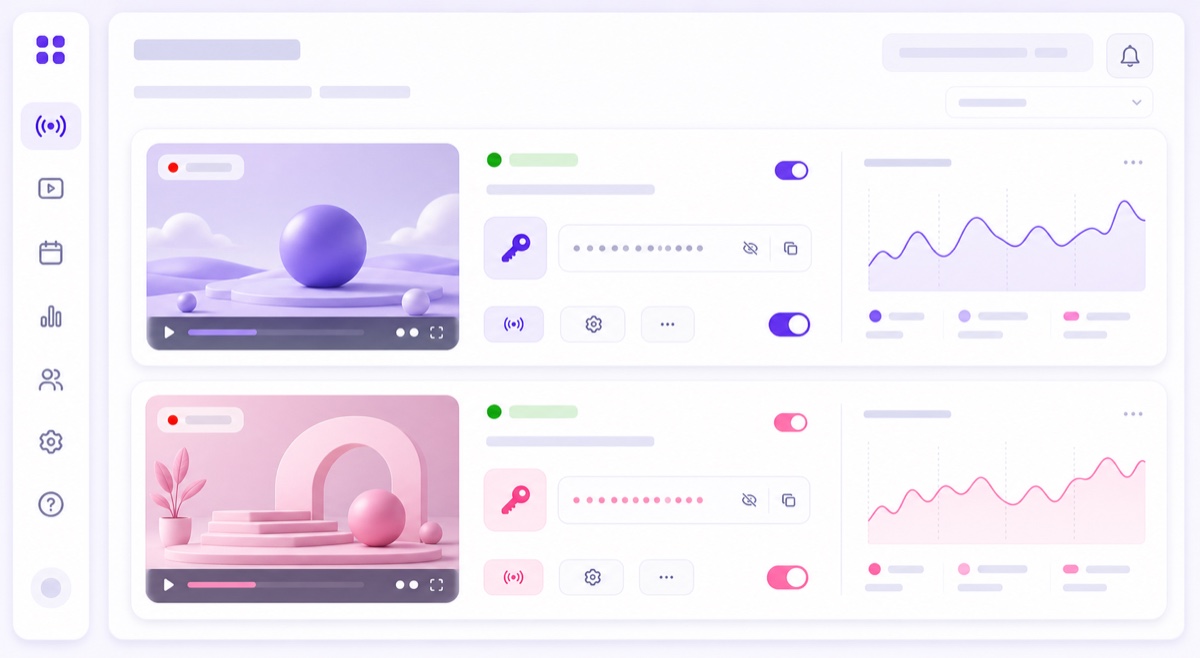
Treat every stream key like both a password and a routing address. Anyone who has it can send video into its associated YouTube stream. That is why you should never paste a key into messages, screenshots, public documents, or a support ticket unless the receiving system provides a secure field.
For two different programs, do not start two encoders with the same key. YouTube has no extra field that says which publisher is the bhajan source and which is the rain source. The incoming sessions collide at the same address, which can cause the preview to switch, fail, or disconnect. The exact symptom may vary; the configuration is wrong either way.
Reusing a custom key later is fine when the broadcasts do not overlap and belong to the same recurring show. One source can also feed multiple watch pages when the content is intentionally identical. Neither case changes the rule for this setup: two simultaneous, different videos need key A and key B.
- Name keys after the program, not the person who created them.
- Keep a small private map of broadcast name → key label → publisher or slot.
- Show only the final four characters if you need an internal identifier.
- Reset a key immediately if it appears in a public screenshot or shared document.
- Never change the key of the healthy first live while configuring the second.
For a full security walkthrough, use the guide to getting and protecting your YouTube stream key.
Feed both streams from the cloud
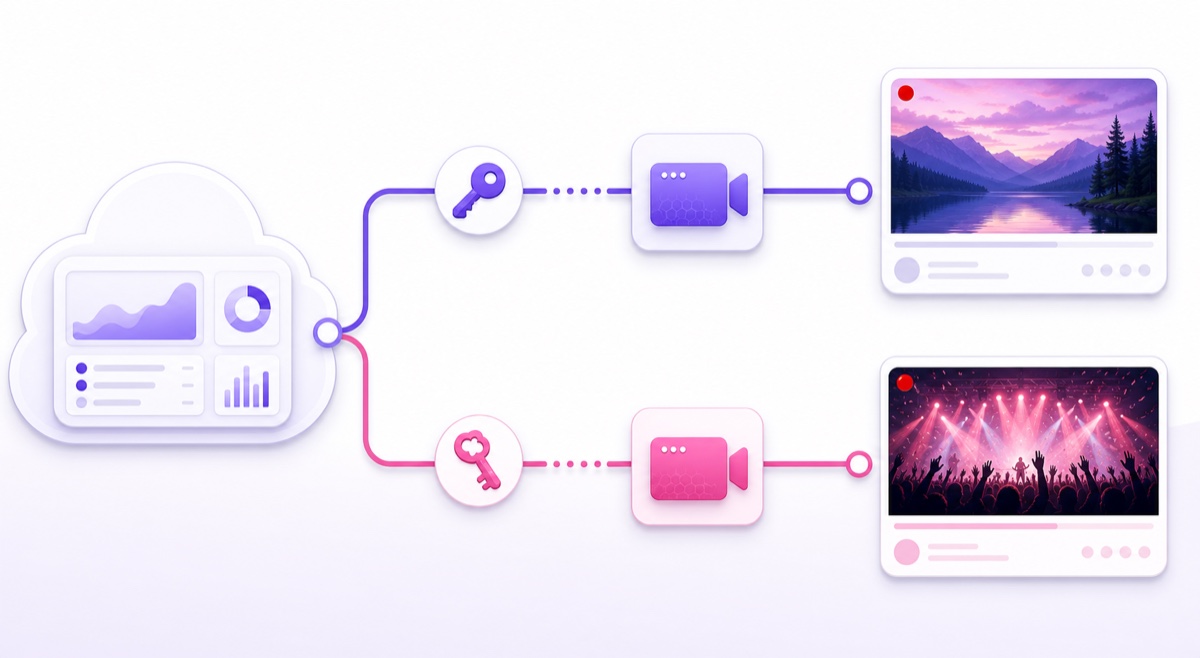
Two local OBS instances can publish the feeds, but the computer must encode both videos continuously and the upload connection must carry both bitrates at once. A cloud loop service moves that work away from your laptop. In StreamNeo, each concurrent feed uses its own streaming slot, so the dashboard mirrors the YouTube structure: two slots, two videos or playlists, and two keys.
- Prepare the media. In StreamNeo, open Videos and upload the files for both programs. Give the files unmistakable names before selecting them.
- Make two slots available. Activate the trial slot or open Purchase for the slots you need. One slot represents one dedicated concurrent streaming worker.
- Configure slot A. Open Streams, select the first slot, and choose Configure Stream. Set a name, enable YouTube under Stream To, paste key A, then open Choose Videos and select the correct content.
- Start and verify A. Select Start Stream. Check the matching YouTube preview, title, thumbnail, audio, and watch page rather than trusting a single green indicator.
- Configure slot B. Repeat the process in the second slot, but paste key B and choose video B. Never copy the whole configuration from A without replacing and checking the key.
- Observe both together. Keep the two Live Control Room pages open in separate tabs for ten minutes. Mute one tab at a time, confirm the expected video is playing, and check that each broadcast remains healthy.
Imagine a focus channel with “Lofi for Study 24/7” and “Rain for Deep Sleep 24/7.” Both feeds remain available all day, but their packaging serves different viewer moments. In the StreamNeo dashboard, call the slots Focus—Lofi—YT and Sleep—Rain—YT. The first receives key focus-lofi; the second receives key sleep-rain. The names make a wrong paste obvious before it goes live.
A slot is an operating unit, so running two concurrent feeds normally means paying for two units. Check the current StreamNeo pricing before scaling. If you want to test the workflow first, Start free — 24-hour trial, no card.
Decide whether two streams help the channel
The technical setup is the easy decision. The audience fit deserves more thought. Two complementary streams can give one niche audience a useful choice: bhajan and aarti, lofi and rain, or English practice and pronunciation drills. Their thumbnails, titles, and expectations are different, but the same viewer could reasonably want both.
Two unrelated subjects are harder to explain. Someone who subscribed for devotional music may not want gaming replays in the same feed. That does not prove the second live will damage the channel, but it creates a positioning problem you can see without guessing about the algorithm.
Use this simple fork:
- Keep one channel when both lives serve the same audience, share a recognizable promise, and can sit naturally on one channel home page.
- Use a second channel when the audience, language, rights owner, brand, or monetization plan is materially different.
- Delay the second feed when the first stream is unstable or you cannot yet maintain two sets of thumbnails, metadata, chat, and content updates.
If you are choosing between expansion paths, compare a second streaming slot with a broader multi-channel strategy. The right answer is the smallest structure that keeps the audience promise clear.
Watch and manage the broadcasts separately
Each broadcast has its own watch URL, live chat, concurrent-viewer reading, stream-health panel, and post-stream analytics. Do not combine the results when diagnosing a problem. If Live A buffers while Live B stays healthy, inspect A's file, slot, key, and YouTube health messages first; the shared channel is less likely to be the cause.
A consistent naming system prevents most operational mistakes. Use the same short identifier across YouTube's broadcast title notes, custom key label, StreamNeo slot name, source filename, and your private checklist. For example: BHJ-A for the bhajan feed and ART-B for aarti. Never put the secret key itself in a filename or note.
Before you leave the setup unattended, open both public or unlisted watch pages on a phone using mobile data. Confirm the title, image, sound, and actual video for each. Then check both Live Control Room tabs from a computer. This two-device check catches a surprising class of mix-ups: a healthy feed routed to the wrong public page.
Final rule: one channel can host the two lives, but each independent program should remain traceable as its own chain—broadcast, key, publisher, watch page, and analytics.
FAQ
Can one YouTube channel run two lives at once?
Yes. YouTube currently documents a limit of up to 10 active streams per channel at the same time. For two different video feeds, create a separate broadcast and custom stream key for each one.
Can both use my default stream key?
Do not use the same key for two different simultaneous publishers. One key identifies one incoming feed. Give each independent live its own custom key; reuse a key only for a non-overlapping recurring show or when you intentionally want the identical feed on multiple broadcasts.
Do I pay double for two streams?
Services built around concurrent slots generally charge per active slot, so two simultaneous feeds usually require two slots. Plans and inclusions can change; see the current pricing for the exact cost.