A good ambience live stream feels effortless to the viewer: open the video, hear rain on a window or a steady forest, and settle in. Creating that calm takes deliberate work. Rights must be clear, motion and sound must loop cleanly, and the scene has to promise exactly what the title says.
You do not need a cinematic location or a room full of equipment. A monsoon balcony, a phone, a stable tripod and patient editing can become a credible first channel. This playbook covers the choices that make a relaxation stream sustainable instead of merely long.
Ambience vs sleep sounds: know which channel you're building
An ambience channel is visual-forward. People may leave it on a television while reading, working or hosting friends, so the room, window, forest or fireplace matters. A sleep-sounds channel is audio-forward: the screen is usually dark, the sound should remain extremely consistent, and visual novelty is less useful.
That distinction changes production. For ambience, record enough real motion to reward an occasional glance: rain changing direction, leaves moving at different depths or flames rolling naturally. Use a thumbnail that sells the place. For sleep, protect the listener from brightness, sharp transients and surprising changes. The companion sleep sounds and white noise playbook goes deeper on the audio-first format.
It also changes ad decisions. A viewer using your fireplace as a living-room backdrop may tolerate a break differently from someone trying to sleep. Decide the primary use case before you choose scenes, mix levels, titles or monetization settings. Trying to serve every relaxation intent in one stream usually produces a vague channel.
Rights and copyright for ambience footage
Rank your sources in this order: footage you shoot, footage with a license you have read, then generated scenes whose tool terms you have checked. “Free,” “royalty-free” and “AI-generated” do not automatically mean unrestricted. The right question is whether your exact use—commercial, monetized, continuously streamed and repeatedly looped—is allowed.
| Source | What works | What to verify |
|---|---|---|
| Your own recording | Cleanest chain of ownership and a distinctive location | People, number plates, private property, recognizable artwork and any separately added audio |
| Stock footage | Fast access to locations and weather you cannot shoot | The specific clip's license, livestream or broadcast use, commercial use, modification rules and restrictions on distributing the asset as the main value |
| AI-generated scene | Can create an original-looking fictional environment | The tool plan's current commercial terms, likeness or trademark issues, and the platform's disclosure requirements |
Keep a simple rights folder for every scene. Save the original camera files, the license text and receipt as they appeared on the download date, the asset page URL, and any written permission. If a marketplace later changes its terms or a claim arrives, you have evidence rather than a memory.
For stock, do not accept a generic search snippet as permission. Read the license attached to the marketplace and asset, and ask the provider if continuous livestream looping is unclear. For generated scenes, check the terms for the exact account tier used to create the file. YouTube currently requires creators to disclose meaningfully altered or synthetic content when it looks realistic; the setting is in the upload Details flow under “Altered content.” Review YouTube's current altered or synthetic content guidance when publishing because platform rules can change.
Permission alone does not guarantee monetization. YouTube reviews whether a channel is original and authentic, and its monetization rules distinguish copyright from reused or mass-produced repetitive content. Your own location recordings, sound design, scene selection, editing and clearly varied releases make the creative work visible. Read the current channel monetization policies before treating revenue as an outcome.
Shoot scenes that are easy to loop
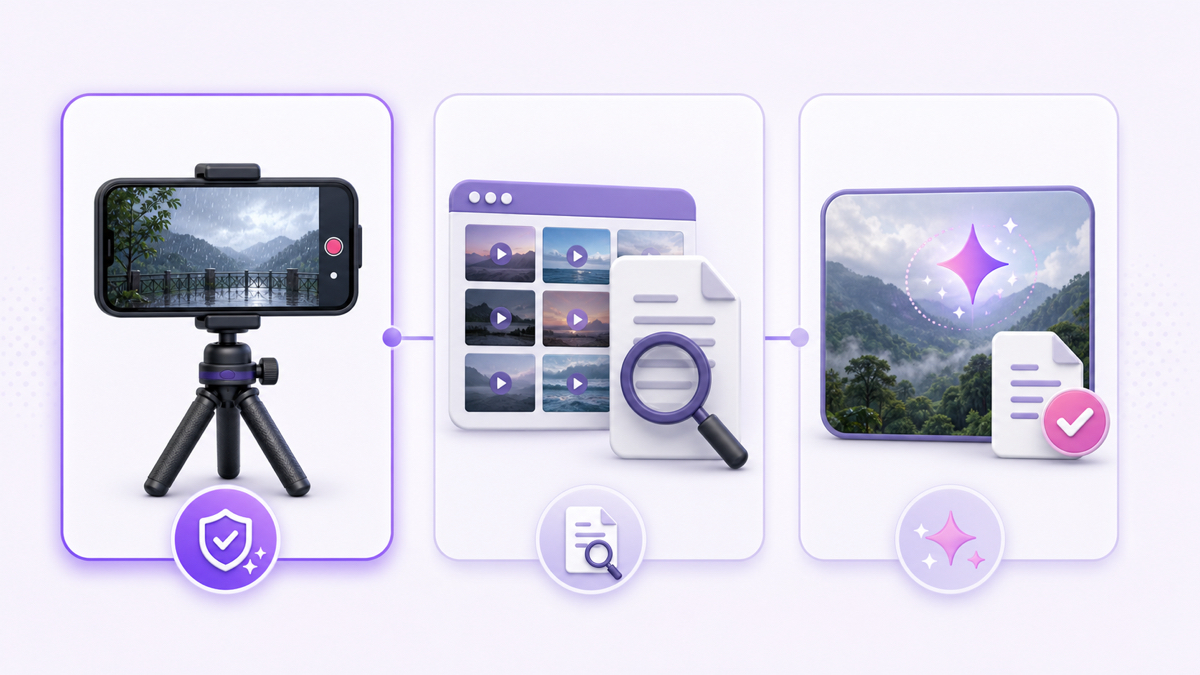
Lock the camera. A fixed tripod frame is easier to match than a handheld pan, and the viewer can relax without being pulled around the scene. On a phone, disable notifications, clean the lens, lock focus and exposure when the camera app allows it, and record in landscape at the resolution and frame rate you intend to publish.
Aim for a clean 10–20 minute take. That is long enough for natural variation without creating an unwieldy edit. Start recording before the rain or fire reaches the state you want, then leave extra material at the end; those handles give you more choices when matching the loop.
Remove avoidable rights and privacy problems from the frame. Recompose around faces, vehicle plates, storefront music, television screens and distinctive copyrighted artwork. If you are filming on someone else's private property, get permission. A public-looking view is not proof that every element in the recording is reusable.
Capture natural sound separately when practical. Even a second phone placed safely under cover can give you a closer rain track while the camera sits inside. Separate audio lets you remove a horn, voice or sudden bang without discarding the best visual take. Record room tone or steady rain for longer than the video segment so the sound loop does not have to land at the same instant as the picture loop.
Hide the seam in picture and sound
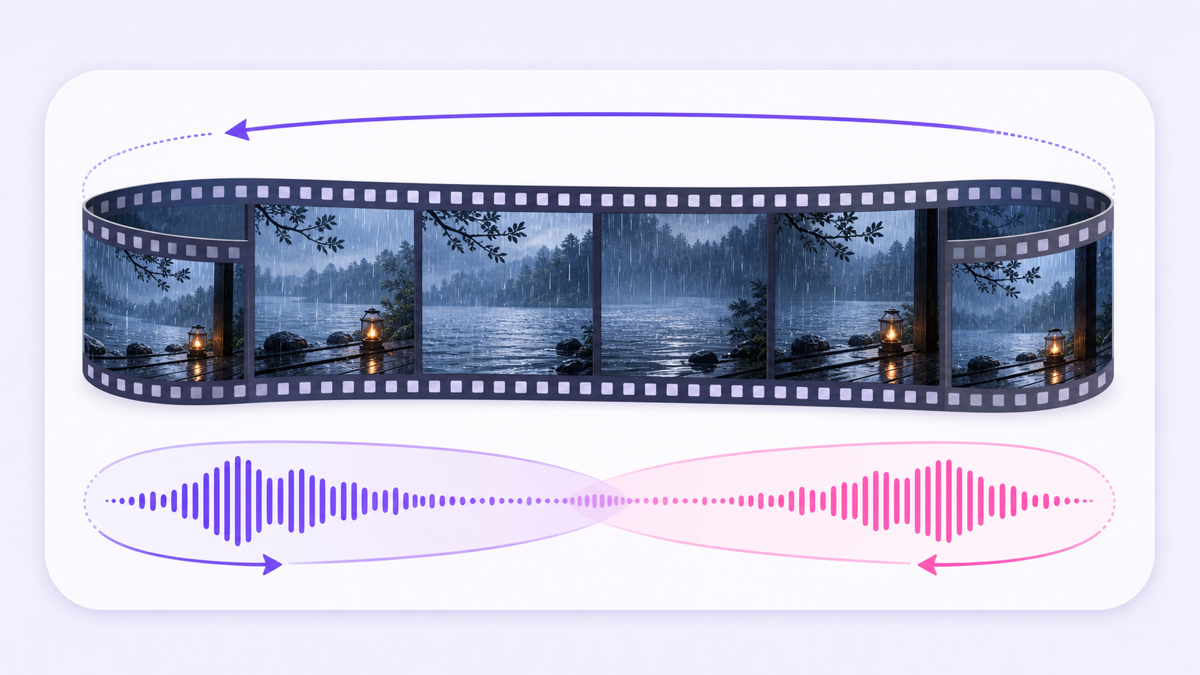
The viewer should not notice the exact second your file returns to its beginning. First, find two moments with similar motion: comparable rain density, the same direction of moving branches, or a flame leaning into a similar shape. Cut on continuous motion, not on a dramatic lightning flash or an object entering the frame.
Then build a short overlap. Place a copy of the opening shot after the end, overlap several seconds, and use a restrained dissolve only if the scene supports it. Rain and mist often hide a blend; a fireplace may expose it because individual flame shapes double during a long dissolve. In that case, choose a tighter motion match and a shorter transition.
Treat audio as its own loop. Overlap the tail with the beginning on separate tracks, apply complementary fades, and listen on headphones. A click means the edit crossed a waveform abruptly. A swell or dip means the fades changed the perceived loudness. Move the edit, adjust the fade curve and compare again at normal listening volume.
- Play across the seam at least ten times without looking at the timeline.
- Test once on headphones, once on a phone speaker and once at very low volume.
- Watch for changes in brightness, camera shake, rain direction and background objects.
- Export a short proof, replay it repeatedly, and only then render the long master.
Export to a streaming-friendly master instead of repeatedly recompressing the same file. The 24/7 streaming format guide explains the practical MP4, H.264 and AAC choices. Preserve your original project and recordings so future seasonal versions start from the clean sources.
Build seasonal programming from one useful library
One strong library can support a year of programming without pretending that one loop fits every month. In India, monsoon rain is naturally timely around the rainy season, though timing differs by region. Fireplace and snow-window scenes align with colder months and Western winter searches. Forest mornings, riverbanks and soft garden rain can work throughout the year.
Plan scene families rather than random uploads. A rain family might contain balcony rain, rain on glass and a distant thunder version. A warm-room family might contain a fireplace, candles and a lamp-lit reading corner. Give each family its own source folder, clean audio beds, masters, thumbnails and rights records.
Change the active program when season or viewer behavior justifies it; do not swap simply to look busy. Schedule the next scene, prepare its metadata and thumbnail, and test the file as an unlisted stream first. For the channel-side setup, the uploaded-video scheduling guide covers YouTube and Facebook.
With StreamNeo, you can open a live slot, change that platform's selected video or playlist, and choose Update Playlist. The selection changes while the same platform stream remains active, so you can rotate from monsoon rain to a winter room without deliberately ending the watch page. Keep the previous master available until the new scene is confirmed healthy.
Write metadata for two search behaviours
Some viewers search for a function: “rain sounds for sleeping,” “nature sounds for study” or “relaxing rain live.” Others search for a scene: “cozy cabin rain window,” “monsoon balcony ambience” or “forest morning with birds.” Decide which intent each stream serves and put the plain-language promise near the start of the title.
A functional title could be “Rain sounds for sleeping — dark window ambience — live.” A scene title could be “Cozy cabin rain window — fireplace ambience — live.” Do not claim a location, weather event or recording method that is not real. If the scene is generated, avoid metadata that presents it as documentary footage.
Use the description to state what viewers will hear and see, whether the footage and audio are original or licensed, and whether there are sudden sounds. Add useful chapter-like program notes only when the stream actually changes. In YouTube Studio, open Content → Live, select the stream and edit its details; check the current preview before saving.
Thumbnails should be legible as a mood at phone size. Use one focal scene, restrained contrast and a consistent color treatment across a family. A scene-first viewer should recognize the window, forest or fireplace immediately. Avoid filling the image with tiny labels that repeat the title.
Launch one excellent scene, then deepen the channel
Start with the scene you would willingly leave on for an hour. Run it unlisted, listen through several seams, check the stream health panel, and confirm the title and thumbnail match the actual experience. Then launch publicly and let it gather enough viewing behavior to reveal real problems.
During the first weeks, watch for departures near the loop boundary, comments about loud events, and recurring stream-health warnings. Make one meaningful improvement at a time. A better audio edit or a cleaner master usually teaches you more than releasing five average scenes together.
Add a new, genuinely distinct scene monthly only if you can maintain the quality and rights records. Short clips can introduce the location, recording process or before-and-after sound mix without duplicating the full loop. For a structured growth path, use the realistic 90-day ambience channel plan.
When your best master is ready, start free — 24-hour trial, no card. Use that day to test the complete upload, stream and seasonal-swap workflow before making it routine.
FAQ
Can I use free stock footage for a 24/7 loop?
Only when the license for that specific footage and your usage permits it. Confirm commercial use, livestream or broadcast use, repeated looping, modification and any restrictions on distributing the clip as the main value. Save the license and asset record; if the wording is unclear, ask the provider or choose footage you recorded.
How do I make the loop seamless?
Match the opening and closing motion, then treat picture and sound separately. Cut where rain, leaves or flame states look similar; overlap the audio tail and beginning with complementary fades; export a short proof; and replay the seam at least ten times on different speakers before rendering the master.
Should I create one channel or one per ambience type?
Start with one coherent channel and organize related scenes into families. Split only when one family attracts a clearly different audience and you can maintain a distinct stream, metadata system and refresh schedule for it. Separate channels add operational work, so evidence should lead the decision.