You have a finished MP4 and a fixed broadcast time: a 6 a.m. aarti, a Sunday service, or a 4 p.m. market recap. The goal is not to stay awake with one finger over a Go Live button. It is to make the event page appear early, then have the uploaded video reach it at the promised minute.
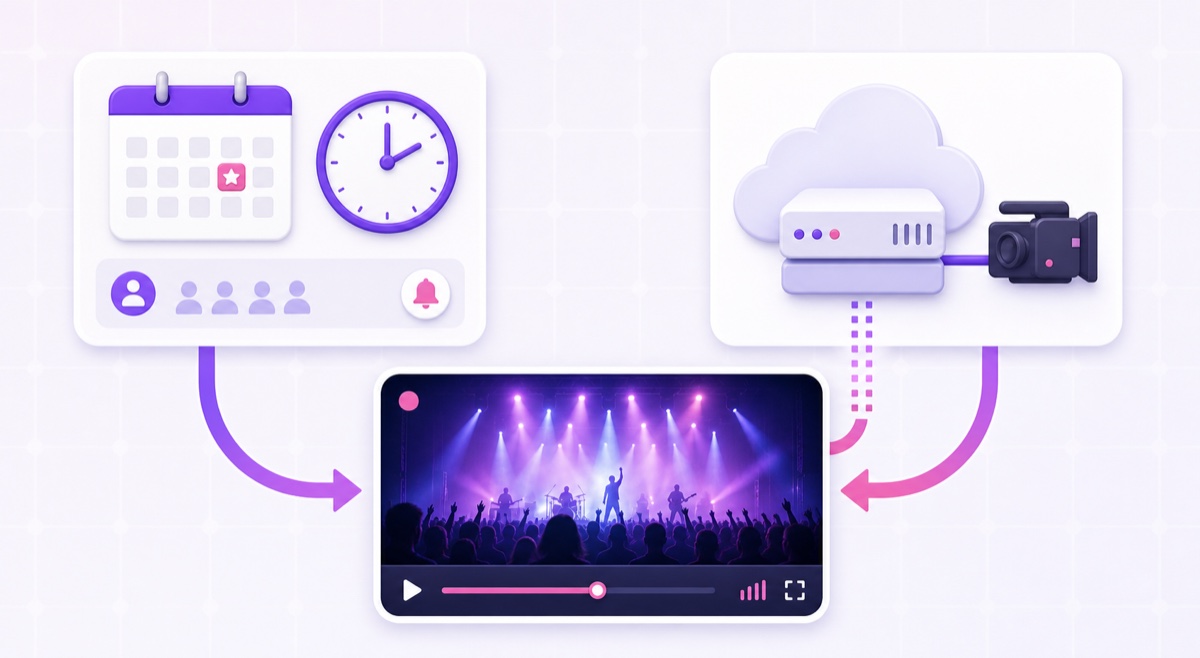
That requires two schedules, even when the interface makes it look like one. This guide shows how to schedule a live stream from an uploaded video on YouTube and Facebook, and how to prevent the most common failure: a perfectly promoted waiting room with no video feed.
Two things people mean by “schedule”
The first half is the viewer-facing event. It has a title, thumbnail, visibility, date, time, shareable URL, and reminder option. You can publish that page before the broadcast so viewers know where and when to return.
The second half is the encoder start. YouTube and Facebook do not turn an MP4 sitting on your phone or drive into a live feed by themselves. At the right time, an encoder must read that file and send a continuous RTMP or RTMPS feed to the stream key paired with the event.
A scheduled event without a scheduled encoder is an empty waiting room.
You usually need both halves:
- Create the future event on the platform.
- Copy or select the event’s stream key.
- Load the video into OBS, FFmpeg, or a cloud streaming service.
- Arrange for that encoder to start before or at the event time.
- Confirm the preview and public watch page.
If you only want viewers to watch a newly uploaded YouTube video together once, a Premiere may be simpler. If you want a pre-recorded file delivered through the live encoder workflow, with a live broadcast and stream key, use the method below. For the full source-file workflow, see how to stream a pre-recorded video as live on YouTube.
YouTube: create the scheduled stream
On desktop, open YouTube Studio → Create → Go Live. In Live Control Room, choose Manage → Schedule stream. You can reuse the settings from an earlier stream or create a new one. This path matches YouTube’s current encoder scheduling instructions.
Complete the event deliberately:
- Title and description: say exactly what will play and whether it is recorded. “Recorded Sunday service — live broadcast” is clearer than pretending a host is present.
- Visibility: use Unlisted for a rehearsal; switch to Public when the event is ready to promote. Check the selected value instead of trusting the account default.
- Date, time, and timezone: select the intended local time and inspect the timezone shown beside it.
- Thumbnail: upload the correct event art. A reused stream configuration can also reuse metadata, so check that an old date or topic has not survived.
- Audience and chat: set the made-for-kids choice and moderation options before sharing the link.
After saving, open the public watch page. Viewers may see the upcoming stream in their subscriptions feed and can select Notify me. YouTube says that opted-in viewers receive a notification when the stream is about to begin; delivery still depends on each viewer’s device and notification settings. Treat reminders as useful for the opening audience, not as guaranteed delivery to every subscriber.
YouTube: make the video arrive on time
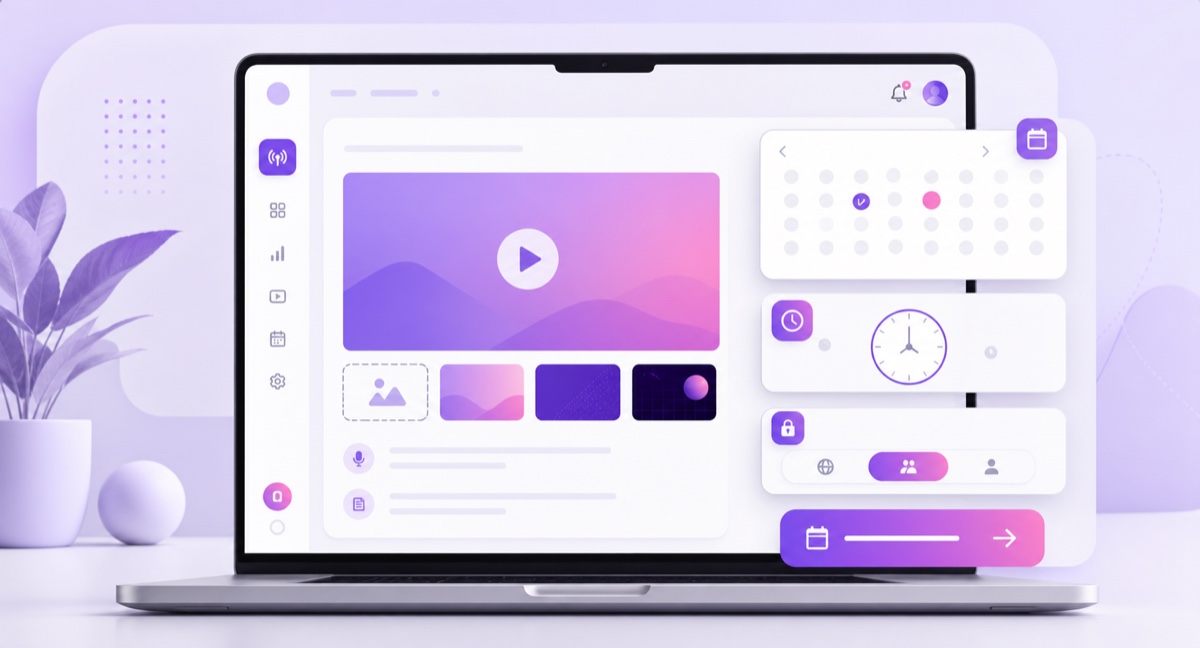
The scheduled YouTube page now exists, but it is waiting for data on the selected stream key. Copy the stream URL and key into your encoder, or connect the scheduled event through a supported service. Keep the key private: anyone who has it may be able to send video to your channel.
You have three practical ways to start the uploaded file:
- Manual: load the MP4 in OBS, start the encoder a few minutes early, wait for the preview in Live Control Room, then click Go live. This is dependable for occasional events when someone can supervise.
- Self-managed automation: a cron or systemd timer can launch FFmpeg on a server. It works, but you own file paths, credentials, clock drift, process recovery, logs, and security.
- Cloud scheduling: upload the video once, pair the destination stream key, and set start and stop times. The cloud encoder sends the file even when your laptop is asleep.
YouTube also has Auto-start and Auto-stop controls. With Auto-start enabled, the incoming encoder feed can start the broadcast; otherwise, YouTube’s documented encoder flow tells you to wait for the preview and click Go live. The calendar time alone does not manufacture a feed or press that final control.
For an unattended broadcast, schedule the encoder to connect a little before the public start and run a private or unlisted rehearsal first. Confirm that the correct scheduled event—not a default reusable stream—is receiving the preview. StreamNeo handles this “make the feed arrive” half: upload the video, add the destination, set the schedule, and let the cloud worker start and stop the stream.
Facebook: schedule in Live Producer
On a computer, open Facebook Live Producer at facebook.com/live/create, choose where to publish, and select Streaming software as the source. Add the post details, then choose the later or scheduled option and set the event date and time. Depending on whether you are publishing to a profile, Page, or group, Facebook may present this as Create live video event.
Meta’s current live scheduling help says a scheduled broadcast creates two posts: an announcement published when you schedule, and a live video post published at the scheduled date and time. That announcement is why the title, cover image, destination, privacy, and description need to be correct before you save.
Next, copy the Server URL and Stream Key into the encoder. If you plan to reuse the same destination, Live Producer offers a Persistent stream key option. It simplifies future setup, but it is still a secret and Meta notes that only one live video can use a persistent key at a time. Follow the detailed Facebook stream key and RTMPS setup guide before pairing it with automation.
Do not rely on old articles that quote a fixed Facebook live scheduling window. Meta’s current public live-event instructions explain selecting a date and time but do not publish one universal live-specific minimum and maximum. Use the dates accepted by your own Live Producer screen, and do not confuse Live scheduling with the separate limits for ordinary scheduled Page posts.
As on YouTube, the post time and feed are separate. Start the encoder, wait for the Facebook preview, and follow the control shown for that event. Test with the same Page or group destination you will use publicly; permissions and keys can differ between destinations.
The India use cases, concretely
Daily 6 a.m. aarti
Create the upcoming platform event with a 6:00 a.m. IST start and schedule the cloud encoder slightly earlier so the preview is ready. Upload only audio and video you own or are licensed to broadcast. If you are building a broader devotional channel, use the rights and programming checks in the 24/7 aarti and mantra guide.
Sunday 10 a.m. service replay
Create one event for Sunday, share its watch URL during the week, and use an Unlisted rehearsal with the same file before going Public. Pair the exact scheduled event key, set the encoder start, and have one person check the first minute from a phone on mobile data.
Market-close recap at 4 p.m. IST
Finish and upload the day’s recording, create that day’s event, and schedule the encoder for 4:00 p.m. IST. Keep the title date-specific so viewers do not mistake yesterday’s analysis for today’s. For a repeatable production structure, see the daily share-bazaar recording playbook.
Timezone and repeat gotchas
Never assume the platform means IST. Select Asia/Kolkata or the displayed UTC+05:30 equivalent where a timezone control is available. Before publishing, compare the event page’s countdown with the current time on a second device. A countdown is harder to misread than an ambiguous “4:00” label.
For Facebook Page posts, Meta explicitly says scheduling uses your current timezone. Live-event interfaces can vary by destination, so confirm the timezone or offset displayed in your own Live Producer flow. For YouTube, inspect the timezone selector in the schedule dialog. If a team member abroad creates the event, the public countdown check is essential.
A daily schedule is not the same as a recurring encoder job. Current live-encoder flows are event-based. On YouTube you can use Reuse settings, but you still need to check the new event’s date, metadata, key, and automation. On Facebook, create the next live event and verify its destination. A cloud scheduler or your own calendar automation can repeat the encoder action; the platform event must still be paired correctly.
Thumbnail reuse is convenient until the artwork contains the wrong weekday or date. Keep one evergreen master without a date, then make dated variants only when the date matters. Use a short preflight checklist: event URL, visibility, timezone, thumbnail, stream key, encoder start, preview, and stop time.
When scheduling stops making sense
Scheduled broadcasts are ideal when the exact start matters: worship, a replay with live chat, a product launch, or a time-sensitive recap. They create a clear appointment and give viewers a page they can save in advance.
If you are rebuilding the same event every day, ask whether viewers truly need a fresh start page. A continuous loop with programmed segments can be simpler: one stable live URL, no daily key pairing, and fewer chances to miss the encoder start. The trade-off is that a 24/7 stream does not create the same single opening moment, and clock-based segments need careful playlist or scheduled-swap design.
Choose the format around the viewer promise. Use scheduled events for appointments; use an always-on loop for continuous availability. StreamNeo supports both uploaded-video streaming and scheduled cloud operation, so your laptop does not have to be the alarm clock.
Start free — 24-hour trial, no card. Review plan details at StreamNeo pricing.
FAQ
Does YouTube start my stream automatically at the scheduled time?
Not from the calendar entry alone. Your encoder must send video to the correct stream key. With Auto-start enabled, that incoming feed can trigger the broadcast; otherwise, wait for the preview and click Go live in Live Control Room.
Can viewers get a reminder?
Yes. A scheduled YouTube stream has a Notify me option, and opted-in viewers can receive a notification when the stream is about to begin. Actual delivery depends on the viewer’s notification settings and device, so also share the watch URL directly.
Can I schedule the same video every day?
Yes, but not as a one-click native daily recurrence in the standard live-encoder workflow. Reuse or create the platform event, then repeat the encoder schedule with a cloud tool or your own automation. If the file should be available continuously, a 24/7 loop may be cleaner.