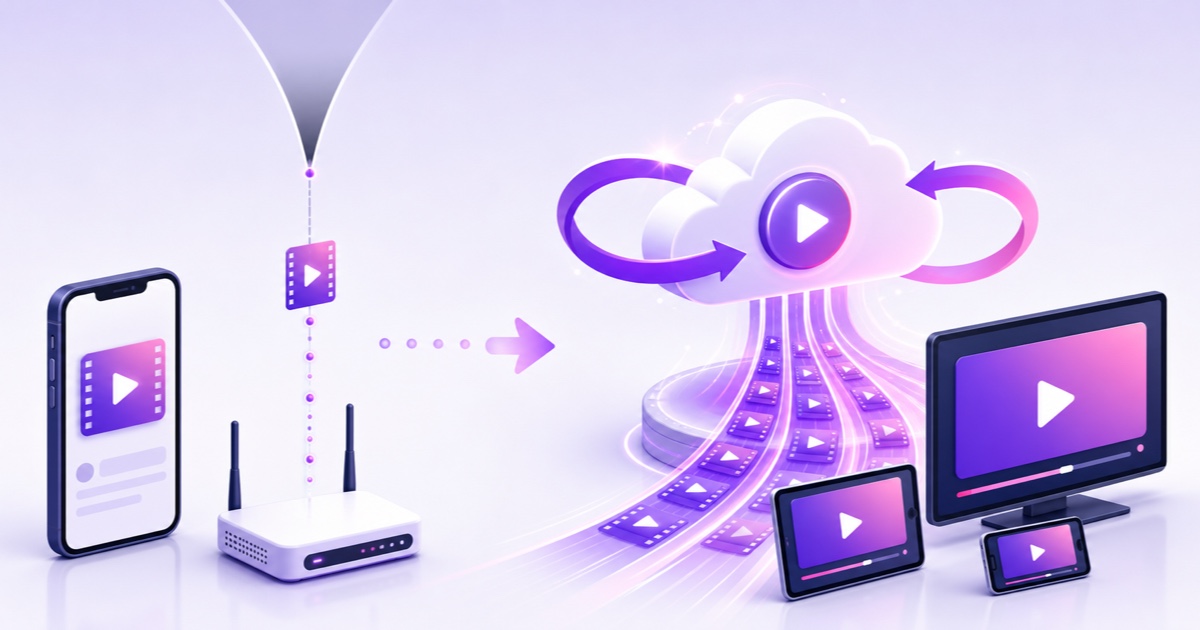
A slow upload connection can make live streaming from home impractical, but it does not disqualify you from running a continuous channel.The important question is not simply how fast your internet is.It is whether your connection must carry the stream every second, or only upload the source file once.
That distinction changes the job completely.Even a 2 Mbps upstream can deliver a prepared video to a cloud encoder if you give it enough time; once the transfer finishes, the cloud connection—not your broadband or SIM—does the nonstop pushing.
Two completely different bandwidth questions
Streaming from home means your encoder continuously sends video to YouTube or Facebook.A 4,500 kbps video stream consumes about 4.5 Mbps of upstream capacity before audio and protocol overhead.For a stable home setup, plan for roughly twice the chosen bitrate, so that example needs around 9 Mbps of sustained upload headroom.
The word sustained matters.A speed test that touches 10 Mbps for ten seconds does not prove that your Jio, Airtel, fibre, or local ISP connection can hold that rate through evening congestion, Wi-Fi interference, router restarts, and power cuts.A home encoder needs the connection every second for as long as the broadcast runs.
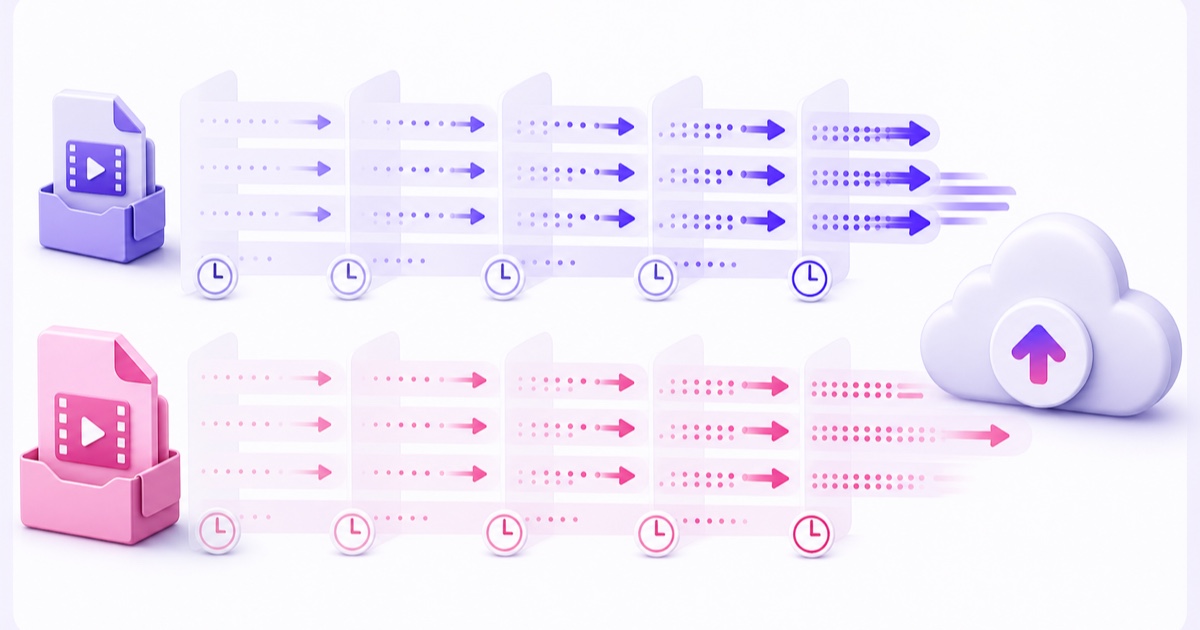
A cloud loop has a different bandwidth profile.You send a file once, the service stores it, and an encoder in the datacenter pushes it to the platform.Your 1.5 GB upload may take two hours, but it does not need to happen at real-time video speed.Slow becomes a waiting problem rather than a permanent streaming problem.
| Workflow | What your line carries | How long it must hold | What a home outage does |
|---|---|---|---|
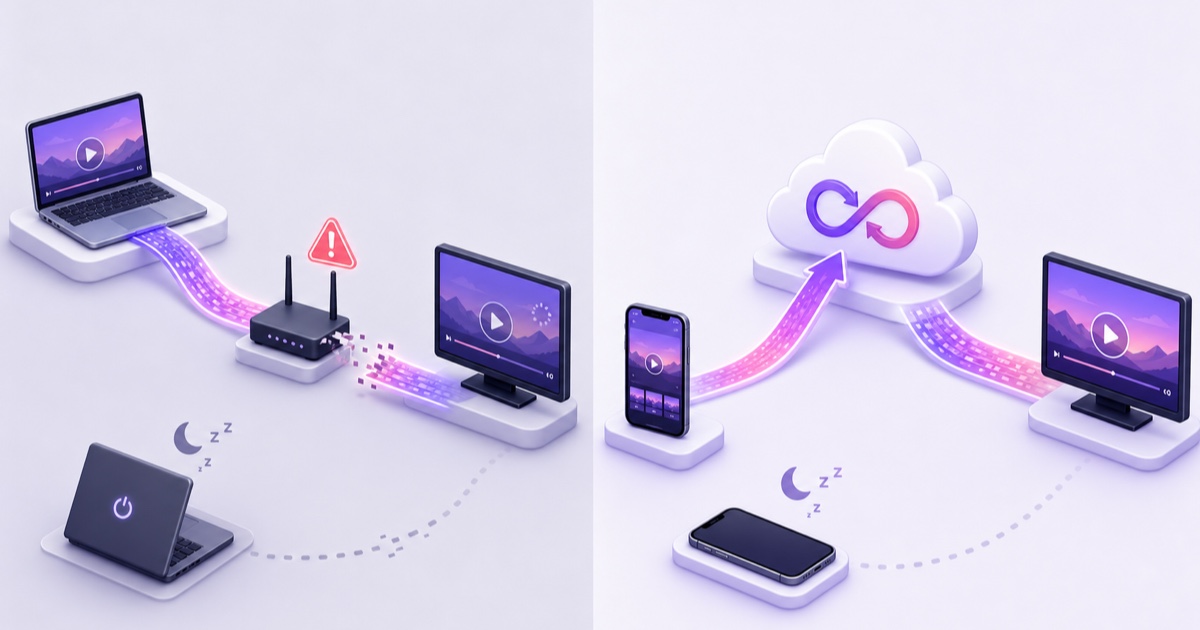
| Encoder at home | The live bitrate continuously | For the entire broadcast | Interrupts the outgoing feed |
| Cloud loop | The source file once | Until the upload completes | Does not remove a file already stored in the cloud |
Calculate upload time with this formula
Use the measured upload speed, not the larger download number printed in your broadband plan.The ideal transfer time is:
Hours = file size in GB × 8,192 ÷ (upload Mbps × 3,600)
This converts gigabytes to megabits and divides by megabits per second.The result is an ideal estimate.Wi-Fi retries, route congestion, protocol overhead, and a server that cannot accept your full line rate can make a real upload slower, so add a practical margin.
| Measured upload speed | 1.5 GB file | 4 GB file |
|---|---|---|
| 1 Mbps | About 3 hr 25 min | About 9 hr 6 min |
| 2 Mbps | About 1 hr 42 min | About 4 hr 33 min |
| 5 Mbps | About 41 min | About 1 hr 49 min |
| 10 Mbps | About 20 min | About 55 min |
| 25 Mbps | About 8 min | About 22 min |
For example, 2 GB at 2 Mbps works out to 2.28 hours, or about 2 hours 17 minutes under ideal conditions.Budgeting roughly two and a half hours is sensible on a normal connection.If the file becomes 1 GB after compression, the ideal time also halves.
Shrink the file before you fight your line
A large phone export is not automatically a high-quality master.Phones often record at a much higher bitrate than a 24/7 delivery stream needs, and some editing apps export with similarly generous settings.Uploading every extra bit over a slow line costs time without guaranteeing that viewers will see a difference after the platform transcodes it.
Predict the file size before you render with this calculation:
Size in MB = (video kbps + audio kbps) × duration in seconds ÷ 8 ÷ 1,024
A two-hour block at 4,500 kbps video plus 160 kbps audio is about 4,095 MB.At 2,250 kbps video plus the same audio, it is about 2,118 MB.Halving only the video bitrate nearly halves the upload wait, although the right bitrate still depends on resolution, frame rate, motion, and how much detail your footage contains.
Do not crush a detailed 1080p video merely to hit an arbitrary file size.Export a 60-second section with motion, gradients, and on-screen text, then inspect it at normal viewing size.The HandBrake compression walkthrough gives settings for H.264, constant frame rate, and a controlled quality test.If bandwidth remains the constraint, the 720p versus 1080p bitrate guide helps you choose a smaller, honest target.
Make the upload survivable
On a flaky line, a resumable upload matters more than an impressive peak speed.Resumable transfer means the uploader records which chunks arrived successfully and continues from the last confirmed chunk after a brief interruption.Without it, a failure at 95% can send you back to zero.
Check that your chosen service supports resume before committing a multi-gigabyte file.Then make the transfer boring:
- Keep the uploader active. Leave the browser tab open and prevent the phone or laptop from sleeping until the service confirms completion.Mobile operating systems may pause a browser upload when you switch apps or lock the screen.
- Prefer stable Wi-Fi over a weak mobile signal. Sit near the router, or use Ethernet on a laptop if available.Raw speed matters less than avoiding repeated disconnects.
- Try a quiet network window. If your measured upload falls sharply in the evening, schedule the large transfer late at night or early in the morning.Measure first; do not assume every network follows the same pattern.
- Avoid a VPN during transfer. Encryption is not the problem; the extra route and crowded VPN exit can reduce throughput or add another failure point.
- Let the uploader manage chunks. Parallel chunk transfers can improve a long-haul upload when one connection cannot fill your local line, including some routes from India to European datacenters.More parallelism is not always faster, so use the service default unless it exposes a tested control.
If you are phone-only, plug in the charger and start with a short file.The full mobile workflow is covered in how to start a 24/7 stream from your phone.
Once the file is up, your line stops mattering
After the file reaches a cloud service, the live path changes.The encoder that reads the file and pushes the stream sits in a datacenter.You can close the browser, turn off the laptop, put the phone in airplane mode, or lose home broadband; those events no longer interrupt the encoder’s outgoing connection.
This does not make a datacenter magical, and it is not an uptime promise.Encoders can exit, platforms can reject a stream key, destination connections can drop, and infrastructure can fail.The relevant difference is that your home line is removed from the live path and recovery can be handled where the encoder runs.See how watchdogs, backoff, and fatal-error handling should work in the 24/7 auto-restart guide.
StreamNeo is designed around this model: upload the prepared file once, provide the platform stream key, and let the cloud loop publisher handle the continuous push.It is particularly useful when the source connection is slow but can eventually finish one resumable transfer.
Mobile-data honesty for India
Mobile data can complete the upload, but the quota math may make it a poor first choice.A 1.5 GB file consumes roughly 1.5 GB of data once, plus a little transfer overhead.On a 2 GB-per-day pack, that is most of the day’s allowance before normal browsing, WhatsApp, updates, or retries.
If possible, compress on the phone or laptop, then upload over dependable Wi-Fi.If mobile data is the only option, check the pack’s high-speed quota and what happens after it is exhausted.Some plans continue at a reduced speed; others require an add-on.A night-data pack can be useful only if its validity and quota actually cover your planned transfer.
Once the file is stored and the cloud encoder starts, the outgoing live video does not consume your SIM data.Opening the dashboard or checking the YouTube watch page still uses ordinary browsing data, but your phone is not carrying the 24/7 stream.For a low-risk test, StreamNeo offers a ₹49 daily option as well as a no-card trial, so you do not need to commit to a month just to learn whether your file and connection work.
If your upstream is genuinely tiny
If repeated tests show less than 1 Mbps, reduce the job before buying more bandwidth.Four adjustments make the first successful upload much more realistic:
- Choose 720p instead of 1080p. A lower resolution can look clean at a sensible bitrate, especially for talking-head lessons, devotional talks, podcasts, and simple graphics.
- Start with a 45–60 minute loop. A short, well-sequenced block proves the workflow faster than a four-hour library.Replace it later after you know the pipeline is sound.
- Consider an audio-first format. Bhajans you own, guided meditation, language practice, and spoken lessons can use restrained video motion.The picture often needs fewer bits than gameplay, rain, foliage, or detailed camera footage.
- Upload one planned update each week. You do not need to transfer the whole archive on day one.Build a stable programme, then refresh it in manageable files.
Do not upscale a weak source or starve a motion-heavy video until it becomes blocky.The goal is a smaller, appropriate asset, not a large-resolution badge.
Run two sanity checks before committing
First, test the upload speed at the same time of day when you plan to send the full file.Run the test twice, several minutes apart, with other household uploads paused.Record the lower result.That conservative number is more useful than the highest burst on the screen.
Second, upload a 100 MB test file through the actual service and connection you will use.Time it from start to confirmed completion.If 100 MB takes ten minutes, 1,000 MB will take roughly 100 minutes under similar conditions.This real transfer automatically includes the route, browser, Wi-Fi, and server behaviour that a generic speed test cannot see.
Also test resume deliberately if the uploader supports it: briefly disconnect Wi-Fi after a few minutes, reconnect, and confirm that progress continues instead of resetting.Do this with the small file, not your full master.
Slow internet demands planning, not surrender.Measure the upstream, calculate the wait, compress with your eyes open, and make one small test transfer.Then Start free — 24-hour trial, no card and let the continuous part run where your home connection is no longer in the path.
FAQ
What upload speed do I need for a 24/7 stream?
From home, allow roughly twice your chosen streaming bitrate and sustain it for the whole broadcast.A 4.5 Mbps video push therefore needs about 9 Mbps of dependable upstream headroom.With a cloud loop service, you only need enough speed and patience to upload the source file once; it does not have to arrive in real time.
How long will a 2 GB upload take on 2 Mbps?
The formula gives about 2 hours 17 minutes under ideal conditions.In practice, allow roughly two and a half hours for protocol overhead, Wi-Fi retries, and normal variation.A resumable uploader protects that time if the line drops, and compressing the source from 2 GB to 1 GB roughly halves the transfer.
Does my stream stop if my internet goes down?
A home encoder loses its outgoing path when your internet fails.With a cloud encoder, the file is already stored and your home connection is outside the live path, so that outage does not stop the cloud push.Cloud infrastructure can still have its own failures, which is why restart logic and monitoring remain important.