A 6 GB phone export does not need to stay 6 GB just because the camera made it that way. It may contain more data than an upload-and-loop workflow can use, but shrinking it carelessly can smear captions, band gradients, and make every later re-encode look worse.
This walkthrough shows how to compress video for streaming with HandBrake 1.11.2, using settings that favour predictable playback and visible quality. You will estimate the likely size first, make a one-minute test, and inspect the finished MP4 before committing hours to an upload.
What actually makes a video file big
For a fixed duration, file size is driven mainly by the combined video and audio bitrate. Resolution, frame rate, motion, grain, and encoder efficiency influence how many bits you need for acceptable quality, but the size arithmetic itself is straightforward:
(video kbps + audio kbps) × seconds ÷ 8 ÷ 1,024 = approximate MB
Take a two-hour recording encoded at 4,500 kbps video plus 160 kbps audio. The calculation is (4,500 + 160) × 7,200 ÷ 8 ÷ 1,024, which gives about 4,096 MB. Container overhead adds a little, so calling it roughly 4.1 GB is reasonable.
This formula is most useful when you choose an average bitrate. Halving the combined bitrate roughly halves the result. Constant-quality encoding is less predictable because a simple talking-head shot needs fewer bits than confetti, leaves, water, film grain, or rapid camera motion. For live-output targets, compare the practical numbers in our 720p versus 1080p bitrate guide.
CRF vs bitrate, decided in one paragraph
Use Constant Quality, expressed as RF in HandBrake and CRF in x264, when you will upload the file and loop it. The encoder can spend more data on difficult scenes and less on static ones. Use Average Bitrate only when you must land near a hard file-size ceiling; enable multi-pass encoding for a more efficient bitrate-constrained result. With x264, lower RF means higher quality and a larger file. RF 20–22 is a sensible first test for 1080p streaming material, RF 18 is a higher-quality option when size is secondary, and values above 25 deserve close inspection because gradients, small text, and textured motion can expose damage. These are starting points, not promises: the source decides.
The HandBrake settings that matter, tab by tab
Install HandBrake from its official site, open the source file, and begin with the General → Fast 1080p30 preset as a compatible baseline. Then change only the controls below. HandBrake 1.11.2 uses these labels across its current desktop interfaces, although the exact placement varies slightly between macOS, Windows, and Linux.
| Tab | Control | Recommended starting value | Why |
|---|---|---|---|
| Summary | Format | MP4 | Broad compatibility for upload and playback |
| Summary | Web Optimized | Checked | Moves MP4 metadata to the beginning for fast start |
| Dimensions | Resolution Limit | Match the useful source resolution | Avoids pointless upscaling |
| Video | Video Encoder | H.264 (x264) | Reliable 8-bit H.264 output |
| Video | Framerate | Same as Source | Preserves the intended motion cadence |
| Video | Framerate mode | Constant Framerate | Creates regular timestamps for long playback |
| Video | Constant Quality | RF 20–22 | Practical quality-size starting range |
| Video | Encoder Preset | Medium or Slow | Better compression efficiency if render time allows |
| Video | Encoder Profile | High | Good H.264 efficiency with modern compatibility |
| Audio | Codec | AAC | Expected companion codec for a streaming MP4 |
| Audio | Bitrate / Sample Rate / Mixdown | 160–192 kbps / 48 kHz / Stereo | Clear, compatible two-channel audio |
In Summary, choose MP4 and tick Web Optimized. That option is the GUI equivalent of fast-start processing: it places the MP4 moov atom near the front so software can begin reading metadata without reaching the end of the file.
In Dimensions, keep the source resolution unless you intentionally want to downscale. A 720p source enlarged to 1080p gains pixels but not detail, while adding encoding work and often more bytes. Check the crop preview too; automatic crop is useful for real black borders but wrong for intentional framing.
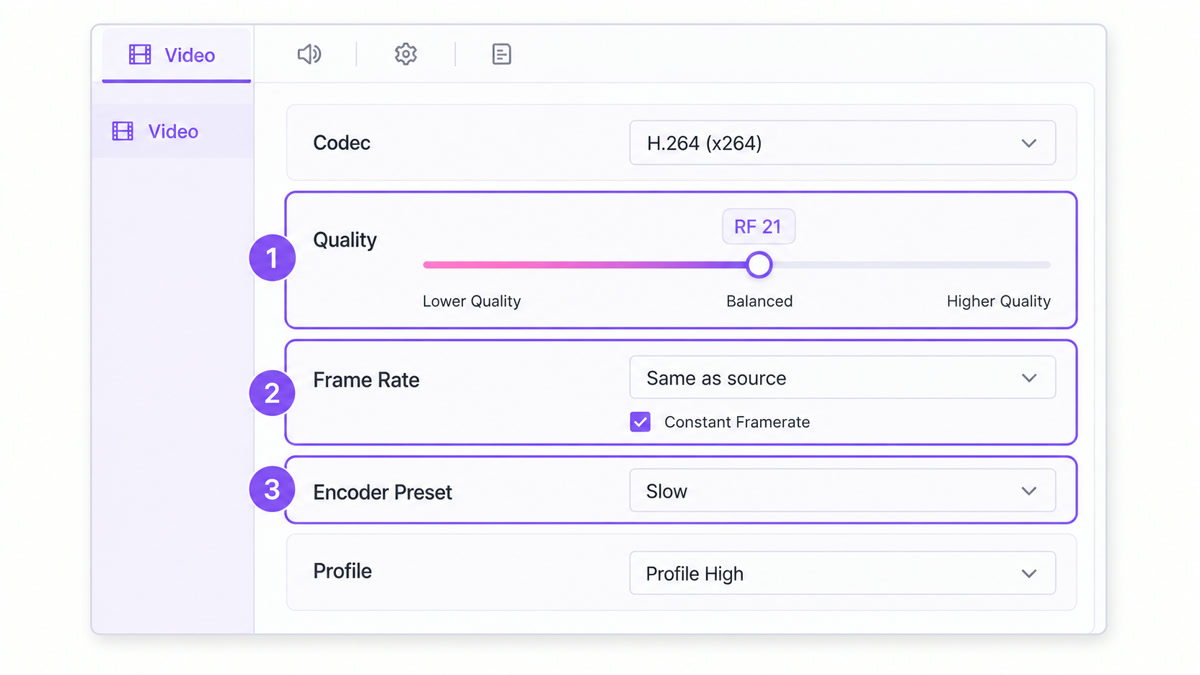
In Video, set H.264 (x264), Same as Source, Constant Framerate, RF 20–22, a Medium or Slow preset, and High profile. Slow usually produces a smaller file than Medium at comparable quality, but takes longer. It does not magically improve a weak source.
In Audio, select AAC, 160–192 kbps, 48 kHz, and Stereo. Confirm that the correct language or programme track is selected before encoding; a perfect video export with the wrong audio is still a failed export. For the wider compatibility rationale, see the MP4 H.264 and AAC format guide.
Why constant frame rate is non-negotiable for a 24/7 loop
Phones, screen recorders, and conferencing apps often produce variable-frame-rate files. Local players can follow their irregular timestamps, so a short preview may look fine. A live pipeline has to schedule frames and audio continuously; inconsistent timing can surface as judder, duplicated frames, or audio gradually separating from the picture.
Choose Same as Source and then Constant Framerate. HandBrake uses the source’s average cadence while regularising the output timestamps. Do not casually force a 25 fps recording to 30 fps: that creates or repeats frames. CFR is the requirement; changing the creative frame rate is not. If an existing loop already drifts, follow the long-stream audio sync fixes.
Why yuv420p matters
A file can say H.264 and still be awkward. Some camera and editing exports use 10-bit colour or 4:2:2/4:4:4 chroma sampling. Those formats can be valuable during editing, yet many playback and copy-mode pipelines expect 8-bit 4:2:0. The common ffmpeg pixel-format name for that target is yuv420p.
HandBrake’s normal 8-bit H.264 (x264) path produces this widely compatible output. Avoid H.264 10-bit if the destination expects yuv420p. After encoding, verify instead of trusting the filename:
ffprobe -v error -select_streams v:0 -show_entries stream=codec_name,profile,pix_fmt,width,height,r_frame_rate,avg_frame_rate -of default=noprint_wrappers=1 out.mp4
Look for h264, High profile, and yuv420p. For a CFR file, r_frame_rate and avg_frame_rate should agree.
The ffmpeg one-liner for people who prefer typing
The command-line equivalent below targets a 30 fps source. Replace 30 with the actual intended rate when your source is 23.976, 25, 29.97, 50, or 60 fps.
ffmpeg -i in.mov -c:v libx264 -preset slow -crf 21 -pix_fmt yuv420p -r 30 -c:a aac -b:a 160k -ar 48000 -movflags +faststart out.mp4
The -crf 21 choice controls constant quality, -pix_fmt yuv420p requests compatible 8-bit 4:2:0 video, and -r 30 makes the output frame cadence constant at 30 fps. The +faststart flag performs the same metadata relocation as HandBrake’s Web Optimized checkbox. If you are unsure of the source cadence, inspect it first rather than assuming every phone clip is 30 fps.
Prove it, do not trust it
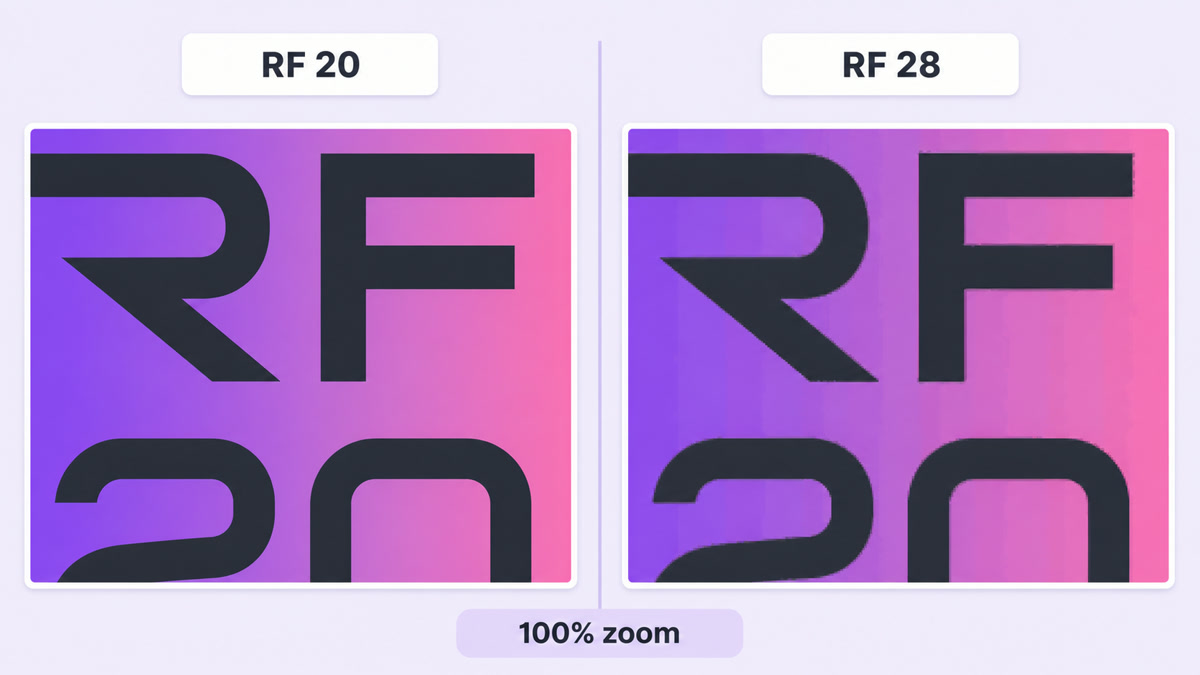
Before rendering a two-hour programme, encode the same representative 60 seconds twice: once at RF 20 and once at RF 22. Pick a section containing motion, fine text, faces, dark areas, and a smooth sky or colour gradient. Easy static footage tells you very little about where compression breaks.
- Open both tests beside the source on the same display.
- Pause on identical frames and view at 100% zoom, not a scaled browser preview.
- Inspect text edges, hair, foliage, smoke, gradients, and shadow detail.
- Listen through headphones for wrong tracks, clipping, or stereo changes.
- Write down each test’s size, encode time, and what you can actually see.
If RF 22 looks the same in your real viewing conditions, keep the smaller result. If text softens or gradients band, move toward RF 20 or 18. Do not copy a stranger’s claimed compression percentage: source complexity changes the result. HandBrake’s Preview feature can accelerate this test, but keep both exported clips so the comparison is repeatable.
Where compression stops helping
Compression cannot restore information that is missing. A 480p download does not become detailed 1080p when upscaled. A clip downloaded, edited, exported, uploaded, downloaded again, and compressed once more carries damage from every lossy generation. Preserve the highest-quality original and make new delivery files from that master.
If a clean export remains too large at the lowest quality you approve, shorten the loop, remove duplicate material, or upload from a better connection instead of pushing RF upward until the picture collapses. The slow-internet upload guide shows how file size and available upload bandwidth translate into waiting time.
A compatible, copy-ready MP4 can be streamed by StreamNeo as-is, so the quality you approve at export is the quality sent into the platform pipeline. That avoids the extra generation loss explained in our copy-mode streaming guide.
Ready to put the tested file on a continuous loop? Start free — 24-hour trial, no card. You can also review the current StreamNeo pricing before you configure a stream.
More from the journal: 24/7 YouTube Streaming: The Complete 2026 Guide · One Video, Three Platforms: A Realistic Cross-Posting Workflow for Loop Channels · Repurposing a 24/7 Loop Into Shorts, Reels and TikToks · The 24/7 Stream Pre-Flight: 12 Checks Before You Leave It Running
FAQ
What RF should I use in HandBrake for streaming?
Start with RF 20–22 for a 1080p H.264 upload, then compare two 60-second tests. RF 18 is a higher-quality, larger-file option when preserving delicate gradients or small text matters more than storage. The right value depends on the source, so approve it with your eyes.
Will compressing my video make the stream look worse?
Every lossy re-encode can discard information, but a carefully chosen RF may produce no visible difference in normal viewing. Visible damage usually appears when quality is pushed too low or the file has already passed through several lossy exports. Encode once from the best master and avoid repeated re-encoding.
Should I change the frame rate?
Keep the source rate unless you have a specific delivery requirement, but make the output constant frame rate. In HandBrake, choose Same as Source plus Constant Framerate. Converting 25 fps to 30 fps without a reason adds repeated or synthesised timing; regularising the existing cadence is the safer goal.