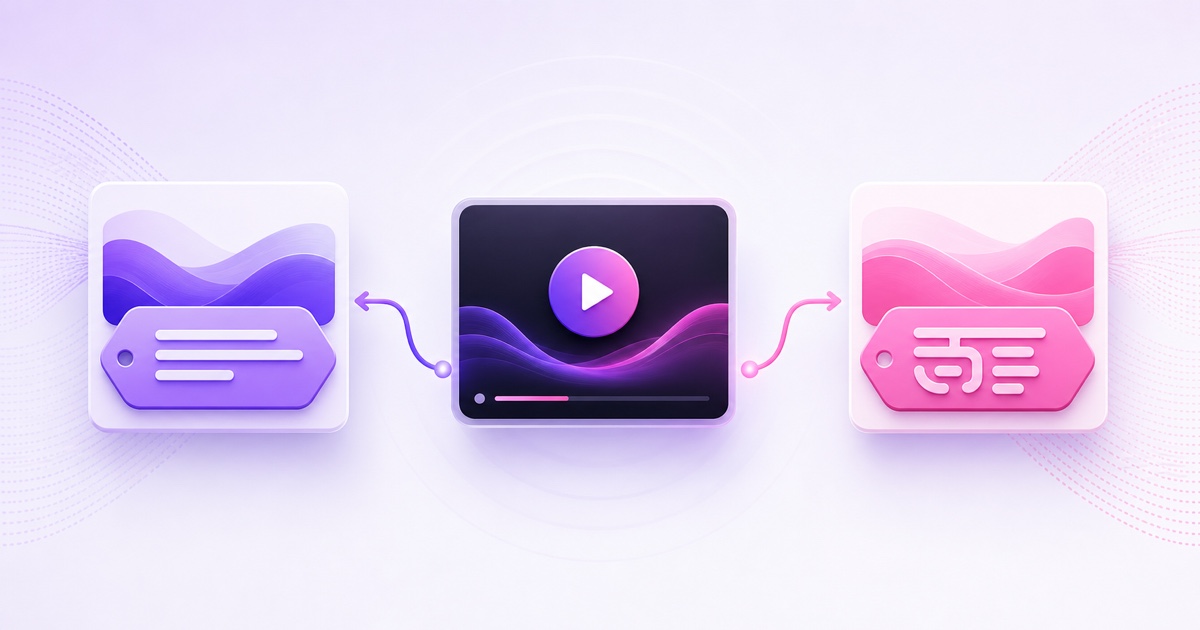
You do not need to burn one title into your video—or force the same wording onto every platform. A single live feed can appear as “Morning Bhajans 24/7 | सुबह की भक्ति” on YouTube and “सुबह की भक्ति LIVE 🙏 परिवार के साथ शेयर करें” on Facebook.
The reason is simple: the video feed and the page around it are separate things. Once you understand where each platform stores its title, setting different titles for YouTube and Facebook Live becomes a two-dashboard job, not a two-video production.
Metadata lives on the platform, not in the video
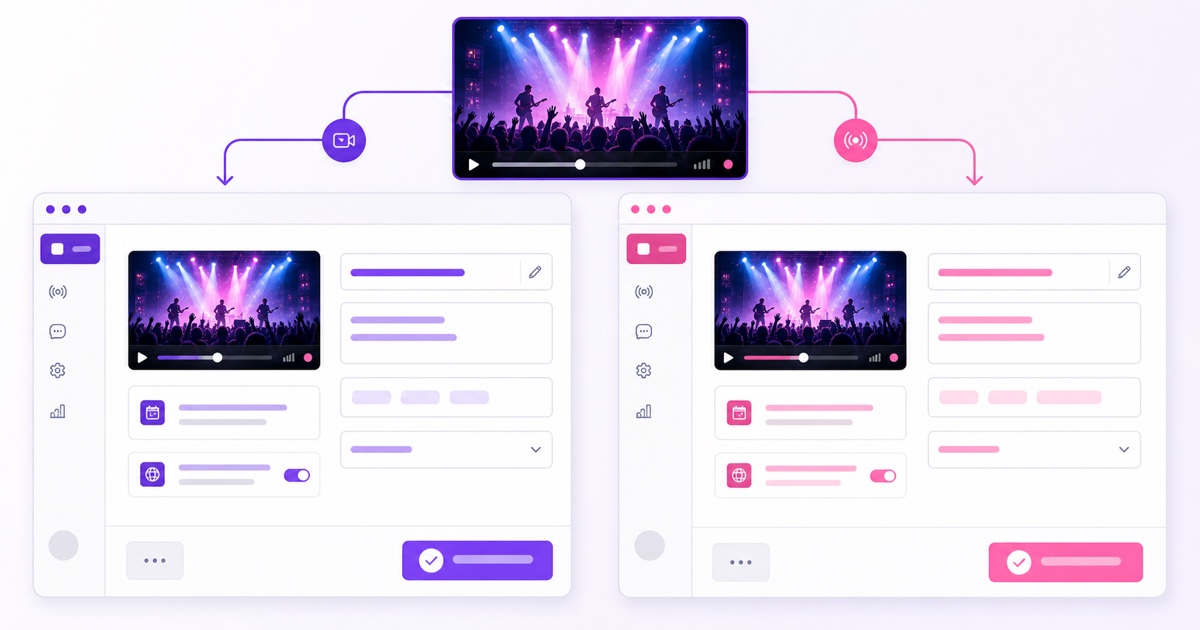
Your outgoing live feed carries pictures and sound, along with technical timing and encoding information. It does not tell YouTube or Facebook what public broadcast title to display. Each destination creates its own live post or watch page and attaches its own title, description, thumbnail, visibility, chat settings, and audience data.
A video file can contain local metadata such as a filename or media tags, but those fields do not control the title of an encoder-based live broadcast. Renaming bhajan-final-v4.mp4 will not rename either live page.
Think of the feed as the programme and each platform page as its packaging. One programme can have two packages without re-editing or re-uploading the source.
This also explains why changing a title does not require a new encode. You edit the YouTube broadcast record or Facebook live post; the pixels being sent can continue unchanged.
Where each title is set
Set the two titles at their destinations before you start pushing the feed. If a platform changes a button label during a UI rollout, look for the equivalent broadcast-details or post-details panel—the underlying separation remains the same.
YouTube: Live Control Room
- Open YouTube Studio → Create → Go Live.
- Select Stream for an encoder-based broadcast. For a scheduled broadcast, open Manage and select the event.
- Click Edit on the stream dashboard.
- Enter the YouTube title and description, choose visibility and audience settings, then click Save.
YouTube’s current help flow confirms Studio → Go Live, the title-and-description fields, and the Edit control. The edit panel is also available while a stream is live, so a title refresh does not require stopping the encoder.
Facebook: Live Producer
- Open facebook.com/live/create, or switch into your Page and choose Live video.
- Choose where to post, select Go live, then choose Streaming software as the video source.
- In Add post details—sometimes shown as What’s your live video about?—enter the Facebook title and description.
- Connect the stream, check the preview, and choose Go Live Now or schedule it for later.
Meta documents this current path in its streaming-software setup. Page roles and UI experiments can slightly change the entry point, but the title still belongs to the Facebook post, not the incoming RTMP feed.
Why different titles fit different audiences
YouTube discovery often begins with a query, a recommendation, or a channel page. A useful YouTube title therefore names the content early: “Hanuman Chalisa,” “Hindi lofi,” “study music,” or another phrase a viewer can recognise quickly.
Facebook is more feed-led. People may encounter the live post while scrolling, through a share, or because they follow the Page. A natural Facebook title can lead with the audience’s everyday language and a relevant action such as “follow,” “share,” or “tell us where you’re listening from.”
This is audience fit, not an algorithm guarantee. A different title cannot rescue weak content, unreliable playback, or misleading packaging. It simply lets you describe the same programme in the idiom that makes sense on each destination.
Worked pair 1: devotional mornings
| Destination | Title | Why it fits |
|---|---|---|
| YouTube | Hanuman Chalisa 24/7 | हनुमान चालीसा | Morning Bhajans | The topic appears first, both scripts are readable, and the format is explicit. |
| सुबह की भक्ति LIVE 🙏 परिवार के साथ शेयर करें | Hindi leads, the mood is immediate, and the share prompt suits a community feed. |
Worked pair 2: a study-music channel
| Destination | Title | Why it fits |
|---|---|---|
| YouTube | Hindi Lofi Radio Live | Study & Relax | हिंदी Lo-fi | It front-loads a searchable niche and states the listening use case. |
| पढ़ाई वाला lo-fi अभी LIVE — अपने study buddy को टैग करें | It sounds conversational and gives the scrolling viewer a reason to engage. |
Do not copy a keyword-heavy YouTube title into Facebook by habit. Do not make the Facebook version vague merely to sound casual, either. Both titles should honestly identify what is playing.
For more naming patterns, use the examples in our live-stream title guide, then rewrite the final line for each audience.
The architecture that keeps it clean
To multistream one source, your setup creates a separate outbound connection for every destination. YouTube receives one push tied to its stream key and broadcast record. Facebook receives another push tied to its own key and live post. The media may be identical, but the destination sessions are not.
That separation has two useful consequences:
- Metadata stays independent. You can change a YouTube title without touching the Facebook title, and vice versa.
- Destination failures are contained. If one endpoint rejects a key or drops a connection, the other outbound session can remain active. A shared upstream problem can still affect both, so separation is not the same as immunity.
Whichever tool you use, keep one push per destination: configure the title on each platform, then let the same video feed travel through its own connection. StreamNeo can carry the YouTube push — it publishes to YouTube only — so the Facebook side stays with a Facebook-capable encoder. The complete connection flow is covered in how to stream the same video to YouTube and Facebook at once.
A relay service can also support different titles because the metadata remains platform-side. Some relays offer API fields that publish titles for you; others only forward video and leave you to prepare each platform dashboard. Either way, verify the final public page rather than assuming a relay copied the right wording.
One policy detail matters if your source is pre-recorded: Meta’s Live policy requires pre-recorded material to be identified and restricts looping or static broadcasts. Follow each destination’s current rules; do not use different packaging to hide what the content is. See the Facebook-specific workflow and policy notes in our pre-recorded Facebook Live guide.
Worked example: a devotional channel
Suppose a channel has one licensed morning-bhajan programme and two established audiences: YouTube viewers who search in English and Hindi, and Facebook followers who usually interact in Hindi.
- Prepare the shared source. Confirm the video, audio, rights, and any required pre-recorded disclosure before opening either destination.
- Create the YouTube broadcast. Use “Morning Bhajans Live | सुबह की भक्ति | Peaceful Devotional Music.” Add a fuller description with the schedule and a subscribe prompt.
- Create the Facebook live post. Use “आज की सुबह भक्ति के साथ 🙏 अभी LIVE.” Put the disclosure and context in the description, then use a relevant follow or share prompt.
- Connect both destinations. Keep the YouTube and Facebook stream keys clearly labelled. Never paste a key into the wrong destination.
- Preview before publishing. Match the video frame and audio on both dashboards, then read each title as a viewer would see it.
- Verify publicly. Open the YouTube watch page and Facebook post in separate logged-out or private windows. Confirm the right title, description, language, and thumbnail appear on each.
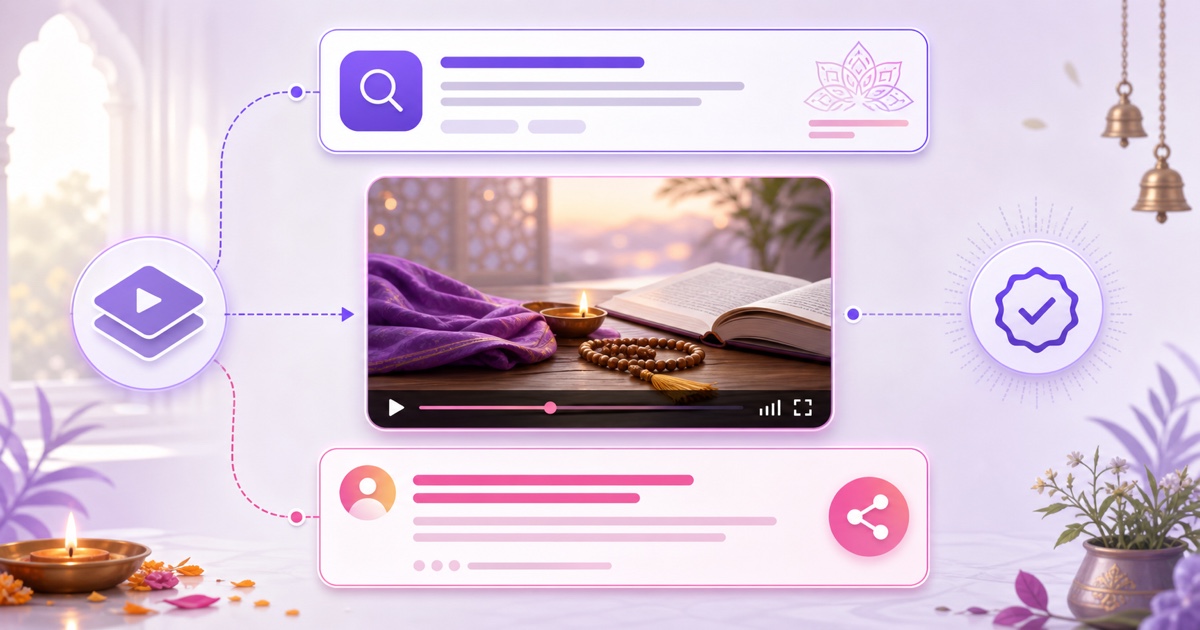
Keep the call to action platform-specific. “Subscribe for the daily stream” is natural on YouTube. “Follow the Page and share with family” is more native to Facebook. The programme remains the same; only the surrounding invitation changes.
Keep both titles alive
A common mistake is to optimise the YouTube title every week while leaving Facebook with wording from an old festival or schedule. Treat the destinations as two storefronts fed by one kitchen.
Use a small maintenance routine:
- Review both public pages on a fixed cadence, such as weekly and before a seasonal change.
- Update time-sensitive references only when the programme really matches them.
- Keep a simple two-column title sheet so operators do not paste one platform’s copy into the other.
- After every edit, refresh the public page and check mobile truncation.
- Record the edit date and reason; this prevents several team members from undoing one another’s changes.
On YouTube, open the live dashboard and use Edit → Save. On Facebook, use the live post’s options to Edit post, or the details control shown in Live Producer. Meta’s exact control placement can vary by Page access and rollout. These metadata edits are independent and do not require two source uploads; allow a short delay for every viewer surface to refresh.
Choose wording because it is accurate for the audience, not because a calendar says a refresh is due. A stable title that still fits is better than constant cosmetic churn.
Ready to send one programme to separate destinations without duplicating the production work? Start free — 24-hour trial, no card, then choose the plan that fits from the pricing page.
FAQ
Does the video file carry a title?
No. A file may have a filename or embedded media tags, but those do not become the public title of an encoder-based live broadcast. YouTube stores its title on the broadcast record, while Facebook stores its title with the live post.
Can titles differ mid-stream?
Yes. Edit each destination independently: use Edit in YouTube’s live dashboard and the live-post or Live Producer details controls on Facebook. The video push can keep running, although a saved change may take a little time to appear everywhere.
Do I need two uploads?
No. Use one source video and two destination pushes. Each push connects to its own platform stream key, while each platform keeps a separate title field, description, thumbnail, and public page.