A Facebook stream can look soft even when the same source looks sharp on YouTube. That usually does not mean the file is bad. Each platform has its own ingest profile, and Facebook currently asks an encoder to fit inside a fairly narrow 1080p envelope.
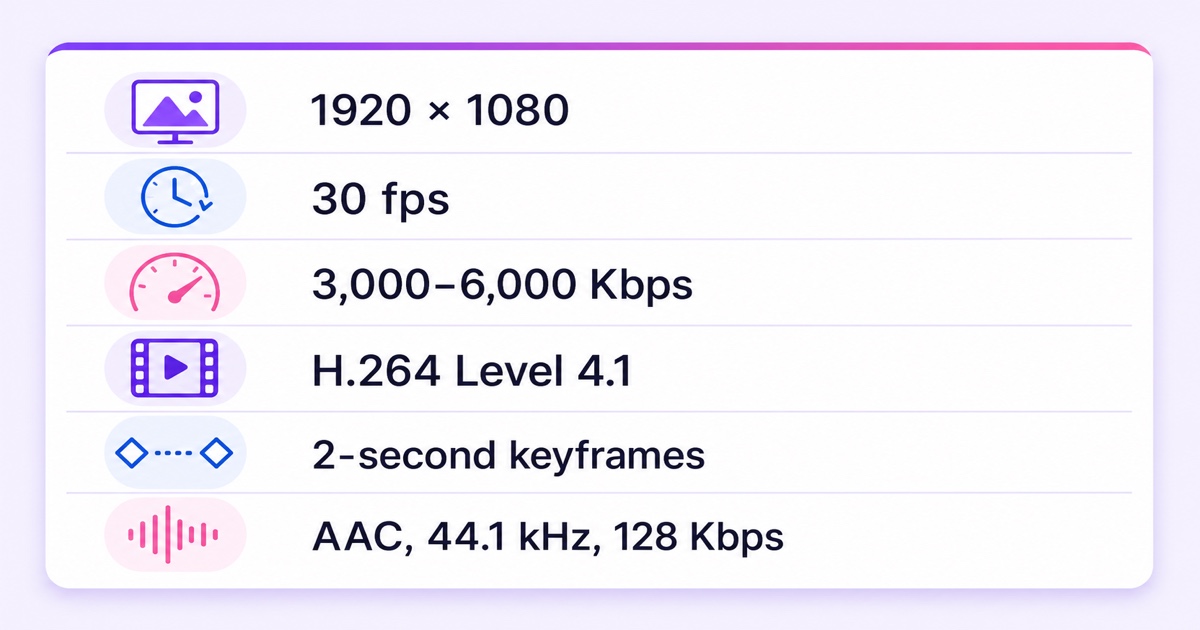
The practical answer is simple: for 1080p at 30 frames per second, use H.264 video between 3,000 and 6,000 Kbps, with a keyframe every two seconds. But the upper number is easy to misunderstand. It is the top of Meta’s published recommended range, not a promise that every stream one kilobit above it will fail in the same way.
This guide separates the documented Facebook Live bitrate values from guesswork, gives you one dependable encoder recipe, and shows how to test your own Page, profile, network, and streaming tool without inventing “lab-tested” limits.
Facebook’s published specs
Checked against Meta’s published live video guidance in July 2026. Meta’s current video format guidelines for live streaming recommend the following settings for a standard landscape broadcast.
| Setting | Meta’s published guidance | What to enter |
|---|---|---|
| Resolution | 1080p | 1920 × 1080 |
| Frame rate | 30 fps | 30 or 29.97 fps; do not force 60 fps |
| Video bitrate | 3,000–6,000 Kbps | 6,000 Kbps for a high-quality 1080p/30 source |
| Video codec | H.264, Level 4.1 | H.264/AVC, Level 4.1 |
| Keyframe interval | 2 seconds | 2 seconds, or 60 frames at 30 fps |
| Audio | Stereo, 44.1 kHz, 128 Kbps | AAC stereo, 44.1 kHz, 128 Kbps |
So, what is the Facebook Live max bitrate? For ordinary encoder setup, treat 6,000 Kbps as the documented upper value. Meta labels 3,000–6,000 Kbps as a recommended range rather than publishing a separate, universal hard-ingest maximum. That wording matters: 6,000 is the safe ceiling you can configure against, not evidence for a precise rejection threshold.
Use constant bitrate, or the closest stable rate-control option your encoder provides. Keep the output progressive, not interlaced. The video alone can consume up to 6 Mbps, and the AAC audio adds 128 Kbps, so your connection must sustain more than the configured payload with comfortable headroom. A momentary speed-test peak is not the same as stable upload capacity.
Published limits vs practical behaviour
People often describe a personal successful broadcast at 7 or 8 Mbps as proof that Facebook “accepts” that bitrate. It proves only that their encoder established an ingest connection at that moment. It does not prove that Facebook preserved that bitrate, delivered a matching rendition to viewers, or will behave identically on another account or tomorrow.
Facebook prepares viewer renditions after ingest. That processing is one reason an encoder’s clean local preview can differ from what a viewer sees on mobile data. Sending extra bits above the published range cannot force Facebook to expose a higher-quality viewer rendition.
Meta’s public guidance says the recommended settings help avoid throttling or quality drops, but it does not publish a deterministic table saying exactly what happens at every above-range bitrate. Depending on the whole signal—not just bitrate—an out-of-profile stream may still appear in preview, show a warning, be transcoded to a lower rendition, behave poorly, or fail to become a healthy broadcast. Codec level, frame rate, keyframe spacing, network stability, and account capabilities can all be part of that result.
Therefore, “tested limits” should mean a reproducible test on your own destination, not a fabricated universal cutoff. If 6,000 Kbps is healthy and 7,000 appears healthy too, the correct production setting is still 6,000 unless Meta publishes a different profile for your workflow. Operating outside the documented range buys uncertainty, not guaranteed detail.
The YouTube-vs-Facebook gap
YouTube and Facebook do not share one ingest ladder. YouTube publishes resolution- and frame-rate-specific encoder ranges with more room for some 1080p workflows; Facebook’s general live guidance currently tops its recommended range at 6 Mbps and 30 fps. That is why one high-bitrate file or encoder preset may look fine on YouTube but trigger warnings or softer output on Facebook.
For a single encoded feed sent to both platforms, configure the feed for the lower common profile: 1920 × 1080, 30 fps, H.264, 6,000 Kbps, two-second keyframes, and compatible AAC audio. Our 720p vs 1080p bitrate guide explains how bitrate demand changes with resolution and motion.
The better option, when your streaming architecture supports it, is per-destination output. You can send Facebook its conservative profile while a separate YouTube push uses settings suited to YouTube. That avoids making one platform ingest a signal designed around another platform’s ceiling. See the practical YouTube and Facebook simulcasting setup for the full workflow.
This distinction is especially useful for Indian creators running devotional, lofi, or local-event channels. The source can stay identical while each destination receives a compliant delivery profile. You are not changing the content; you are packaging it correctly for two different ingest systems.
The safe recipe for Facebook loops
Reliable 1080p/30 preset: 1920 × 1080 progressive, 30 fps, H.264 Level 4.1, CBR 6,000 Kbps, keyframe interval 2 seconds, AAC stereo at 44.1 kHz and 128 Kbps, delivered over RTMPS.
Use this as the starting preset for a good native 1080p source. If your upload is unstable, lower the video bitrate within Meta’s range before reducing resolution. Try 4,500 Kbps, observe the health signal, and move to 3,000 Kbps if needed. Change one variable at a time so you know what fixed the warning.
In OBS Studio, the relevant path is Settings → Output → Streaming. Choose an H.264 encoder, set rate control to CBR, enter 6000 Kbps, and set the keyframe interval to 2. Under Settings → Video, set the output resolution to 1920 × 1080 and the common frame-rate value to 30. Under Settings → Audio, use 44.1 kHz stereo and set the streaming audio track to 128 Kbps.
On Facebook, open facebook.com/live/create → Choose where to post → Streaming software. Copy the server URL and stream key into your streaming tool, and use the secure RTMPS endpoint. The complete Facebook stream-key and RTMPS guide covers that handoff without exposing your key.
For quiet ambience, aarti, or talking-head loops, 6 Mbps is usually the end of the settings discussion: more input bitrate does not bypass the platform’s delivery pipeline. For rapid sports, games, or confetti-heavy events, Facebook’s 30 fps and 6 Mbps envelope is inherently more demanding. Better motion-aware encoding and a cleaner source help; simply pushing a higher number does not guarantee a better viewer picture.
Test your own setup in 15 minutes
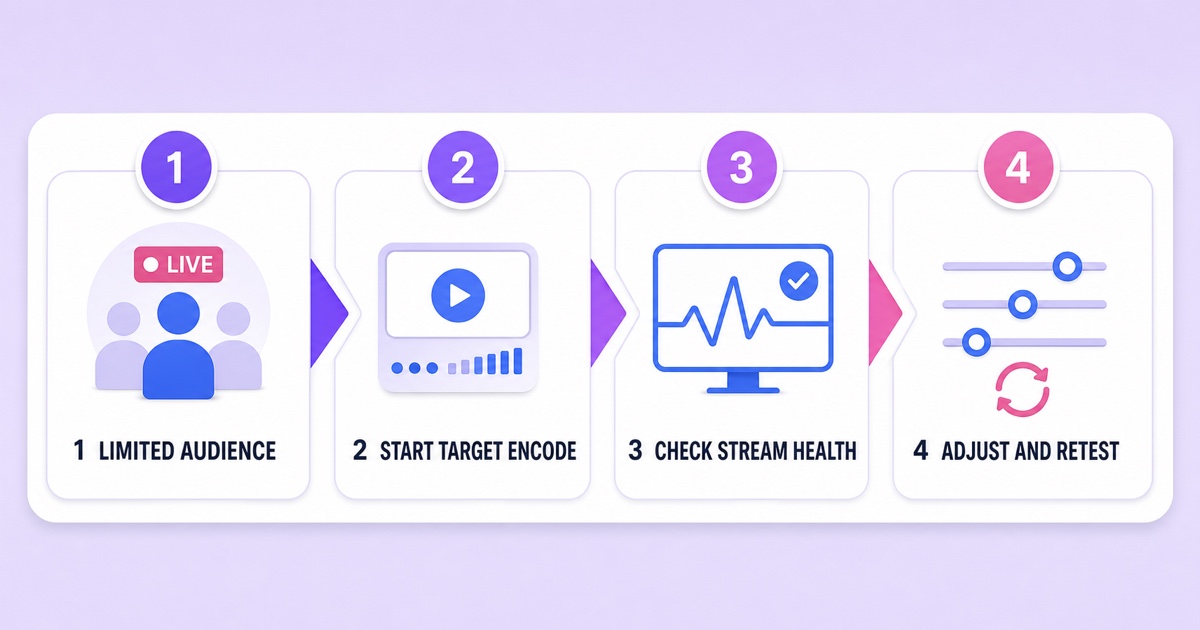
A short destination test is more valuable than copying a stranger’s screenshot. Use a personal-profile audience such as Only me, a restricted test group, or another limited-audience option when the selected Facebook surface offers it. Do not assume every Page supports a private live: Page broadcasts may be public, so use an authorised test destination or a brief low-impact test appropriate to your account.
- Minutes 0–3: create the broadcast. Go to facebook.com/live/create → Choose where to post → Streaming software. Select the smallest appropriate audience, add a clearly labelled test title, and copy the RTMPS details.
- Minutes 3–6: start the target encode. Use the safe recipe above. Start the encoder before pressing Facebook’s final Go Live control, then wait for the preview to stabilise.
- Minutes 6–10: read both sides. Watch Facebook’s preview, connection status, and any stream-health messages. In your encoder, check for dropped frames due to network and verify the actual outgoing bitrate. A healthy local render with network drops is still an unhealthy delivery.
- Minutes 10–13: step down once if warned. If the connection or bitrate is unstable, stop the test, change only video bitrate from 6,000 to 4,500 Kbps, and start a fresh preview. If the warning persists, repeat at 3,000 Kbps rather than changing five settings together.
- Minutes 13–15: inspect as a viewer. Open the limited broadcast on a second device, ideally once on Wi-Fi and once on mobile data. Check motion, fine detail, audio, and whether the displayed quality option settles after the first moments.
Keep a tiny test log: date, destination, resolution, frame rate, video bitrate, audio settings, encoder, and the exact warning. If 4,500 Kbps is consistently healthier than 6,000 on your connection, use 4,500. That is an honest practical finding for your setup—not a claim that Meta changed its published maximum.
When quality still looks bad at correct settings
Bitrate is only one link in the chain. Start with the master file. A 720p source enlarged to 1080p does not gain detail; it only creates more pixels for the encoder to describe. Re-export from the original timeline at the native resolution, and avoid downloading a previously compressed social-media copy as your new master.
Next, check motion. A static temple scene, lofi illustration, or presenter against a plain background compresses more cleanly than foliage, rain, crowds, gameplay, or a fast camera pan at the same bitrate. Reduce unnecessary grain and frantic transitions, but do not smear the picture with aggressive noise reduction just to satisfy a meter.
Then look for repeated encoding. Exporting once, importing that output, exporting again, and finally letting a streaming tool re-encode it can soften text and create blocks around moving edges. The article on why re-encoding ruins stream quality explains how generation loss accumulates.
Finally, separate picture quality from connection stability. If the broadcast stops, disconnects, or never becomes healthy, work through the Facebook Live stopping checklist. A perfect bitrate cannot repair an expiring stream key, an unstable upload path, or an encoder that is dropping frames.
Give each platform its own push so it receives settings designed for its own ingest profile. StreamNeo handles the YouTube push — its only destination — while the Facebook Page stays with a Facebook-capable encoder. Check the available plans, then start free — 24-hour trial, no card and run the Facebook test before committing your channel schedule.
FAQ
What’s the max bitrate for Facebook Live?
Meta’s current general live-video guidance recommends 3,000–6,000 Kbps for 1080p at 30 fps, so treat 6,000 Kbps as the documented upper value for a standard encoder preset. Meta does not publish a universal “6,001 Kbps is rejected” rule. Stay at or below 6,000 Kbps unless Meta gives your specific workflow a different published profile.
Why does Facebook look worse than YouTube?
Facebook and YouTube use different ingest recommendations and create their own viewer renditions. A YouTube-oriented preset may exceed Facebook’s tighter general range, while Facebook’s transcoding can expose weaknesses in an already compressed or upscaled source. Match Facebook’s 1080p/30 profile, use a clean master, and judge a limited-audience test on a second device.
Can I use the same settings for both platforms?
Yes. For one shared feed, use the lower common profile: 1080p/30 H.264 at 6,000 Kbps, two-second keyframes, and compatible AAC audio. If you want to exploit each platform’s own recommendations, use per-destination encoding or delivery settings so Facebook and YouTube receive different compliant pushes from the same source.