A live stream can die in one second, but the reason usually falls into one of four families: the encoder stopped sending data, copyright enforcement interrupted the feed, a policy action removed it, or an account or control-setting edge case ended the broadcast.
Do not begin by changing random bitrate settings or creating five new events. Preserve the evidence first. The notice wording and the last few minutes of encoder logs normally tell a much cleaner story than the dead watch page.
First, read what YouTube actually told you
Open YouTube Studio → Dashboard and look for warnings or active strikes. Then go to Content → Live, find the ended stream, and inspect its visibility and restrictions. If the Live Control Room is still available, check the health indicator and its timestamped messages. YouTube documents that critical ingest errors appear beside the health indicator, while strike details also appear in Studio and in the notification email.
Search the inbox connected to the channel for a message from YouTube. Copyright and Community Guidelines notices name the system involved and normally provide a route to details or an appeal. Take a screenshot of the message, including its timestamp and the stream URL, before changing anything. A transient dashboard banner is difficult to reconstruct later.
Separate three outcomes that creators often call “terminated”:
- Ended: the broadcast completed because video stopped arriving, someone clicked End stream, or an automatic control finalized it.
- Interrupted: viewers temporarily saw a placeholder or no feed while YouTube waited for an ingest or rights problem to be corrected.
- Removed or restricted: YouTube applied copyright, Community Guidelines, age, safety, or account enforcement. This outcome should have a notice.
If the only message says “No data” or “Disconnected,” start with the encoder. If it says “Copyright,” “Removed,” “Strike,” or names a policy, skip straight to that enforcement family.
Cause family 1: your encoder went silent
This is the first place to look when there is no enforcement notice. The broadcast page is on YouTube, but the live picture comes from your encoder. A laptop sleeping, OBS crashing, a router reconnecting, an expired cloud process, a full disk, or an upstream network outage can all reduce incoming data to zero.
YouTube's encoder guide is direct: stopping content from the encoder ends a stream. For broadcasts with automatic stop enabled, the YouTube Live Streaming API documentation says the broadcast can stop roughly one minute after the channel owner stops sending video. Treat that as a configuration behavior, not a universal recovery guarantee. A manually controlled or persistent broadcast may remain available longer, and YouTube does not publish one grace-window promise for every workflow.
Confirm this family from both sides. In Live Control Room, note the first “No data,” “No video,” or disconnect timestamp. In OBS, ffmpeg, your hardware encoder, or your streaming service, inspect the log and outbound-bitrate timeline for the same minute. If outbound bitrate dropped first, YouTube did not randomly end the stream; the source went quiet.
Check in this order:
- Was the encoder process still running?
- Did it still show a stable outbound bitrate, rather than repeated reconnects?
- Did the internet connection or server remain up?
- Was the correct stream key still loaded?
- Did an operator, scheduler, or automation stop the job?
If the event is still live or waiting, restoring the same encoder connection may recover it. If YouTube has marked the broadcast complete, do not assume the old session can resume; use the recovery path in how to restart a 24/7 stream without losing your watch page. For a deeper fault checklist, use every cause of an unexpectedly ended YouTube stream.
For an always-on channel, prevention means a watchdog that detects silence, restarts the encoder, and alerts a human when recovery fails. That design is explained in how 24/7 live-stream auto-restart should work. A managed cloud loop service such as StreamNeo moves this recovery job away from a home PC, but monitoring still matters.
Cause family 2: copyright enforcement
YouTube scans active live streams for third-party material, including another live broadcast. Its official live-stream copyright guidance says detected content may be replaced by a placeholder and the creator may be warned. If the third-party content continues, the live stream can be interrupted or terminated mid-broadcast.
The details matter. A live match against third-party material is not automatically the same thing as a Content ID claim on an archived video. YouTube says Content ID claims on an archived live stream are made after the stream finishes. During the live session, the visible result may instead be a warning, interruption, termination, or a copyright removal action.
If you licensed the material, the license alone may not prevent an automated interruption. YouTube advises asking the rights owner to add your channel to its Content ID allowlist. Keep the written license and the allowlist confirmation together. Do not dispute a match merely because the video was purchased, credited, or available online; those facts do not establish streaming rights.
A live stream removed following a valid copyright takedown carries a copyright strike. Under YouTube's current copyright-strike rules, removal of an active live stream restricts live access for seven days; another copyright strike makes the live restriction 14 days. The strike itself can expire after 90 days when Copyright School requirements are completed, and three active copyright strikes put the channel at risk of termination.
Stop sending the matched asset, identify exactly which audio or video triggered the notice, and verify ownership or permission before restarting. For the difference between an automated claim and a legal takedown, read copyright claim vs strike on live streams. The durable prevention rule is simple: loop only video, music, voice, and graphics you own or are explicitly licensed to broadcast live.
Cause family 3: policy and Community Guidelines
Copyright is only one enforcement system. A live stream can also be removed for Community Guidelines violations involving harmful or dangerous content, scams, spam, harassment, child safety, firearms, or other named policies. YouTube's live-stream restriction guidance also notes age-related restrictions and says creators receive an email when a stream or channel is restricted.
Loop channels need to take packaging seriously. A pre-recorded loop can be presented as a continuous stream, but its title, thumbnail, and description should truthfully describe what viewers are seeing. Misleading metadata is not a growth trick; it can fall under YouTube's deceptive-practices rules. “24/7 recorded bhajan loop” is honest. Claiming that old footage is happening live today is not.
For Community Guidelines enforcement, read the policy named in the email rather than guessing from forum posts. YouTube's current strike schedule describes a one-week posting freeze for a first strike, two weeks for a second strike within 90 days, and possible channel removal after three strikes in the same 90-day period. Separate live-stream guidance can impose a 14-day live restriction in specific cases. The restoration date shown in your own Studio notice or email is therefore the authoritative date for your channel.
Do not delete the affected video expecting the strike to disappear, and do not use another channel to bypass an active live restriction. Review the evidence, complete any offered training, or use the appeal link only when you can explain concretely why the decision is wrong. A severe violation may lead to termination without the usual warning sequence.
Cause family 4: account and technical edge cases
Some account states prevent a stream from starting, and creators misread the failed restart as a second termination. YouTube currently requires a verified channel with no live-streaming restrictions in the previous 90 days to enable live streaming. A daily event-creation limit can also block a new event. Neither one proves that YouTube ended the original feed, so keep the first failure and the restart failure separate.
Then check the control plane around the stream:
- Duplicate encoder: two unrelated encoders using one stream key can collide or disrupt ingest. Give each active destination its own key unless you intentionally configured a supported backup workflow.
- Rotated or pasted-over key: changing credentials while a job runs can turn a healthy connection into “No data.” Match the key in Studio to the encoder without exposing it in screenshots.
- Operator action: a teammate, mobile session, API client, or scheduler may have clicked End stream or transitioned the broadcast to complete. Check who has channel access and which automation ran at that timestamp.
- Auto-stop: a brief encoder stop can finalize a broadcast when automatic stop is enabled, even if the encoder reconnects moments later.
- Platform incident: YouTube-side failures happen, but they are the last diagnosis after notices and logs are clean. Check Studio, official YouTube status or known-issues updates, and whether multiple unrelated channels report the same fault.
A rare platform incident usually produces broad symptoms. One channel losing ingest at the exact moment its encoder bitrate falls to zero is local evidence, not a platform outage.
The diagnosis flowchart
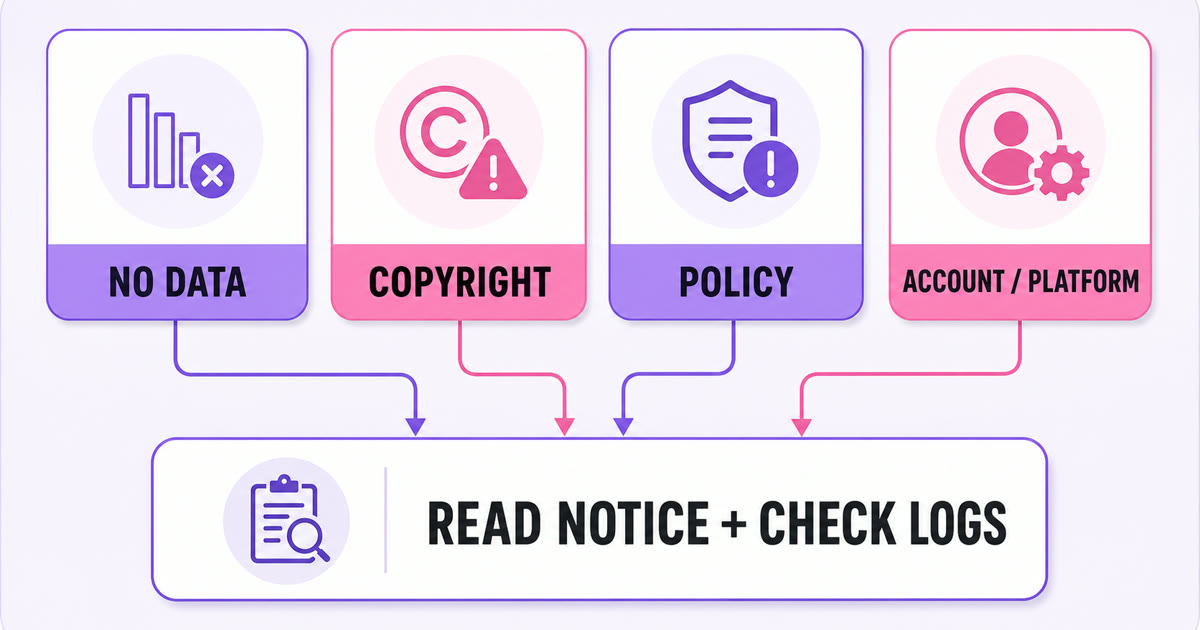
Use the first matching branch and avoid changing unrelated settings:
- Copyright, third-party content, or claimant named: stop the matched material, open copyright details, and resolve rights or allowlisting before another broadcast.
- Removed, warning, strike, or policy named: open the enforcement details, record the restriction date, and follow the appeal or training path shown.
- No data, disconnected, or stream health errors: align the YouTube timestamp with encoder and network logs, then repair the source path.
- No clear notice and healthy encoder logs: check operator access, scheduler/API activity, auto-stop, key collisions, and official incident channels.
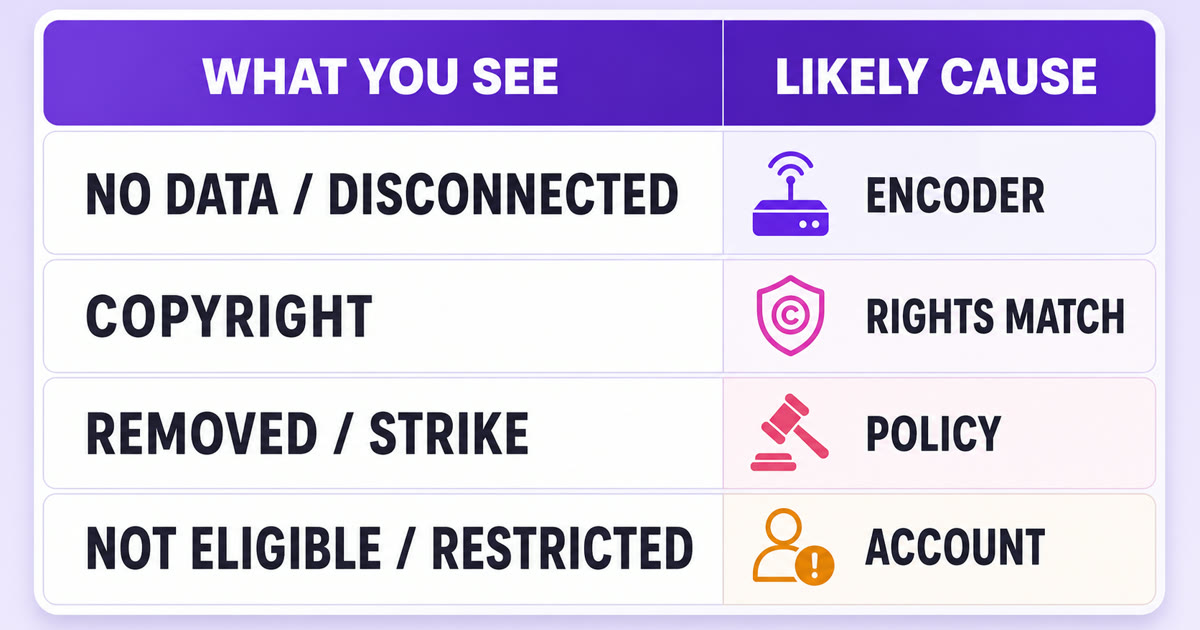
| What you see | Cause family | Immediate action | Prevention |
|---|---|---|---|
| No data or disconnected | Encoder | Compare Studio and encoder timestamps | Watchdog, stable network, alerts |
| Copyright or third-party content | Rights match | Remove the asset; verify license and allowlist | Rights-audit every loop file |
| Removed, warning, or strike | Policy | Open the named policy and notice | Compliant content and honest metadata |
| Not eligible or restricted | Account | Check Studio restrictions and email | Protect channel standing and access |
| Ended with no enforcement notice | Control or platform edge | Check operators, API, auto-stop, then status | Separate keys and an incident log |
The practical reframe is important: when a stream simply ends without a copyright or policy notice, encoder silence or a control action is usually the better first hypothesis. “YouTube ended it” describes the outcome, not yet the cause.
Restart only after you know which branch you are on. A fast restart with the same unlicensed song, broken router, or auto-stop configuration merely repeats the failure.
A dead stream needs evidence first and automation second. If encoder reliability is the weak link in your 24/7 loop, start StreamNeo's free 24-hour trial—no card required, or review the current plans before moving the workflow.
More from the journal: Copy Mode vs Re-Encoding: What Happens to Your Video in the Middle · Demonetisation on a 24/7 Channel: Every Trigger and the Recovery Path · Dropped Frames on a Long Stream: How to Read the Numbers Properly
FAQ
Does YouTube end streams for no reason?
Rarely. A notice in Studio or email usually identifies enforcement, while timestamped Live Control Room and encoder logs expose technical failures. Save both before restarting. If neither shows a cause and other channels report the same symptoms, investigate a platform incident.
Can copyright stop a live stream instantly?
Yes. YouTube says third-party content can trigger a placeholder, warning, temporary interruption, or termination during the live broadcast. A copyright removal of an active stream also creates a strike and a temporary live-access restriction.
How long until I can stream again after a strike?
It depends on the enforcement type. YouTube currently states seven days after an active live stream is removed for a first copyright strike and 14 days after another copyright strike. Its general Community Guidelines schedule uses one week for a first strike and two weeks for a second within 90 days, while some live-specific enforcement carries a 14-day restriction. Use the exact restoration date in your Studio notice or YouTube email; that sourced notice controls your case.