A viewer sends the screenshot every always-on creator dreads: a black player and "Video unavailable." Your own YouTube tab may still look normal, so the message feels useless. It is not one error; it is the same front door for several different failures.
The fastest fix is to stop changing settings at random. Test the stream in layers: first the broadcast, then the URL, then viewer restrictions, and finally the embed. That order turns a vague live stream video unavailable report into a specific, fixable fault.
Use a clean viewer test. Your creator account can see private drafts, age-gated details, and Studio state that ordinary viewers cannot. A logged-in creator view is evidence about your account, not proof that the audience can watch.
First, establish: is the stream actually live?
Do not begin with the broken link. Begin from the channel itself. Open the channel in a private or incognito window, select its Live tab, and look for a broadcast carrying the live badge. Then repeat on a phone using mobile data, with the creator account signed out.
At the same time, open YouTube Studio → Content → Live. Check whether the expected broadcast is live, upcoming, or completed. If your encoder dashboard says "running" while Studio shows no incoming stream, the player error is only the visible symptom; the broadcast has stopped receiving usable video.
| What you observe | What it usually means | Next move |
|---|---|---|
| No live broadcast on the channel or in incognito | The broadcast ended, never started, or the encoder disconnected | Inspect stream health and the encoder; use the unexpected-end checklist |
| Channel shows a live broadcast, but the shared link fails | You are sharing an old or different broadcast URL | Open the current live item and compare its video ID |
| Watch page works in India but not for a viewer abroad | A territorial, legal, account, or network restriction is likely | Check Restrictions, then test from the viewer's actual region and account state |
| Watch page works, embedded player fails | The stream is healthy; the failure belongs to embedding, age gating, or the website | Audit Allow embedding, Referer, CSP, and browser console |
If the stream is dead, fix that before investigating privacy or embeds. Common causes include an expired stream key, encoder shutdown, lost upload, and a broadcast that was manually ended. A platform may leave the old watch page visible after the live session ends, which is why a familiar URL can look like a player problem even though the underlying event is over.
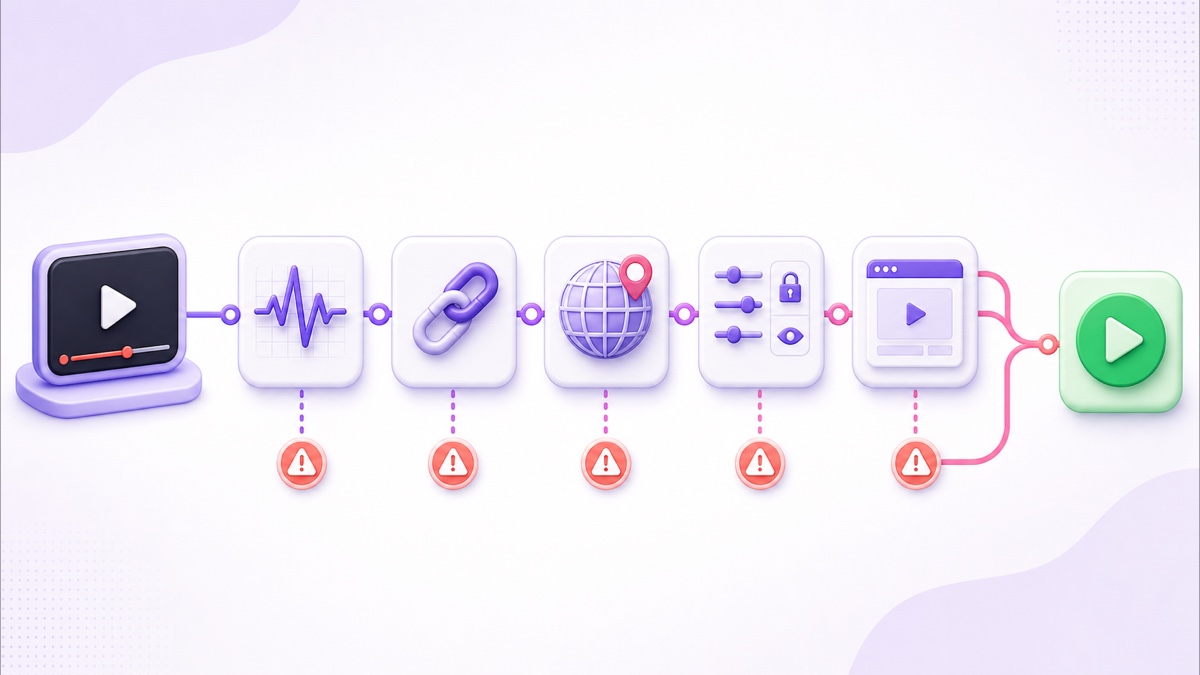
The URL problem: a broadcast link is not a permanent doorway
A YouTube watch URL such as youtube.com/watch?v=VIDEO_ID identifies one video resource. When that broadcast ends, the same ID refers to its completed event or archive, if an archive remains available. Starting a new broadcast with a new video ID does not magically update yesterday's permalink.
The channel route youtube.com/@YourHandle/live behaves differently. When the channel has a current public live broadcast, that route resolves viewers to the active live watch page. It is a moving entry point, not the identity of a particular broadcast. If nothing is publicly live, however, it cannot manufacture a working player; YouTube may show channel or unavailable state instead.
That distinction creates a durable sharing pattern:
- Use the specific watch URL for a scheduled event whose chat, reminders, and event page matter.
- Use /@YourHandle/live for a general "watch us live now" button.
- For the most control, publish a short URL on your own domain and update its destination when your active video ID changes.
- Keep the old watch URL only when your recovery process reconnects to the same broadcast instead of creating a replacement.
Test the channel-live route while signed out before placing it in a bio, QR code, WhatsApp message, or devotional-channel poster. Also remember that a channel may run more than one simultaneous stream; in that case, a landing page you control is clearer than asking a redirect to choose for you. If you need to understand when one event can be resumed and when a new watch page is unavoidable, read the guide to YouTube live duration and resets.
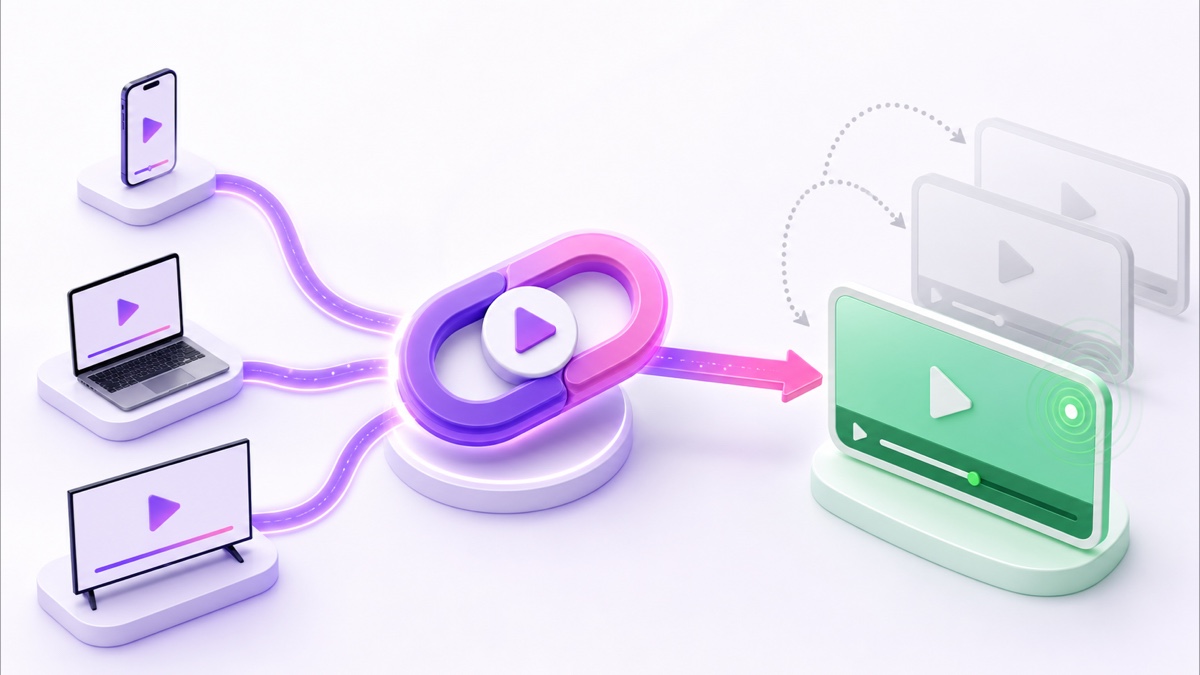
Region and content blocks can hide the failure from you
If Delhi viewers can watch but someone in another country cannot, do not restart a healthy encoder. YouTube says a video may be unavailable in a country because the owner limited its territories or because YouTube must comply with local law. Copyright ownership and licensing policies can also produce territory-specific availability on an archive.
Live copyright enforcement has another path. YouTube scans live streams for third-party content; a match can replace the video with a placeholder, interrupt the live feed, or terminate it if the material continues. Even licensed content can be interrupted when the rights owner has not allowlisted the channel. YouTube documents these behaviours in its live-stream copyright guidance.
Run this creator-side audit:
- Go to YouTube Studio → Content → Live and find the active or completed stream.
- Read the Restrictions column. Hover or open the restriction for its details; YouTube's restriction guide lists copyright, age, made-for-kids, and policy states that can appear there.
- Open the Studio dashboard and notifications for a copyright or policy warning.
- Ask the affected viewer for country, whether they are signed in, whether Restricted Mode is on, and whether the failure happens on the YouTube watch page or only your site.
Do not treat "works for me" as a verdict. It only proves availability for your region, account, device, and network. Conversely, do not assume every country-specific failure is copyright: the viewer's organisation may filter YouTube, their account may be supervised, or local law may apply. The message and the Restrictions detail matter. For prevention, stream only video and audio you own or are licensed to use, keep receipts, and understand copyright risk on continuous loops.
Audit visibility, age, audience, and account settings
A healthy encoder cannot override who is allowed to view the broadcast. Open the stream's details in Studio and inspect these settings one by one:
- Visibility: Public is available broadly. Unlisted requires the exact URL and will not behave like a publicly discoverable channel live. Private is limited to permitted signed-in accounts. Confirm that an edit or copied event did not revert the stream to unlisted or private.
- Age restriction: an age-restricted video cannot be watched by signed-out users, under-18 accounts, or through most third-party embeds. This is a common reason the creator sees the page while an incognito test or website player does not. See YouTube's current viewer rules for age-restricted videos.
- Audience: set made for kids only when that classification is accurate. It turns off or limits features including live chat, comments, reminders, personalized ads, and Miniplayer playback. It does not automatically switch off the separate Allow embedding control. YouTube lists the affected surfaces in its made-for-kids viewing guide.
- Channel access: check the Studio dashboard for a live-stream restriction or policy action. A scheduled event can exist while the channel's ability to broadcast is restricted.
After changing title, audience, visibility, monetization, or scheduled-event settings, perform the viewer test again. Save, wait for Studio to reflect the change, then open the public URL in a fresh private window. Do not reuse a private window already signed into a Google account; many browsers preserve that session until every private window is closed.
When only the embed is unavailable
The cleanest diagnostic is a three-surface matrix: open the ordinary YouTube watch page, the YouTube mobile app on mobile data, and the embedded player on your website. If the first two work and the third fails, your stream and ingest are fine. Focus on the embed.
- Check Allow embedding. In YouTube Studio → Content → Live → select the stream → Show more, make sure Allow embedding is enabled. YouTube's official embedding instructions document this control.
- Check age restriction. Most third-party sites cannot play age-restricted video in an embed even for a viewer who could open it on YouTube. Link to the watch page rather than trying to bypass the gate.
- Check the video ID. An iframe containing the previous broadcast's ID stays tied to that broadcast. Your channel's /live route is useful for links, but an iframe normally needs the active video's embed URL. Update it manually or have your site resolve the current video ID.
- Check the HTTP Referer. YouTube requires an embed request to carry a Referer. Missing it can show player error 153. Aggressive privacy proxies, WebViews, or a site's Referrer-Policy can accidentally strip the context YouTube expects.
- Check Content Security Policy and network filtering. Open the browser developer console. A message saying the frame was refused by Content Security Policy means your site's frame-src rules must allow the YouTube player domain. A school, office, or firewall may also block youtube.com even though your page loads.
- Check child-directed site handling. A made-for-kids video is not automatically non-embeddable, but a child-directed website or app must follow YouTube's self-designation requirements, and some embedded-player features will be unavailable.
Test one change at a time and reload without cache. If only one browser fails, inspect its privacy extensions and tracking protection. If every browser fails only on your domain, the embed markup, headers, or site policy is the better lead. If the watch page also fails, return to the restriction and broadcast checks above.
Prevention design for an always-on stream
There are two separate prevention jobs: keep the broadcast alive, and keep the audience's doorway stable. A continuous stream with fast recovery reduces the chance that YouTube fully ends the event and forces a new video ID. The important engineering detail is whether recovery reconnects to the same active broadcast before it closes; blindly launching a replacement may restore video while breaking every old embed.
Use this short operating ritual:
- Bookmark the channel's public live route and the Studio Live page.
- Monitor ingest health and use bounded, observable retries; follow the auto-restart and recovery design.
- After every stream edit, recheck Public visibility, audience, age restriction, Allow embedding, and Restrictions.
- Test signed out on desktop, on mobile data, and inside the real website embed.
- Put a stable channel-live link or your own landing-page URL in bios and printed material. Treat a broadcast permalink as event-specific.
- Keep a tiny incident note: time, affected country/account, watch-page result, embed result, Studio state, and the change that fixed it.
StreamNeo runs pre-recorded video from a cloud encoder and is designed for continuous streaming with recovery, which removes the home-computer and home-upload failure class. No tool can override YouTube's copyright, visibility, age, or embed rules, so the settings audit still belongs in your runbook.
Want an always-on loop without keeping your laptop awake? Review the plans, then start free — 24-hour trial, no card.
More from the journal: Preparing a Video File for a Month-Long Loop: The Encode Checklist · Your 24/7 Stream Died Overnight: The 3AM Failure Checklist · Dropped Frames on a Long Stream: How to Read the Numbers Properly
FAQ
Why does my old stream link say unavailable?
That URL belongs to one broadcast, and that broadcast ended, was removed, became private, or no longer has a viewable archive. Share youtube.com/@YourHandle/live as the general live-now doorway, or use a landing page you control. Keep a specific watch URL only for the event it identifies.
Viewers in one country can't watch — why?
A regional owner setting, licensing policy, local-law block, account restriction, or local network filter may be responsible. Check YouTube Studio → Content → Live → Restrictions, then compare a signed-out watch-page test with the affected viewer's country and account state. Do not restart the encoder if other regions can watch normally.
Why is the embed broken but the watch page fine?
Start with Allow embedding, age restriction, and the iframe's video ID. Then inspect the browser console for Referer error 153, Content Security Policy blocks, or network filtering. Made-for-kids status limits several features but does not by itself disable the separate embedding setting.