You do not need a separate video-hosting platform to put an always-on channel on your website. If the broadcast already runs on YouTube, an iframe can turn a homepage, temple website, institute portal or product page into a simple live TV surface.
The important choice is what the iframe points to. A normal YouTube embed follows one video ID, so it can die when that broadcast ends. A channel-based embed follows the channel's current live broadcast instead. The iframe itself is free; the source stream still has to remain online.
The embed that does not depend on one broadcast ID
Start with this channel form and replace the placeholder with your real Channel ID:
<iframe width='560' height='315' src='https://www.youtube.com/embed/live_stream?channel=UCxxxxxxxxxxxxxxxxxxxxxx&autoplay=1&mute=1&playsinline=1' title='Live stream' allow='autoplay; encrypted-media; picture-in-picture' allowfullscreen></iframe>
The useful part is live_stream?channel=UC…. A per-broadcast URL such as /embed/VIDEO_ID is tied to that single YouTube event. When you create a new event with a new video ID, the old iframe keeps asking for the old event. The channel form instead asks for whatever that channel is streaming now, so routine stream restarts do not require a website edit.
There is one engineering caveat worth knowing: YouTube's current official player-parameters reference documents video-ID, playlist and uploads embeds, but does not prominently document this channel-live route. It remains a widely used practical endpoint, so test it on the exact channel and site before making it your only player. A larger site that wants a fully documented fallback can query the YouTube Data API for the channel's active video using eventType=live, type=video and channelId, then load the returned video ID.
For a small business, trust or institute, the simpler channel iframe is usually the sensible first implementation. Test a deliberate stop and restart once before placing it in the hero section.
Find the Channel ID, not the handle
A YouTube handle such as @mytemple is meant for people. The embed expects the permanent Channel ID, which starts with UC. Pasting a handle after channel= is one of the common reasons a blank or unavailable player appears.
YouTube's currently documented path is: sign in to YouTube → profile picture → Settings → Advanced settings. Copy the value labelled Channel ID. You must be signed in as the channel's primary owner to see it. Some Studio layouts also surface it under YouTube Studio → Settings → Channel → Advanced settings; use the account Settings route if it is missing there. You can confirm the path in YouTube's Channel ID help page.
Now replace only the placeholder. Do not add the @ symbol, a channel URL, spaces or the stream key. A stream key is a secret used by an encoder; it never belongs in webpage code.
Autoplay rules you cannot argue with
autoplay=1 asks the player to start, but it does not overrule the browser. Chrome and other modern browsers generally allow automatic playback when the media begins muted. That is why the working pair is autoplay=1&mute=1, not autoplay by itself.
Keep allow='autoplay; …' on the iframe as well. The parameter asks YouTube to autoplay, while the allow attribute gives the cross-origin frame permission to use that browser feature. A page builder that strips the attribute can silently break the result. Chrome's autoplay policy guidance confirms that muted playback is the dependable starting point, though a user's browser settings can still block it.
Add playsinline=1 so playback stays inside the page on supported iPhones instead of taking over the full screen. Do not try to force sound on page load. Put a short cue beside the player—“Tap the speaker for sound”—and let the viewer make that choice. Test in a fresh private window, because a browser may treat a site you visit often more generously than it treats a first-time visitor.
Parameters worth knowing, and one to skip
| Parameter or option | What it actually does | Recommendation |
|---|---|---|
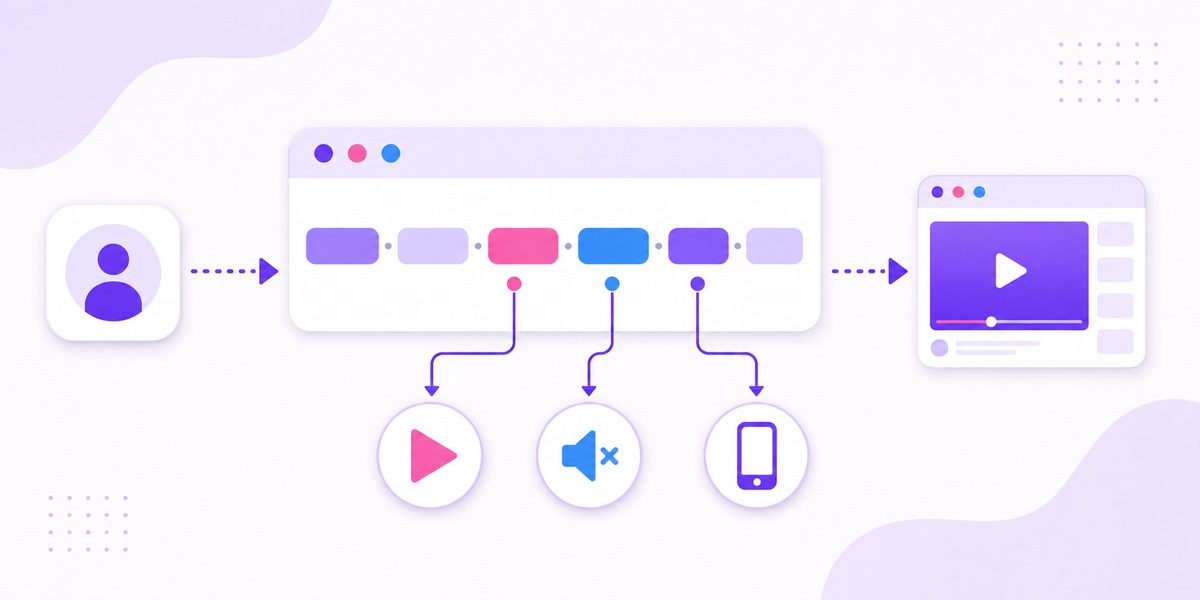
autoplay=1 | Requests playback when the player loads. | Pair it with mute=1 and iframe autoplay permission. |
mute=1 | Starts the player without sound. | Use it for the best chance of autoplay. |
playsinline=1 | Keeps supported mobile playback inside the page. | Include it for iPhone visitors. |
rel=0 | Limits related-video suggestions to the same channel; it does not remove suggestions completely. | Useful, but do not promise a blank end screen. |
start | Starts an ordinary video at a chosen second. | Skip it for a live broadcast. |
modestbranding | Old tutorials claim it removes YouTube branding. | Skip it; YouTube marks it deprecated and non-functional. |
For a privacy-conscious page, change the host from www.youtube.com to www.youtube-nocookie.com. YouTube calls this Privacy Enhanced Mode in its official embedding guide. It is useful when a consent banner or privacy review is involved, but it is not a substitute for your own consent and privacy obligations.
Also leave allowfullscreen in place. A 360-pixel-wide mobile visitor may prefer fullscreen even when inline playback works.
Make the player responsive
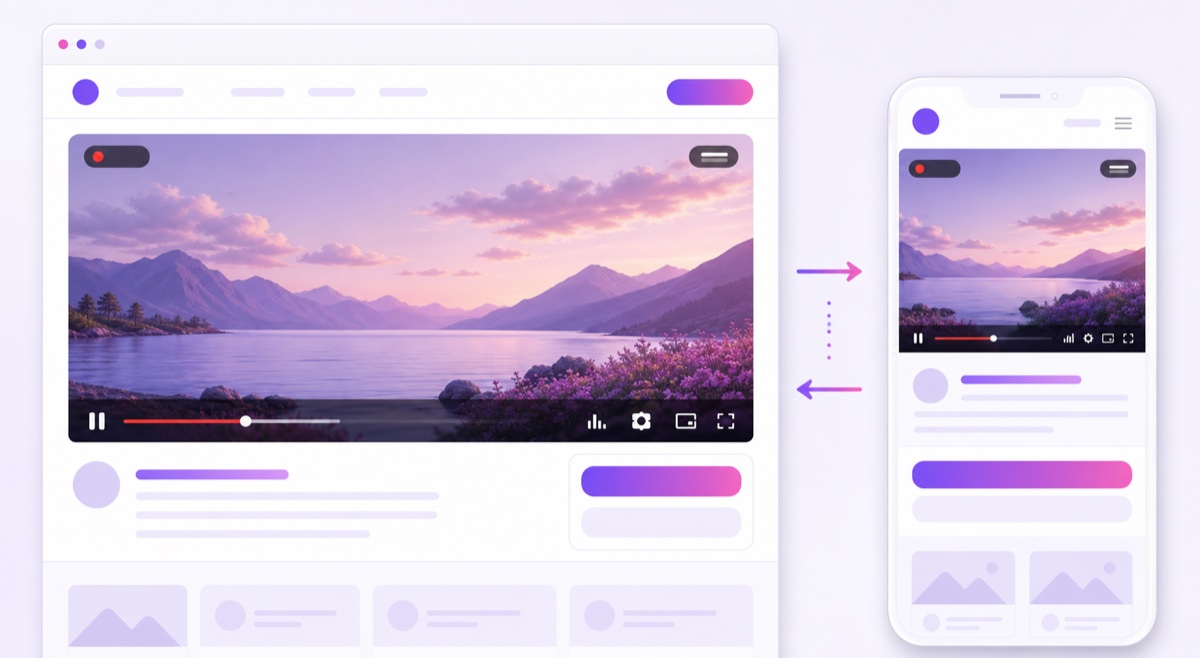
Fixed width='560' and height='315' values are fine for a quick test, but they overflow narrow columns and look tiny on large screens. Give the iframe a wrapper class and let CSS keep the 16:9 shape:
<div class='live-player'>
  <iframe src='https://www.youtube.com/embed/live_stream?channel=UCxxxxxxxxxxxxxxxxxxxxxx&autoplay=1&mute=1&playsinline=1' title='Live stream' allow='autoplay; encrypted-media; picture-in-picture' allowfullscreen></iframe>
</div>
.live-player { width: 100%; aspect-ratio: 16 / 9; background: #eee; }
.live-player iframe { width: 100%; height: 100%; border: 0; display: block; }
This CSS belongs in your theme or site's custom CSS area, not in the blog text around the iframe. Test at a 360-pixel browser width, on a real phone, and inside the actual page column. A layout can look correct in a builder preview but become too narrow after the theme adds left and right padding.
Check four things: the controls remain tappable, no horizontal scrolling appears, the player does not cover a sticky header, and the content below it does not jump excessively while the iframe loads. If your site lazy-loads iframes, confirm that the player still starts when it enters the viewport.
WordPress, Elementor, Shopify and Wix
WordPress: add a Custom HTML block and paste the iframe. The normal YouTube auto-embed is convenient for a video URL, but it does not give you reliable control over the channel endpoint and parameters. Put the responsive CSS in Appearance → Customize → Additional CSS if your theme exposes that panel, or in the theme's own custom CSS setting.
Elementor: use the HTML widget for the iframe and the site's custom CSS facility for the wrapper. After publishing, inspect the rendered iframe and confirm that allow='autoplay' survived. Security filters and optimisation plugins sometimes rewrite embedded markup.
Shopify: use a Custom Liquid section in the theme editor, or a theme section specifically meant for embeds. Keep the CSS scoped to .live-player so it does not resize every iframe in the store.
Wix and similar builders: choose an Embed Code or HTML iframe element, not a generic video widget tied to one video ID. Some builders isolate custom code inside another frame or remove permission attributes. If autoplay fails, compare the published HTML with the snippet you pasted before changing YouTube settings.
On every platform, publish to a test page first. Check logged-out desktop Chrome, Safari on iPhone and one Android device. A successful preview inside the editor is not a production test.
What visitors see when nothing is live
The channel endpoint does not turn an ended broadcast into a recorded programme. When the channel has no active live broadcast—or when embedding is disabled—the player can show an unavailable or no-live-content state. The exact message and artwork can change, so do not design your page around one error string.
Use a fallback image as the wrapper's background so the area does not flash empty while YouTube loads. Then keep useful content outside the iframe: a one-line status, the next scheduled time, a “Watch on YouTube” link and your contact button. A background alone cannot cover every YouTube error screen because the opaque iframe sits above it. If the offline experience is critical, use the YouTube IFrame API or a small server-side Data API check to hide the iframe and reveal a proper fallback panel when no active broadcast is found.
Also confirm that embedding is allowed for the broadcast. In YouTube Studio, open the live video's details, expand the additional settings and check Allow embedding. Visibility matters too: a private event cannot act as public website TV, while an unlisted setup has different discovery trade-offs. See the guide to public, unlisted and members-only live streams.
A continuous loop keeps the slot populated because the channel remains actively broadcasting. This is where a managed loop service earns its place: StreamNeo keeps the pre-recorded file publishing from the cloud, so the website player does not depend on a laptop in the office. If you are troubleshooting an empty player, use the separate Video unavailable checklist before rewriting the website.
Use it like a broadcaster, not a decoration
A player without context is just a moving rectangle. Add one sentence immediately below it: what the visitor is watching, whether it is a continuous replay, and when the next genuinely live event begins. A temple trust might label recorded darshan clearly; a coaching institute can name the current demo lesson; a showroom can state which product range is in rotation.
Place the useful next action beside the player: a contact form, a controlled short link, or a WhatsApp click-to-chat button. YouTube says live chat is available on its watch pages, not inside embedded players, so your own contact layer matters. Publish a simple schedule even for a repeating block, and update it when the programme changes.
For lead generation, connect the player to something measurable rather than making claims about SEO or reach. Use a tagged link, a dedicated form or a WhatsApp entry point, then review actual enquiries. The always-on storefront playbook shows how to structure that path, while the webinar replay guide is useful for institutes and B2B teams.
Before committing, compare the operating options on the pricing page. When the file and channel are ready, start free — 24-hour trial, no card.
More from the journal: 24/7 YouTube Streaming: The Complete 2026 Guide · Run a 24/7 YouTube Stream on a Chromebook, Tablet or Low-End Laptop · Building a 24/7 YouTube Channel From a Single 20-Minute Video · How to Read Your Live Stream Analytics When the Stream Never Ends
FAQ
How do I embed my live stream without changing the code every time?
Use the channel-based live_stream?channel=UC… embed instead of a per-broadcast video ID. Test a stop-and-restart on your channel, because the route is practical but not prominently documented in YouTube's current player reference.
Why will my embed not autoplay?
Browsers normally require muted autoplay. Use autoplay=1 with mute=1, retain allow='autoplay' on the iframe, and test logged out. A browser or user preference can still decline autoplay.
What shows when I am not streaming?
The channel embed can show an offline or unavailable state rather than an old recording. Keep a fallback image, schedule and contact action around the player; a continuous stream keeps the live slot filled.