A countdown looks like the simplest possible live stream: put a clock on screen and let it run. The catch is that time must keep moving toward one real moment. A normal video loop cannot do that. If a ten-minute file reaches zero and repeats, the display jumps back to ten minutes, which breaks the promise you made to viewers.
For a product launch, New Year event, admission deadline, or exam-result announcement, choose the delivery method before you design the timer. The right method depends on whether viewers need a short moment of anticipation, a clock that runs for hours, or simply an always-available teaser while the date is still far away.
Say the hard thing first: a loop cannot count down
A countdown is tied to an absolute target. A loop is tied only to the beginning and end of a media file. Those two ideas conflict: every repeat resets the file's internal time, even though the real-world target is closer.
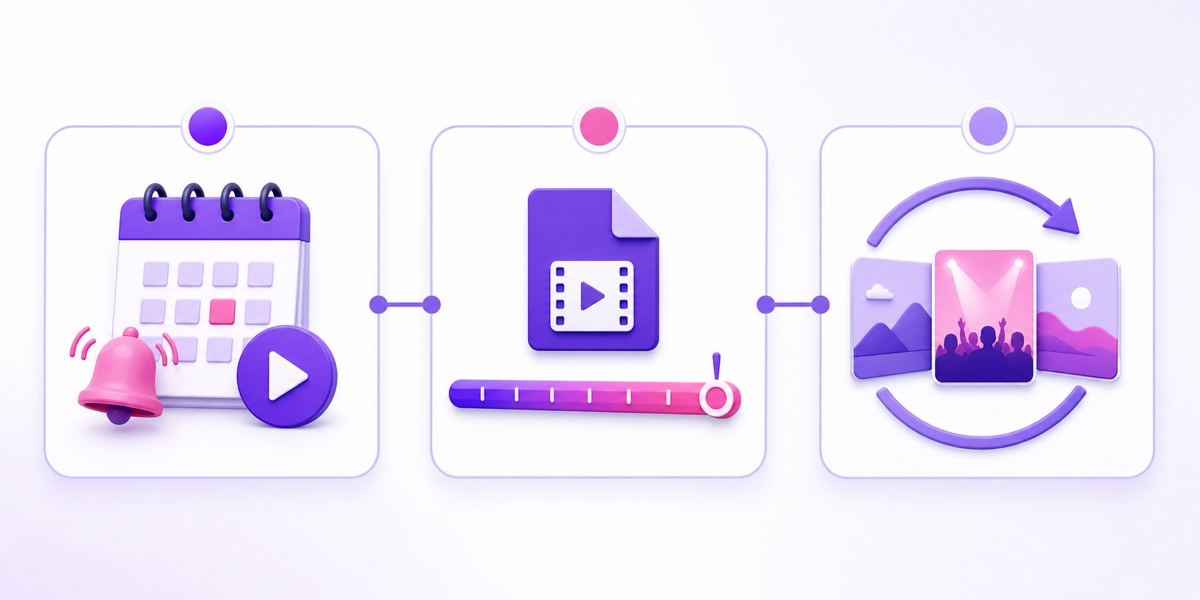
There are three honest ways to run a live countdown stream on YouTube:
| Method | Best for | Main limit |
|---|---|---|
| Platform scheduling or Premiere | A launch video or event with a short built-in countdown | Not a custom clock ticking for days |
| One long rendered countdown | A visible hours-long timer before a fixed moment | The file plays once and needs a zero-hour handoff |
| Timeless teaser loop | Promoting an event that is days or weeks away | It cannot show an accurate remaining time |
Do not try to hide the reset with editing. Even if the jump happens during a transition, the number will eventually disagree with the real deadline. Pick one of the three methods and make its limitation clear to viewers.
Option 1, the simplest: let the platform do it
For most launches, the best countdown is the one YouTube already provides. A scheduled Live creates an upcoming watch page that you can share; viewers can select Notify me. Create it through YouTube Studio → Create → Go Live → Manage → Schedule stream. YouTube documents reminders for scheduled streams, but it does not promise a custom seconds-ticking display for the whole waiting period.
A Premiere is more specific. Upload the finished launch video through YouTube Studio → Create → Upload videos. At Visibility, choose Schedule, select Set as Premiere, then open Set up Premiere to choose the countdown theme and length. At the scheduled start, YouTube runs that countdown before everyone watches the video together. The current behaviour is documented in YouTube's official Premiere guide.
This is the correct route when the “event” is a finished product reveal, music video, course announcement, or trailer. You do not need OBS or an encoder running for days. The watch page handles anticipation, reminders, chat, and the transition into the upload. If you need a real host or live feed after the clock, schedule a Live instead and treat its watch page as the invitation, not as a long custom timer.
For a fuller setup walkthrough, use the guide to scheduling a live stream from an uploaded video.
Option 2: render one long countdown and stream it once
If the ticking clock itself is the content, render a file as long as the wait and play it exactly once. A six-hour countdown needs a six-hour media timeline. A 24-hour countdown needs 86,400 seconds. There is no loop flag and no restart.
FFmpeg can build a one-day 1080p countdown from a plain black canvas. Replace the font path with an installed font that you are licensed to use:
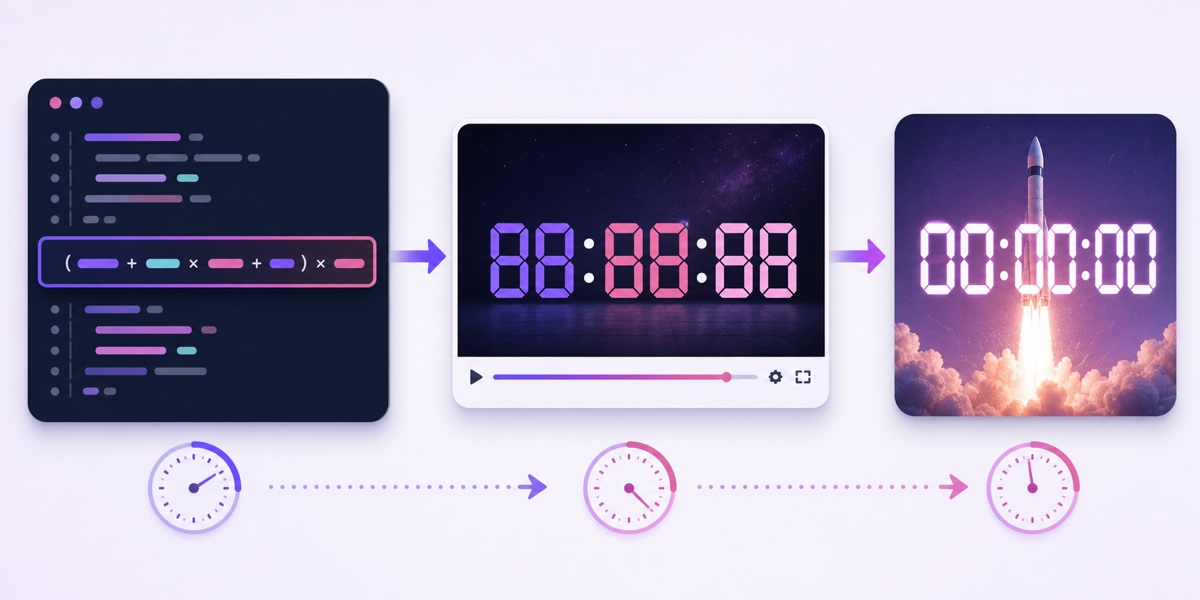
ffmpeg -f lavfi -i color=c=black:s=1920x1080:r=30 -vf "drawtext=fontfile=/path/font.ttf:text='%{eif\:trunc((86400-t)/3600)\:d\:2}\:%{eif\:trunc(mod((86400-t)/60\,60))\:d\:2}\:%{eif\:trunc(mod(86400-t\,60))\:d\:2}':fontsize=160:fontcolor=white:x=(w-text_w)/2:y=(h-text_h)/2" -t 86400 -c:v libx264 -preset veryfast -crf 28 -pix_fmt yuv420p countdown.mp4The three expressions calculate hours, minutes, and seconds from 86400-t, where t is elapsed video time. The eif formatting pads each part to two digits. The backslashes are deliberate: they protect colons and commas inside FFmpeg's filter parser. If your shell or FFmpeg build reports a parsing error, first check that the command was copied without “smart” quotation marks.
Test before committing to the full render. Change both instances of 86400 and the -t value to 10. Confirm that the digits fall once per second, the font loads, the frame is 1920×1080, and the output opens with a normal video player. Then restore the real duration. Flat graphics usually compress efficiently, but render time and file size still depend on your hardware and background complexity.
Once the file is ready, upload it to your streaming service and connect the YouTube stream key. A single long file pushed from StreamNeo's cloud means nothing on your desk has to survive the wait. Do one unlisted rehearsal before the public event, and do not enable looping for this asset.
Option 3: use a short loop with no absolute time
When the date is weeks away, a long timer is often more trouble than value. Make a 30- to 90-second teaser with phrases such as “coming soon,” “results day coverage,” or “launch reveal,” then let that clip repeat. Do not put a remaining-hours number, calendar date that may change, or simulated live clock inside the loop.
This method works for a rotating product preview, speaker montage, syllabus reminder, artist reel, or event trailer. The repeat becomes invisible because the message remains true on every pass. Add a clear date and time in the video description and pinned chat message, where you can correct it without rendering the video again.
A timeless loop is not a substitute for the final broadcast. Treat it as a waiting-room channel, then direct viewers to the scheduled event URL. Keep that schedule consistent with the principles in the reliable live-stream schedule guide.
Getting the maths right
Start with one target time in one named time zone. For an Indian audience, write IST (UTC+5:30); never publish “midnight” and expect viewers to infer the zone. Convert the gap to seconds with hours × 3600 + minutes × 60 + seconds. For example, six hours and 45 minutes is 6 × 3600 + 45 × 60 = 24,300 seconds.
Calculate from the planned start of the countdown file, not from the moment you begin rendering or uploading. Add a short lead-in before the first timer frame so the encoder can connect and YouTube can stabilise the stream. Also allow an operational buffer before the public start; it is better for viewers to see a branded holding card than to miss the first minutes while you troubleshoot.
Most importantly, decide what happens at zero. Your options include ending the stream, switching to the launch video, showing a “results are now available at the official site” card, or handing off to a live presenter. Prepare the next asset, its audio level, and its destination URL in advance. Write the handoff time in a run sheet, assign one person to trigger it, and keep a backup card ready. The go-live checklist catches the easy-to-miss details before the audience arrives.
Design a countdown people keep open
The number must win the visual hierarchy. Use large digits, strong contrast, and enough spacing that 08:06:01 does not become a blur on a phone. Keep the event name visible, but smaller than the timer. Put the time zone beside the event time: “1 January, 12:00 a.m. IST” is much safer than “tonight at 12.”
Add restrained motion—a slow gradient, drifting particles, a progress arc, or changing event stills—so viewers do not mistake the frame for a stalled player. Avoid rapid flashes and frantic animation. A countdown already creates urgency; the design does not need to shout.
Silence often feels like a broken stream. Use a low, consistent ambient bed or a clearly licensed original track, then check it on phone speakers and headphones. Keep a brief audible cue for zero hour, but avoid a sudden volume jump. Before publishing, watch ten minutes of the actual encoded output, not just the design preview, and verify the mobile crop, digits, spelling, date, IST label, and audio continuity.
Rights and copyright still apply to a timer
A clock face is not a rights-free wrapper for other people's work. You need permission for every music bed, teaser clip, photograph, logo, and illustration in the broadcast. A licence that permits personal video use may not permit commercial use or a continuous livestream, so read the actual terms and retain the receipt or licence file.
Fonts deserve the same check. Many free-looking display fonts limit commercial use, web embedding, or redistribution. Rendering a font into video is not identical to distributing the font file, but the licence still governs your use. Choose an open or properly purchased family whose terms cover the broadcast.
If the launch belongs to another company, do not present yourself as its official channel. If the background shows film, match, news, or creator footage, permission is required even when the timer is your own. For audio sourcing, follow the separate guide to music you can legally stream continuously.
The exam-results caution, said plainly
Exam-result and admission countdowns carry a higher trust burden. Use only a date and time published by the responsible board, university, testing agency, or government department. Link the official notice in the description, capture a copy for your records, and update or end the countdown if the authority changes the schedule.
Do not say that results will appear on your stream unless you are authorised and technically able to publish them. Do not invent a release time from a news report, reuse an old date, imitate an official board logo, or ask viewers for roll numbers and personal details in chat. A truthful title is “Countdown to the announced result window”; a deceptive title is “Results live here first” when you only plan to send people elsewhere.
Pre-recorded material can be presented responsibly, but viewers should understand what they are watching. Read the guide to pre-recorded “live” streams and disclosure before building the event page. Accuracy is more valuable than a temporary spike in clicks.
Ready to run the one-pass file from the cloud? Start free — 24-hour trial, no card. You can also review StreamNeo pricing before you upload.
FAQ
Can I loop a countdown video?
No. Looping resets the timer to the beginning, so it stops matching the real target. Render one long pass for the full wait, or use YouTube's scheduled event or Premiere countdown.
How do I make a countdown video without design software?
Use FFmpeg's drawtext filter with the expression above. It generates a 1080p timer from a plain colour canvas. Test a ten-second version before rendering the full duration.
What happens when the countdown reaches zero?
Only what you planned: end the stream, replace the timer with a launch asset, show an official-link card, or switch to the live event. Decide the handoff, operator, and backup before countdown day.