A 24/7 stream does not fail only because of bitrate.It can also fail because a song was licensed for an upload but not a livestream, two publishers used the same stream key, the title misrepresented a replay, or nobody noticed that the feed had stopped.
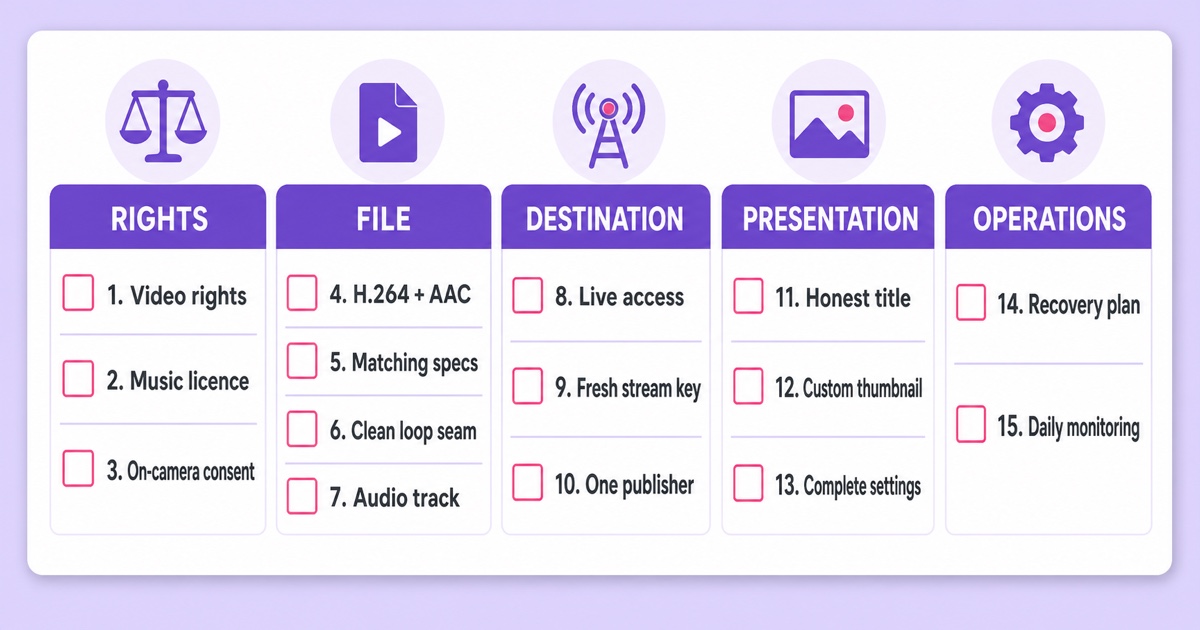
This live stream checklist catches those problems before the Start button turns them into an overnight incident.It has fifteen yes-or-no checks in five groups: rights, file, destination, presentation, and operations.Every “no” comes with a direct fix.
How to use this live stream checklist
Run all fifteen checks before the first launch and whenever you replace the video, playlist, destination, or stream key.Do not treat “I think so” as a pass: open the licence, inspect the file, view the actual settings, and test the public watch page.
After launch, keep checks 14 and 15 as a weekly ritual.Recovery and monitoring are not polish added after setup; they determine whether “always live” remains true while you are asleep, travelling, or away from the dashboard.
Rights: checks 1–3
1.Do you own or hold streaming rights to every video?
Pass: You created each visual, or a written licence explicitly permits its use in a continuous livestream.Keep the source agreement where you can retrieve it.
If no: Remove the file until the owner gives permission.Cropping a clip, adding a border, or crediting the creator does not create streaming rights.
2.Is every music bed cleared for livestreaming?
Pass: The licence covers livestreaming, continuous use, the intended platform, monetisation if relevant, and the territories you serve.Save the invoice, licence ID, track URL, and licence text together.
If no: Replace the track with music you own or a source whose terms cover this exact use.“Royalty-free” describes a licensing model; it is not automatic permission for a perpetual broadcast.Use the detailed guide to music you can legally stream 24/7 when auditing a playlist.
3.Has every identifiable person consented to appear?
Pass: Speakers, performers, guests, staff, and other featured people have consented to this livestream use, not just the original recording.For organisations, retain the relevant release or approval with the project files.
If no: Obtain consent or edit the person out before launch.A loop repeats the same rights mistake on every cycle, so ambiguity becomes more exposure rather than less.
The file: checks 4–7
4.Is the delivery file H.264 video plus AAC audio in MP4?
Pass: The video codec is H.264, the audio codec is AAC, the container is MP4, and the pixel format is yuv420p.These are safe, broadly compatible delivery choices for a cloud loop.
If no: Re-export or transcode a delivery copy; keep your master untouched.The best video format for 24/7 streaming guide explains why the container, codecs, pixel format, and audio all matter.
5.Do all playlist files have identical technical specs?
Pass: Resolution, frame rate, pixel format, audio sample rate, and codec profile match across every item.Confirm them rather than trusting filenames or export presets.
Run this command on each file and compare the results:
ffprobe -v error -show_entries stream=codec_name,profile,pix_fmt,width,height,r_frame_rate,sample_rate -of default=noprint_wrappers=1 file.mp4
If no: Normalise the odd files to the same delivery preset.Mixed specs can force a transition, reinitialisation, or failure at precisely the point where the playlist changes item.
6.Does the last ten seconds flow into the first ten?
Pass: Play the last ten seconds immediately followed by the first ten and listen as carefully as you watch.There is no black flash, cut-off word, duplicated beat, abrupt volume change, or visible jump you did not intend.
If no: Adjust the edit, add a short transition, or choose endpoints with compatible movement and sound.Test the exported delivery file, because the edit timeline is not the file the streaming service will loop.
7.Is there an audio track, even when the visual is meant to be silent?
Pass: Your probe result shows an audio stream.For silent signage or ambient visuals, that can be a properly encoded silent AAC track.
If no: Add a silent audio track during export.This keeps the media structure predictable and avoids discovering after launch that a downstream path expected both video and audio.
Once the file passes, test the actual ingest rather than guessing from an export panel.The 10-minute bitrate test gives you a short preflight for the connection and destination.
The destination: checks 8–10
8.Is live access enabled and ready now?
Pass: The channel is verified, has no applicable live-streaming restriction, and Live Control Room opens without an activation prompt.For a first encoder stream, YouTube says enabling live streaming may take up to 24 hours; clear that wait before launch day.
If no: Enable live access and wait for confirmation.Do not promise a start time while the channel is still being activated.
9.Did you freshly copy the correct stream key?
Pass: Copy the key from YouTube Studio → Create → Go live → Stream, paste it into the publisher, and check that no leading or trailing whitespace came with it.Store it only where you would trust a password for the channel.
If no: Copy it again from Live Control Room.If the key has appeared in chat, a screenshot, a document with broad access, or source control, reset it before proceeding.
10.Is exactly one publisher sending to that key?
Pass: Only the intended cloud service, encoder, or workstation is configured to publish to this stream key.An old OBS scene, VPS process, or scheduled automation is not still active.
If no: Stop the extra publisher or assign it a different destination.Two senders competing for one key can make the ingest switch, reject a connection, or behave unpredictably.
Presentation: checks 11–13
11.Does the title describe what viewers are actually seeing?
Pass: A recorded loop is described as a replay, loop, radio, recorded service, or always-on stream as appropriate.It does not say “live from” a place or event when nothing is happening there now.
If no: Rewrite the title plainly.Pre-recorded streaming can be useful without pretending that recorded footage is happening in real time; this guide to how pre-recorded live works explains the distinction.
12.Did you upload a custom thumbnail?
Pass: The selected thumbnail is intentionally designed for the stream, readable on a phone, and consistent with the title.Check the small preview, not only the full-size artwork.
If no: Upload a custom thumbnail before publishing.An automatically chosen frame can catch a transition, blur, closed eyes, or an empty scene and makes a poor first impression.
13.Are the description and platform settings complete?
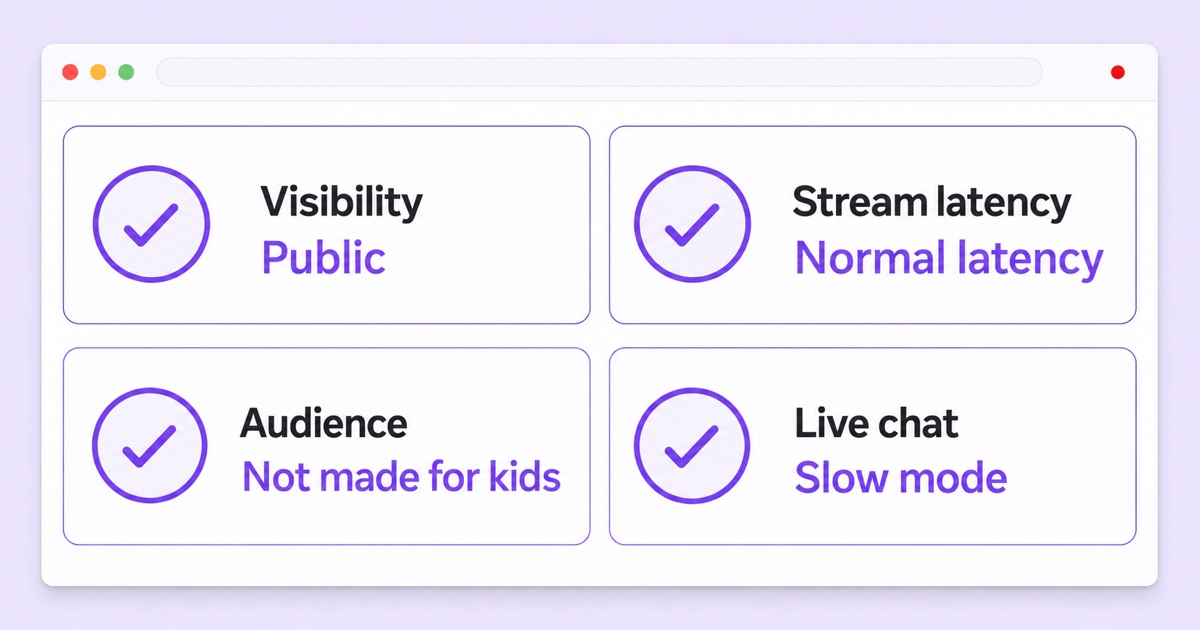
Pass: The description says what the stream contains, when or how it updates, the relevant credits and licences, and useful links.In YouTube Studio → Create → Go live, verify visibility, stream latency, DVR, audience, chat, and monetisation rather than inheriting them blindly from an old event.
Choose public, unlisted, or members-only intentionally using this visibility guide.For a non-interactive loop, YouTube identifies normal latency as the appropriate high-quality option; lower latency trades away buffer for faster interaction.Decide whether viewers should be able to rewind with DVR.
Answer “made for kids” based on the content and intended audience, not on whether children might encounter it.For an unattended stream, disable chat or configure moderation, blocked words, slow mode, and trusted moderators before viewers arrive.If the channel is in the YouTube Partner Programme, confirm the monetisation choices rather than assuming they copied over.
If no: Save the event as a draft, complete every field, then review it once from top to bottom.Reused settings save time only after you verify what was reused.
Operations: checks 14–15
14.Is there a tested recovery plan?
Pass: You know what detects a dead push, what restarts it, how long that action waits, and who receives the alert if automation cannot recover.The plan also says whether the existing watch page should be reused.
If no: Write the sequence and test it during an unlisted stream by deliberately stopping the sender.The auto-restart guide separates useful recovery from a process that merely retries forever.
15.Is daily monitoring assigned?
Pass: Once a day, someone spends 30 seconds opening the live page from a logged-out device, checking that picture and sound are current, and reviewing the platform’s stream-health panel.YouTube exposes stream health and specific error messages in Live Control Room.
If no: Put the check on a named person’s schedule or connect a managed alert.A green publisher dashboard is not a substitute for the viewer’s actual watch page.
Recovery and monitoring are what a managed service is actually for.StreamNeo runs the loop in the cloud and provides a managed path instead of leaving an unattended laptop to carry the broadcast; the ₹49/day option is available for a first test run.Review the current pricing, then Start free — 24-hour trial, no card.
The printable 15-check card
Screenshot this card and mark every box before launch.The order matches the full checks above.
- Video rights: every file is owned or licensed for streaming.
- Music licence: livestream permission and licence proof are saved.
- On-camera consent: every identifiable person has approved this use.
- File format: MP4 contains H.264, AAC, and yuv420p.
- Matching specs: every playlist item uses the same technical settings.
- Loop seam: the last ten seconds flow cleanly into the first ten.
- Audio track: the file includes AAC audio, even if it is silent.
- Live access: the channel is enabled and any waiting period is over.
- Stream key: it was freshly copied, trimmed, and stored safely.
- One publisher: no second encoder is pointed at the same key.
- Honest title: recorded material is not presented as happening now.
- Custom thumbnail: the chosen image is readable on a phone.
- Complete settings: description, visibility, latency, DVR, audience, chat, and monetisation are checked.
- Recovery plan: detection, restart, alert, and ownership are tested.
- Daily monitoring: the logged-out watch page and stream health are checked.
The checklist exists because every item on it has ruined somebody’s first week.A deliberate preflight is much cheaper than diagnosing the same omission after the loop has been running unattended.
FAQ
What should I check right before starting a 24/7 stream?
Check rights, file specs, the loop seam, audio, live access, stream-key hygiene, one-publisher status, honest metadata, platform settings, recovery, and monitoring.Run the fifteen checks above in order so an easy item does not hide a critical one.
How do I know my file will loop cleanly?
Play its last ten seconds immediately into its first ten and watch and listen for a flash, jump, clipped word, duplicated beat, or volume change.Also confirm codecs, pixel format, frame rate, resolution, and sample rate with the ffprobe command above.
Do I need a custom thumbnail for a live stream?
Yes.A custom thumbnail lets you choose a clear, accurate frame that matches the title and remains understandable on a phone.An automatic frame may land on a transition, blur, or empty scene, so it should not be your default.