rtmp://a.rtmp.youtube.com/live2 is YouTube's public primary RTMP ingest address. It is the same address for every channel; it is not a secret and it is not your stream key.
Your key is the private credential that tells YouTube which channel should receive the video. Most setup failures happen because those two values were pasted into the wrong fields, joined incorrectly, or copied with an invisible extra character.
What rtmp://a.rtmp.youtube.com/live2 actually is
Think of the URL as the entrance to YouTube's live-video receiving system. Your encoder—OBS, FFmpeg, a hardware encoder, or a cloud loop service—opens an RTMP connection to that entrance and sends a continuous feed of video and audio.
The address has three useful parts. rtmp:// selects the Real-Time Messaging Protocol, a.rtmp.youtube.com is YouTube's primary ingest host, and /live2 is the application path. If you want the plain-language protocol explanation first, read what RTMP means for a 24/7 streamer.
The address alone cannot identify your channel. YouTube pairs it with a unique stream key. That key should be handled like a password: do not place it in screenshots, support tickets, public commands, Git repositories, or a livestream description. If it leaks, reset it rather than hoping nobody uses it.
Where the URL and stream key live in YouTube Studio
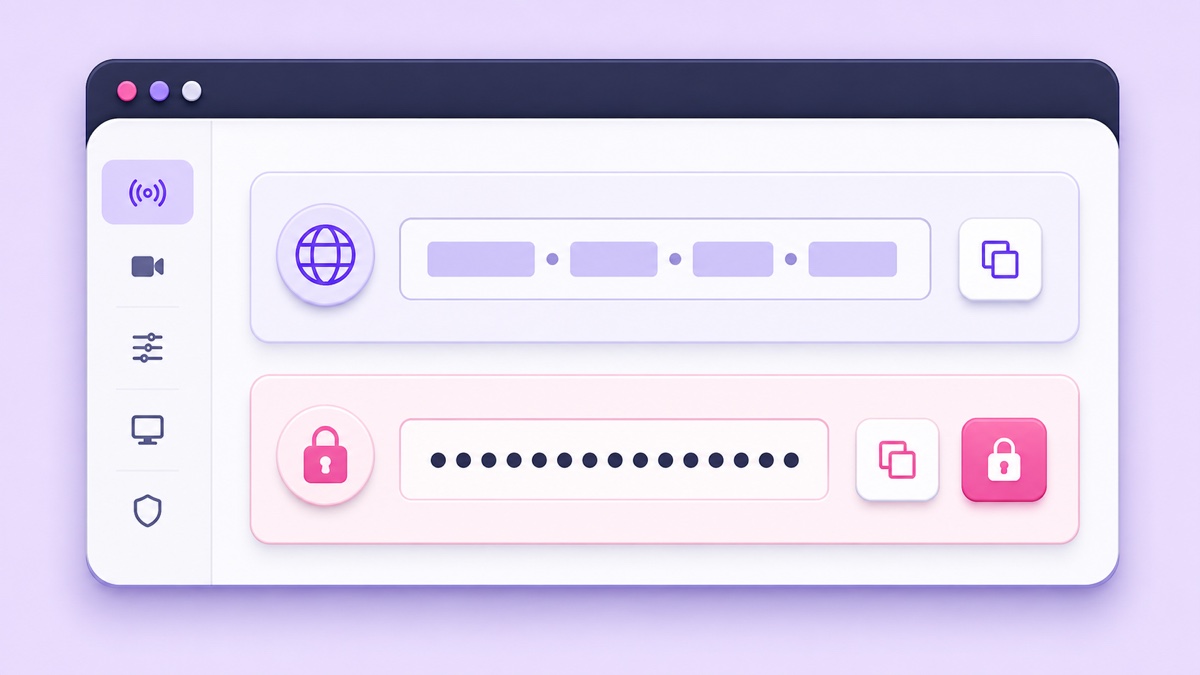
On a computer, use the current documented path: YouTube Studio → Create → Go Live → Stream. In Live Control Room, open Stream settings. You will see a Stream URL with a copy control and a Stream key with reveal and copy controls.
If this is your first encoder stream, YouTube may ask you to create the stream before those settings appear. On later visits, Studio can load the previous stream settings and key. You can also create a custom reusable key, but the secrecy rule does not change.
Google documents this encoder workflow for a computer. If you are phone-only and the mobile browser shows a reduced Studio page, open studio.youtube.com and request the browser's desktop site. Treat that as a browser workaround, not a native mobile Studio flow; the layout can be cramped, so zoom carefully and use the copy buttons instead of selecting characters by hand. The full official sequence is in YouTube's encoder setup guide.
Never publish an uncensored screenshot of this panel. Blur the entire key, not just its middle, because even a partial credential gives an attacker useful information. For a more detailed key-safety walkthrough, use our YouTube stream key guide.
Two fields or one joined destination
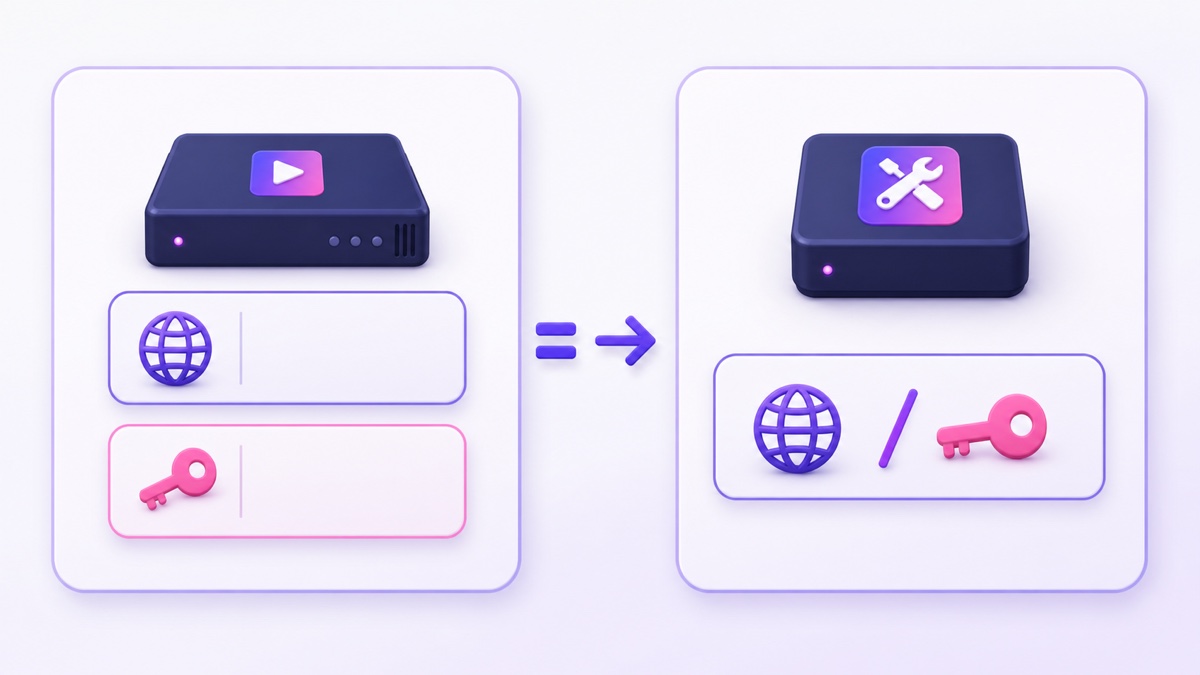
Before pasting anything, inspect the labels in your encoder. There are only two valid shapes.
Shape 1: separate fields
OBS-style tools ask for two values:
- Server:
rtmp://a.rtmp.youtube.com/live2 - Stream Key:
xxxx-xxxx-xxxx-xxxx-xxxx
Do not add the key to the Server field in this layout. Do not add a leading slash to the Stream Key field. The encoder combines them internally.
Shape 2: one combined field
FFmpeg commands and some cloud dashboards ask for a complete destination. Join the server and key with exactly one slash:
rtmp://a.rtmp.youtube.com/live2/xxxx-xxxx-xxxx-xxxx-xxxxThe sample x characters are placeholders, not a usable key. Replace only that placeholder with the value copied from your own Live Control Room.
Tools built specifically for 24/7 loops often ask only for the stream key and supply YouTube's public URL themselves. That removes the server/key joining mistake while keeping the credential unique to your channel.
The three paste mistakes behind most failures
First, the values are reversed. A Server or RTMP URL field needs the value beginning with rtmp://. A Stream Key field needs the private hyphenated credential. If the field labels are vague, check the tool's destination example before guessing.
Second, the joining slash is wrong. A combined destination needs .../live2/xxxx.... The forms .../live2xxxx... and .../live2//xxxx... point to the wrong path. In a two-field tool, however, you should not add that joining slash yourself—the software does it.
Third, the copy includes whitespace. A trailing space or newline looks harmless but may be treated as part of the key. This often happens when a key is copied through a note, spreadsheet, chat message, or password manager.
Here is the ten-second check: paste the key into a temporary plain-text field, place the cursor after its final visible character, and press the right-arrow key. If the cursor moves through blank space or onto another line, remove that character. Confirm there is no space before the first character either, then paste the clean value directly into the encoder. Do not save that temporary note.
The backup ingest and when it matters
YouTube exposes a backup ingestion address for redundant publishing. The standard RTMP backup address currently shown by encoders and Live Control Room is rtmp://b.rtmp.youtube.com/live2?backup=1. YouTube's Live Streaming API separately returns primary and backup ingestion addresses, so the safest practice is to copy the backup value shown for your stream rather than type it from memory.
The backup feed uses the same stream key as the primary feed. It is not a spare key and it is not a server you switch to manually after the primary has already failed. Proper redundancy means a second encoder or a second simultaneous output sends a matching feed to the backup address while the primary feed is running.
That distinction matters for a simple file loop. If your encoder can send only one output, entering the backup address instead of the primary does not create redundancy. You still have one process, one internet path, and one point of failure. A backup ingest is valuable for a high-stakes event with dual encoders or genuinely separate paths; most single-file 24/7 setups should first make one primary publisher reliable.
Use RTMPS when port 1935 is blocked
Plain RTMP normally connects on TCP port 1935. Office, campus, hotel, and managed Wi-Fi networks sometimes block that port. The tell is a connection timeout on that network while the same encoder and key work through a Jio or Airtel mobile hotspot.
YouTube also accepts encrypted RTMPS on port 443. In Live Control Room, go to Stream settings → Stream URL and use the lock control to reveal and copy the RTMPS URL. The current standard primary shape is rtmps://a.rtmp.youtube.com:443/live2, but use the exact value Studio supplies. Both the protocol and hostname must be the RTMPS version; changing only rtmp to rtmps in a guessed URL can produce certificate or connection errors.
Your encoder must support RTMPS. If it offers a YouTube RTMPS preset, choose that and paste the key when requested. Otherwise paste Studio's RTMPS server URL into the server field. YouTube's official RTMPS instructions confirm port 443 and the Live Control Room lock-icon flow.
Decode the error before changing settings
| Error or symptom | Likely layer | First check |
|---|---|---|
Failed to connect to server or Cannot open connection tcp://a.rtmp.youtube.com:1935 | Network, DNS, firewall, or port | Test a hotspot; then try Studio's RTMPS URL on 443 |
Publish Rejected or invalid-key message | Authentication | Re-copy the key, remove whitespace, and reset it if necessary |
Already publishing | Publisher conflict | Stop the old encoder or cloud job still using that key |
No data being received in Studio | No usable feed reached YouTube | Read the encoder log first; verify it is actually running |
Do not rotate the key because a TCP connection timed out; authentication has not happened yet. Likewise, do not change bitrate because YouTube rejected the credential. Start with the layer named by the error. Our publish-rejected error ladder goes deeper, while the Stream Health guide covers feeds that connect but arrive with quality warnings.
The last two gotchas: access and scheduled streams
Your channel must be verified, free of current live-streaming restrictions, and enabled for live streaming. YouTube says first-time activation may take up to 24 hours. No server URL can bypass that wait. Verify and enable live access before a planned broadcast, not five minutes before it.
Scheduled broadcasts add another mapping. Open Go Live → Manage, select the intended broadcast, and confirm which stream key it uses. Start the encoder with that key, wait for the preview to appear in that broadcast's Live Control Room, then click Go live when YouTube presents the manual start control. If the encoder uses a different reusable key or you opened the wrong scheduled event, a perfect server URL can still feed the wrong stream or leave the expected event showing no preview.
Once the URL shape, key, network path, live eligibility, and scheduled-event mapping are correct, there is little mystery left. If you want a managed loop publisher that supplies the destination and keeps the encoder off your phone or laptop, Start free — 24-hour trial, no card.
More from the journal: 24/7 YouTube Streaming: The Complete 2026 Guide · Running Two or Three 24/7 YouTube Channels Without Losing Track · Testing a 24/7 Setup Before You Commit: A 48-Hour Burn-In · Reused Content and 24/7 Loops: How to Protect Your YouTube Channel
FAQ
Is rtmp://a.rtmp.youtube.com/live2 the same for everyone?
Yes. It is YouTube's public primary RTMP ingest address and is shared by channels. Only your stream key identifies and authorizes publishing to your channel, so keep that key secret.
Do I put the key at the end of the URL?
Only when the tool asks for one combined destination. Use rtmp://a.rtmp.youtube.com/live2/YOUR-KEY in that case. OBS-style tools keep the Server and Stream Key in separate fields and join them internally.
Why does the connection fail on my office Wi-Fi?
Its firewall may block RTMP's usual TCP port 1935. Test the same setup on a mobile hotspot. If that works, copy YouTube's RTMPS URL from Live Control Room and use it on port 443 with an RTMPS-capable encoder.