You should not need to guard an open laptop just to keep a recorded bhajan, study soundtrack, or ambience loop live.If closing the lid ends the broadcast, the problem is not YouTube itself.It is where your encoder is running.
The durable solution is simple: move the encoder away from the laptop.Once a desktop, VPS, or managed cloud service is sending the video, your laptop becomes a remote control rather than a piece of broadcast infrastructure.You can finish the setup, verify the feed, close the lid, and use the machine normally.
Why closing the lid kills your stream
OBS is an encoder.It reads your video and audio, turns them into a continuous live feed, and sends that feed through your internet connection to YouTube.YouTube is receiving the signal; it is not pulling the original file from your laptop.
Closing a laptop lid usually triggers sleep.Sleep pauses applications, suspends most processing, and interrupts normal network activity.OBS therefore stops sending fresh audio and video packets.Turning only the display off is different: the screen can be dark while the operating system and OBS continue working.
YouTube’s encoder guide describes the encoder as the source that sends the stream, while its live-stream error guide explains that Live Control Room monitors the incoming feed and reports critical input problems.YouTube does not publish a fixed, guaranteed grace period that creators should rely on after an encoder disappears.In practice, viewers first see a stalled or interrupted feed; if input does not return, the broadcast can end.Treat any reconnect window as emergency tolerance, not a laptop-off feature.
The useful distinction: display off is fine, sleep is not.Laptop off is possible only when another machine is doing the encoding.
The keep-awake toolbox (and its ceiling)
Keep-awake settings are legitimate for a two-hour webinar, a long recording session, or a short overnight test.They remove one predictable failure: idle sleep.They do not turn a home laptop into unattended infrastructure.
Windows: change the lid and sleep actions
Open Control Panel → System and Security → Power Options → Choose what closing the lid does.Set the plugged-in lid action to Do nothing, then review the sleep timer under power settings.Microsoft documents the same lid controls in its sleep and power guide.
Keep the laptop connected to power, but do not bury it in a drawer or on a bed.A closed lid can change airflow on some models.Check the manufacturer’s guidance, keep vents clear, and watch CPU temperature during the first long run.
macOS: prevent idle sleep for a short run
On a Mac, go to Apple menu → System Settings → Battery → Options and enable Prevent automatic sleeping on power adapter when the display is off if your model offers it.Apple notes that preventing sleep increases power use in its sleep and wake settings guide.
For a temporary session, open Terminal and run caffeinate -i.Leave that Terminal process running while OBS streams.This prevents idle system sleep; it does not make shutdown safe, guarantee closed-lid operation on every Mac, or protect against a restart.
What these fixes still cannot solve
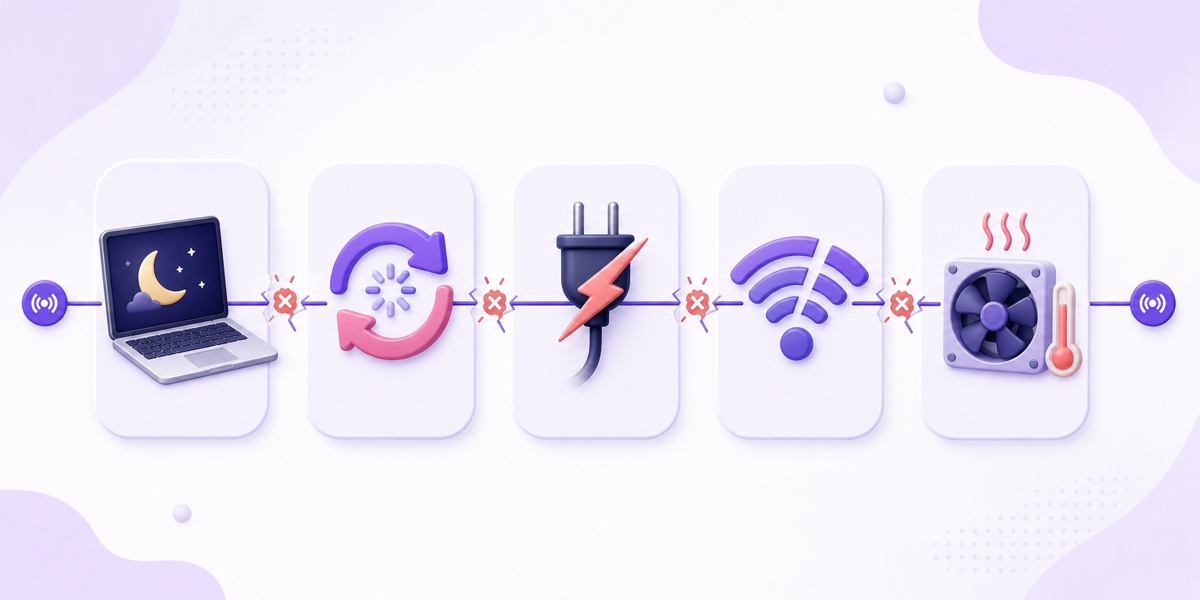
- Forced restarts and updates: an operating-system restart stops OBS even when sleep is disabled.
- Power cuts: a laptop battery buys time, not an indefinite backup.The router also needs power.
- Wi-Fi or ISP drops: OBS cannot send through a dead upstream connection.
- Heat: sustained encoding creates load.Dust, blocked vents, high room temperature, and an ageing battery make that harder to manage.
- Human interruption: someone can close an app, move the charger, reboot the router, or take the laptop.
Laptops can handle long workloads when cooled and powered correctly; there is no need for scare stories.The honest issue is operational: the more hours you run, the more chances a household device, connection, or person has to interrupt the feed.
What “off” actually requires
To keep a live stream running with your laptop off, the encoder must live somewhere else.There are three practical homes for it.
A desktop you sacrifice to the job
A spare desktop running OBS or ffmpeg lets the laptop switch off, but the home power and internet risks remain.It makes sense when the desktop is already available, wired to the router, and used for nothing else.You still own every update, restart, and recovery.
A VPS you administer
A virtual private server runs in a data centre and can loop a compatible video with ffmpeg.It gives technical users control and can be economical, but you must handle Linux, storage, bandwidth allowance, process supervision, monitoring, logs, and stream-key security.Read the full VPS versus managed-service cost and effort breakdown before choosing it only by the monthly server price.
A managed cloud loop service
A managed service gives you an upload interface, a place to enter the destination key, and a remote encoder designed to keep the file looping.Your home upload connection is used while transferring the file, not for every hour the stream remains live.The trade-off is a subscription and dependence on the provider, so look for visible status, monitoring, restart behaviour, and reachable support rather than an impossible promise that nothing will ever fail.
If you want the broader setup without local hardware, this guide to streaming 24/7 without a PC explains the architecture in more detail.
The migration in five steps
Here is the StreamNeo route.It is the same architectural move with any managed loop service: the file and encoder leave your laptop, while your YouTube destination stays the same.
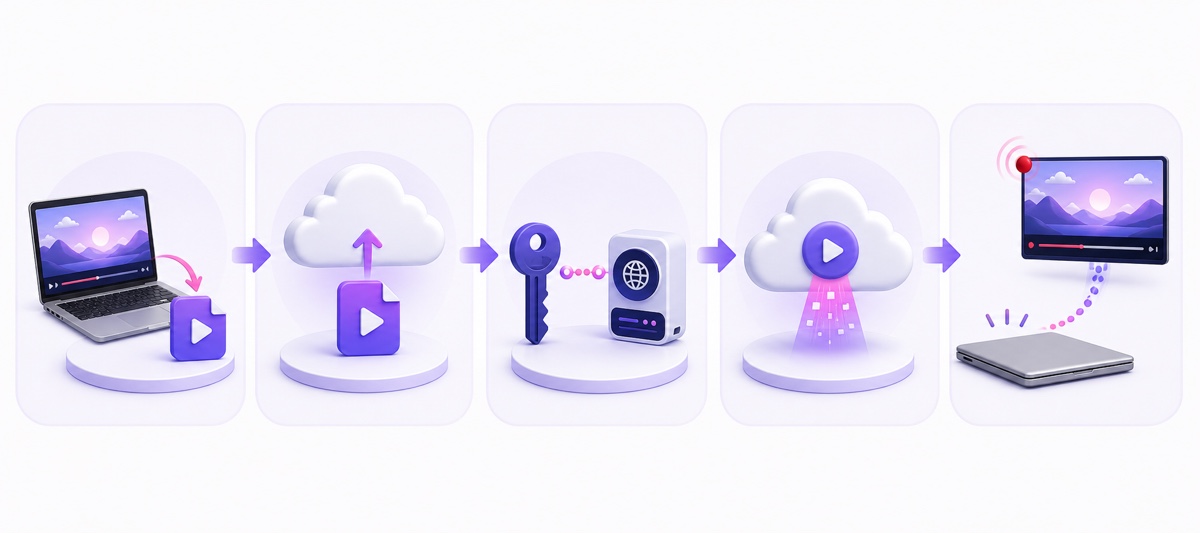
- Export a stream-ready file. Use an MP4 with H.264 video and AAC audio for the least friction.Start with a manageable loop instead of a huge library, play the complete file once, and confirm that the last frame returns cleanly to the first.Stream only material you own or are authorised to rebroadcast.
- Upload it fully. After creating your trial, open StreamNeo Dashboard → Videos → Upload Video, choose the file, and let final processing finish.Do not close the laptop during the upload.Once the file is stored remotely, ongoing streaming no longer uses your laptop or home connection.
- Copy and paste the YouTube stream key. Open YouTube Studio → Create → Go Live → Stream.Under Stream settings, copy the key.Then open StreamNeo Dashboard → Streams → select your slot → YouTube and paste it without extra spaces.A stream key is a password for publishing to your channel: never place it in a screenshot, document, or support message.
- Select the video and start. Choose the uploaded file for the slot and click Go Live Now.Keep the laptop open for the initial check.In YouTube Live Control Room, confirm that preview appears, stream health is stable, and the expected audio is present.
- Verify independently, then close the lid. Open your channel’s live watch page in another browser or on your phone.Listen as well as look.When both the cloud dashboard and YouTube show a healthy live feed, close or shut down the laptop.Refresh the watch page from your phone after a minute: the broadcast should continue because its encoder is now in the cloud.
The satisfying part is deliberately uneventful.The fan goes quiet, the desk is free, and the live page keeps moving.That is the proof that the architecture changed.
What changes operationally
Your laptop’s updates, sleep state, charger, Wi-Fi, and temperature stop being broadcast dependencies.They can interrupt an upload or prevent you from checking the dashboard, but they cannot stop an already-running remote encoder merely because the laptop went offline.
Your routine becomes lighter, not nonexistent.Check the service dashboard and the public watch page from your phone.Confirm the actual picture and sound, not only a green status dot.Keep notifications enabled, retain a known-good copy of the source video, and know where to rotate the YouTube key if it is exposed.
Recovery also moves to the remote system.A good service should detect a dead encoder process, restart it with controlled backoff, and show you what happened.That is different from promising perfect uptime.Our plain-English guide to live-stream auto-restart lists the recovery behaviour worth checking before you trust any provider with a permanent channel.
The cost of getting your laptop back
There is no universally cheapest route.A spare desktop can have no new rental bill, but it still consumes electricity and attention.A small VPS can have a low sticker price, but bandwidth, storage, setup time, and monitoring belong in the calculation.A managed service costs more than doing every task yourself and less than repeatedly carrying an operations pager you never wanted.
StreamNeo offers a 24-hour trial without a card.After that, Indian pricing is ₹49 for a day or ₹999 for a month; international monthly pricing is $9.99.The daily option suits a focused test, while the monthly plan is the sensible comparison for an always-on channel.See the worked assumptions in the guide to the cheapest ways to stream 24/7, then compare them with your own electricity tariff and value of time.
Price the outcome, not just the server: the laptop is available for editing and normal work, the home connection is no longer pushing video all day, and recovery is no longer tied to who is awake near the desk.
Start free — 24-hour trial, no card
More from the journal: 24/7 Live Stream Settings in YouTube Studio: Every Toggle Explained · Multiple Broadcasts, One Channel: Managing Concurrent 24/7 Streams · Playlists, Chapters and the Watch Page: Making a 24/7 Loop Discoverable
FAQ
Can OBS stream with the laptop lid closed?
Only if closing the lid does not put the laptop to sleep.Windows lets you set the plugged-in lid action to Do nothing; Mac closed-lid behaviour depends on the model and setup.Even when OBS keeps running, the laptop, charger, home power, and internet remain part of the broadcast chain.This is workable for short streams, not the same as streaming with the laptop off.
Will my stream survive laptop sleep?
No, not when OBS or another software encoder is running on that laptop.Sleep suspends the encoder and its normal network activity, so YouTube stops receiving fresh audio and video.A dark display is harmless; system sleep is not.To survive laptop sleep, move the encoder to a spare desktop, VPS, dedicated appliance, or cloud service.
What is the cheapest laptop-off option?
If you already own an always-on desktop and accept home-internet risk, it may have the lowest new cash cost.A VPS can be cheaper for someone comfortable administering Linux and monitoring a stream.A managed service is usually easier to budget because encoding, looping, and recovery tools are bundled.Compare the complete monthly cost and your time, then test before committing.