Your back catalogue does not need another round of elaborate editing before it can become useful live programming. If you already have dozens of tutorials, devotional talks, lessons, interviews, or lofi sessions, the hard creative work is mostly done. The practical job is to choose a coherent block, recover clean files, check the rights, and make every file technically compatible.
This workflow shows how to repurpose YouTube videos into live stream programming without pretending the recordings are happening now. The goal is not to dump an entire channel into a random queue. It is to build a two-to-four-hour replay block that makes sense to someone who joins at any minute.
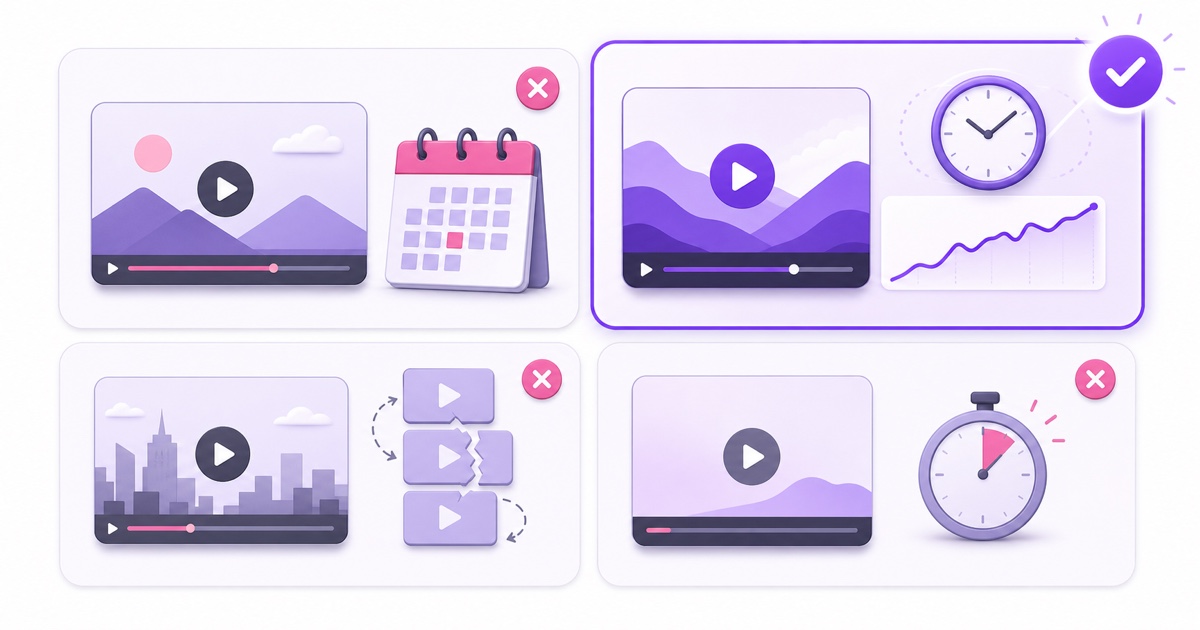
Pick the right eight videos, not all of them
Start in YouTube Studio → Analytics → Content. Open the detailed video table, set a useful period such as the last 365 days, and compare watch time with average view duration. Watch time reveals which videos already hold meaningful attention at scale; average view duration stops one viral click from hiding a weak viewing experience.
Choose roughly eight evergreen videos that serve the same viewer. A Hindi grammar channel might group lessons on sentence structure, while a devotional channel might build a morning prayer block. Do not mix unrelated winners merely because each has views.
- Prefer evergreen material: the advice, references, links, prices, and on-screen UI should still be valid.
- Prefer self-contained episodes: a mid-join viewer should understand the segment without watching part one first.
- Prefer sustained value: use retention and viewer feedback, not thumbnail click-through rate alone.
- Reject obvious expiry: remove festival dates, old promotions, discontinued offers, and news-style updates.
A focused two-to-four-hour block of strong material is easier to understand, test, and refresh than a 40-hour archive dump. Keep a reserve list for next month's rotation rather than using everything on day one.
Get the files back
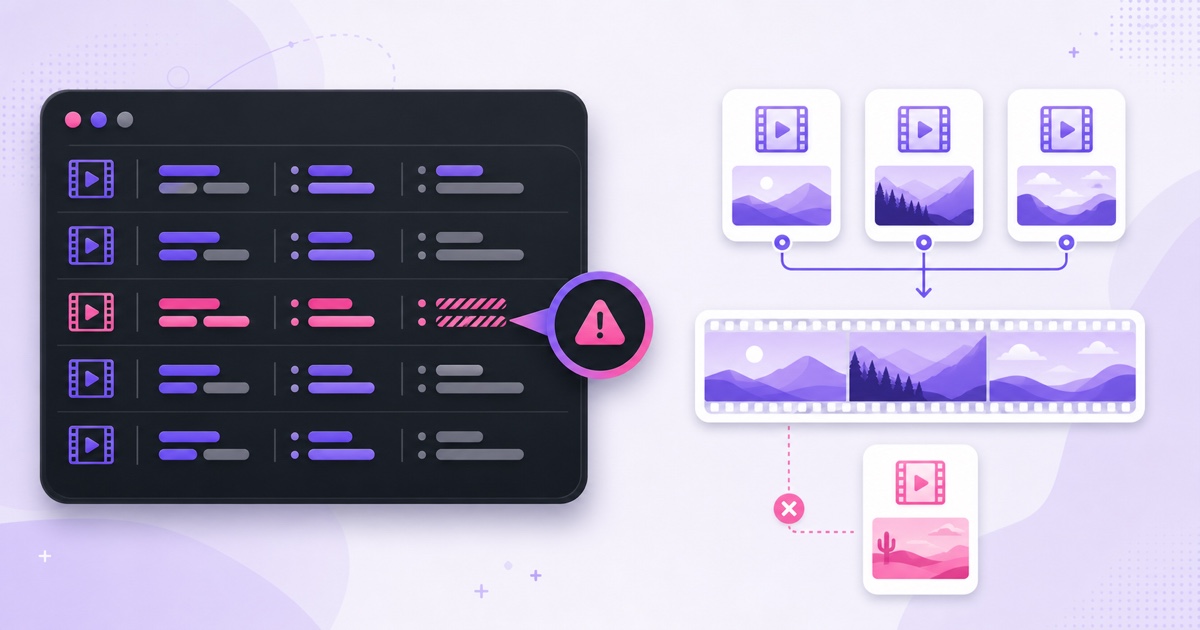
Use your original exports if you still have them. They preserve the quality and exact encoding choices you made before upload. Search project drives, creator folders, and archived SD cards before pulling platform copies.
For one or two missing files, go to YouTube Studio → Content, hover over the video, select ⋮ → Download, and save the MP4. Google's current help page says Studio downloads are supplied at 720p or 360p depending on video size, so treat this as a convenient platform copy, not a guaranteed master. Studio can also refuse a download in cases listed by YouTube, including certain strikes or preapproved audio tracks. The limits and exceptions are documented in YouTube's upload-download guide.
For a large library, use Google Takeout. Deselect everything, enable YouTube and YouTube Music, choose the YouTube data you need, include videos, create the export, and wait for the archive email. Google says Takeout videos arrive in their original format or as MP4 files with H.264 video and AAC audio. If a Brand Account's videos appear missing, switch to that Brand Account before making the export.
Record the source beside every recovered file: original export, Studio copy, or Takeout copy. That small note helps you choose the best version when duplicates have similar names.
Check rights and copyright before anything else
Owning the camera footage does not automatically clear every element inside it. Audit each selected video for music, stock footage, guest clips, screen recordings, fonts, and images. A licence that covered one edited upload may not cover a continuous broadcast or a different channel.
- Open YouTube Studio → Content → Restrictions and note any existing Content ID claim.
- Find the licence or receipt for every music and stock asset. Check platform, territory, duration, and live-broadcast terms.
- Replace uncertain music with audio you can document for continuous streaming.
- Ask the rights owner to allowlist the live channel where a valid licence requires Content ID handling.
YouTube scans live streams for third-party matches. The same risky music returns every time the loop cycles, so the exposure does too; that does not necessarily mean a separate claim is created on every pass. YouTube says Content ID claims on an archived live video are made after the stream ends, while an active live match can trigger warnings, interruption, or termination. Review music you can legally stream and the difference between a copyright claim and a strike before launch.
Make the files loop-safe
A clean playlist needs one technical target. Match resolution, frame rate, video codec, pixel format, audio codec, sample rate, and channel layout across the set. For a practical 1080p target, that could mean 1920×1080, 30 fps, H.264, yuv420p, AAC, 48 kHz, and stereo. The exact target can differ; consistency is what makes direct concatenation reliable.
Run this check on every candidate file:
ffprobe -v error -show_entries stream=codec_name,width,height,r_frame_rate,pix_fmt,sample_rate -of default=noprint_wrappers=1 file.mp4
Compare the output line by line. A file showing 25 fps among 30 fps videos, 44.1 kHz audio among 48 kHz files, or a different pixel format is the odd one out. Re-encode only that file to the chosen target. Also play the first and last five seconds to catch black frames, abrupt speech cuts, and audio clicks that a metadata check cannot see.
You can concatenate matched files into one MP4 or keep them as a matched playlist. A single block is simple to upload and preserves a fixed running order. A playlist is easier to refresh one item at a time. The complete trade-off and setup are covered in this looping playlist guide.
Build a running order for mid-join viewers
A live viewer rarely arrives at the beginning. Open every segment as if it is the first thing that person sees. Remove videos whose opening depends on “as I said in part one,” or place them next to a short context card that explains the series without requiring a precise start time.
Sequence the block by viewer energy: a clear flagship piece first, deeper material next, and a calmer segment before the loop returns. Insert a simple 10-second bumper between videos. It can show the channel identity and that another replay is coming; it should not make a false countdown or claim the recording is happening now. If you want baked-in clocks or now-playing bars, use the overlay burn-in workflow and keep labels accurate.
Watch the entire seam from the last 20 seconds of the final video through the first 20 seconds of the first one. Normalise obvious volume jumps, but do not crush every programme into the same loudness at the expense of speech clarity.
Go live and label it truthfully
Create the destination in YouTube Studio → Create → Go live → Stream. Use a specific title such as Hindi grammar lessons — 24/7 continuous replay. In the description, state that the stream contains recorded replays, explain the schedule, and link to the original uploads or playlist. “Replay,” “recorded sessions,” and “continuous rotation” are clearer than presenting the programme as a live performance.
Set the correct audience and visibility, then copy the stream key only into the encoder or service you control. Keep the key private. Start unlisted first, inspect audio sync and stream health from another device, and switch to public after one complete transition looks clean.
With StreamNeo, upload the matched block once, paste the YouTube stream key, and start the loop from the cloud so your laptop does not have to remain awake. Refresh the programme monthly: retire a tired segment, add one strong evergreen upload, and update the description links.
Start free — 24-hour trial, no card.
Understand the monetisation caveat
Running replays of work you created is not automatically prohibited. Monetisation is a separate question from whether a compliant live stream may exist. YouTube reviews a monetised channel for original, authentic value and may examine its main theme, most-viewed and newest videos, largest sources of watch time, metadata, and About section.
A bare copy of old uploads on a second channel can attract scrutiny even when you own every frame. YouTube's reused-content policy is also separate from copyright permission. Make authorship obvious in the channel description, connect the live programme to the original library, use a meaningful editorial running order, and add genuine viewer utility such as clear chapters in the description or scheduled themed blocks. None of those steps guarantees acceptance.
Do not re-upload each old file as a supposedly new on-demand video. A continuous, honestly labelled live replay is a different viewing surface, but its channel still has to satisfy YouTube Partner Programme policies. Read the detailed guide to monetising a 24/7 loop before making revenue plans.
Know what this actually buys you
The mechanism is straightforward: one permanent live surface can expose a curated part of your library while your original uploads remain available individually. A viewer may enter through the live page, discover a useful segment, and follow the description link to its full upload or playlist.
It also gives dormant work a programme structure. You can compare which segments hold mid-join viewers, replace weak transitions, and rotate the block without producing eight new videos. It does not guarantee viewers, watch hours, recommendations, or monetisation. The value comes from better packaging and availability, followed by honest measurement.
Review the first week by segment: concurrent-viewer changes, average watch time, chat questions, clicks to originals, stream-health warnings, and any copyright notices. Use those signals to improve the next monthly rotation instead of simply making the loop longer.
FAQ
Can I download my own YouTube videos?
Yes. For one-offs, use YouTube Studio → Content → ⋮ → Download. For a bulk archive, use Google Takeout with YouTube videos selected. Studio currently provides 720p or 360p MP4 copies, while Takeout may provide the original format or an H.264/AAC MP4, so prefer your original export when available.
Will YouTube treat a loop of my old videos as reused content?
Not automatically, but ownership alone does not guarantee monetisation. YouTube reviews the channel's originality, authenticity, repetition, added value, and metadata separately from copyright. A minimally repackaged second channel deserves extra caution; document authorship and give the live programme a real editorial purpose.
Do I need to re-edit everything?
No. Most libraries need selection and technical normalisation, not a creative rebuild. Match the export specs, replace any uncleared audio, add a short truthful bumper between segments, test the final-to-first seam, and re-encode only the files that do not match your chosen target.